How-to guide
Roll out Shuffl to your company
One order for launching Shuffl: get Mello ready, invite people, tell your team, then turn on programs and watch the first week.
For HR administrators and company owners
Have your agent do thisPaste the prompt into Claude Code, Cursor or another agent. It follows this guide over MCP and asks before it changes anything others will see.Show the promptHide the prompt
Help me with "Roll out Shuffl to your company" in my Shuffl workspace.

1. Read the guide: https://shuffl.ai/docs/markdown/rollout
2. Add Shuffl's MCP server: https://shuffl.ai/api/mcp
   Claude Code: claude mcp add --transport http shuffl https://shuffl.ai/api/mcp
   When the browser opens, choose my workspace and allow the access the guide needs.
3. Work through the steps in order: Before launch: get Mello ready; Ask Mello what your team will ask; Turn on programs in order; The first week: where to look and what to fix. Do what you can over MCP and tell me which steps only I can do in the browser or in Slack.

Show me what you will change and who it affects, and wait for my yes before publishing, inviting or sending anything.
On this page
App links open your signed-in workspace. Check the selected workspace before making changes.
Before launch: get Mello ready
- Open Workspace setup from the HR workspace (Settings → Setup) and choose Connect Slack.
- Everyone in your Slack workspace appears in People, waiting for access. Leave them waiting: turning access on sends each person a welcome message.
- Add the 5 to 10 policies people ask HR about most, such as time off, expenses and benefits.
- Start from a template or import your own file, check the text, set the audience to Everyone in this workspace and publish.
- Choose who answers HR requests. Owners are HR responders from the start.
- In People, turn on HR responder for the rest of the HR team, and Knowledge verifier for reviewers who aren’t administrators.
- If another app already runs coffee chats, shoutouts or celebrations in your Slack, use Bring them over in workspace setup so nothing runs twice.
Do this a week or two before anyone else hears about Shuffl. Nothing here messages employees, so you can take your time.
Ask Mello what your team will ask
- Write down the ten questions HR hears most often, in employees’ words, like “how many days off do I get?”.
- Ask each one in Chat, and a few in a direct message to Shuffl in Slack. A cited answer also completes Try Mello in workspace setup.
- Open Supporting sources on each answer. If Mello found nothing or cited the wrong policy, fix the source: publish it, add the missing detail, or widen its audience.
- Ask again until every question gets a cited answer. Reviewers see more than employees, so check each source’s audience.
Invite people and choose who manages
Choose one way in for most people, and get it ready now so it can be switched on at launch.
Slack: everyone is already in People. On launch day, enable them in People with Enable access for N people.
Email domain: verify your domain in Settings → Workspace → Integrations → Email domains, and anyone signing in with that work email joins with access. DNS can take a while, so verify it ahead.
SCIM: connect your identity provider in Settings → Workspace → Integrations → Provisioning and assign the people or groups that belong in Shuffl. Until you choose who gets workspace access, they arrive with access suspended.
Invitations suit a small group or a pilot: People → Invite, or Invite all beside it. Each is sent at once.
Keep administrators few: two or three people who run HR and IT. Company roles live in Settings → Company → Members, and HR responders and Knowledge verifiers don’t need to be administrators.
Launch: tell your team
Pick a day and send the announcement from someone people know, in a channel everyone reads and by email for anyone who doesn’t use Slack. Shuffl never posts it for you.
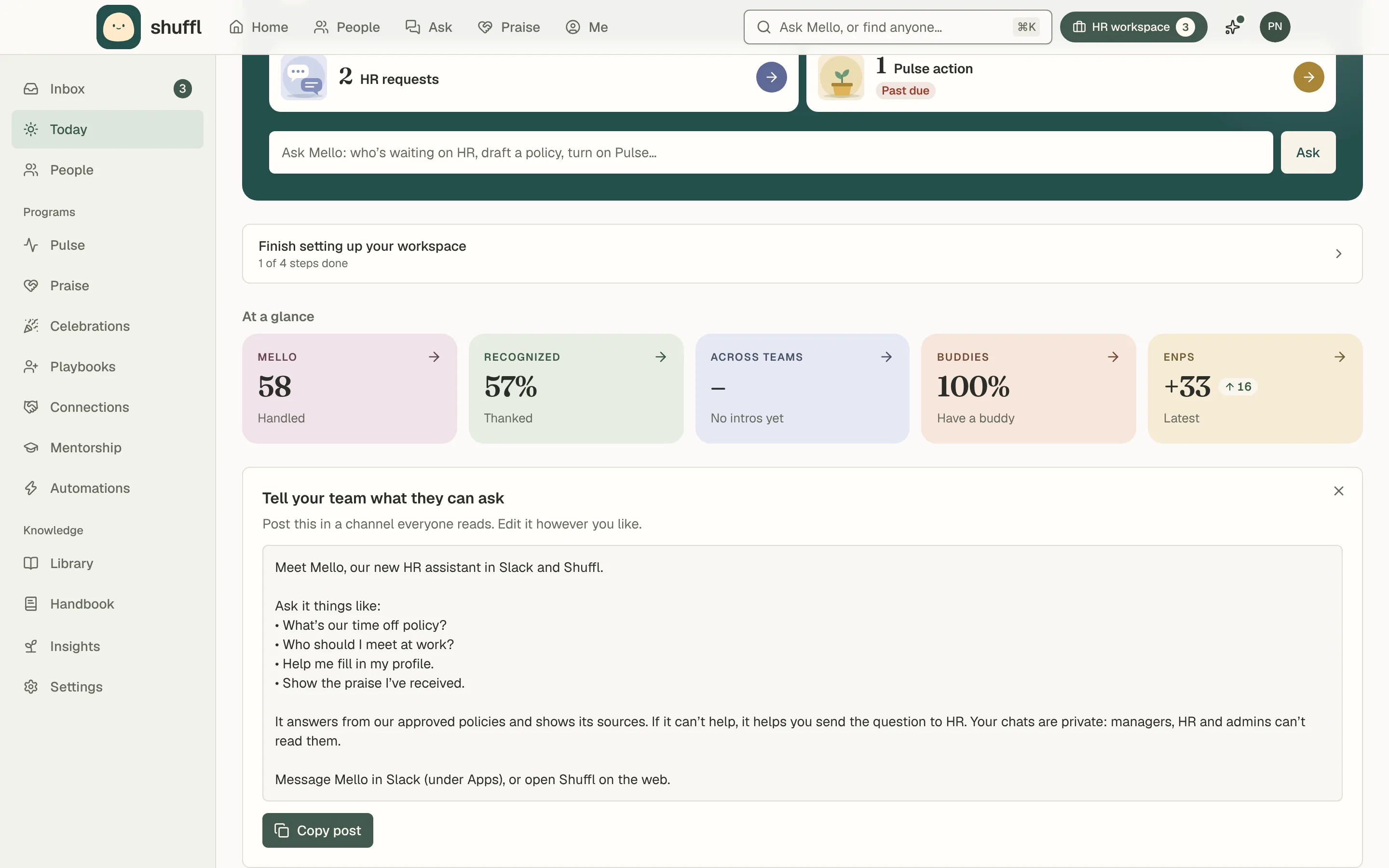
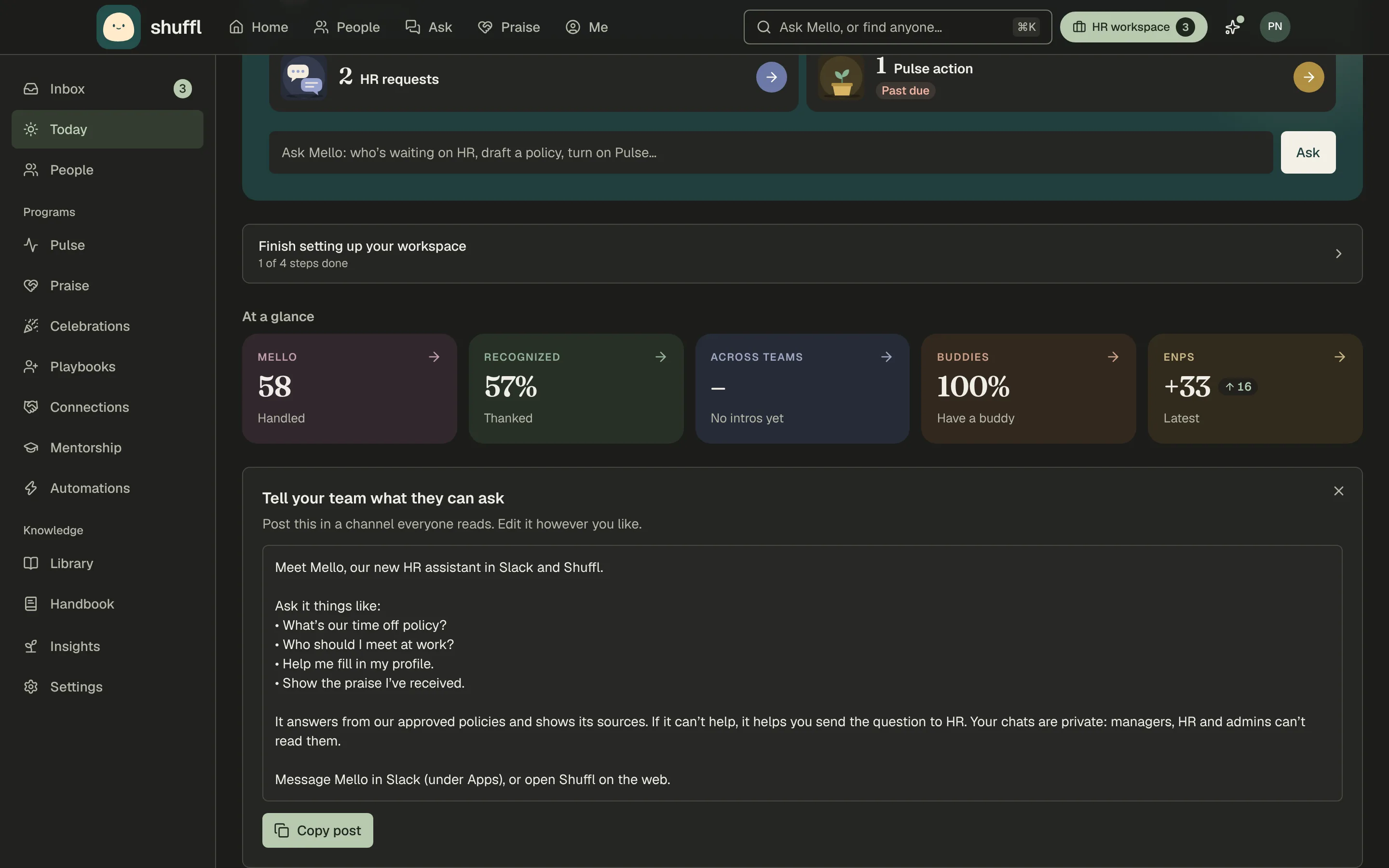
Today has a card, Tell your team what they can ask, with a post built from what Mello can do in your workspace.
Choose Copy post, edit and share it, then choose I posted it. The example below adds two lines; use questions from your own policies.
Send the announcement first, then turn access on in the same hour, so the welcome messages arrive while people are reading it.
Meet Mello, our new HR assistant in Slack and Shuffl.

Ask it things like:
• What’s our time off policy?
• How do I submit an expense?
• Who should I talk to about benefits?

It answers from our approved policies and shows its sources. If it can’t help, it helps you send the question to HR. Your chats are private: managers, HR and admins can’t read them.

Message Mello in Slack (under Apps), or open Shuffl on the web. You’ll get a short welcome from Shuffl today with a few first steps.

Questions about the rollout? Reply here or message the People team.What employees see on day one
In Slack, each person gets one welcome message when their access is turned on or they first open the app.
It says the chat is private and deleted after 30 days, and lists three first steps. People Shuffl can’t reach in Slack get an email instead.
On the web, Home’s For you list reads Your first week. It asks for a photo and a line about you, a community, a hello, a calendar and a first question for Mello. Each step ticks off as it’s done.
Expect the first questions within the hour. Keep an eye on the Inbox that day, so the first HR requests get a quick reply.
ShufflAPP
Turn on programs in order
- Pulse, in week one or two. Choose Start pulse; the default, every Tuesday and Thursday at 10:00, suits most teams.
- Answers are confidential and results show only for groups of 7 or more.
- Praise, next. Turn on Read praise channels and add the channel where people already thank each other; Shuffl brings in the last year of thanks.
- Connections, once people know Mello. Start from Mello’s suggestion or a template, pick who takes part, and start with every 2 weeks.
- Celebrations, at least a week before the first post, since each person is asked a week before their day whether to share it.
- Start with private notes or a single channel.
- Onboarding, before your next hire starts. Choose the accountable HR responder, enroll the hire with a buddy and approve their messages. Nothing goes out until you approve it.
Turn programs on one at a time, about a week apart, so each one gets noticed and you can see how people respond before the next. Every program is optional and each runs in Slack.
The first week: where to look and what to fix
- Today, in the HR workspace, every morning: HR requests waiting, Knowledge drafts to review and sources to re-check. Enter Minutes a typical HR question takes you to see time saved.
- Inbox. Answer HR requests and review Knowledge drafts: proposals Mello drafted from what your team asked and how HR replied.
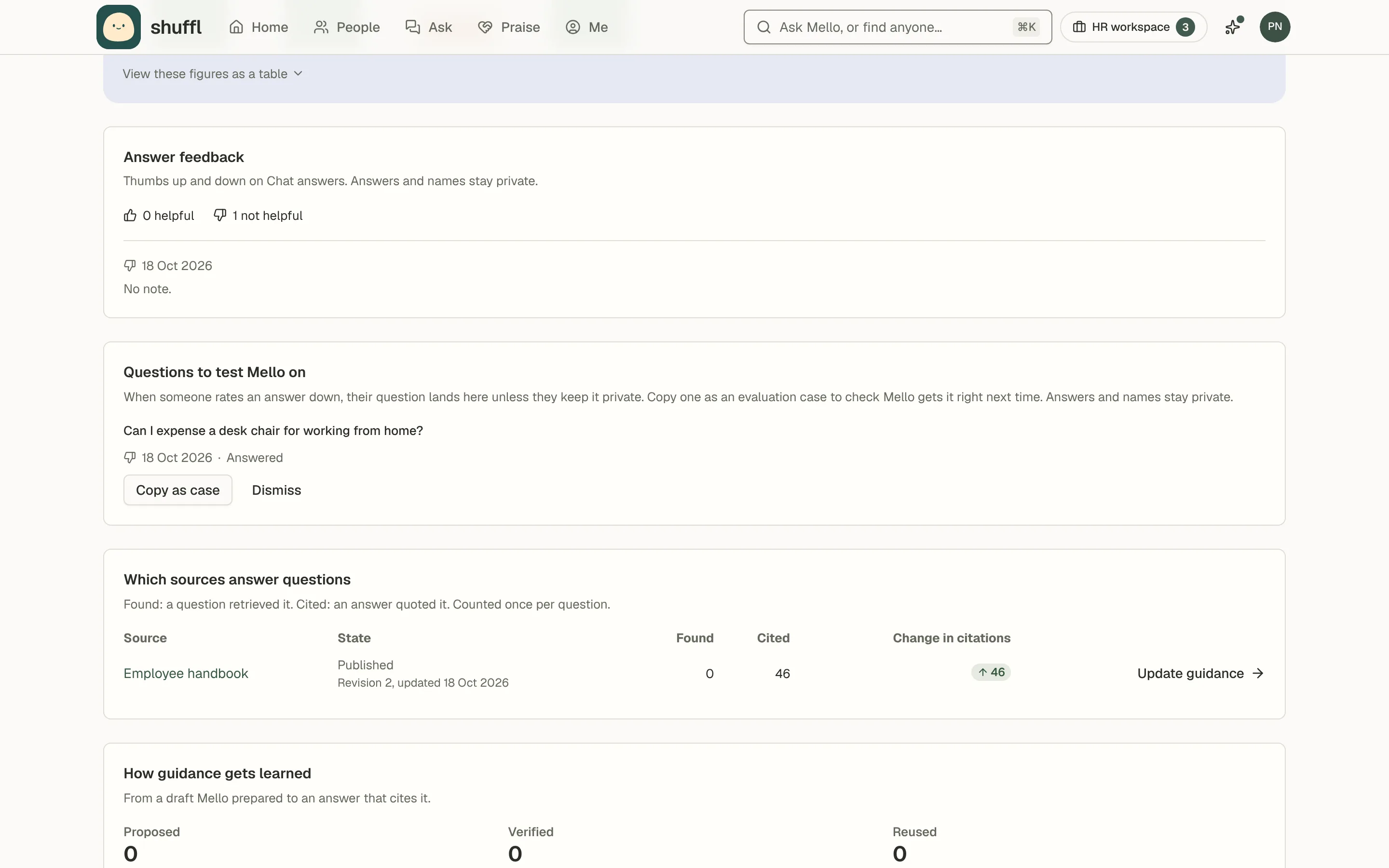
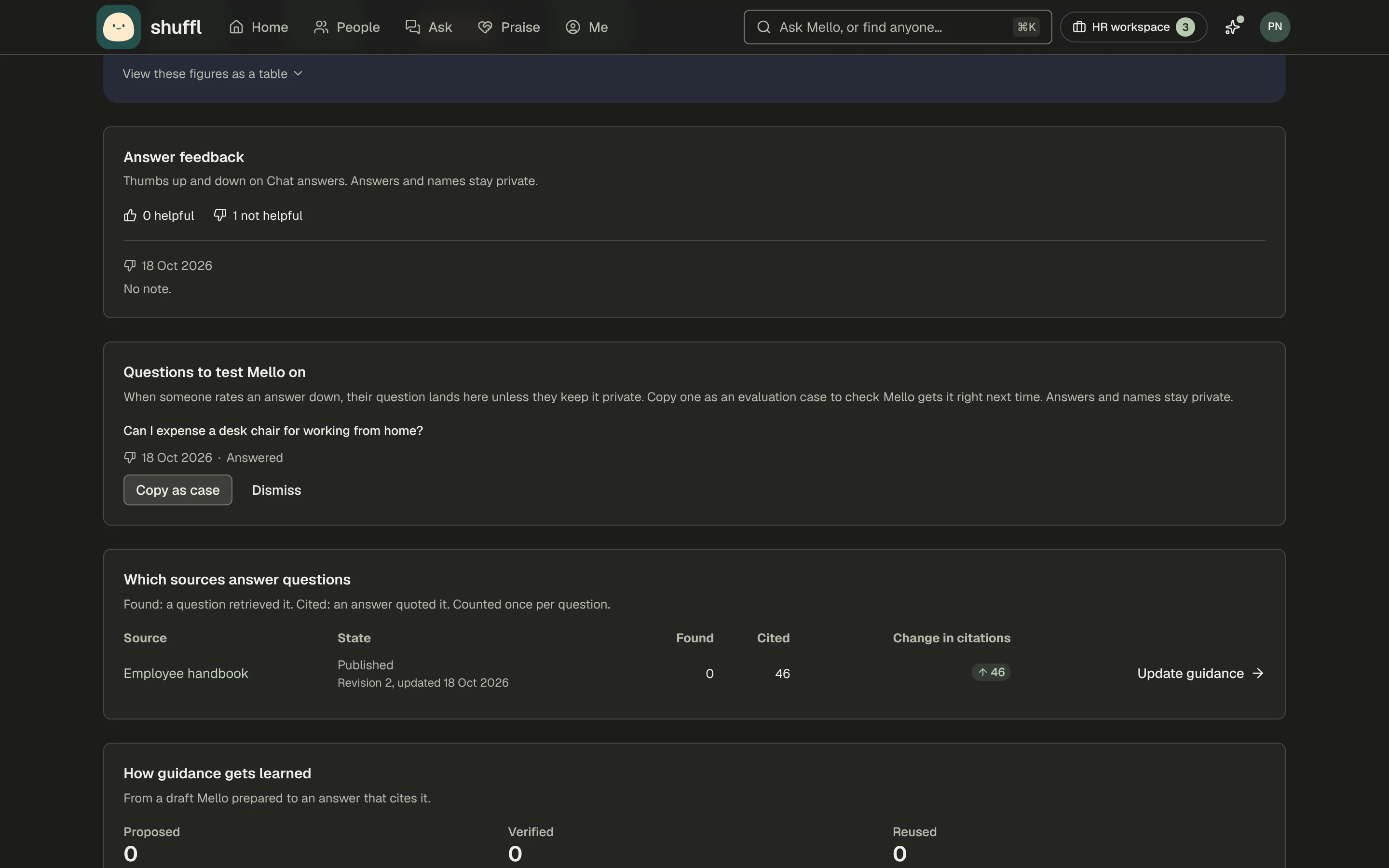
- Knowledge → Insights. Missing guidance and Questions to test Mello on show where Mello found nothing or got a Bad answer. Fix the source, then ask again in Chat.
- People. Check Members awaiting access and anyone listed as Not invited or Suspended, and enable the people who should be in.
- At the end of the week, set up the HR digest under Settings → Notifications so the numbers come to you, and decide which program to turn on next.