
How-to guide
Set up single sign-on and directory provisioning
Connect your identity provider so people sign in with their work account, verify your email domains, and provision and remove people with SCIM.
For IT administrators and company owners
Have your agent do thisPaste the prompt into Claude Code, Cursor or another agent. It follows this guide over MCP and asks before it changes anything others will see.Show the promptHide the prompt
Help me with "Set up single sign-on and directory provisioning" in my Shuffl workspace.

1. Read the guide: https://shuffl.ai/docs/markdown/single-sign-on
2. Add Shuffl's MCP server: https://shuffl.ai/api/mcp
   Claude Code: claude mcp add --transport http shuffl https://shuffl.ai/api/mcp
   When the browser opens, choose my workspace and allow the access the guide needs.
3. Work through the steps in order: Add a single sign-on connection; Verify your domain and test sign-in; Let people join by email domain; Provision people with SCIM. Do what you can over MCP and tell me which steps only I can do in the browser or in Slack.

Show me what you will change and who it affects, and wait for my yes before publishing, inviting or sending anything.
On this page
App links open your signed-in workspace. Check the selected workspace before making changes.
Before you start
Three company settings under Workspace → Integrations work together.
Single sign-on lets people sign in with your identity provider, Email domains lets anyone with a verified work email join, and Provisioning lets your identity provider create and suspend people. Only company owners and administrators can change them.
All three use the company’s default workspace. Check which one that is first: people who join or are provisioned land there.
Single sign-on proves who someone is; People decides who gets in. Someone gets in only when the default workspace’s People lists exactly one person with that email, with access enabled.
So set up People first, then add single sign-on. Email and password sign-in keeps working throughout.
Add a single sign-on connection
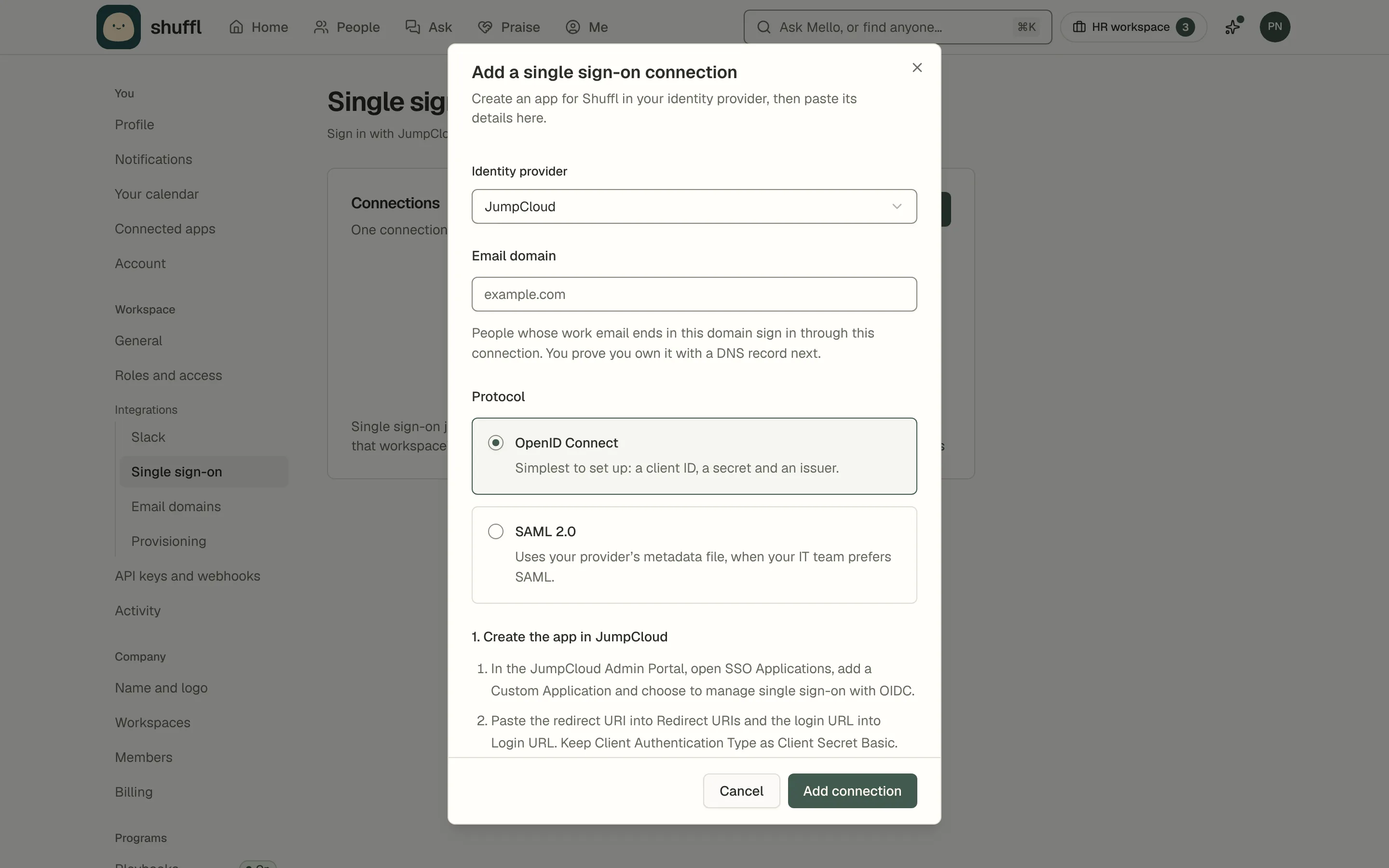
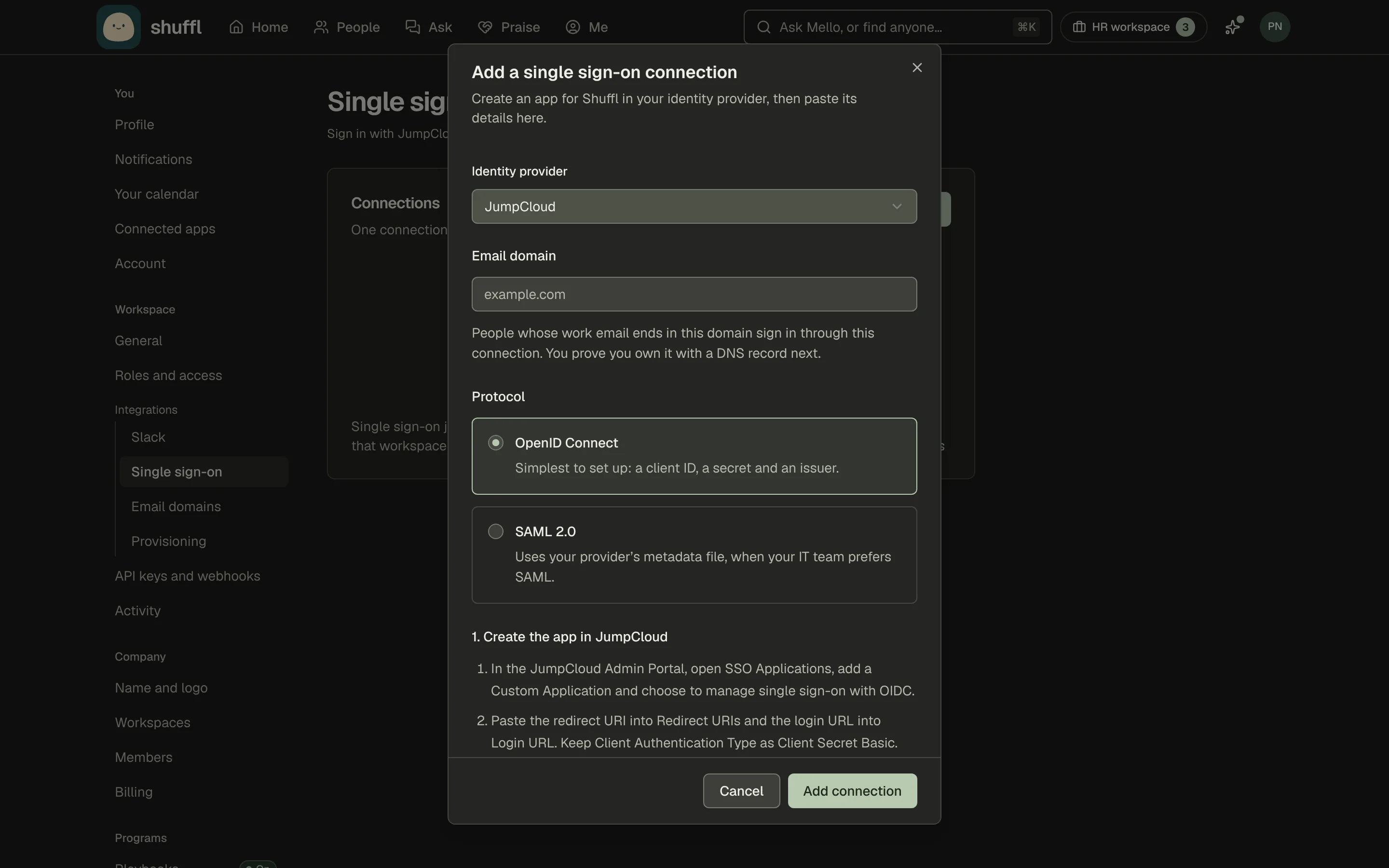
- In Settings, open Workspace → Integrations → Single sign-on and choose Add connection.
- Under Identity provider, choose yours, or Another provider. The dialog’s steps change to match.
- Enter the Email domain your people sign in with, such as example.com; subdomains are covered too. Each domain has one connection, up to five per company.
- Choose a Protocol. OpenID Connect needs a client ID, client secret and issuer URL; SAML 2.0 needs your provider’s metadata XML.
- Keep the dialog open. Under 1. Create the app, copy the Redirect URI (OpenID Connect) or the ACS URL and Entity ID (audience) (SAML), and the Login URL, into your provider.
- Closing the dialog changes these addresses, so finish in one go.
- Under 2. Paste what your provider gives you, enter the Issuer URL, Client ID and Client secret, or the Identity provider metadata XML, and choose Add connection.
- The secret is never shown again.
Settings for each identity provider
Every provider must send the work email: the email claim with the email and profile scopes for OpenID Connect, or the NameID in email address format for SAML.
SAML assertions must be signed with SHA-256; a signed response alone, or SHA-1, is refused. Assign the app to the people or groups who should sign in.
JumpCloud: under SSO Applications, add a Custom Application with OIDC. Paste the redirect URI into Redirect URIs and login URL into Login URL, keep Client Authentication Type at Client Secret Basic and turn on the email and profile scopes.
Shuffl fills in the issuer. For SAML, set SAMLSubject NameID to email (emailAddress format) and sign Assertion and Response with RSA-SHA256.
Okta: under Applications, choose Create App Integration, then OIDC and Web Application. Paste the redirect URI into Sign-in redirect URIs and login URL into Initiate login URI; the issuer is your Okta domain.
For SAML 2.0, paste the ACS URL into Single sign-on URL and entity ID into Audience URI, with Name ID format EmailAddress and Application username Email.
Microsoft Entra ID: register an app (App registrations → New registration) with the redirect URI as a Web redirect URI, a client secret and the email optional claim (Token configuration).
Issuer: https://login.microsoftonline.com/<Directory (tenant) ID>/v2.0. SAML: in a non-gallery Enterprise application, Identifier takes the entity ID, Reply URL the ACS URL, and Unique User Identifier (Name ID) is user.mail.
OneLogin: add the OpenId Connect (OIDC) app, paste the login URL into Login Url and redirect URI into Redirect URI’s, and set Token Endpoint Authentication Method to Basic.
The issuer is your OneLogin domain plus /oidc/2. For SAML, use SAML Custom Connector (Advanced): SAML nameID format Email, SAML signature element Both, SAML signature algorithm SHA-256 (not the default SHA-1).
Google Workspace (SAML only): in the Admin console, under Apps, then Web and mobile apps, add a custom SAML app and download the IdP metadata.
Paste the ACS URL, entity ID and, into Start URL, the login URL. Set Name ID format to EMAIL and Name ID to Primary email, then turn the app on for the right organizational units.
Rippling has steps in the dialog. For another provider, create an OpenID Connect web app with the authorization code flow and a client secret. Or create a SAML 2.0 app that sends the email as the NameID and signs the assertion with RSA-SHA256.
Verify your domain and test sign-in
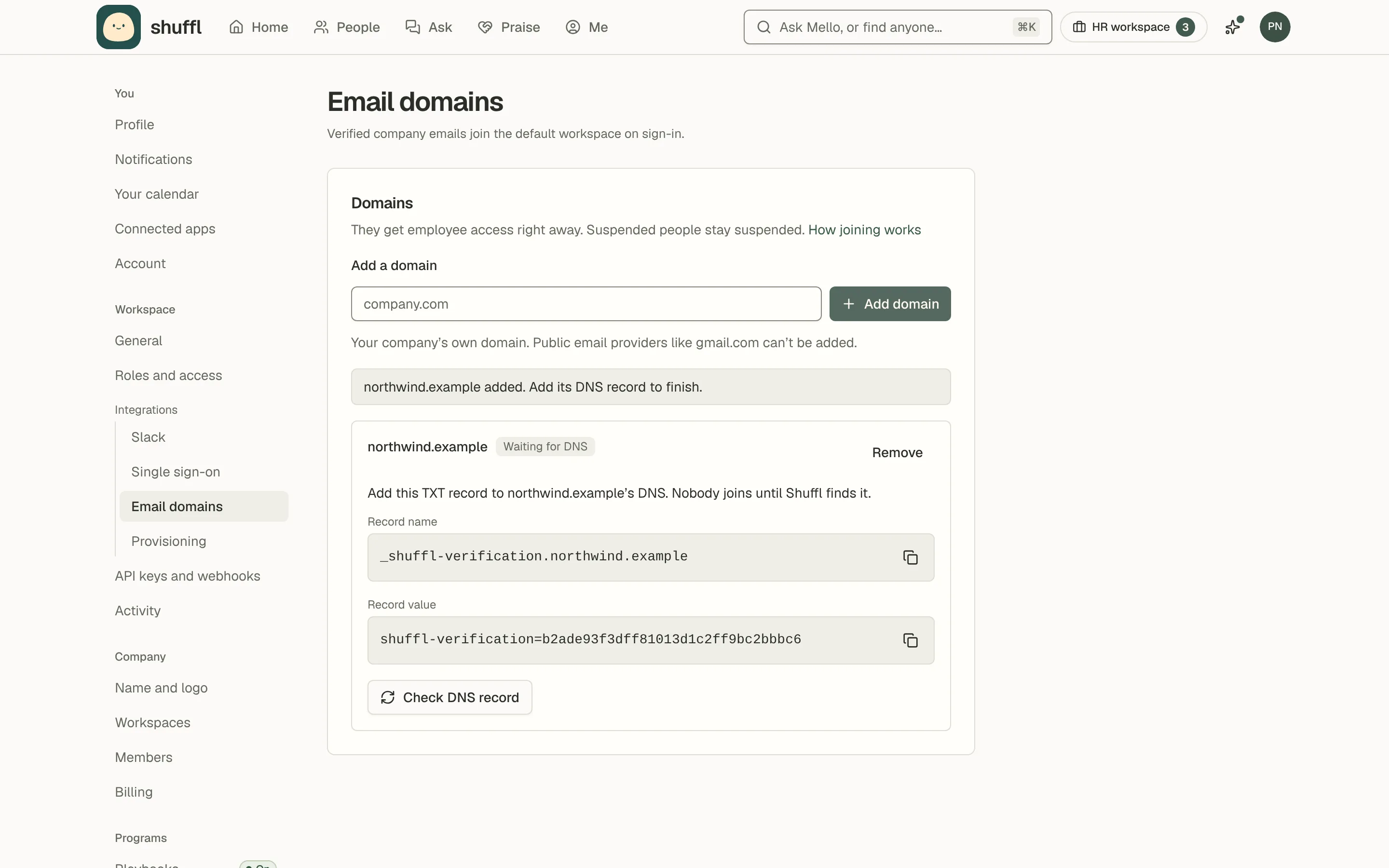
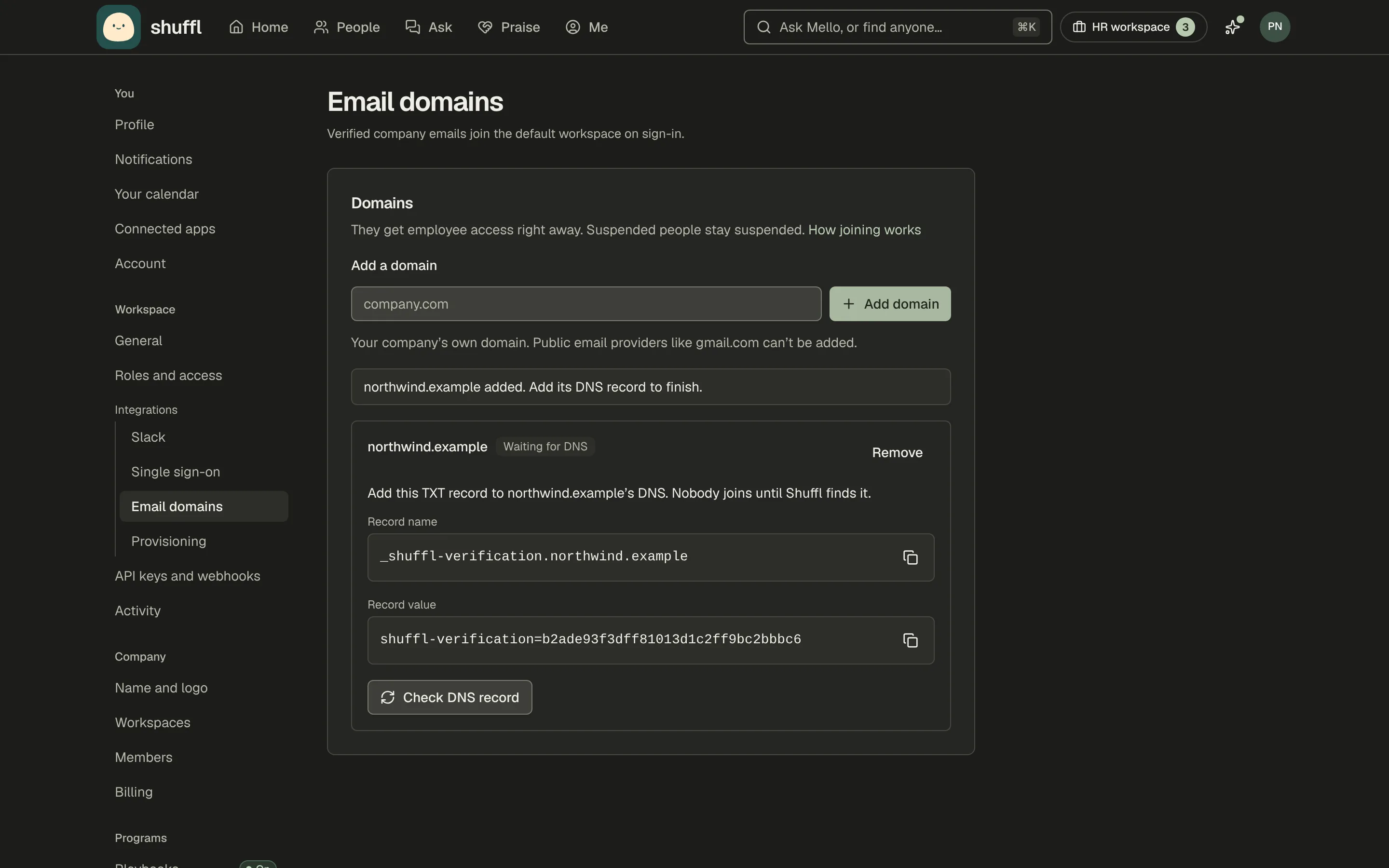
- The new connection reads Waiting for DNS. Add the TXT record it shows (Record name and Record value) at your DNS provider. Single sign-on stays off until Shuffl finds it.
- Choose Check DNS record. When it is found, the connection reads Verified; DNS can take a while, so try again later if not.
- Make sure the tester is in the default workspace’s People, with the same work email and access enabled.
- In a private browser window, open the Shuffl sign-in page, choose Sign in with SSO, enter the work email and choose Continue with SSO.
- To start from your provider’s app launcher, use the Login URL.
- Every value your provider needs stays under Identity provider settings on the connection, plus the Service provider metadata URL for SAML.
- A connection cannot be edited. To change the secret, metadata or protocol, choose Remove, add it again and update your provider with the new addresses.
- Removing it stops single sign-on for that domain; people already signed in stay signed in, but need another sign-in method next time.
Let people join by email domain
- In Settings, open Workspace → Integrations → Email domains, enter your domain under Add a domain and choose Add domain. Public email providers such as gmail.com can’t be added.
- Add the TXT record shown at your DNS provider and choose Check DNS record. A domain that a verified single sign-on connection already covers is verified straight away.
- From then on, anyone who signs in with a verified email on that domain, by any method, joins the company and its default workspace with access.
- Suspended people and people whose employment ended stay that way.
- With single sign-on, that means anyone your identity provider lets through can join without being in People first.
- To let People or provisioning decide who gets in, leave the domain out. Remove a domain to stop new joins.
Provision people with SCIM
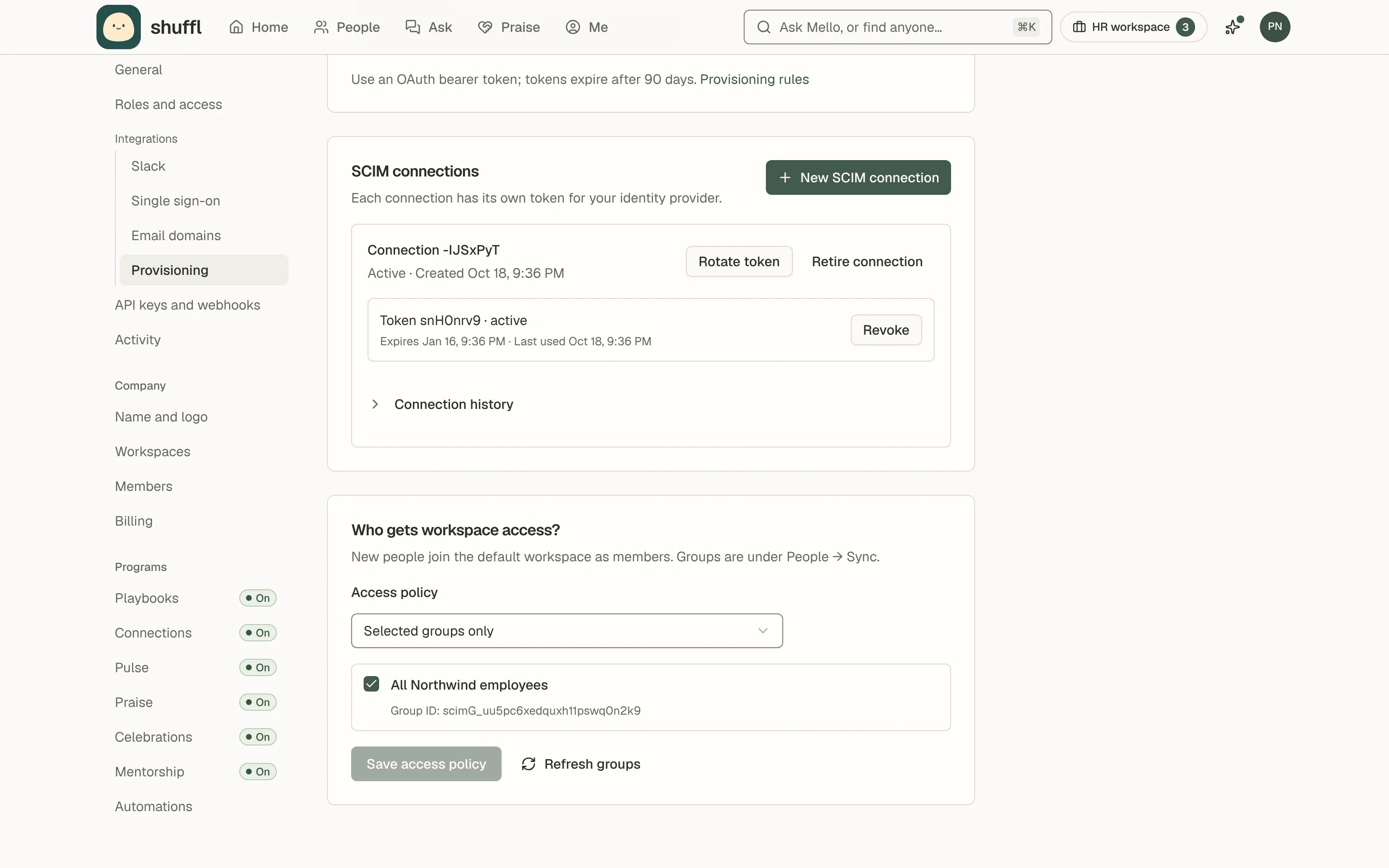
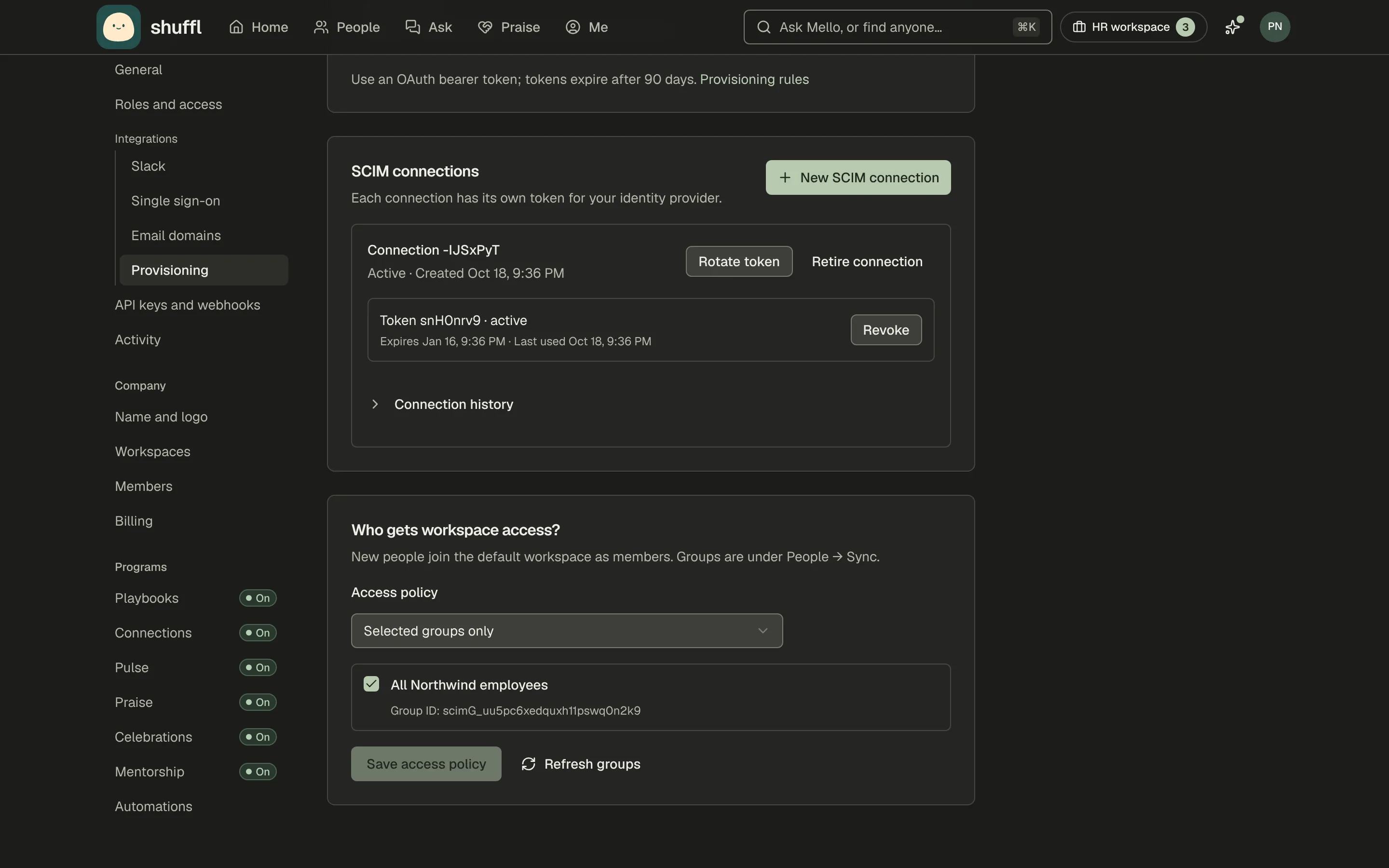
- In Settings, open Workspace → Integrations → Provisioning. If it says Provisioning isn’t enabled yet, contact Shuffl from Help, and use People Sync in the meantime.
- Choose New SCIM connection, tick I will store this token in an approved identity provider for this company, and choose Create provisioning token.
- Copy the token, shown once, then choose I’ve saved the token.
- In your identity provider, turn on SCIM 2.0 provisioning with the SCIM base URL and the token as a bearer token.
- Okta calls these SCIM connector base URL and HTTP Header authentication; Entra ID, with Provisioning Mode Automatic, Tenant URL and Secret Token; OneLogin, SCIM Base URL and SCIM Bearer Token.
- Turn on creating, updating and deactivating users, send the work email as the user name, assign the people who belong in Shuffl and push the groups you need.
- Google Workspace doesn’t send SCIM to custom apps; connect it under People → Sync, where Microsoft 365 can also connect with one admin sign-in.
- Back in Shuffl, under Who gets workspace access?, choose Everyone assigned to this app, or Selected groups only and tick groups after Refresh groups, then choose Save access policy.
- Until then, provisioned people are in People without access.
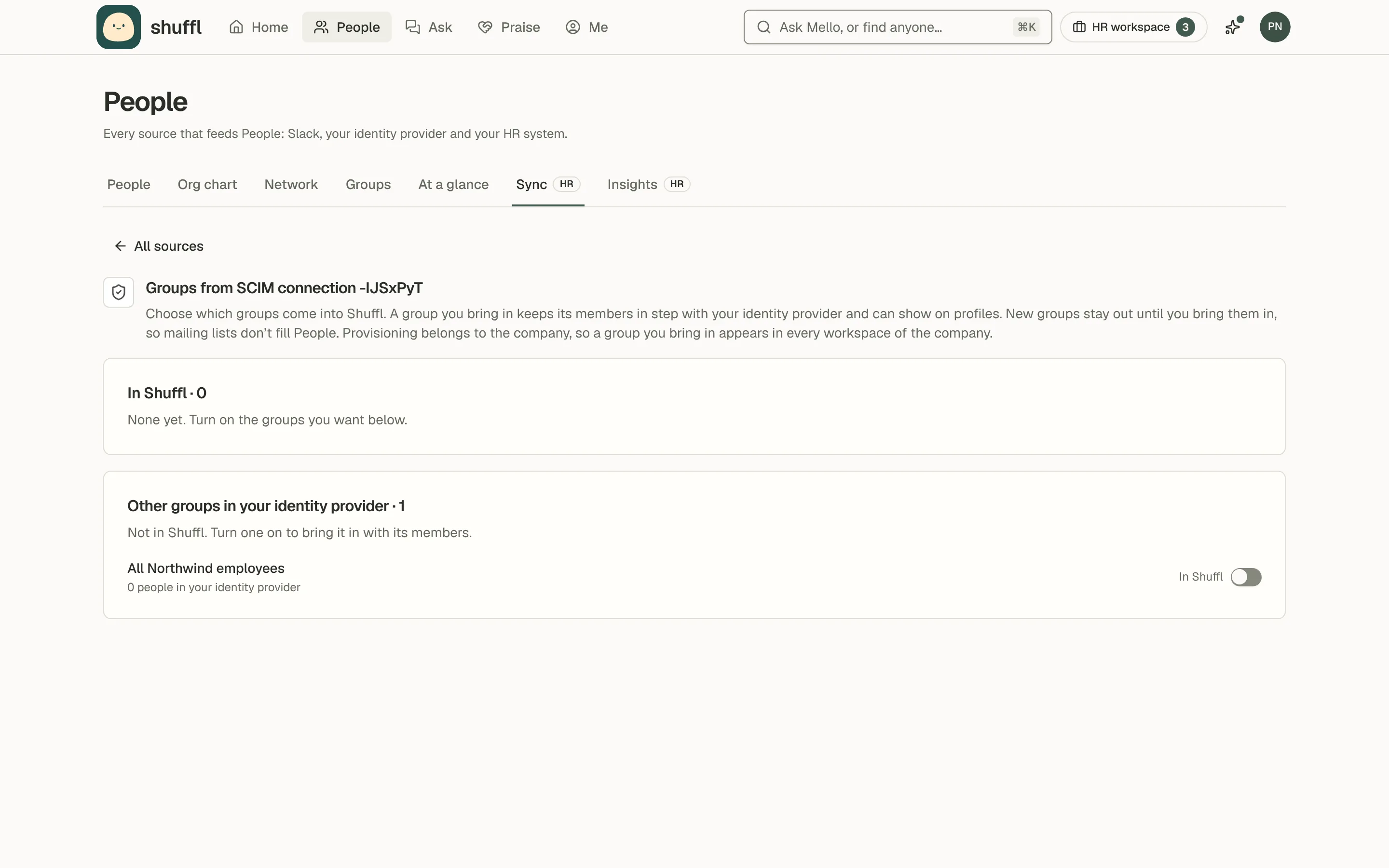
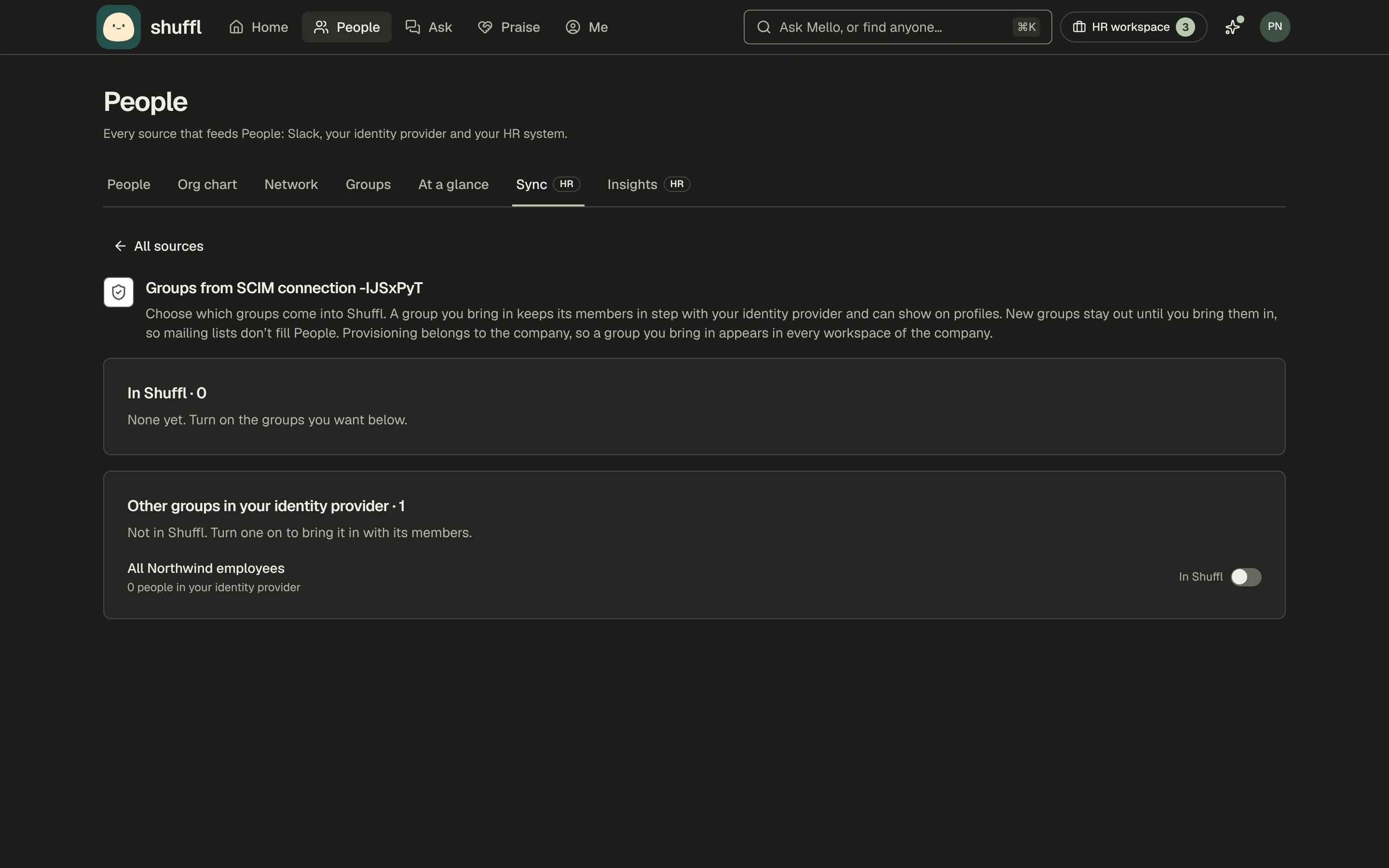
- To use a pushed group in Shuffl too, open People → Sync, choose Groups on the SCIM card and turn it on.
- It becomes a synced group on People → Groups in every workspace of the company, marked From provisioning. Giving access and bringing a group in are separate choices.
- Someone already in People with the same work email is matched, not added twice, and keeps their history.
- Someone you suspended by hand stays suspended until you restore them. If two people share that email, change one first, or it can’t be provisioned.
- Tokens expire after 90 days. Choose Rotate token, save and test the new token in your provider, then Revoke the old one. A connection can have two active tokens.
What provisioning changes when people leave
Provisioning creates each new person in the default workspace’s People, with member access when the access policy allows, and keeps their name and email current.
Managers, employment details and admin roles stay yours to manage in Shuffl. Changing the default workspace later doesn’t move people already provisioned.
Deactivating or deleting someone in your identity provider, or removing them from the app or every selected group, suspends their access and ends their Shuffl sessions right away.
They stay in People as Suspended, with their history; as with any suspension, queued messages are cancelled and agent keys revoked.
Reactivate or reassign them and access comes back by itself, unless an administrator changed it in Shuffl meanwhile or their employment ended.
Revoking a token stops requests made with it; people keep their access. Retire connection stops the connection for good and removes the access it granted, though people and their history stay.
Fix sign-in and provisioning problems
Single sign-on is not set up for that email domain: no verified connection matches the email. Check the domain’s spelling, or add a connection for the other domain.
Your company’s single sign-on is not finished yet: the TXT record hasn’t been found; choose Check DNS record.
Your identity provider sent an email address your company’s single sign-on does not cover: often an Entra ID user principal name instead of the work email. Map the email as described above.
Your identity provider’s sign-in could not be verified: usually an unsigned or SHA-1 SAML assertion, or old metadata. Fix the signing, then remove and re-add the connection.
Someone signs in but cannot use the workspace: they aren’t in the default workspace’s People, their access is off, two people share their email, or an administrator disconnected that account. Fix them in People, or verify the domain under Email domains.
A provisioned person has no access: with Selected groups only, they must be in a ticked group; choose Refresh groups after pushing one. Someone an administrator suspended or marked as left stays that way until an administrator changes it.
Shuffl refuses a domain another Shuffl company has verified; if it is yours, contact Shuffl. If provider requests stop working, check the token hasn’t expired or been revoked; Connection history and each token’s Last used date show what happened.