How-to guide
Access requests
Ask for the tools you need from one catalog. Approvers decide with a tap in Slack or email, owners set it up, and you hear either way.
For Everyone using Shuffl
On this page
App links open your signed-in workspace. Check the selected workspace before making changes.
Ask for an app
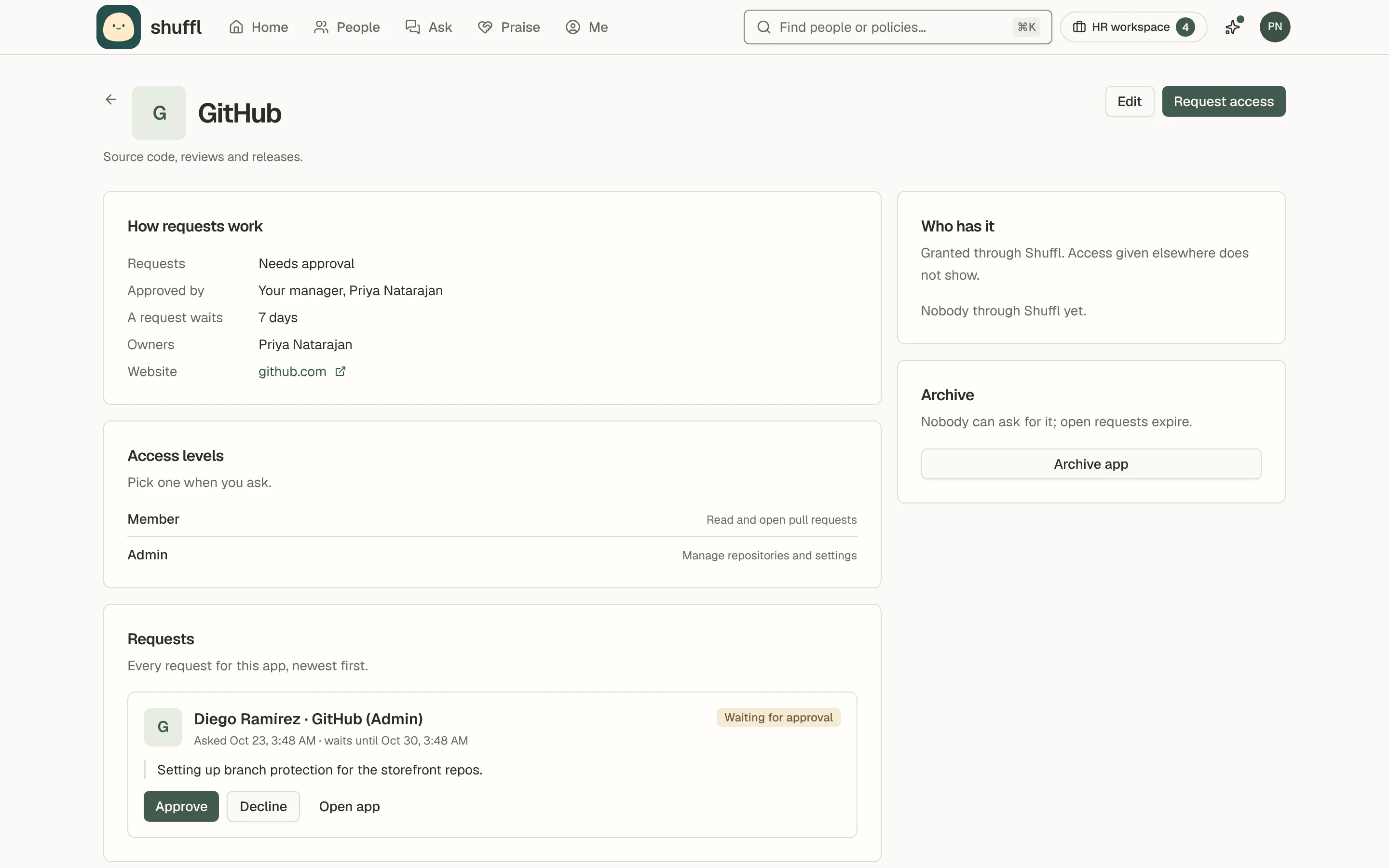
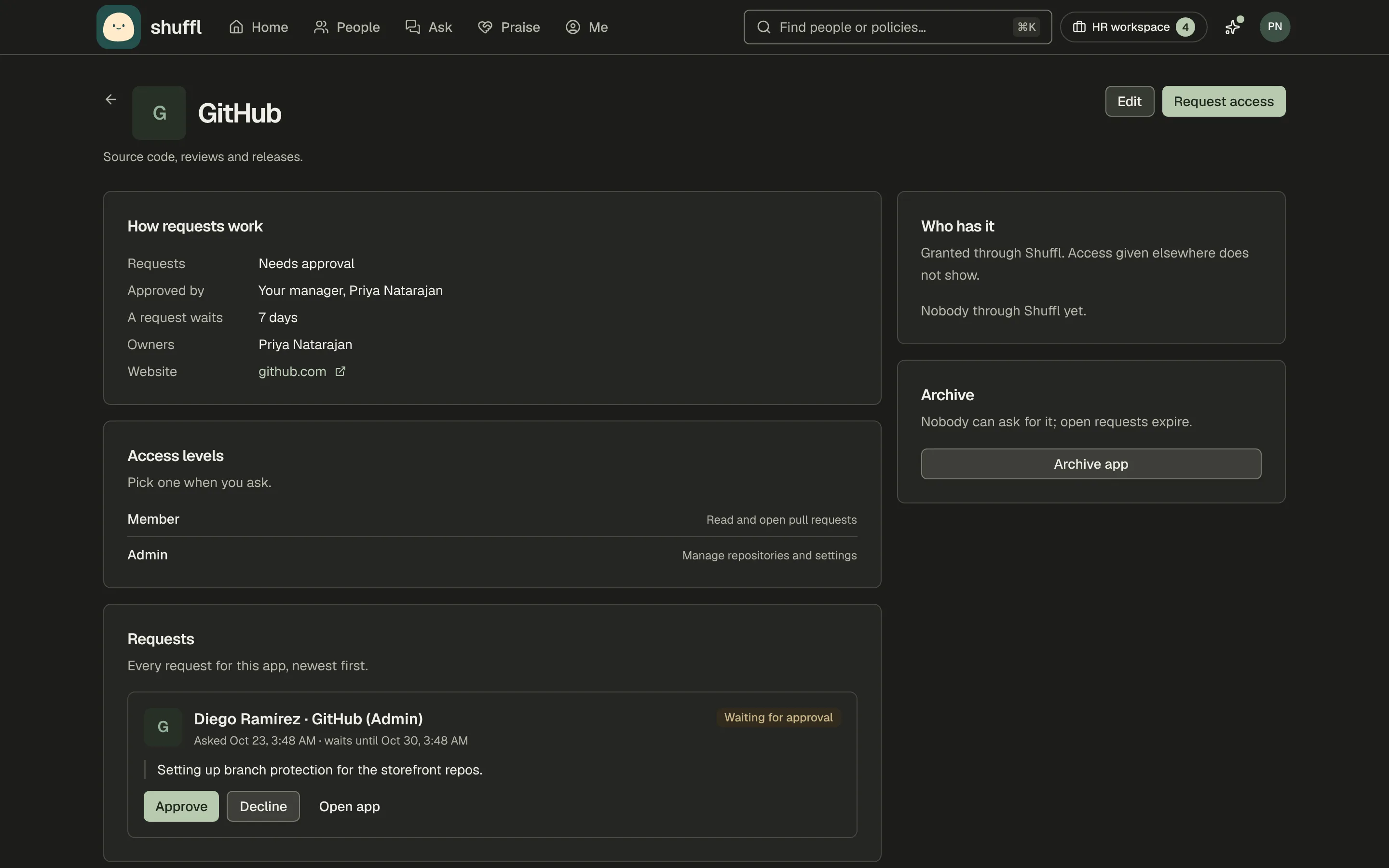
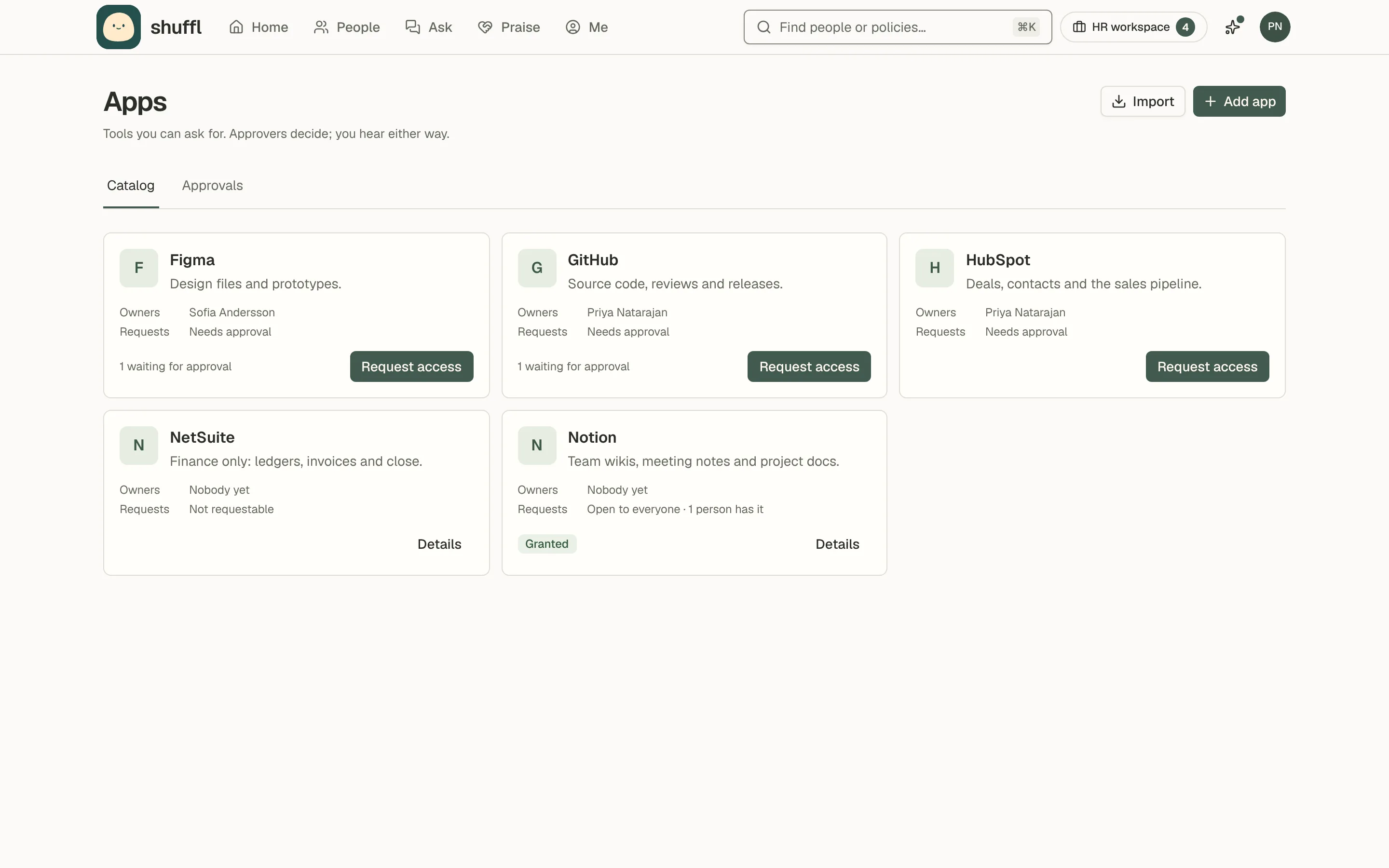
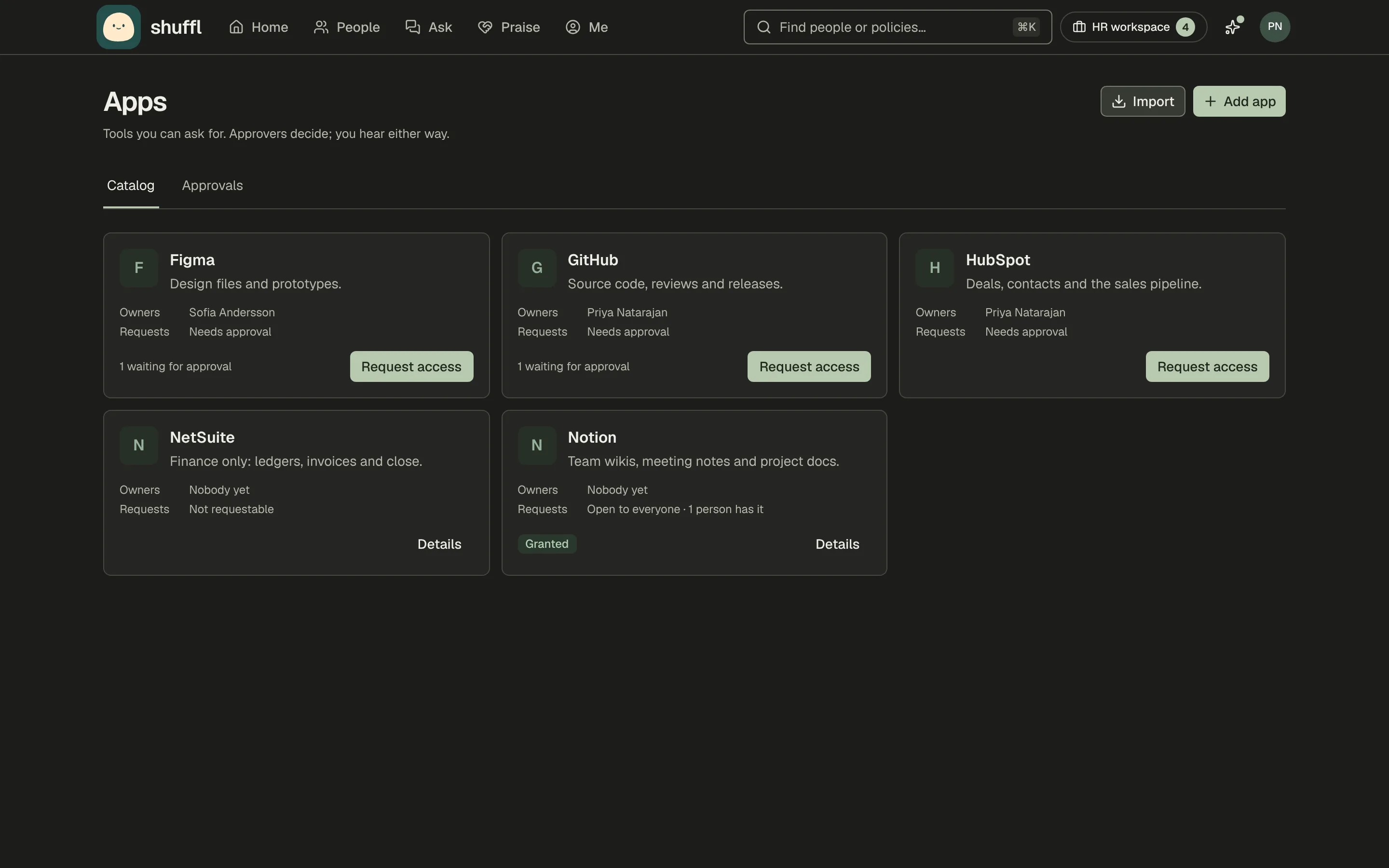
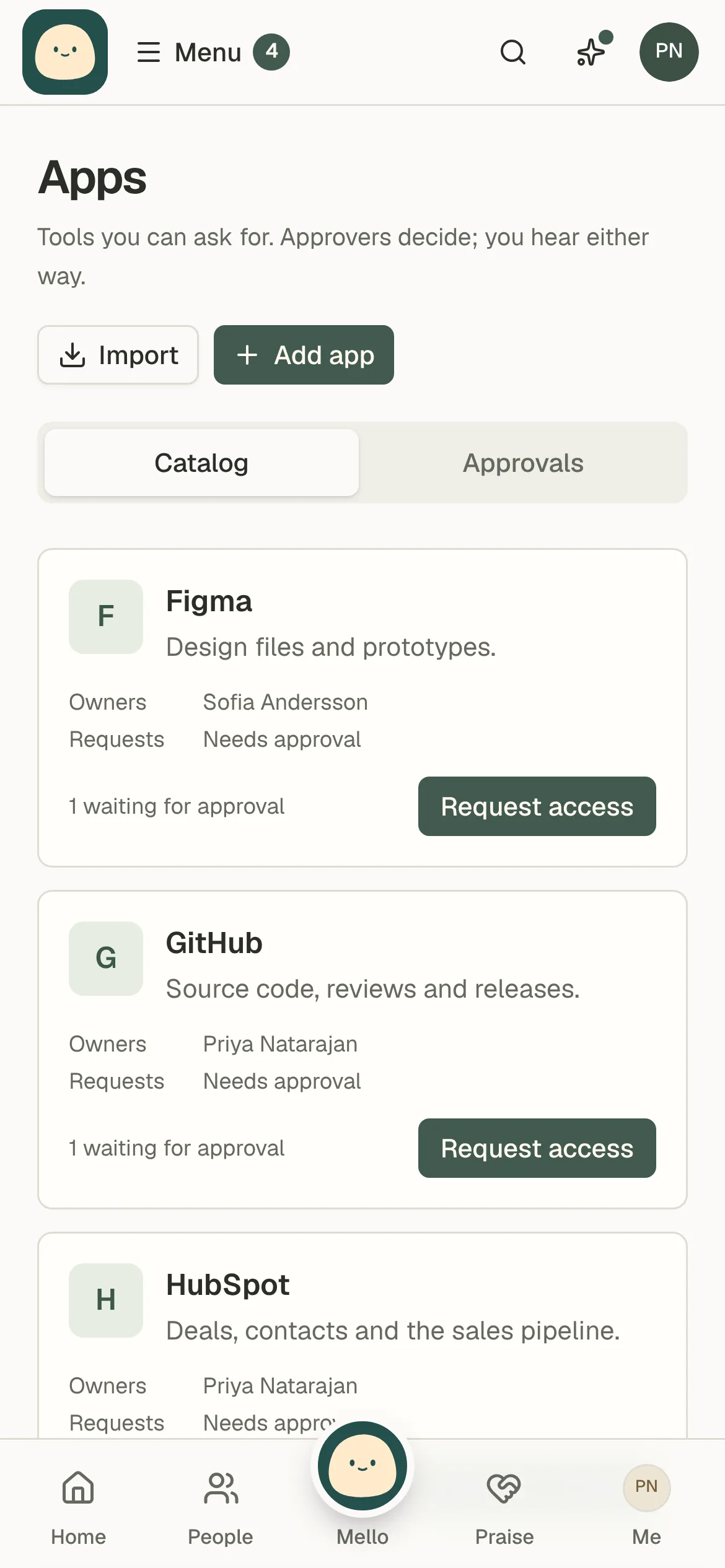
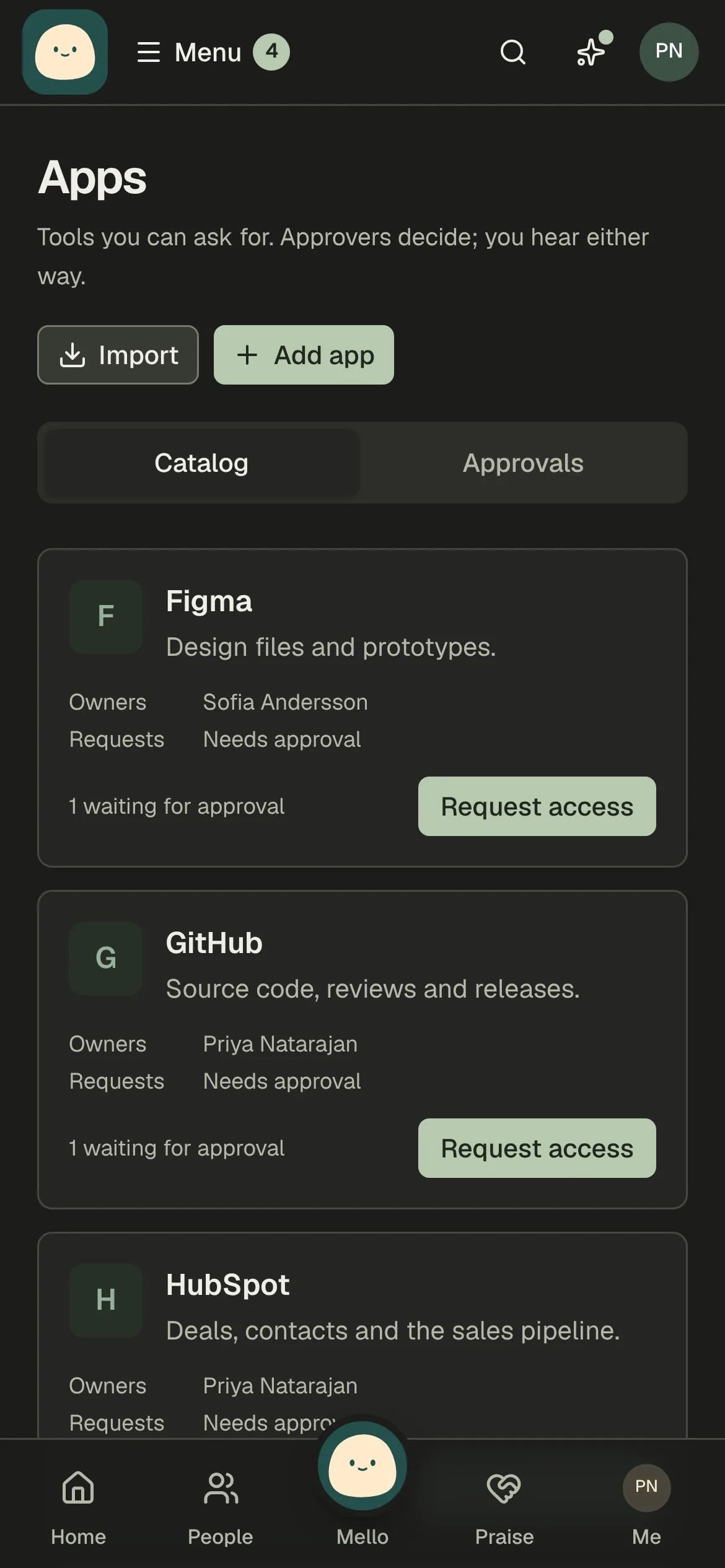
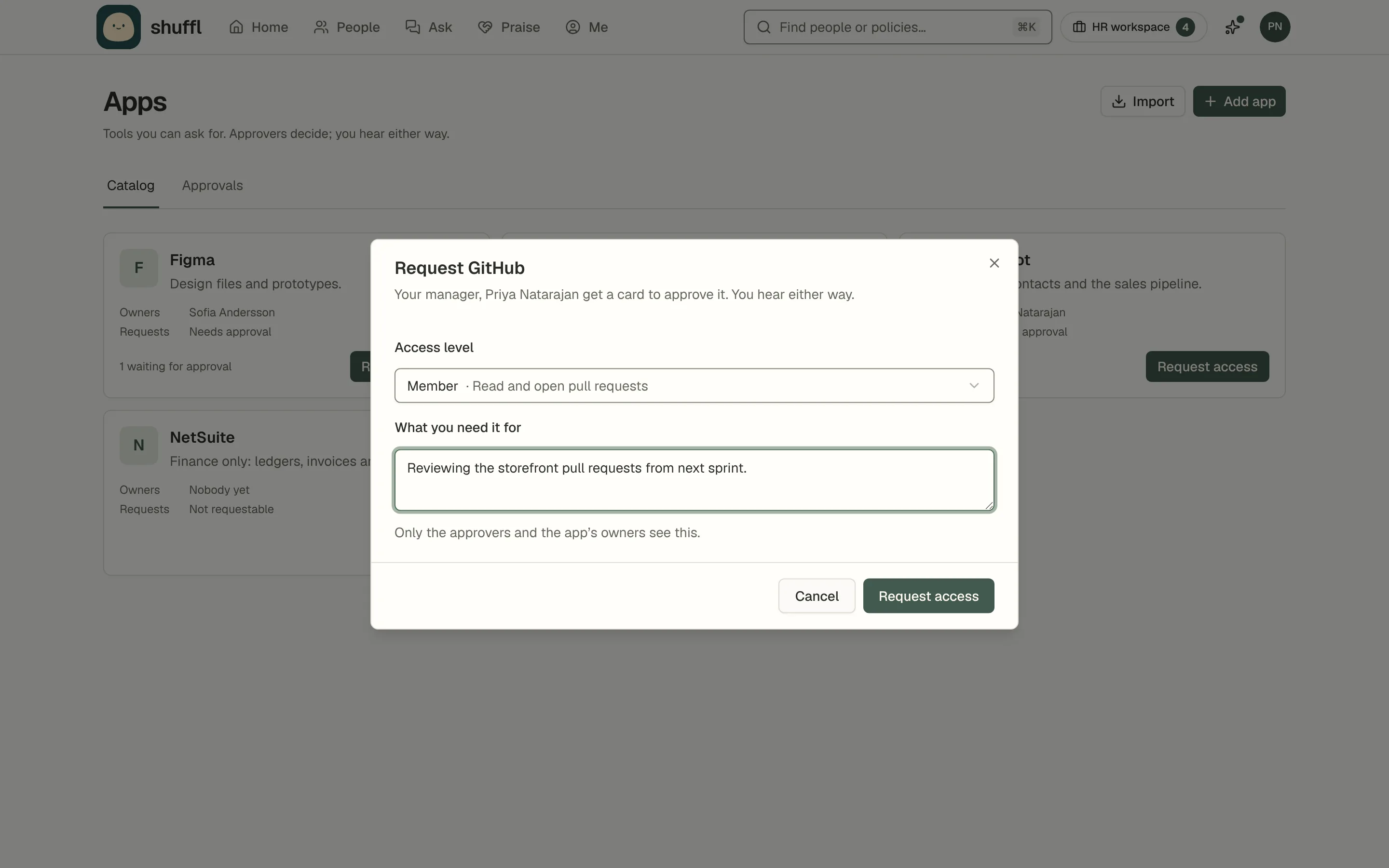
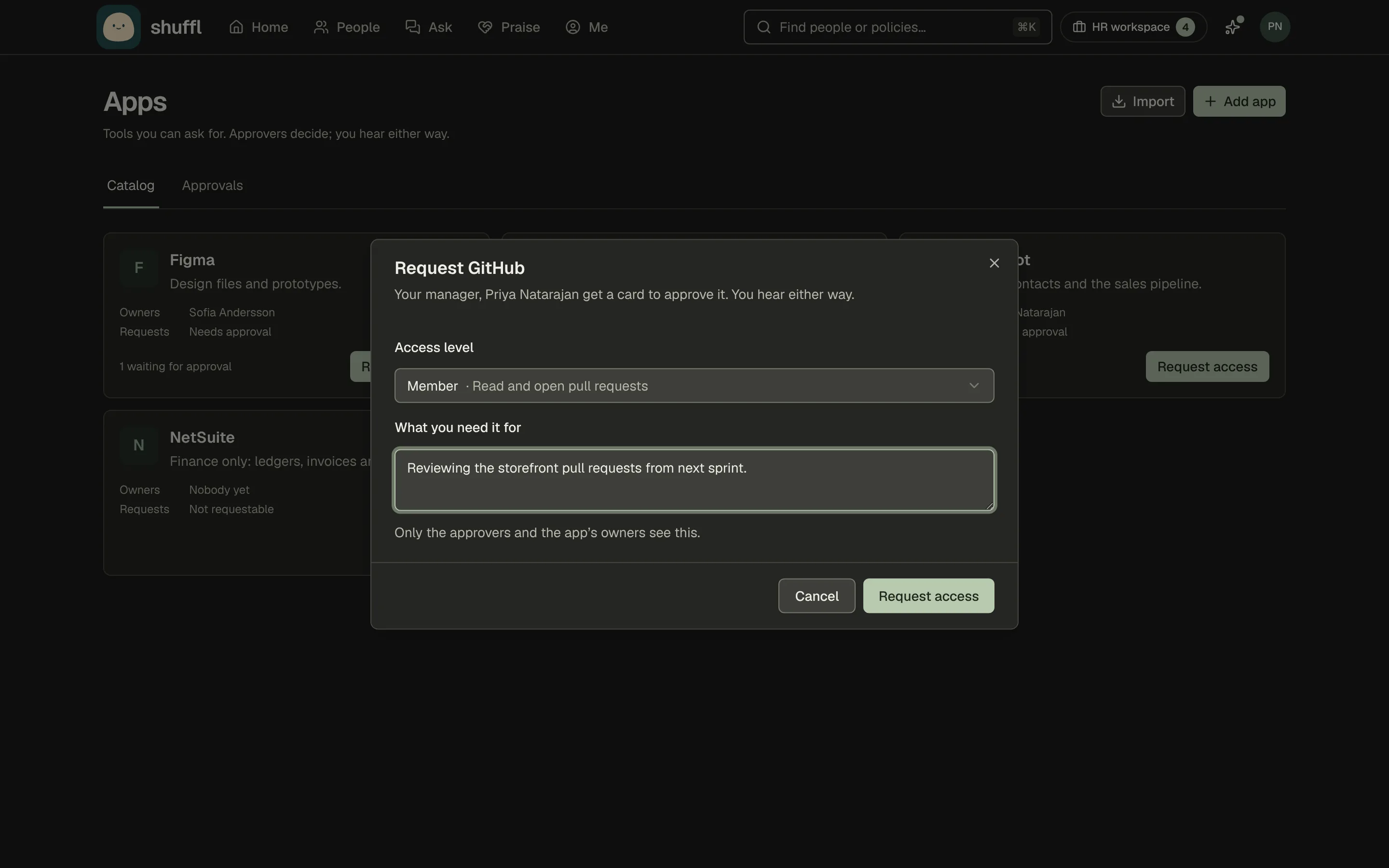
Open Apps from the menu, or ask Mello for access to a tool by name. Each card says what the app is for and who approves it. Pick a level when the app has them, say what you need it for, and send.
Open apps grant at once. The rest go to the approvers: your manager, named people or a group, as the app is set up. A request waits a week by default, then expires and you are told. Your requests sit on your Me page.
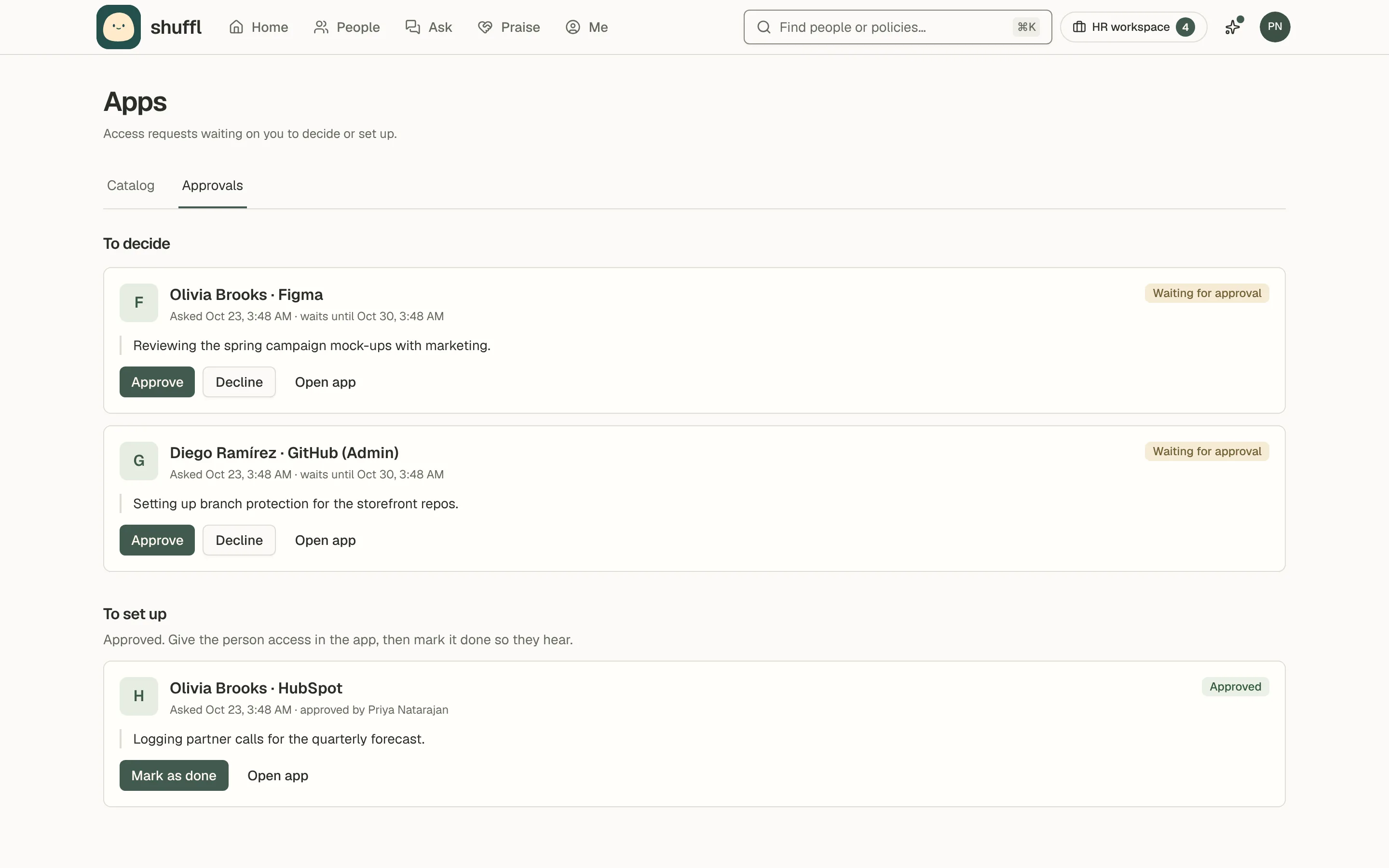
Approve and set up access
Approvers get a card in Slack or by email with who asked, for what and why. Approve or Decline with one tap, or add a note. The first approver to answer decides, and the others see it was handled. Nobody approves their own request.
Approved requests go to the app’s owners to set up. Once the person has access, Mark as done tells them. Owners can also remove access later, and the person hears why.
ShufflAPP
ShufflAPP
Keep the catalog
Administrators add apps with Add app, or import them from a connected identity provider with Import; the names, logos and links come across. Each app has approvers, owners who set access up, levels such as Member and Admin, and how long a request waits.
An app can be open to everyone, need approval or be closed to requests. Archiving an app closes its open requests. Every request, decision, grant and removal is written to the audit log and reaches your webhooks.