
How-to guide
Answer HR requests as a responder
Your daily routine as an HR responder: find new requests, take one, reply or ask for more, close it so Knowledge grows, and hand it on when you’re away.
For HR responders
Have your agent do thisPaste the prompt into Claude Code, Cursor or another agent. It follows this guide over MCP and asks before it changes anything others will see.Show the promptHide the prompt
Help me with "Answer HR requests as a responder" in my Shuffl workspace.

1. Read the guide: https://shuffl.ai/docs/markdown/answer-hr-requests
2. Add Shuffl's MCP server: https://shuffl.ai/api/mcp
   Claude Code: claude mcp add --transport http shuffl https://shuffl.ai/api/mcp
   When the browser opens, choose my workspace and allow the access the guide needs.
3. Work through the steps in order: Take a request and reply; Mark a request resolved or reopen it; Turn a good answer into Knowledge. Do what you can over MCP and tell me which steps only I can do in the browser or in Slack.

Show me what you will change and who it affects, and wait for my yes before publishing, inviting or sending anything.
On this page
App links open your signed-in workspace. Check the selected workspace before making changes.
Where new requests arrive
Each new request notifies one responder: its category owner, or else someone else on the HR team who can open it. Everyone who can open it sees it in the Inbox.
In Slack, the request arrives from Shuffl as a card with its category, who asked, when a reply is due and the question. It has Reply, Assign to me and Open in Shuffl.
Otherwise you get an email, New HR request, which leaves out what they wrote and links to it.
On the web, open the Inbox from the HR workspace or the card on Home. The Shuffl app’s Home tab in Slack lists up to five waiting requests.
ShufflAPP
Read the Inbox
The Inbox is one list, overdue first: unresolved HR requests, Knowledge drafts to verify, guidance to re-check and Pulse actions past due. The chips above it show All, Mine, Unassigned, Overdue, Reviews and Pulse. Requests you sent yourself never appear here.
Each row shows its category, who asked and who has it, how long it has waited and its status: Open, Waiting on HR, Waiting on employee or Reply overdue. A lock means only named people can open it.
Start with anything overdue. Arrow keys move between rows and Enter opens one. When nothing waits, the page says You’re all caught up.
Take a request and reply
- Choose the request in the Inbox. It opens beside the list, or over it on a phone.
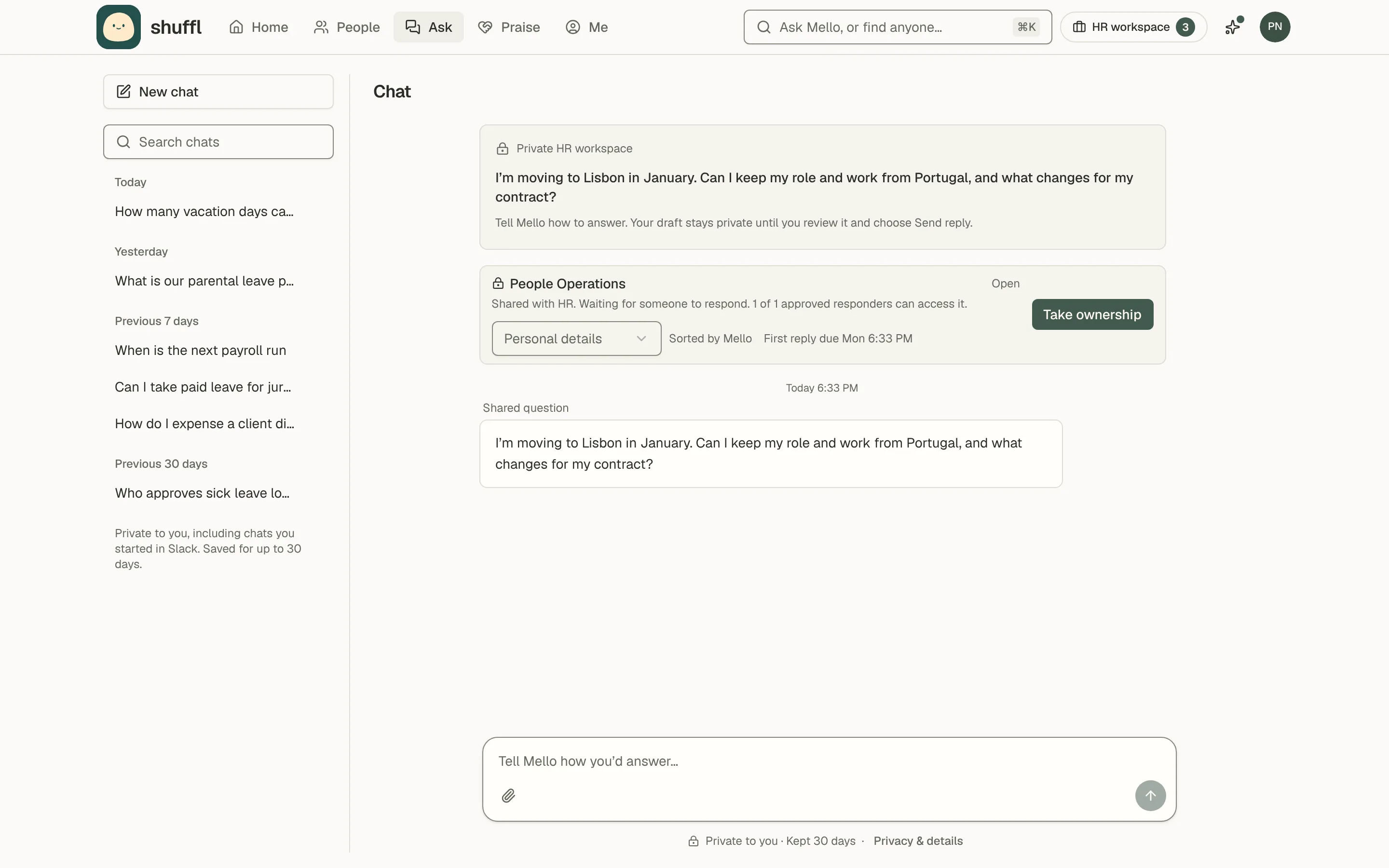
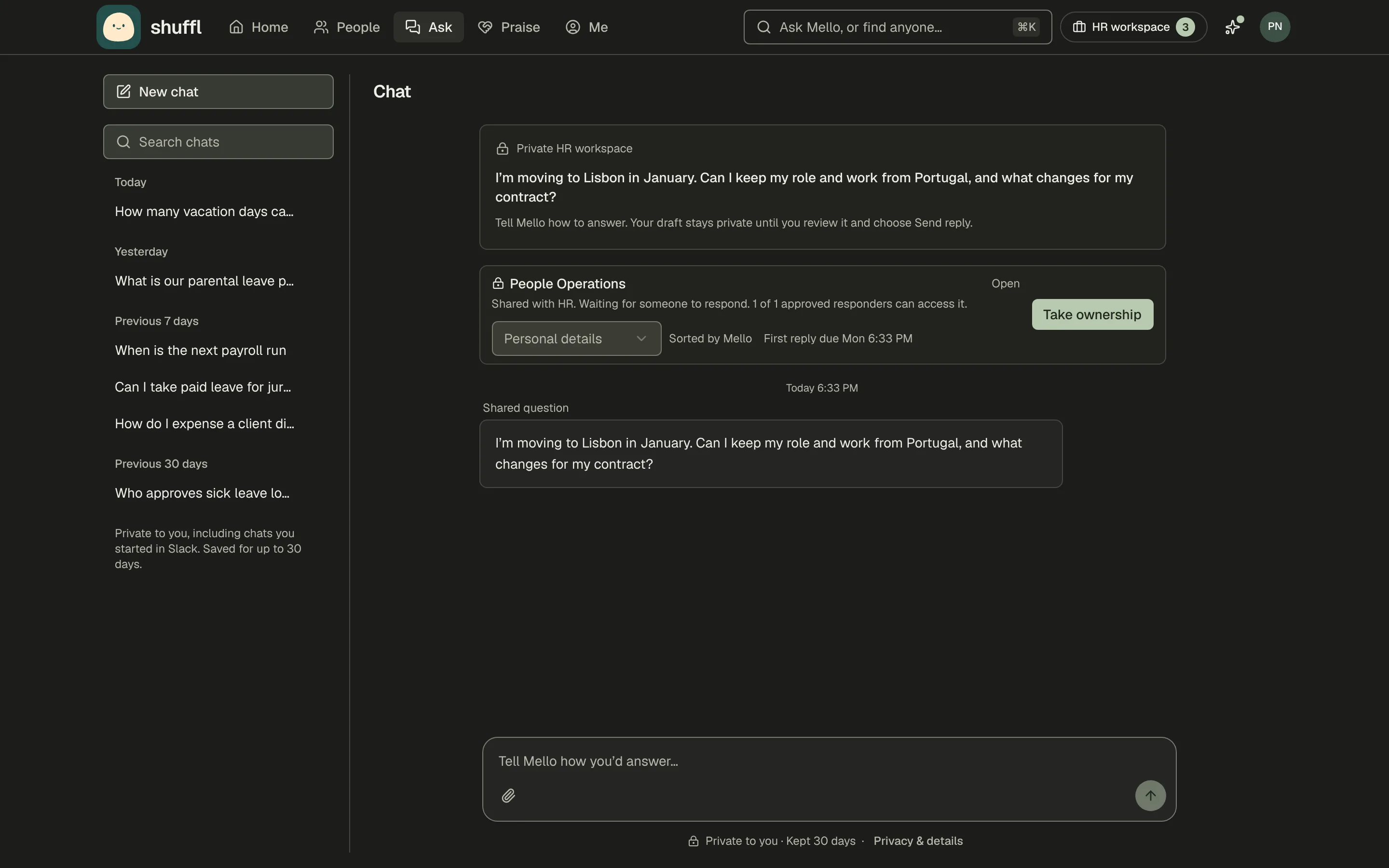
- Choose Take ownership. If the category is wrong, change it in the Category menu.
- Write your reply in the box under the thread and choose Send reply. It goes to the employee as written.
- For a longer answer choose Draft with Mello. In Chat, tell Mello how you’d answer; it shows Your reply is ready to review.
- Read it. Choose Edit message to change the wording, tick Send this message to and the employee’s name, then choose Send reply. Cancel reply drops the draft.
One responder owns a request at a time; others can read it but can’t reply. Replying to a request nobody owns makes it yours.
To ask for more detail, reply with your question. The request moves to Waiting on employee until they answer, then back to Waiting on HR.
In Slack, choose Reply on the card and tell Mello in the thread how you’d answer. Nothing is sent until you press Send reply. Assign to me and Unassign take and release ownership.
What the employee sees
The employee sees their request under HR requests in Chat and, if they asked in Slack, in that thread. They never see its category, due time or how you closed it.
Before anyone takes it, the status is Sent to HR; once you do, it says your name is helping and the status is Waiting on HR.
Your reply arrives quoted in their Slack thread with your name, or as an email if they chose that. Their status changes to HR replied, with Resolved and Still need help in Slack.
Still need help, or a message back, returns it to you as Waiting on HR. If they resolve it themselves, it closes without a note on how it was answered.
ShufflAPP
Mark a request resolved or reopen it
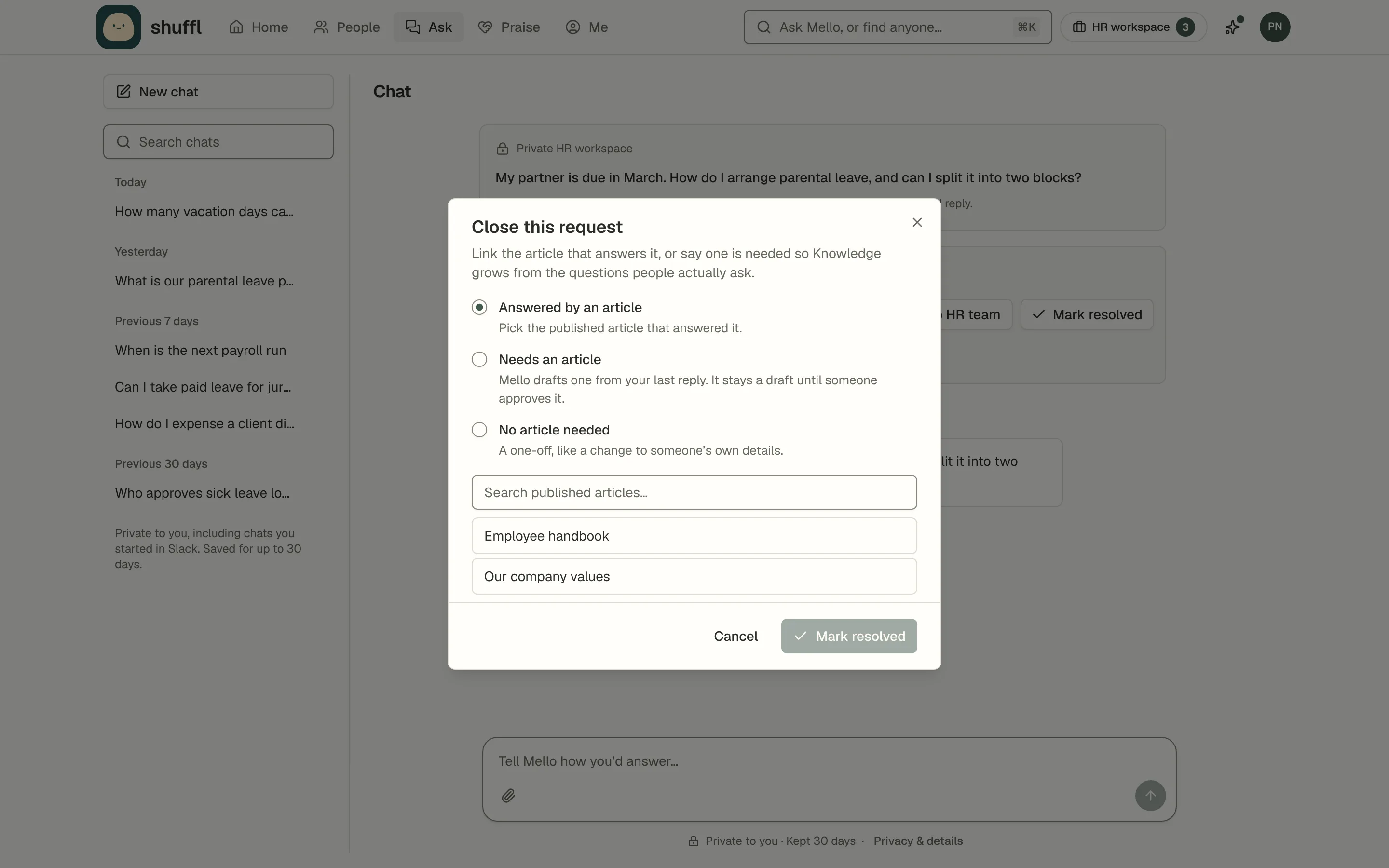
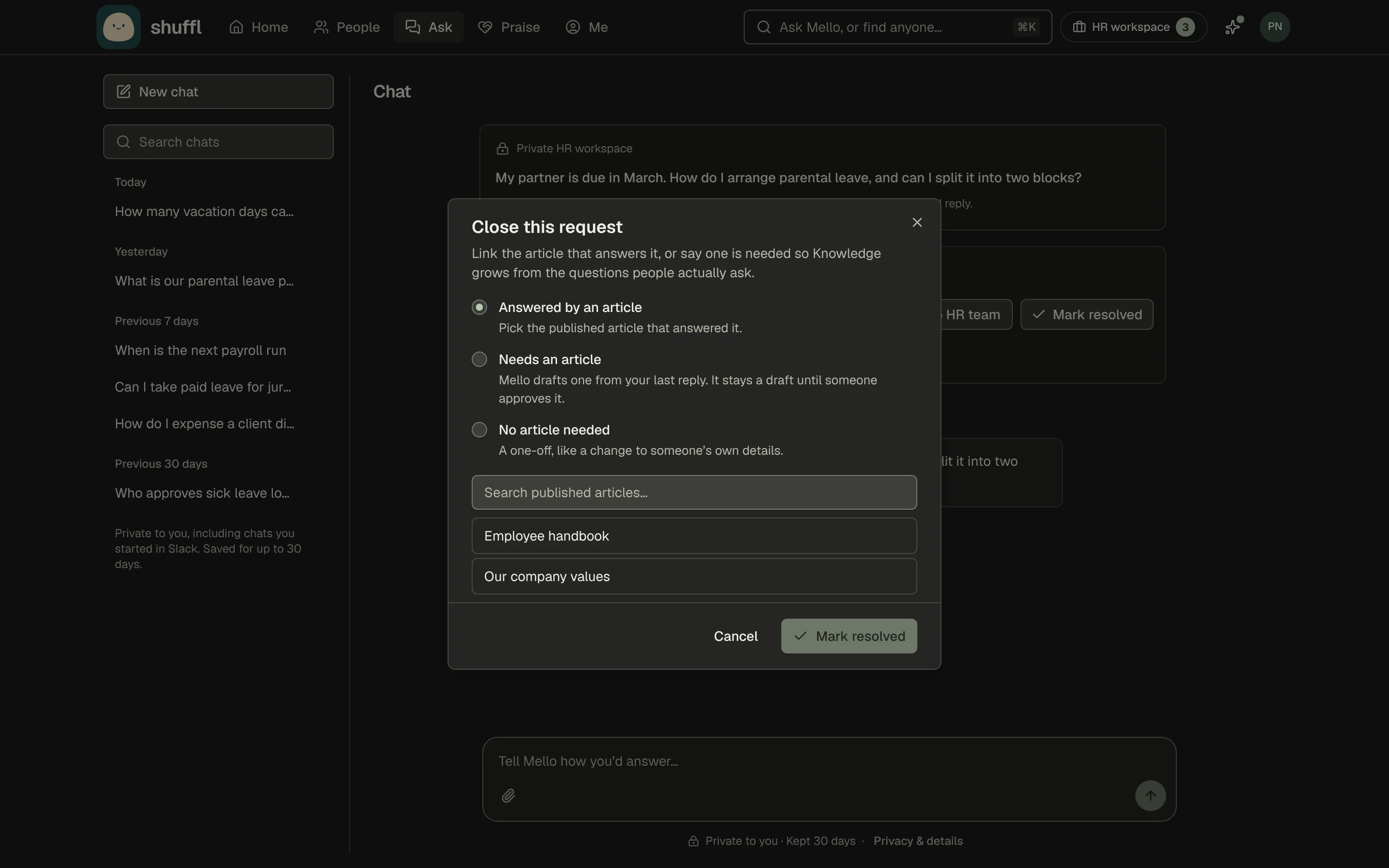
- In the request, choose Mark resolved.
- Choose how it was answered: Answered by an article (pick the article), Needs an article, or No article needed for a one-off.
- Choose Mark resolved in the dialog. The request leaves the Inbox.
Only the owner can mark a request resolved or reopen it, on the web. In Slack, use Open in Shuffl.
Reopen question brings a resolved request back as Waiting on HR and clears how it was closed. The employee can reopen it too.
Turn a good answer into Knowledge
- Find the draft under Reviews in the Inbox, or in Slack as a Knowledge draft card.
- Choose Review. Take out anything about the person who asked and any one-off exception.
- Choose who can use the answer under Who can use this answer?, and set the Effective date and Review again.
- Choose Approve knowledge, or Decline. In Slack, Approve for everyone approves it for the whole workspace.
When you send a reply that holds guidance others would need, Mello proposes it as Knowledge, leaving out anything naming the employee or an email address. Closing with Needs an article drafts one from your last reply.
Both happen only if you can verify Knowledge, as administrators and Knowledge verifiers can. Otherwise Needs an article is still counted in Request insights.
Employees never see a draft until someone approves it. Then Mello can answer the same question from it.
Sensitive categories and the response target
A request shows Sorted by Mello until someone changes its category. If you’re not named on a locked category, you can’t list or open its requests, even with a link.
Moving a request into a sensitive category you aren’t named on removes it from your queue at once. If its owner isn’t named either, it goes back to Open for the named people.
The response target counts business days from when the request was sent; Saturday and Sunday don’t count. First reply due shows until the first reply goes out.
Request insights is for administrators. Others get the count waiting on them in the weekly HR digest.
Hand over when you’re away or leaving
A request can only be opened by the responders it was shared with who still hold the role. A responder added later doesn’t see earlier requests.
If you’re away, choose Release to HR team on each request you own, or Unassign in Slack. It reads Ready for someone in HR until another responder takes ownership.
When a responder loses their role or access, their requests read The previous responder no longer has access, and anyone else on the request can take ownership. An administrator also reassigns their categories in Requests → Settings.
If nobody on a request still has access, the employee is asked to contact HR the usual way. Hand requests on before access ends.