
How-to guide
Sync People from your HR system
Connect Google Workspace, Microsoft 365, JumpCloud, BambooHR, Rippling, HiBob, Personio, Deel or Workday so People keeps titles, managers, start dates and leavers current.
For HR and IT administrators
Have your agent do thisPaste the prompt into Claude Code, Cursor or another agent. It follows this guide over MCP and asks before it changes anything others will see.Show the promptHide the prompt
Help me with "Sync People from your HR system" in my Shuffl workspace.

1. Read the guide: https://shuffl.ai/docs/markdown/people-sync
2. Add Shuffl's MCP server: https://shuffl.ai/api/mcp
   Claude Code: claude mcp add --transport http shuffl https://shuffl.ai/api/mcp
   When the browser opens, choose my workspace and allow the access the guide needs.
3. Work through the steps in order: Connect a source; Choose which groups come in; Read a sync and fix a failed one. Do what you can over MCP and tell me which steps only I can do in the browser or in Slack.

Show me what you will change and who it affects, and wait for my yes before publishing, inviting or sending anything.
On this page
App links open your signed-in workspace. Check the selected workspace before making changes.
What Sync does
Sync fills People from the system you already keep up to date: who works here, their title, department, groups, manager and start date, and who has left.
Syncing only reads; it never changes a record in your HR system or directory. Writes a source supports, like time-off requests or access group changes, are separate, with their own switch. A start date it brings in can start an onboarding playbook.
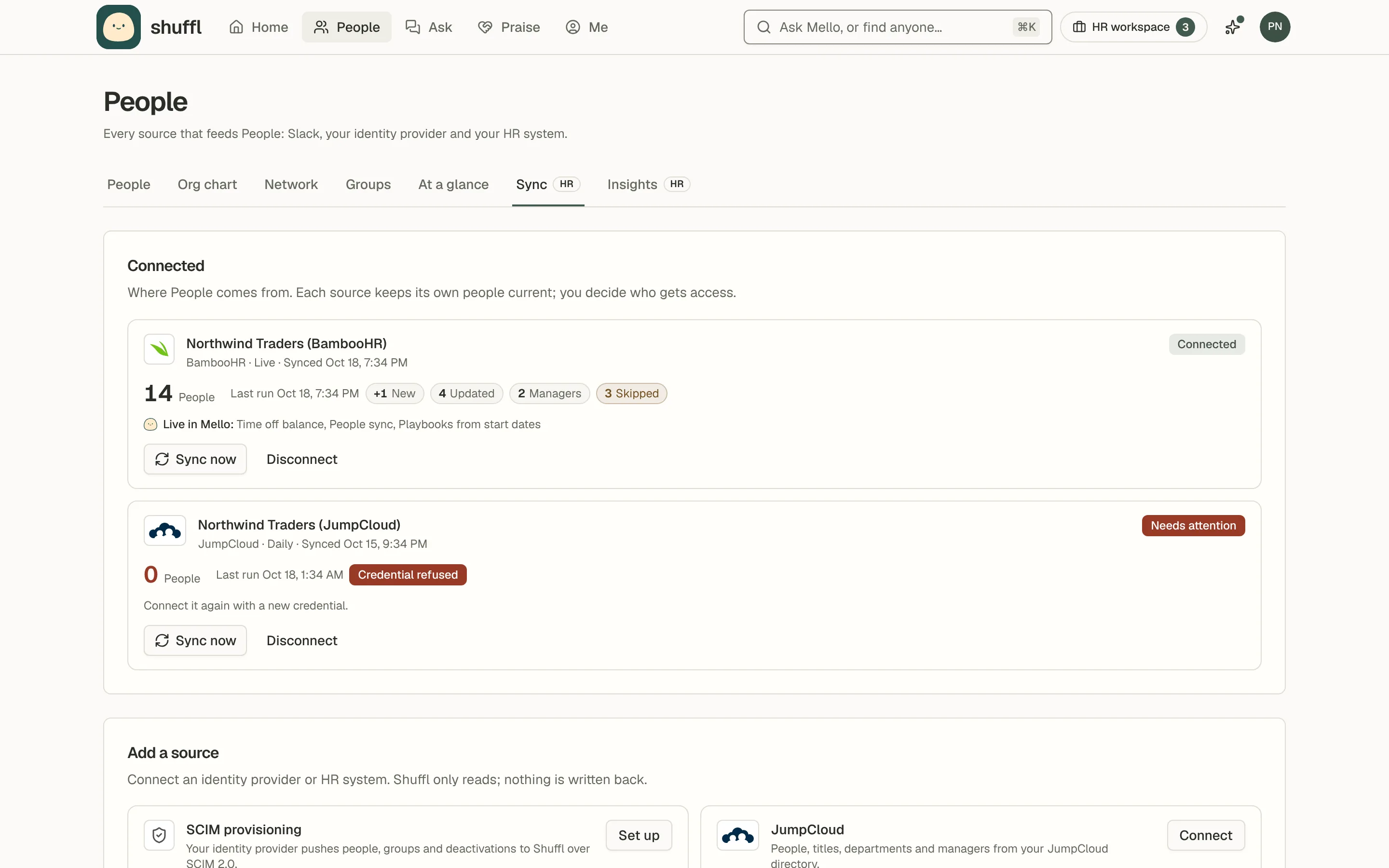
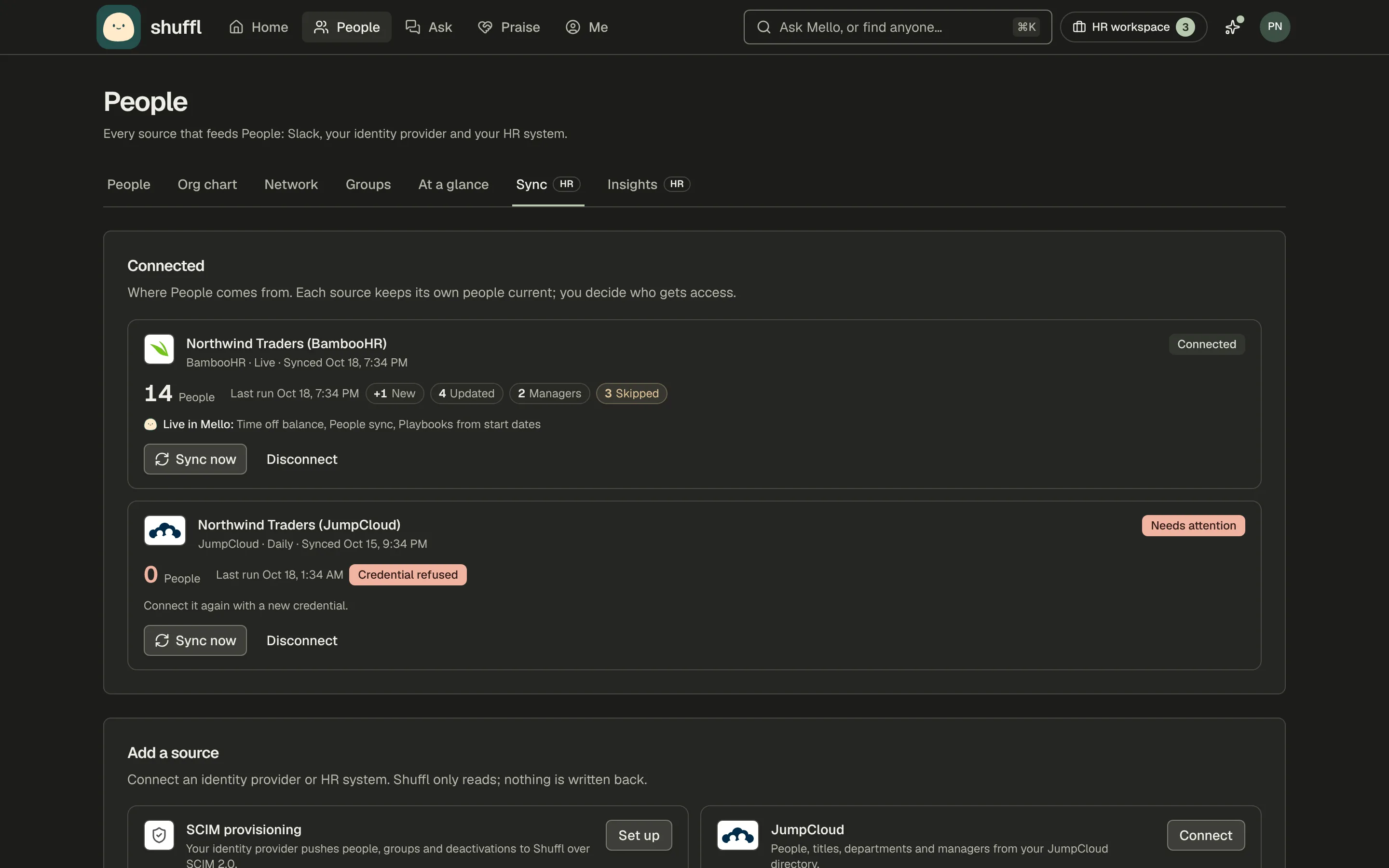
Administrators find it on People → Sync, marked HR. Connected lists each source with its last run, and Add a source lists what you can connect.
Under Coming soon, Gusto and Justworks wait on each company approving Shuffl’s app; choose Request, or name another system under Something else?.
Every connected source has an Automatic access switch, on by default. Eligible active people can use Shuffl after syncing. Turn it off for a source to approve its new people yourself. SCIM also respects your company’s selected-group policy.
ShufflAPP
Connect a source
- Open People, then the Sync tab.
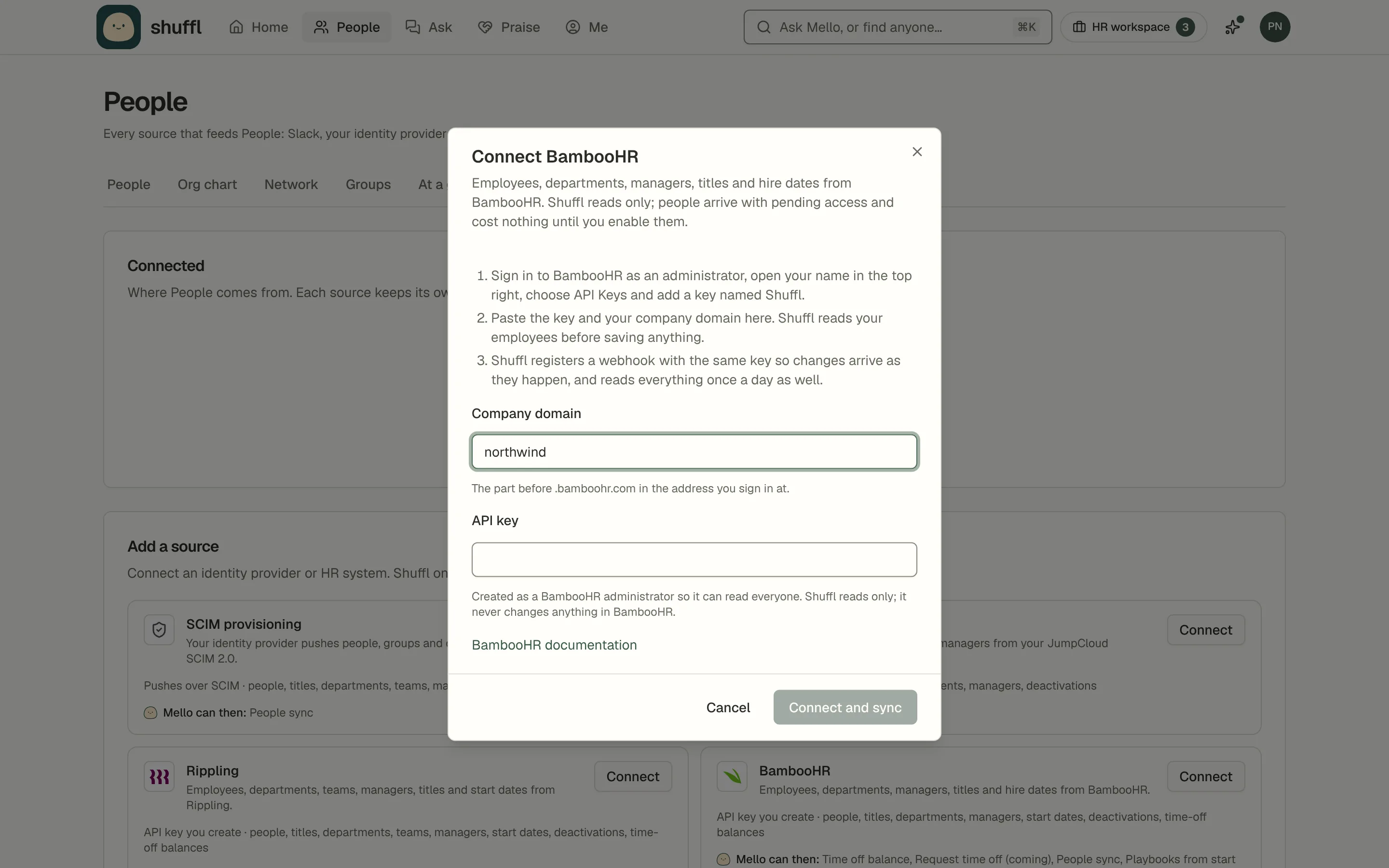
- Under Add a source, choose Connect on your system. The dialog lists what to create there.
- Enter the key, token or report details and choose Connect and sync. For Google Workspace or Microsoft 365, choose Continue with and sign in instead.
- Shuffl reads your people before saving the connection. If the system refuses, the dialog says why and nothing is stored.
- The first sync runs straight away and says how many people were new or linked.
- Review the new people in People and enable access for those who should use Shuffl.
What to create in each system
Google Workspace: sign in as an administrator who can read users and groups. Google also requests group membership management for access workflows; People → Sync has a separate control to stop those writes while keeping reads.
If Google says the app is blocked, trust Shuffl under Security → API controls → App access control. Groups list their direct members; nested groups aren’t expanded. Google Workspace has no start dates.
Microsoft 365: sign in as a Global Administrator or Privileged Role Administrator and accept for your organization.
Shuffl reads users, hire dates and group memberships, leaving out guests, shared mailboxes and room accounts. If you already push people from Entra ID with SCIM, keep one of the two.
JumpCloud: in the Admin Portal, open your administrator menu (top right), choose API Settings and generate or copy an API key. Keys expire after 90 days by default, so note when to rotate it. JumpCloud has no start dates.
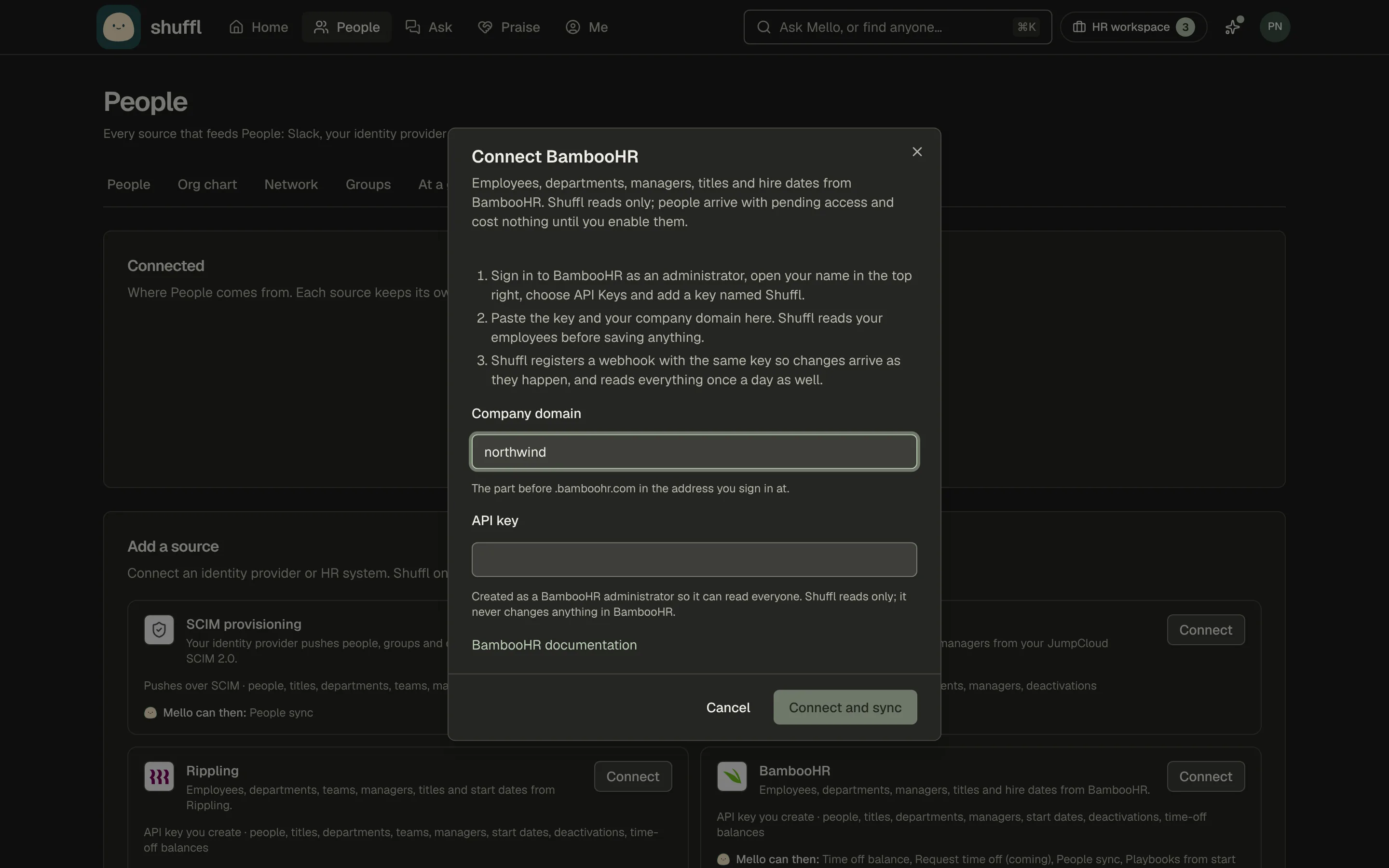
BambooHR: as an administrator, open your name (top right), choose API Keys and add a key named Shuffl.
Enter it with your Company domain, the part before .bamboohr.com. Shuffl adds a webhook with the key so changes arrive as they happen; without one it reads daily.
Rippling: open Tools → Developer → API Tokens and create a token with companies.read, departments.read, teams.read, users.read and workers.read, plus leave-balances.read for time off. Rippling expires a token unused for 30 days, so keep Sync connected.
HiBob: under Settings → Integrations → Service users, create one named Shuffl with a permission group that can view Basic info, Work and Lifecycle for all employees, former ones included.
Enter its ID and token. For live changes, add the Connect dialog’s webhook address under Automation → Webhooks and paste Bob’s secret into Webhook secret.
Personio: under Settings → Integrations → API credentials, generate a credential named Shuffl that reads Employees. It needs name, preferred name, email, status, position, supervisor, department, team, hire date and termination date. Enter the Client ID and Client secret.
Deel: open More → Developer → Access Tokens and generate an organization token with people:read and organizations:read, allowing work emails. Deel’s contractors get the Contractor employment type in People.
Workday: give an integration system user access to workers, organizations and managers, and share with it an advanced custom report of all workers, leavers included. Its fields are Employee_ID, Preferred_Name, Email, Business_Title, Manager_Employee_ID, Supervisory_Organization, Hire_Date, Active and Termination_Date.
Enable it as a web service and enter its URL from Actions → Web Service → View URLs with ?format=json, plus the user and password.
What Slack fills in
Automatic access is set separately for each connection in Sync. Turn it off before connecting, or on its card later, to approve people manually. Existing access, suspensions and provisioning denials are preserved.
Slack is listed under Connected once Slack is connected. On every plan, Shuffl reads names, emails, photos, titles, time zones and deactivations from it.
Start dates and managers come from Slack Atlas, or from custom profile fields named Start date, Hire date or Joined and Manager or Reports to. If Slack asks for permission again, reconnect to read custom fields.
Slack fills these only for people no other source manages, and a blank keeps what People has. Managers and custom fields are read on each sync, so choose Sync now on the Slack card after a reorganization.
What Shuffl reads and which value wins
Shuffl reads every source daily. BambooHR, and HiBob with a webhook secret, also send changes as they happen. Each card says which.
Shuffl links each record to a person by the source’s id, then by a work email matching exactly one person. Anyone else becomes a new person; a former employee never in People is not imported.
An email shared by two people, or held by someone another source already linked, is skipped and counted, never made a second person. Fix the duplicate in People, then sync again.
Name and email stay with Slack or SCIM when either holds the person. Job details come from the source: title, department, groups, manager, start date, and employment type and time zone when sent.
A source overwrites those fields on every read, so correct mistakes in the source. A blank keeps what People has, so start dates typed in People survive Google Workspace and JumpCloud.
If you also use an HR system, connect it first so it owns start dates.
Departments are groups marked Department on People → Groups. They are created from the source’s names, or matched by name, and follow renames; a new department moves the person out of their old one.
Groups you bring in follow the source; groups made in Shuffl stay as they are.
A manager is set when the source names one who is also in that source. Shuffl never clears or invents a manager and skips one that would create a loop.
Start dates drive anniversaries, New hires on Home and onboarding dates. Shuffl also keeps a first hire date when the source sends one or someone returns.
HR systems that send a termination date set the person’s last day in People, never with a reason, as not announced. A later start date clears it.
If two sources list the same person, the first keeps them; disconnecting it hands them to the next.
Starters and leavers
A future hire arrives with pending access. Once the source shows them active, Employment becomes Employed.
When an HR system shows someone as terminated or inactive, or their last day has passed, Shuffl sets Employment ended and suspends their access. An archived Google Workspace user is treated the same way.
A suspended or turned-off directory account, or an inactive HiBob one, has access suspended and employment left as it was. JumpCloud has no terminated state, so record Employment ended yourself.
Workday ends employment from Active or a passed Termination_Date, so keep leavers in the report.
Someone a source stops listing is counted as no longer listed, never suspended. Enable a returning employee yourself.
Hiring systems
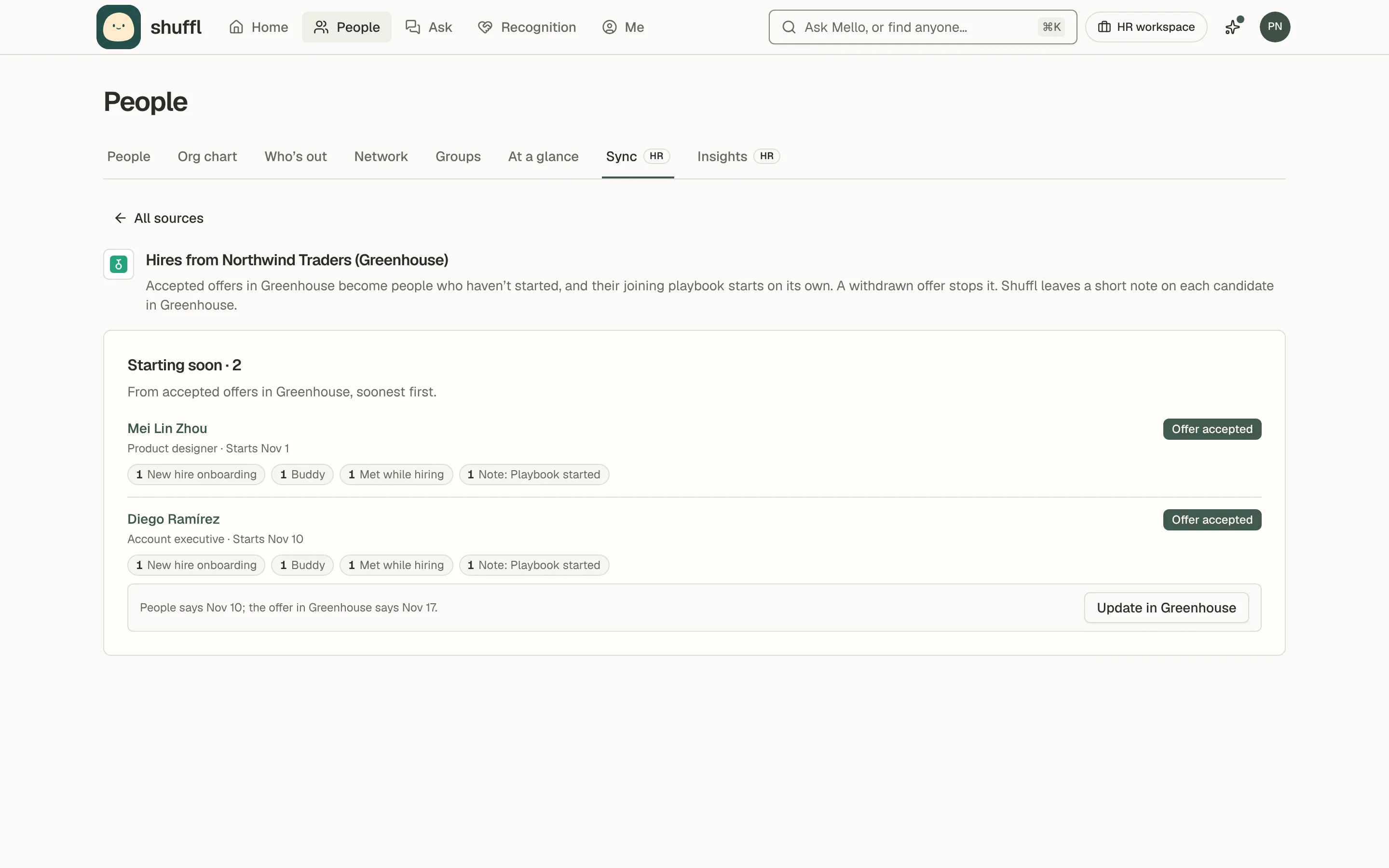
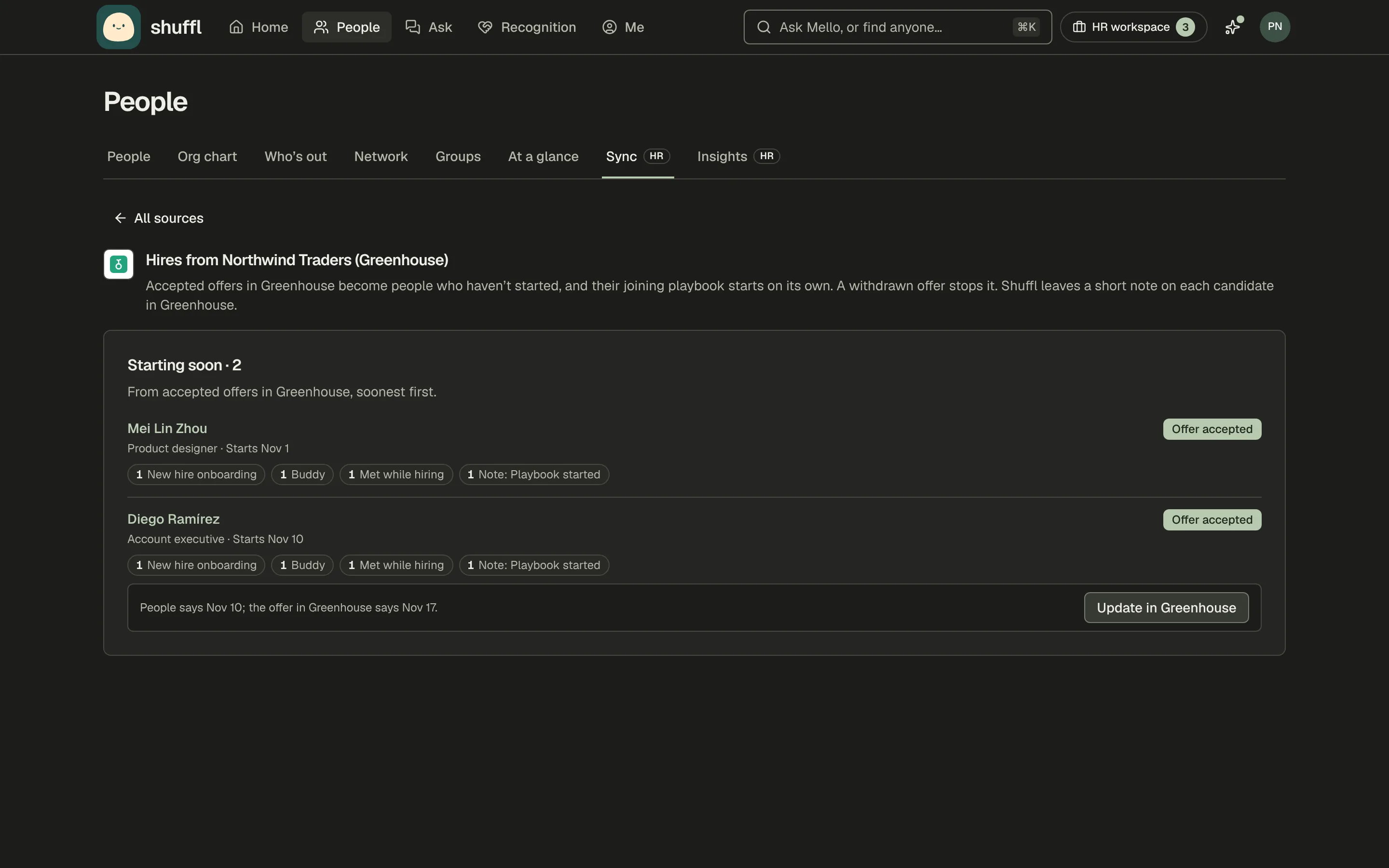
Ashby and Greenhouse connect under Add a source. Each accepted offer starting in the last two weeks or later becomes a person who hasn’t started. They arrive with their job, start date and personal email, and their joining playbook starts on its own.
Shuffl reads only offers, applications and candidates: never pay, feedback or scorecards. Applicants and rejected candidates never reach Shuffl. A hire joins someone already in People only when that person hasn’t started; anyone else is skipped.
A changed start date moves the playbook. A withdrawn offer stops it, tells HR and the playbook’s approver, and sends nothing to the candidate. Once your HR system lists the hire, it takes over their record.
Hires on the connection’s card lists each one. Write notes leaves a short note and an “Onboarding in Shuffl” tag on the candidate. Update sends a start date moved in People back to the offer.
Time off
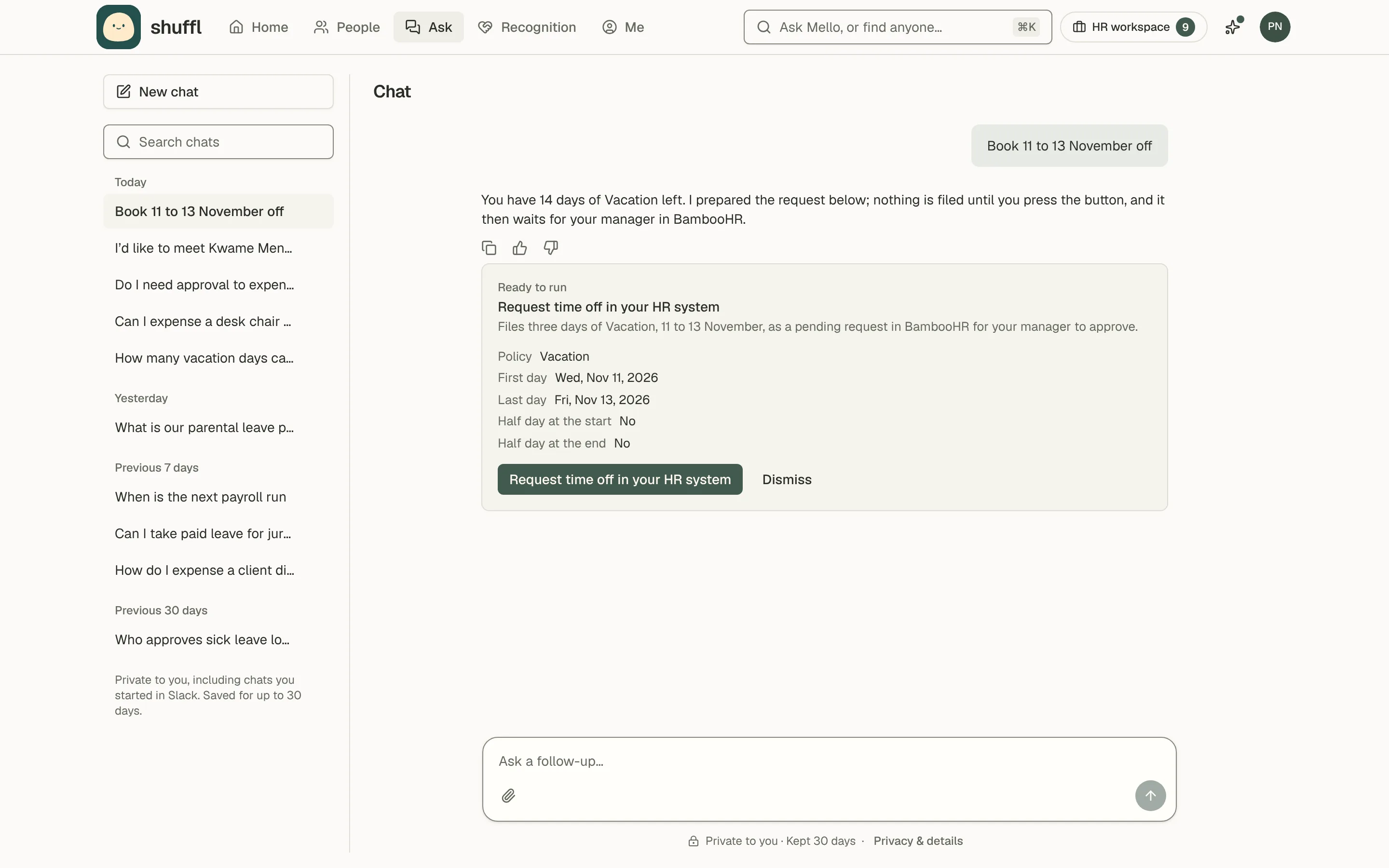
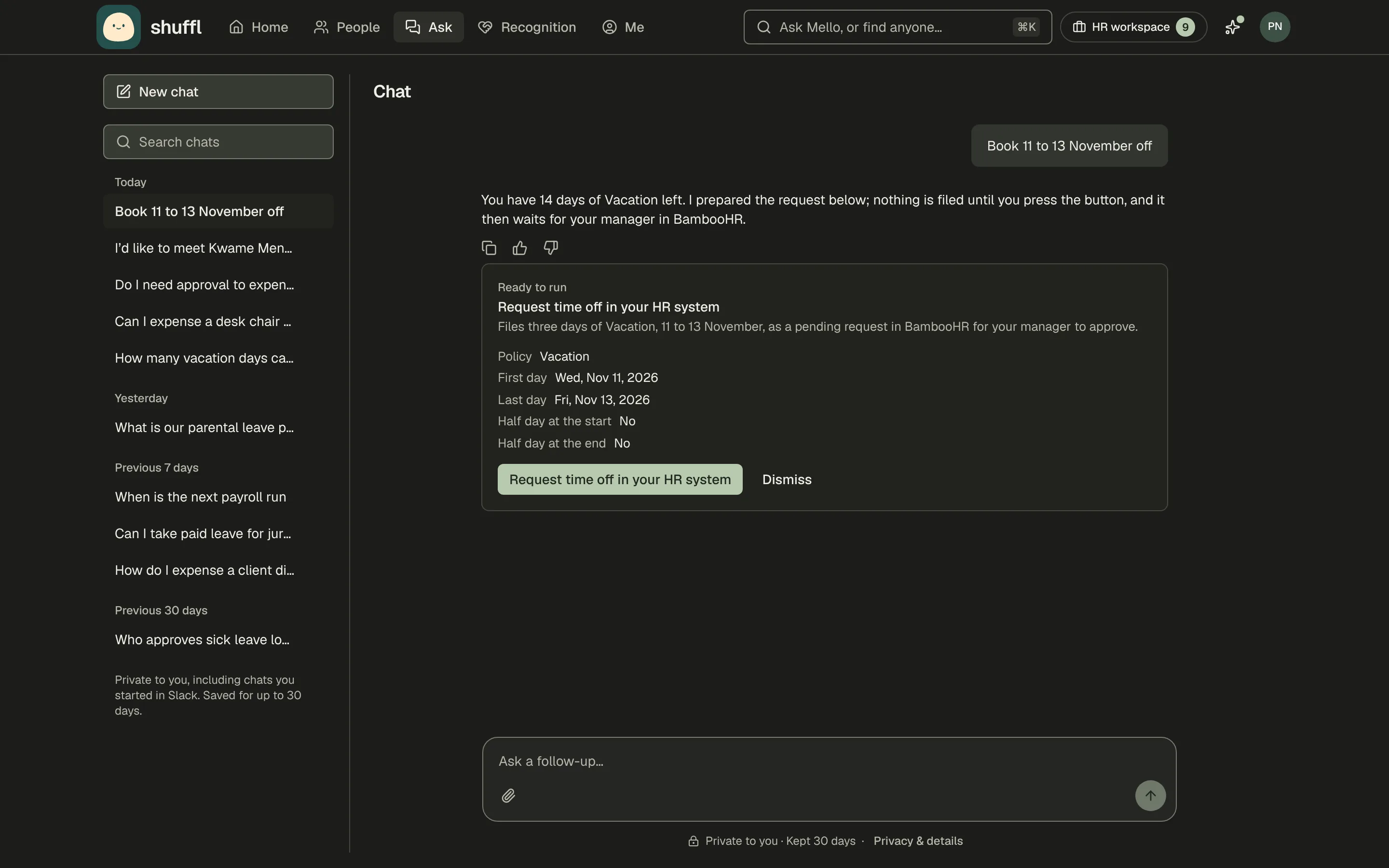
With BambooHR, Rippling, HiBob or Deel, Mello can tell an employee their own time-off balances when they ask in their own chat. It uses that system’s policy names and units and says the date they are as of.
Mello reads only the asking person’s balances, never in a shared channel, and never guesses a number.
With Deel, HiBob or BambooHR, Mello can also file the request. It prepares a card with the policy and dates. Once the person runs it, the request lands as pending in that system for the usual approval. Shuffl never approves on its own.
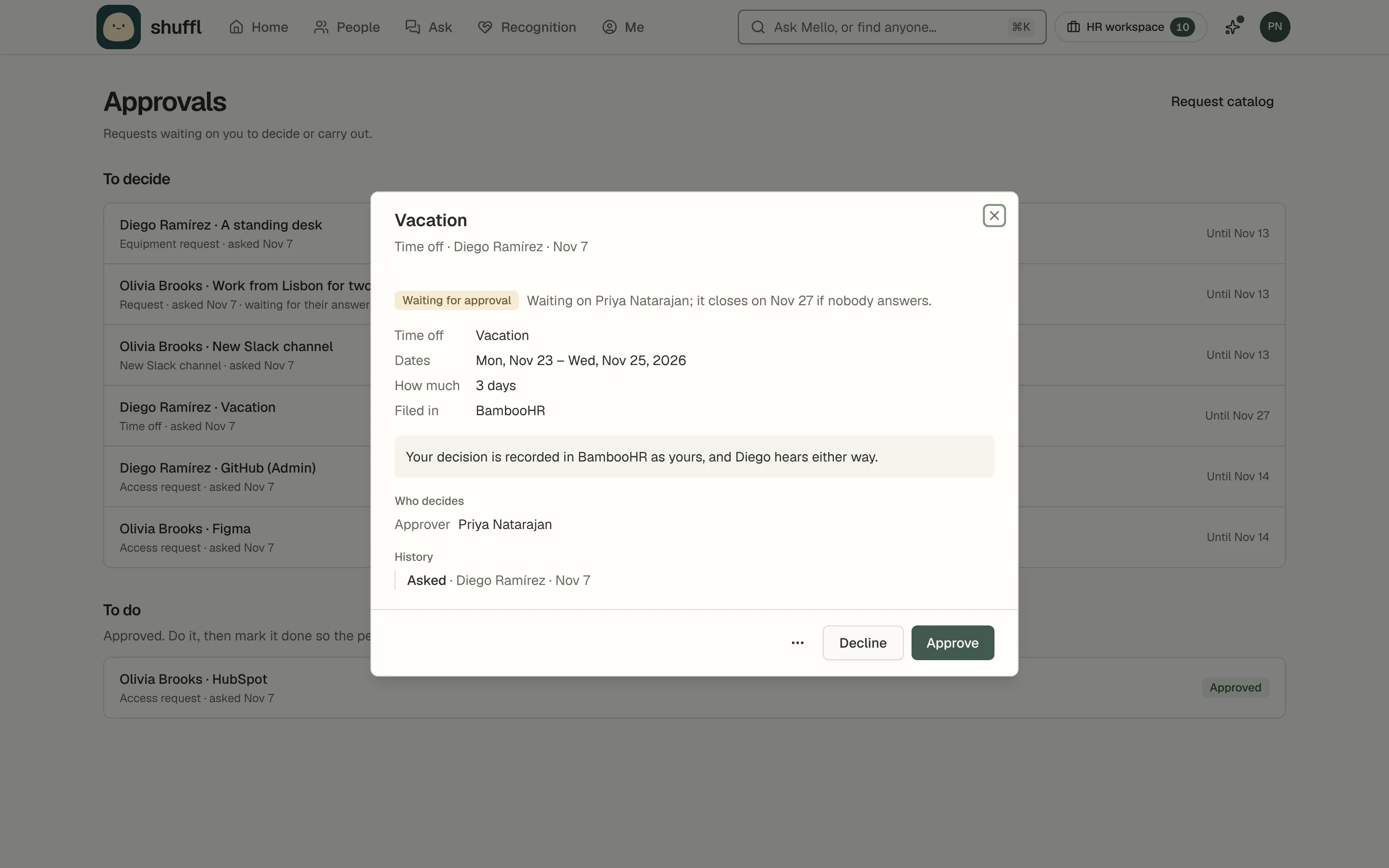
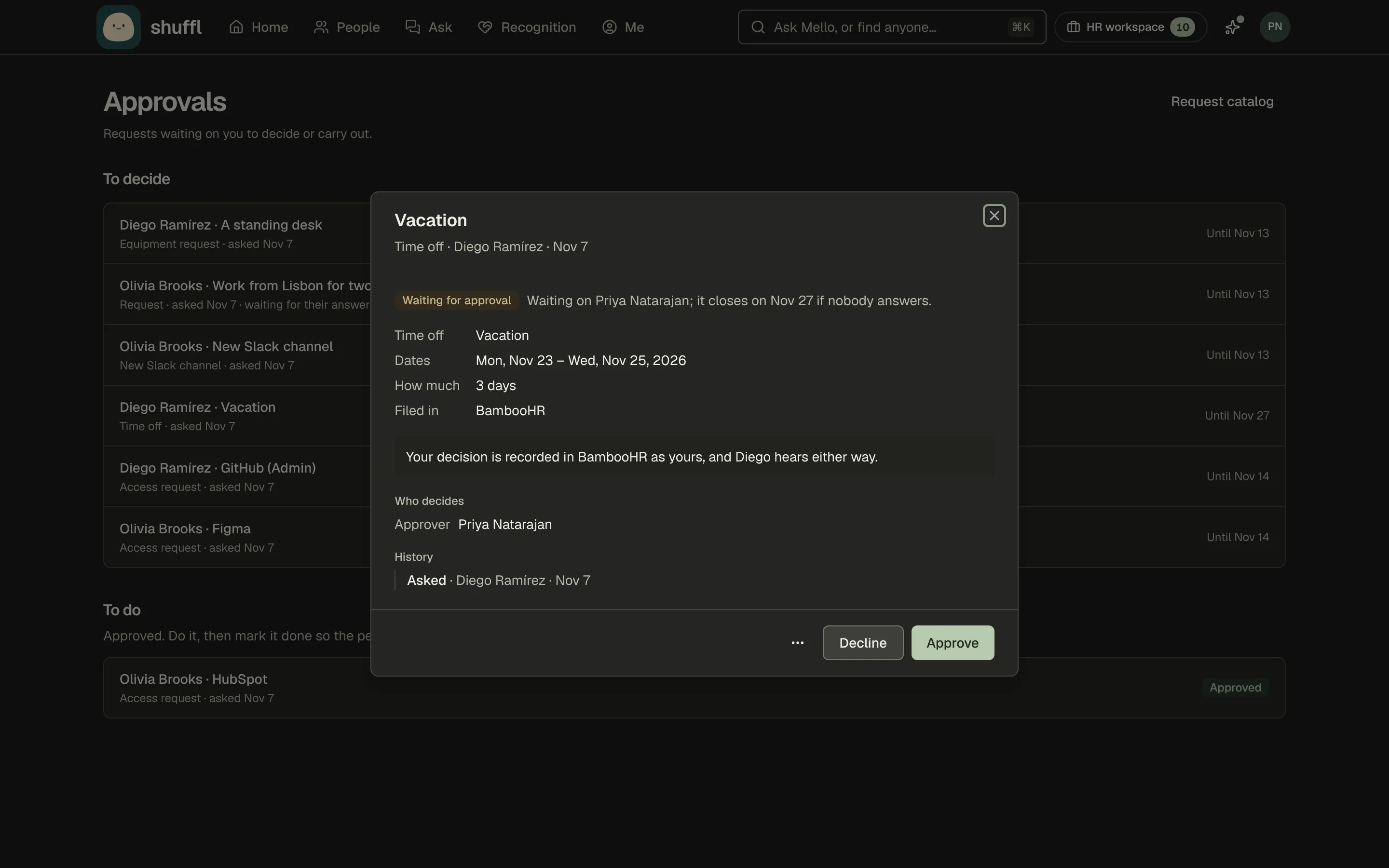
The approver the HR system names gets the request in Slack and on Approvals. With BambooHR or Deel they tap Approve or Decline, and the HR system records it as theirs. HiBob doesn’t let apps approve, so its card links there.
Only that approver can decide it here; administrators can’t. A decline needs a reason, which the person sees. Whatever the HR system decides elsewhere closes the request in Shuffl too.
Each filed request shows under Filed for you on Me and in Chat, with where it stands. While it is pending, Cancel request takes it back. When the system decides, Shuffl tells the person.
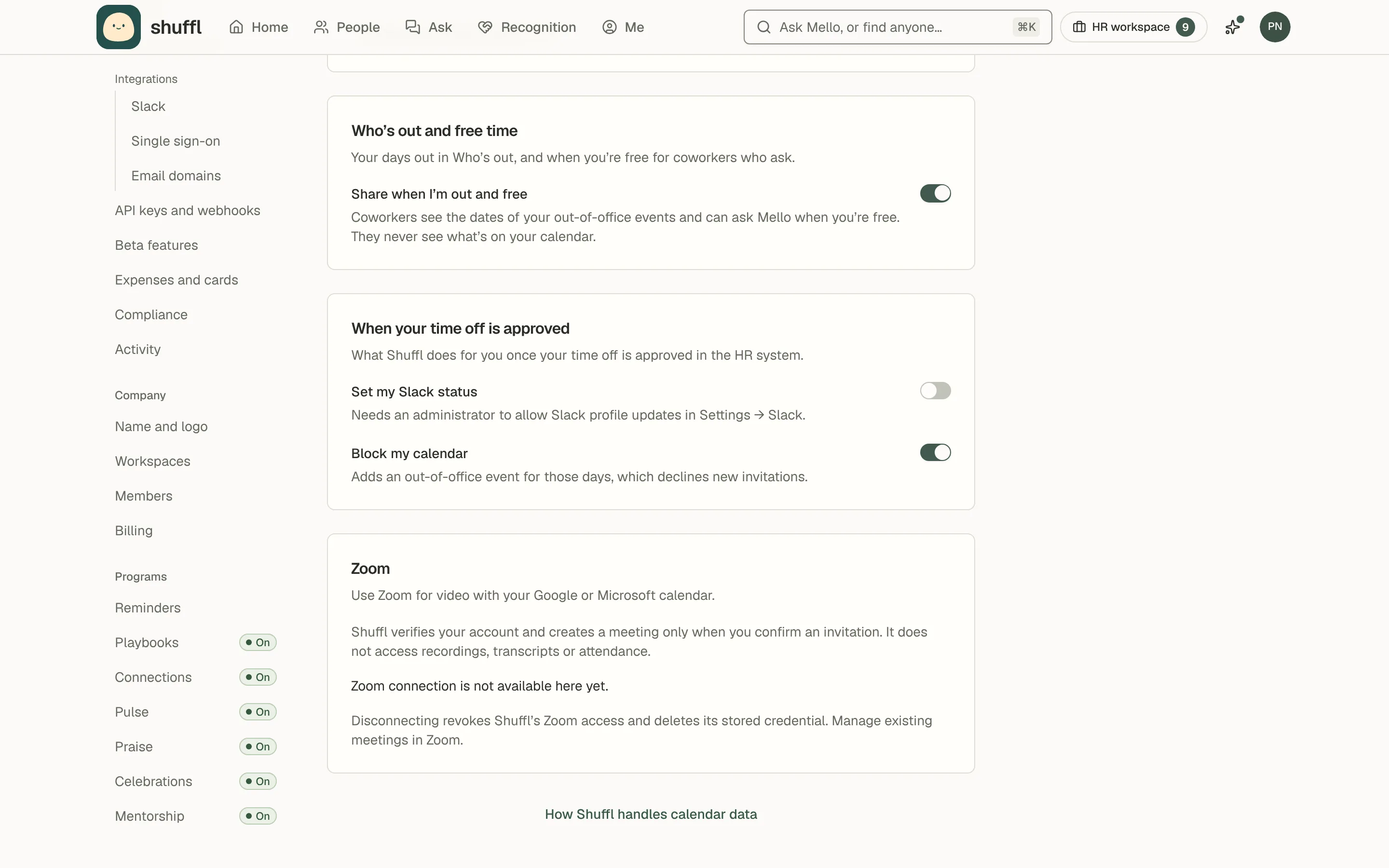
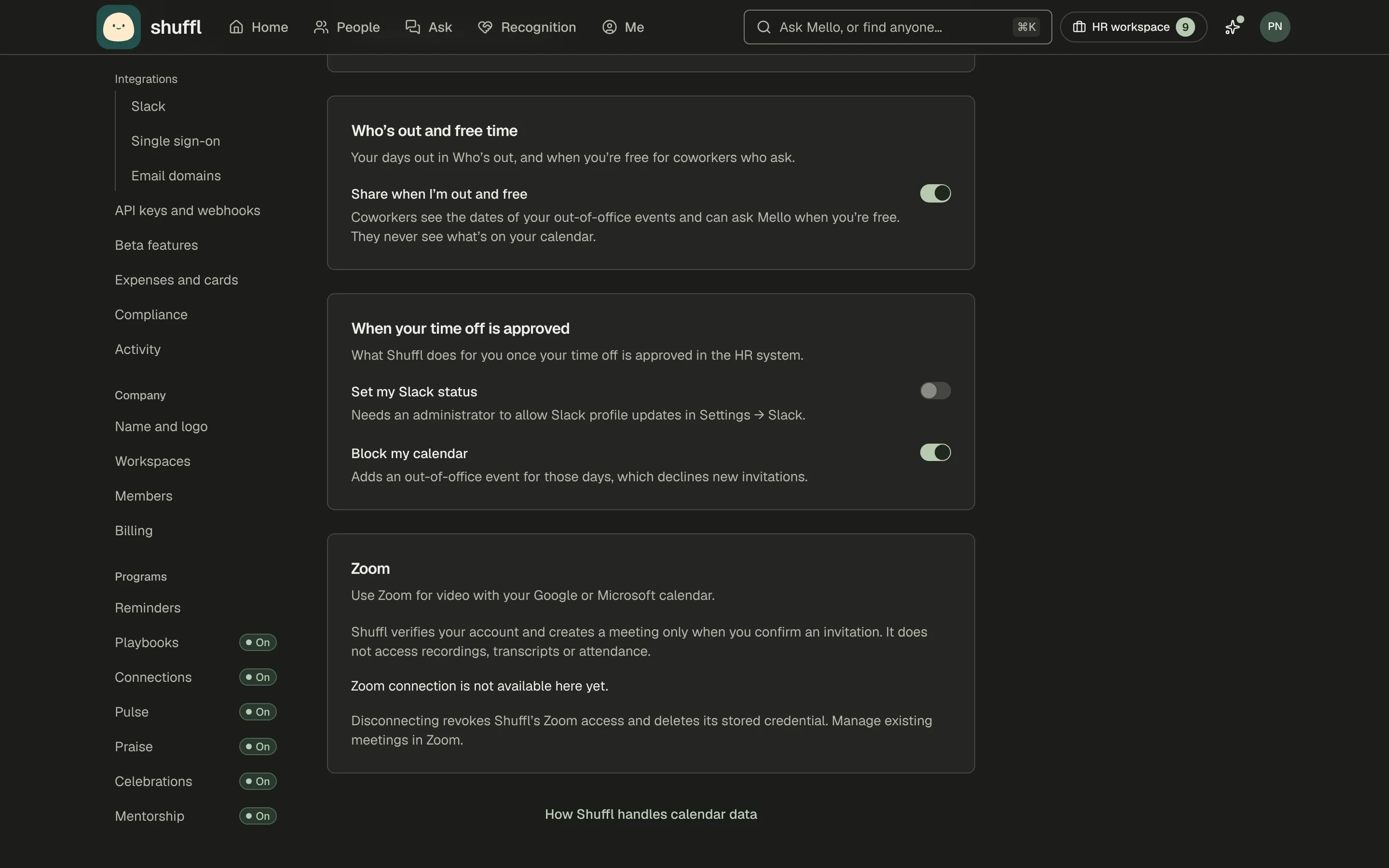
Under Settings → Calendar, each person can have approved time off set their Slack status on their first day out. It can also add an out-of-office event to their connected calendar. Both stay off until they turn them on.
The connection’s card has a Let Mello file requests switch. Turn it off and Mello sends time-off requests to HR instead; reads carry on. The key or token must be allowed to read, and to file, time off.
ShufflAPP
ShufflAPP
ShufflAPP
Pay dates and benefits
When the HR system reports them, Mello answers when’s payday from its pay calendar, the person’s own schedule first. It also says which benefits they’re enrolled in, with carriers and open enrollment dates.
Shuffl reads dates, plan names and carriers only. It never reads salary, pay amounts, deductions, premiums, bank details or dependents, and stores none of the answers.
Benefits are the asking person’s own, in their own chat, never in a shared channel and never shown to HR. For a pay stub, a W-2 or a P60, Mello links to the HR system’s employee portal.
Gusto reports both once Gusto approves Shuffl’s app. The connection’s card lists pay dates and benefits among what it brings in, and What Mello can do shows Payday and Your benefits as live.
Choose which groups come in
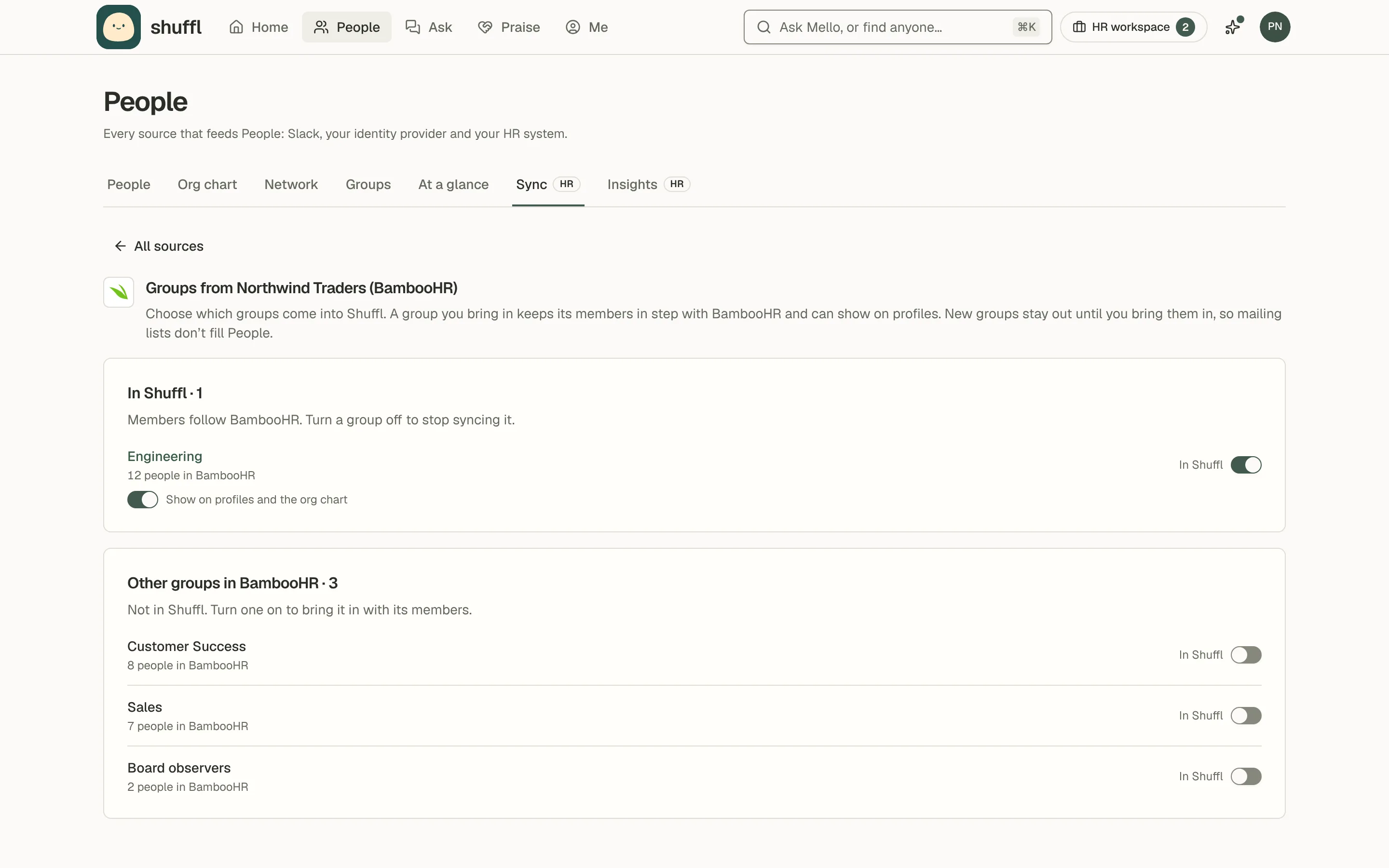
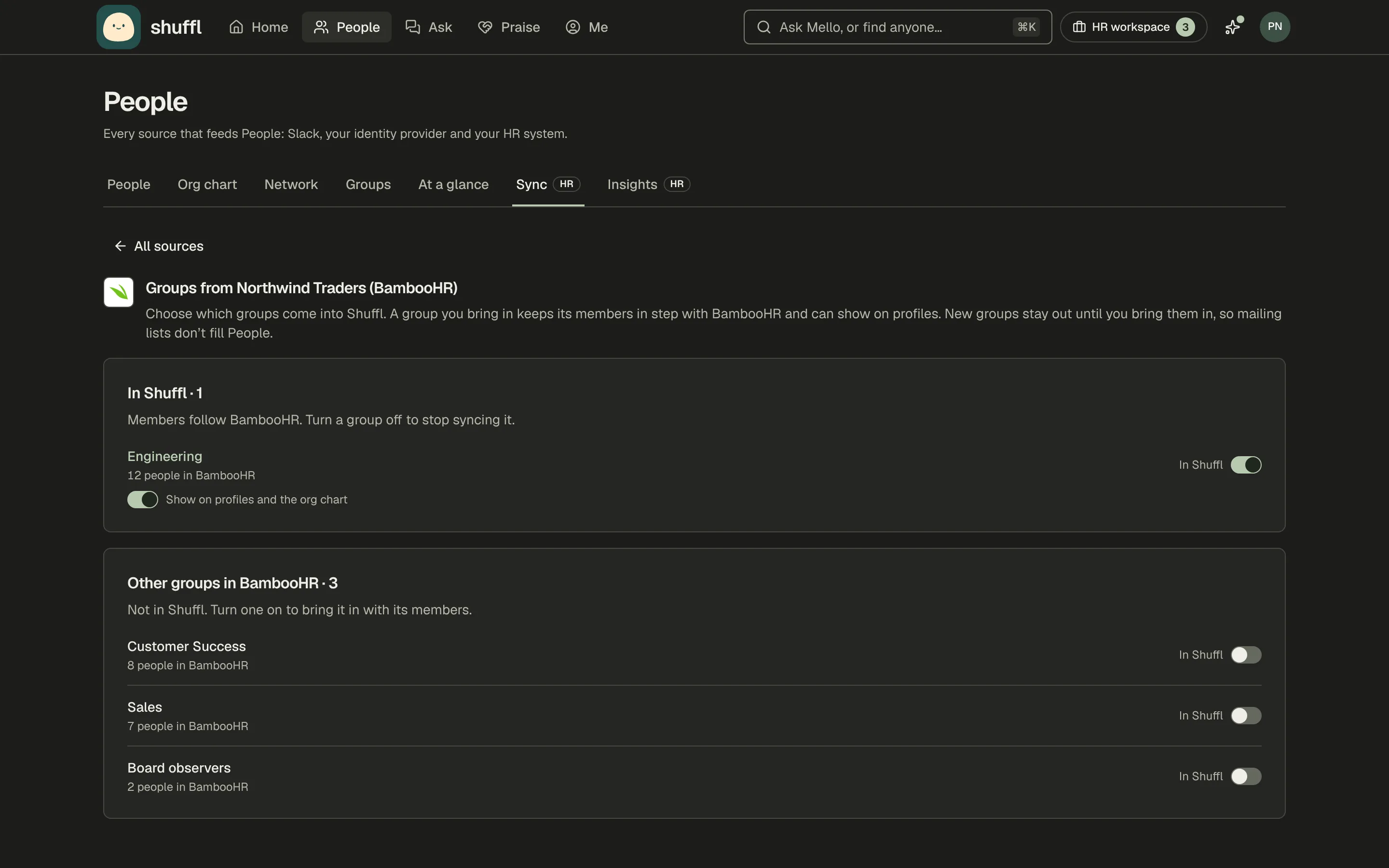
- Open People → Sync and choose Groups on the source’s card.
- Turn on In Shuffl for each group you want. Shuffl starts a sync so its members arrive.
- Leave Show on profiles on for teams people work in, and turn it off for groups that only HR uses.
Teams and groups from a source or Slack don’t come in by themselves. Each sync lists them on the source’s Groups screen with their size, so mailing lists stay out of People.
A group you bring in follows the source at every sync. Turn it off and it stays in Groups as a list for you to keep or delete; turn it on again to follow the source.
Read a sync and fix a failed one
- When a card shows Needs attention, the provider refused the key. Create a new key, token or password in that system.
- Choose Connect on the same system and enter the new details. Shuffl replaces the stored key and runs a sync.
- For Google Workspace or Microsoft 365, sign in again as an administrator.
- For Microsoft 365, Needs attention usually means someone removed Shuffl under Enterprise applications in Entra.
Each card shows how many people the source manages and when it last synced. Its last run is a row of chips: New, Linked, Updated, Managers, Not listed and Skipped, such as people another source manages. Counts of zero are left out.
Sync now queues a read straight away. It runs within a minute; refresh to see the result.
A failed run changes nobody and says why on a red chip, such as Credential refused. Shuffl tries again at the next daily read.
Disconnect a source
Choose Disconnect on the source’s card and confirm. Syncs stop, the stored key is deleted, and every person stays in People to edit by hand.
Shuffl removes its BambooHR webhook. Remove a HiBob webhook or Google authorization yourself. To rotate a key, connect the same source again instead.
Connecting the same directory again later reuses everyone it linked before, with their access as it was. Links you removed stay removed. A different account starts its own links and joins nobody already linked.