
How-to guide
Review and publish knowledge
Turn a policy into a published source with an audience and dates, so Mello can answer from it and cite it.
For HR administrators and Knowledge verifiers
Have your agent do thisPaste the prompt into Claude Code, Cursor or another agent. It follows this guide over MCP and asks before it changes anything others will see.Show the promptHide the prompt
Help me with "Review and publish knowledge" in my Shuffl workspace.

1. Read the guide: https://shuffl.ai/docs/markdown/knowledge
2. Add Shuffl's MCP server: https://shuffl.ai/api/mcp
   Claude Code: claude mcp add --transport http shuffl https://shuffl.ai/api/mcp
   When the browser opens, choose my workspace and allow the access the guide needs.
3. Work through the steps in order: Add a source; Start with a draft; Publish deliberately; Ask people to confirm they’ve read it; Download the handbook. Do what you can over MCP and tell me which steps only I can do in the browser or in Slack.

Show me what you will change and who it affects, and wait for my yes before publishing, inviting or sending anything.
On this page
App links open your signed-in workspace. Check the selected workspace before making changes.
Add a source
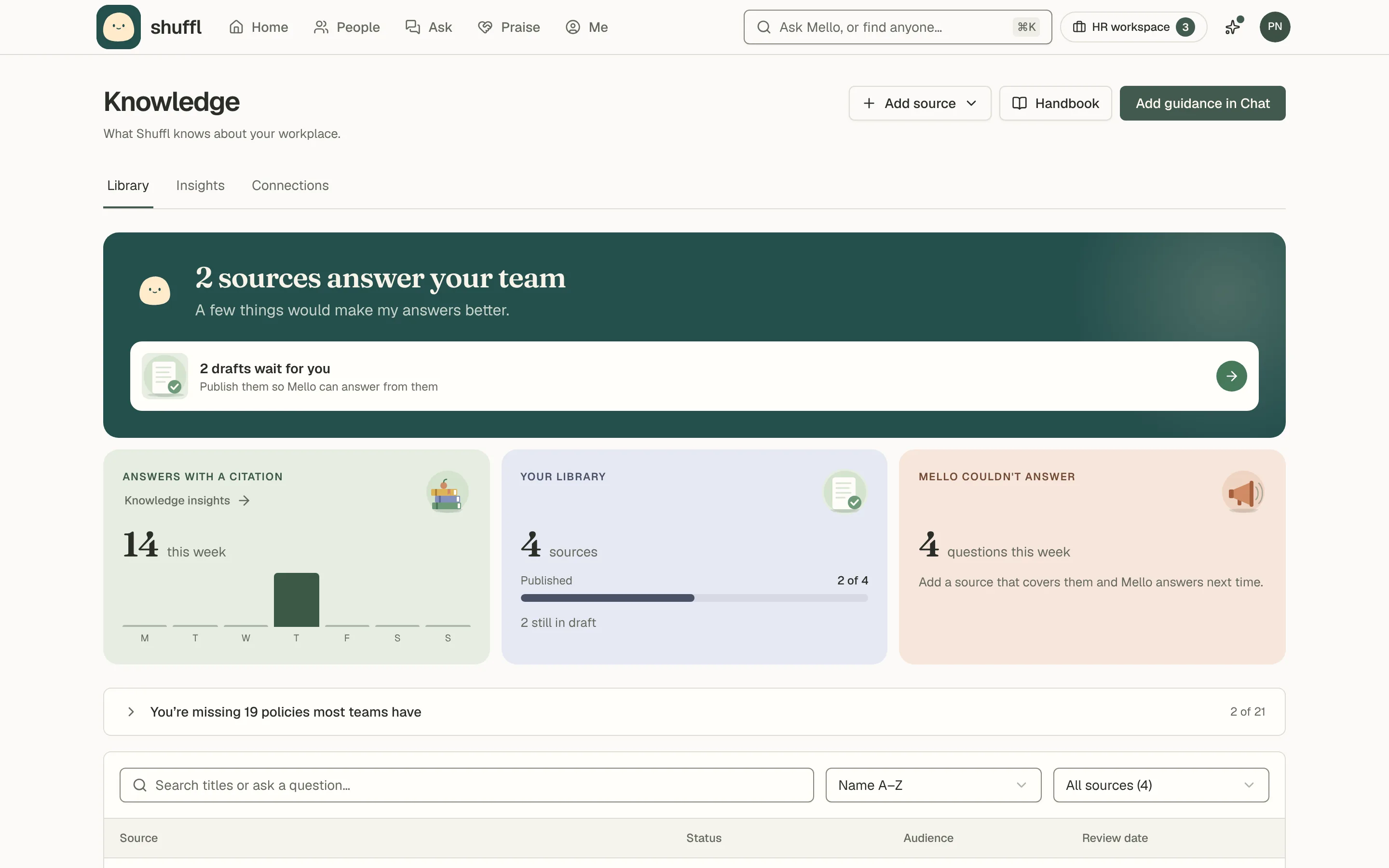
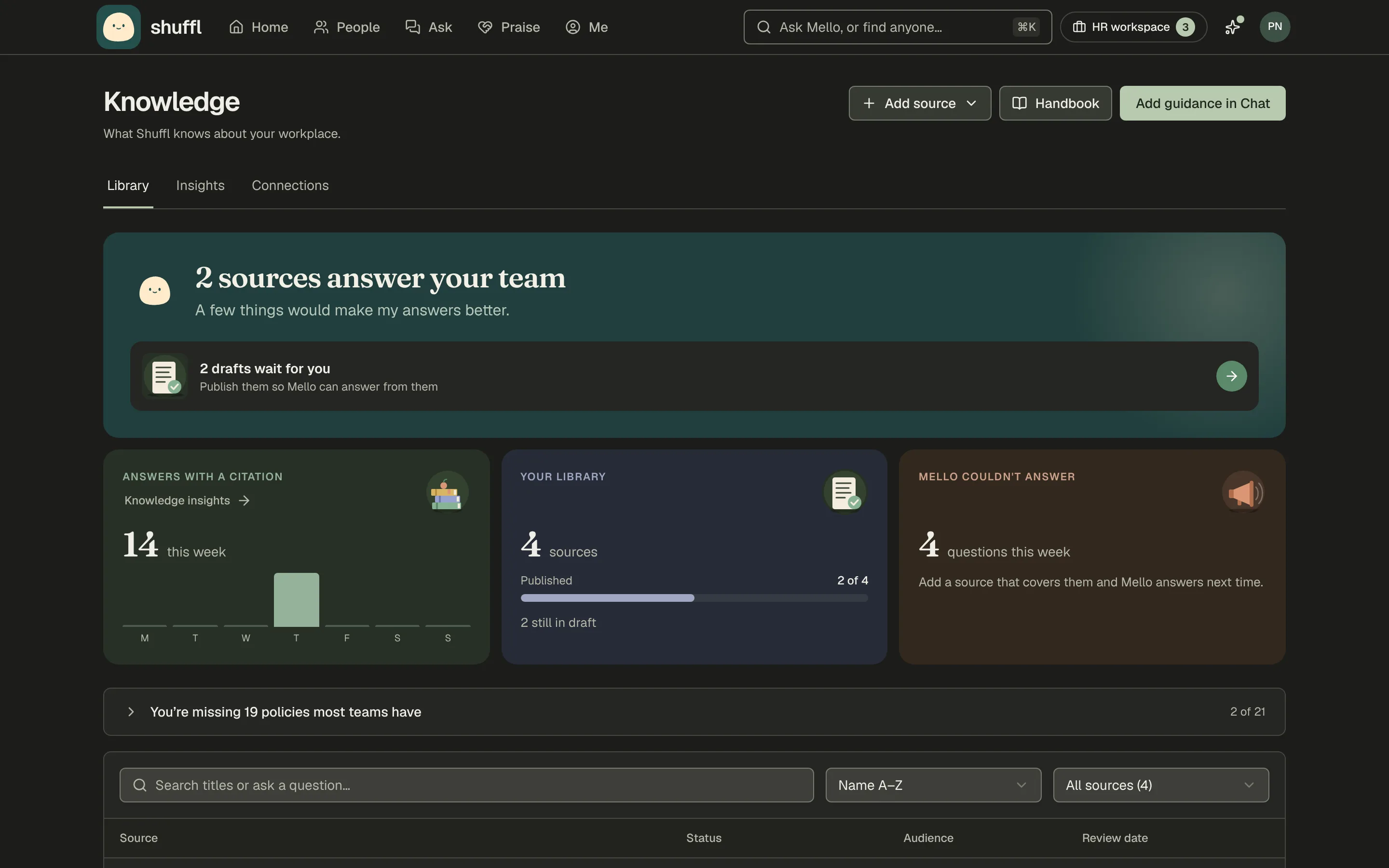
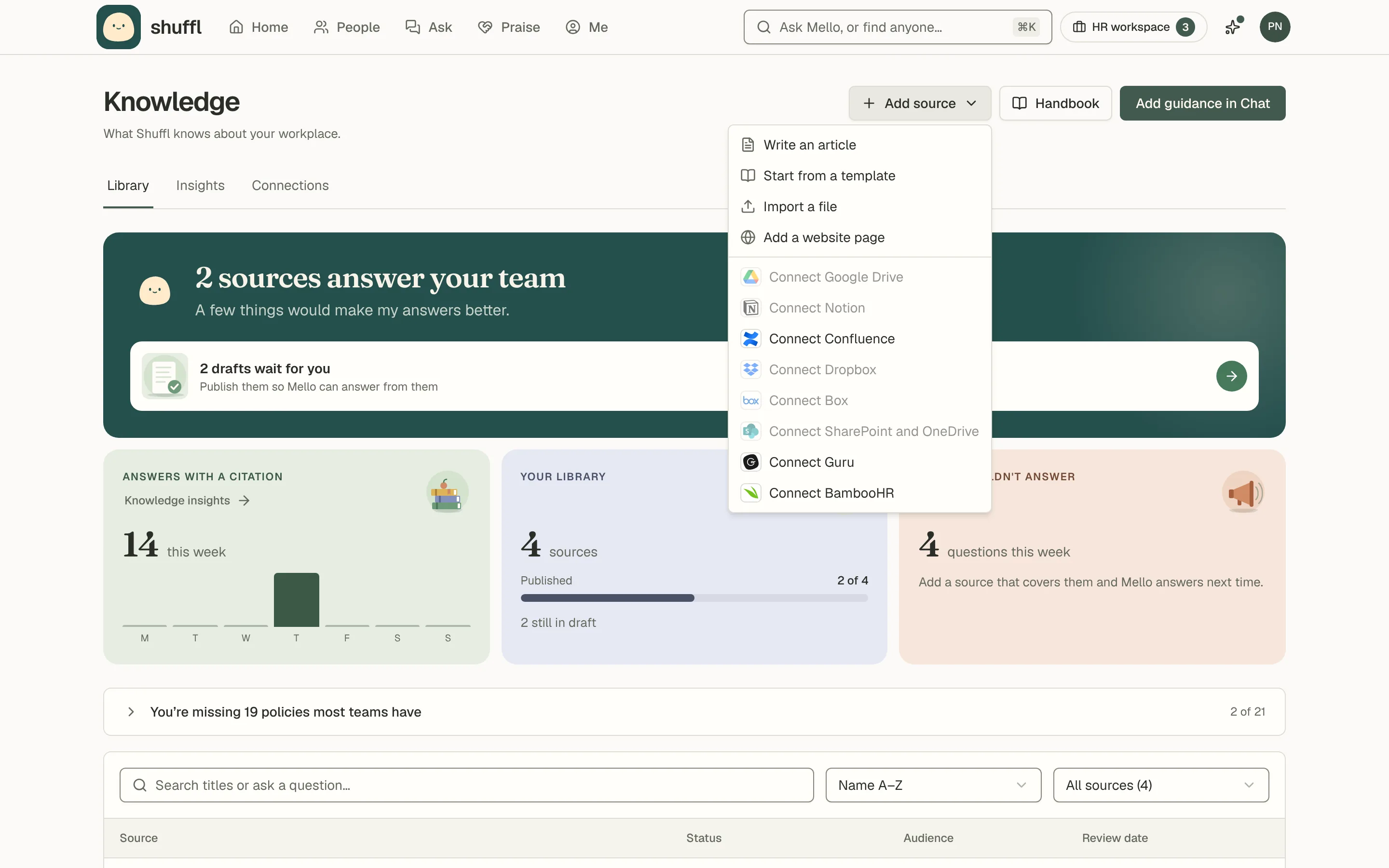
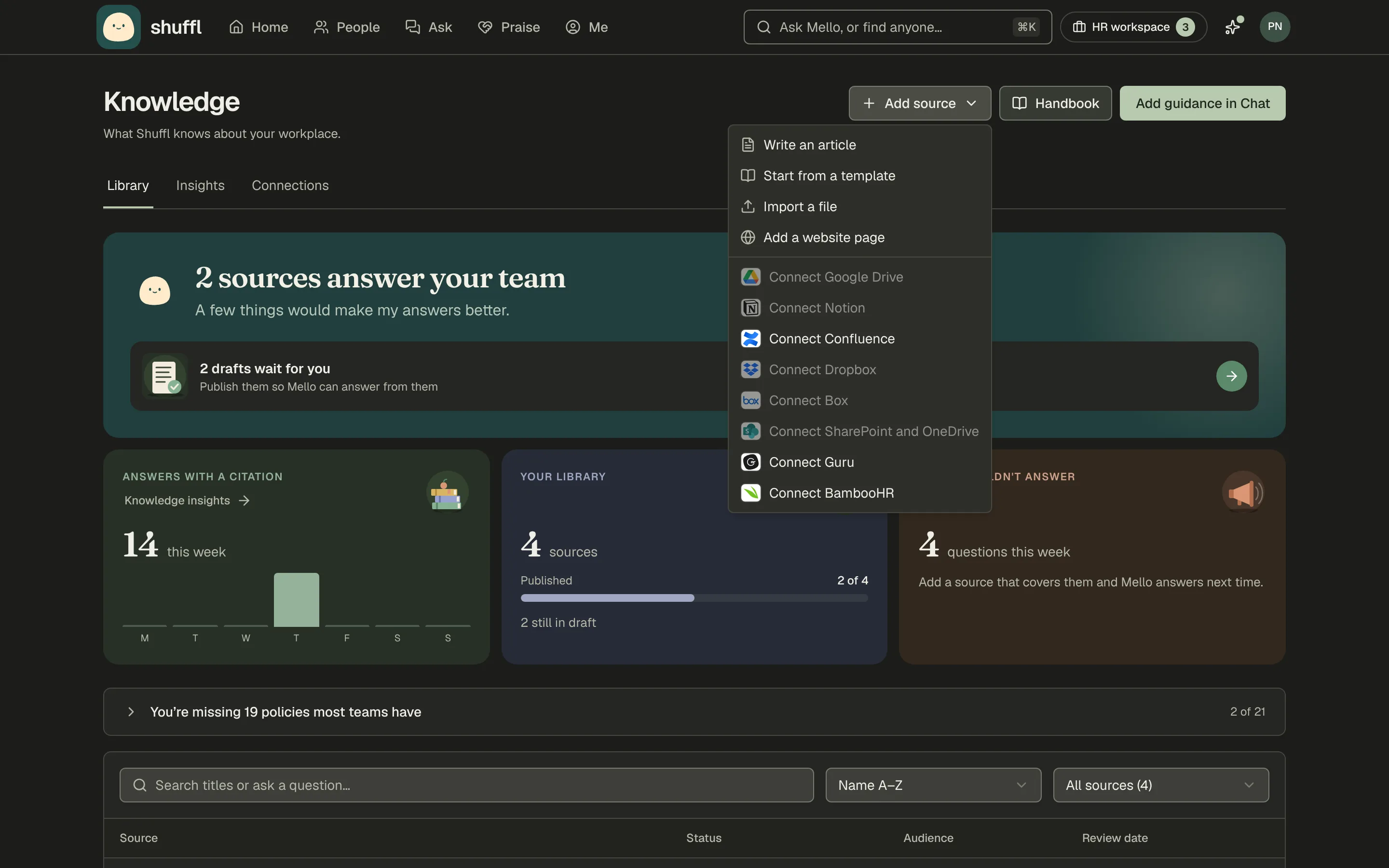
- Choose Add source → Write an article to write in the editor, with Markdown and a preview. Write with Mello drafts a page from its title and a short request.
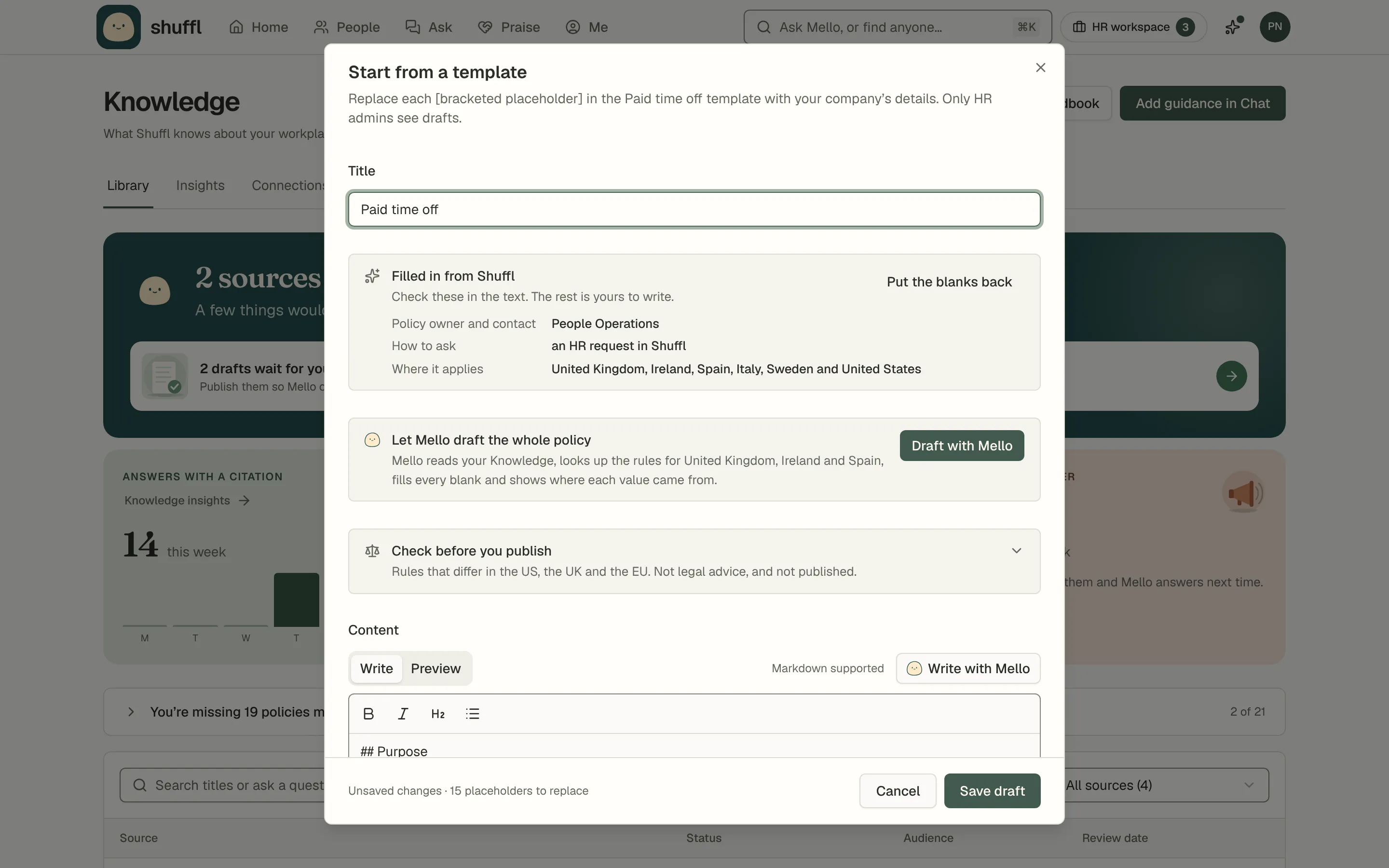
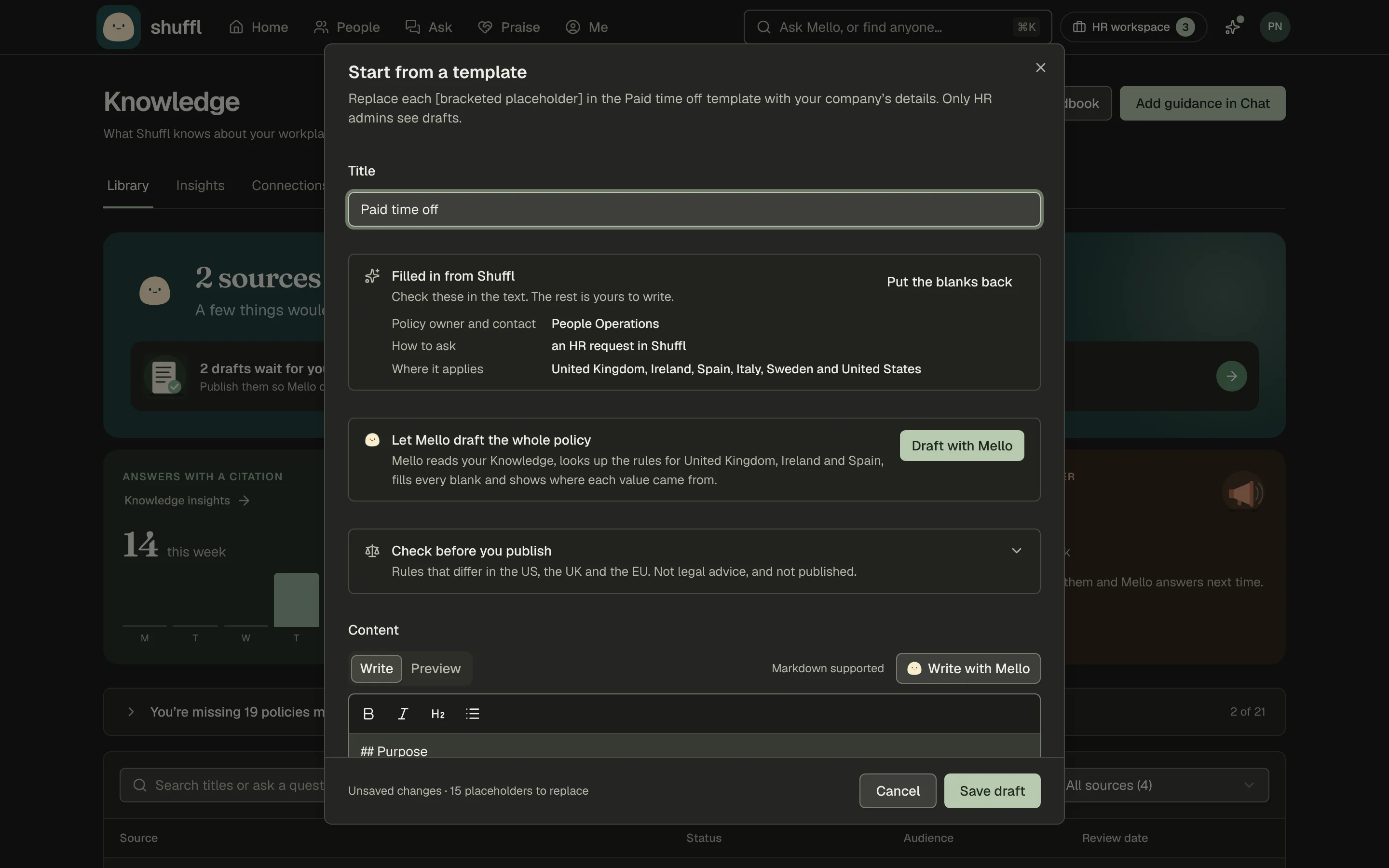
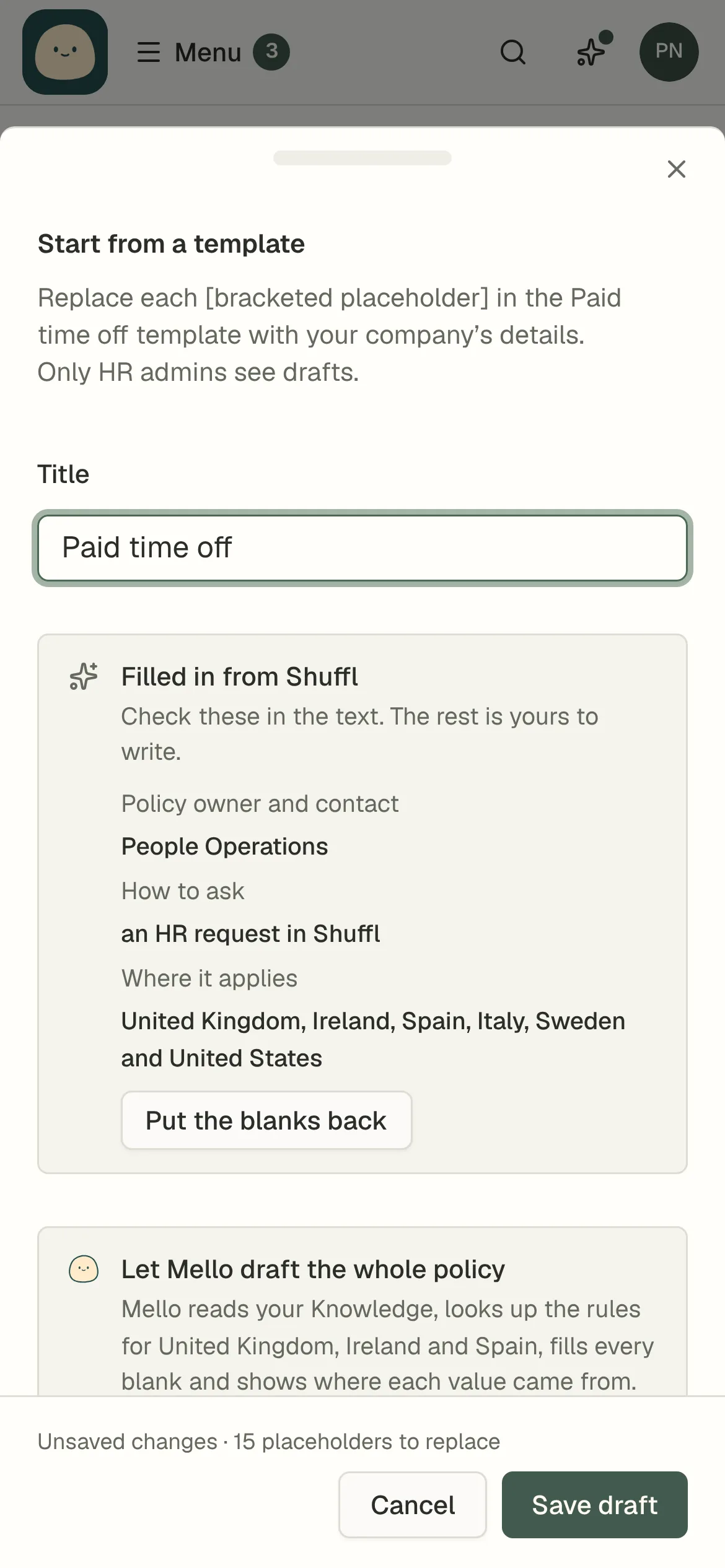
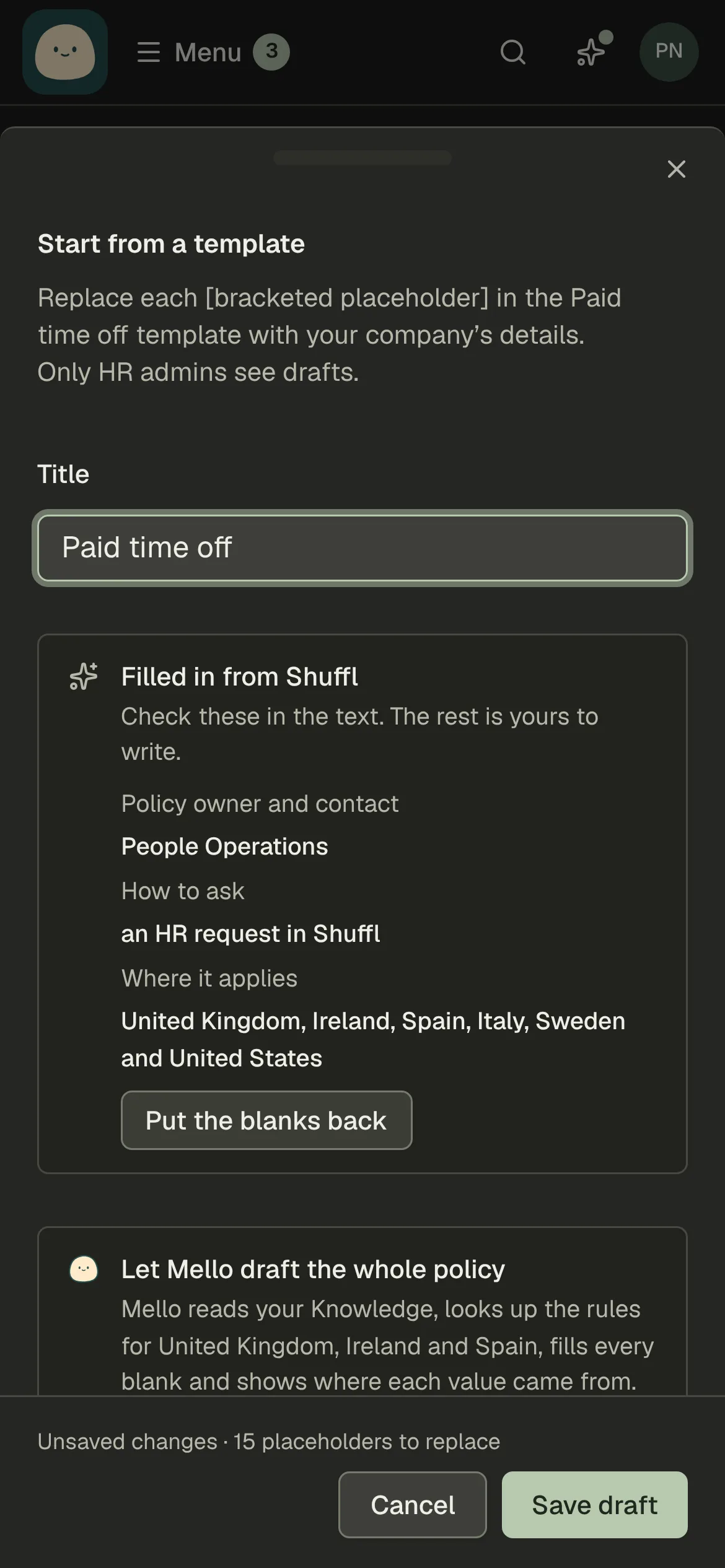
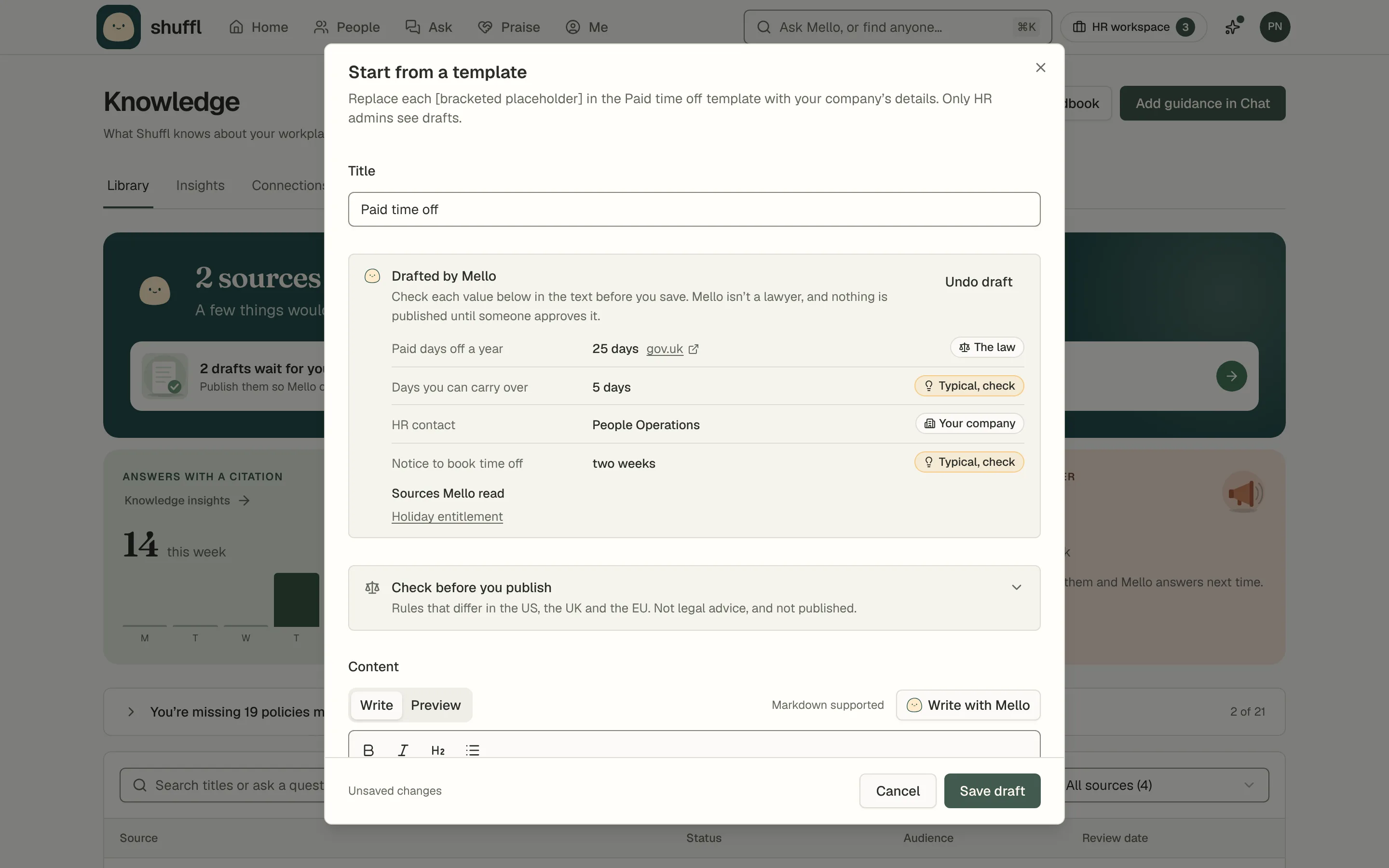
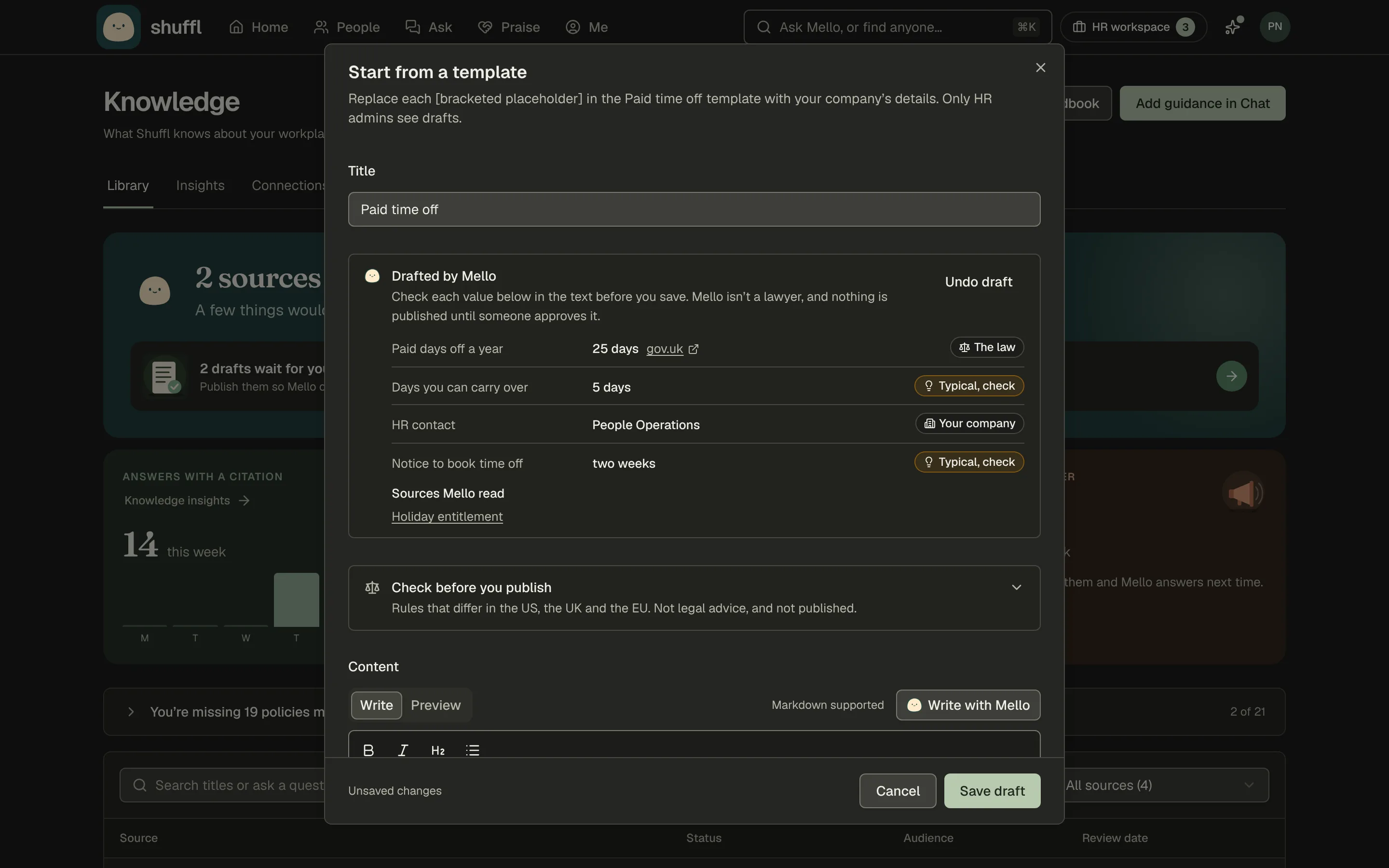
- Choose Start from a template for one of over twenty policies, such as paid time off, expenses or code of conduct.
- Shuffl fills in what it knows, like your company name and HR contact, and lists it under Filled in from Shuffl. Replace every other [bracketed placeholder] before publishing.
- Or choose Draft with Mello on the template.
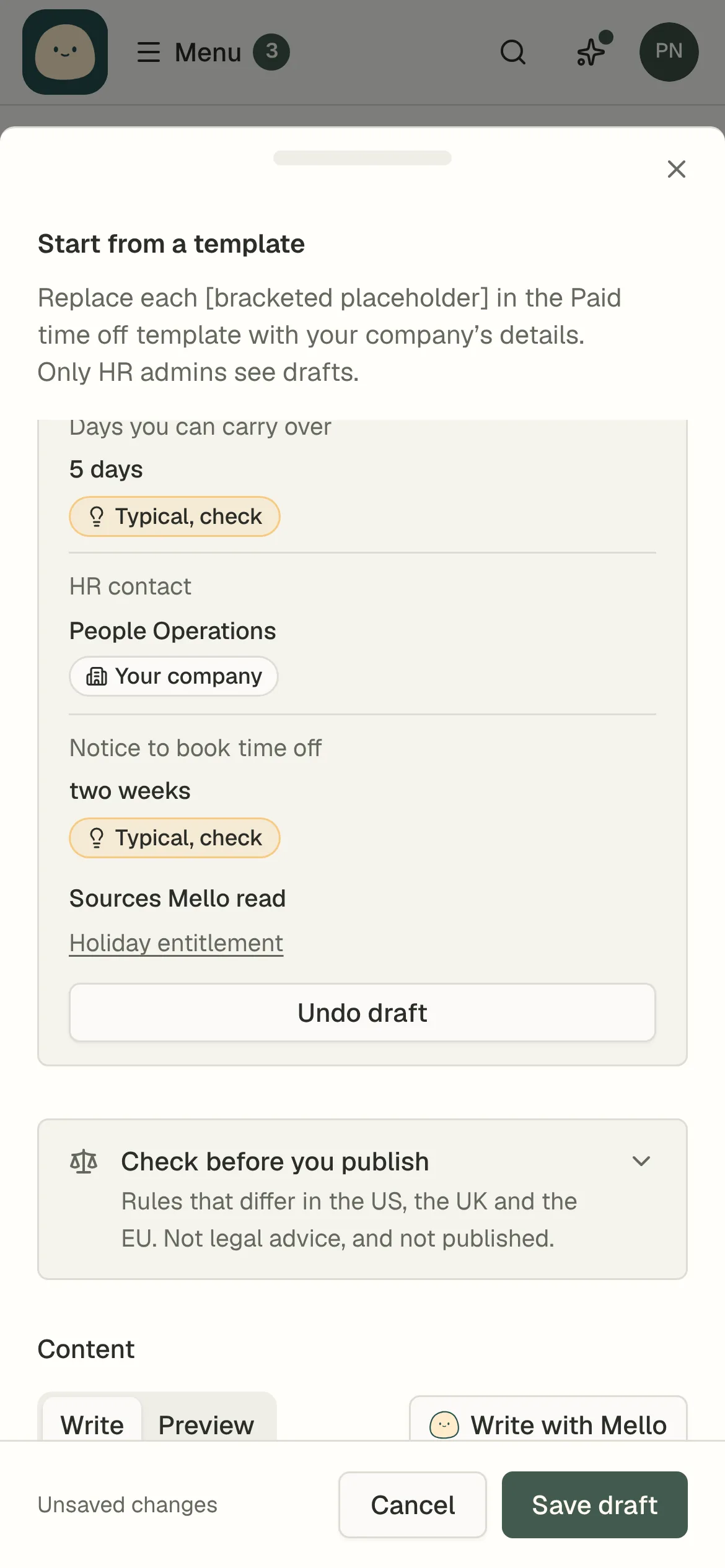
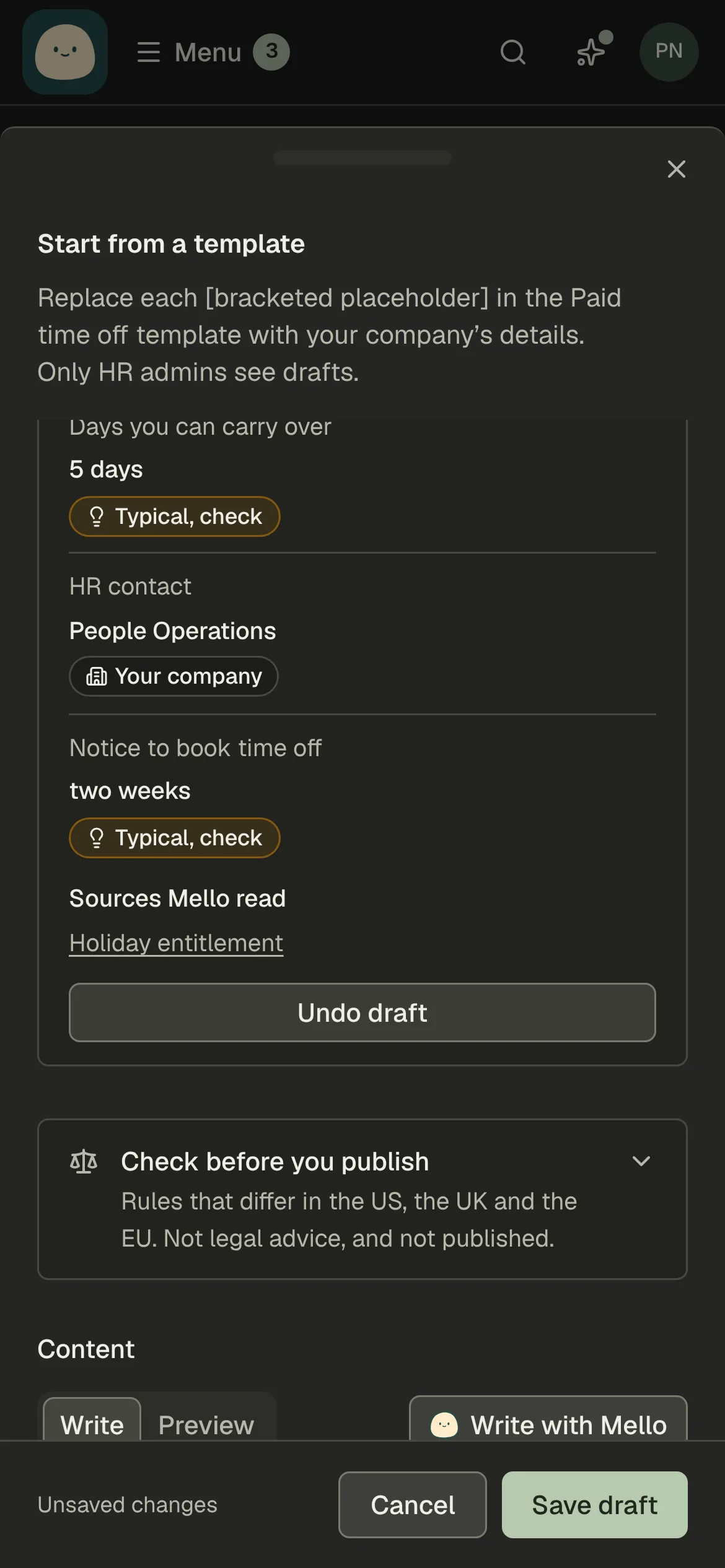
- Mello reads your Knowledge and official sources for where your people work, then fills every blank, marking each value Your company, The law or Typical, check.
- Check each one; Undo draft puts the template back. Mello is not a lawyer.
- Check before you publish in the editor lists rules that often differ in the US, the UK and the EU.
- It is not legal advice; have someone qualified review the policy.
- Choose Import a file for a PDF, Word, PowerPoint, Markdown, HTML or text file up to 50 MB and 500 pages.
- A long handbook is split by its headings into one draft per section. Password-protected PDFs cannot be read.
- Choose Add a website page to import a page that Shuffl re-reads when it changes, including intranet pages behind a sign-in.
- Connected providers such as Google Drive and Notion have their own guide.
- Or tell Mello in Chat what employees should know. It drafts the wording and puts it in the Inbox for a reviewer to verify.
Everything Mello answers from starts as a source in Knowledge, with a title, a body, an audience and two dates. People who manage Knowledge add, edit and publish sources on the same page everyone reads.
Start with a draft
- Give the source a title and check its text. For an imported file, read the extracted text of each draft before you publish.
- Choose Who can read this after publishing?: HR admins only, Everyone in this workspace, or Selected departments, groups or roles.
- A blank article starts with HR admins only; templates for employees start with Everyone in this workspace.
- Set Effective date and Review by, in UTC. On the Review by date the source stops being used in answers until someone reviews it.
- Choose Save draft. Only reviewers and administrators see drafts.
Publish deliberately
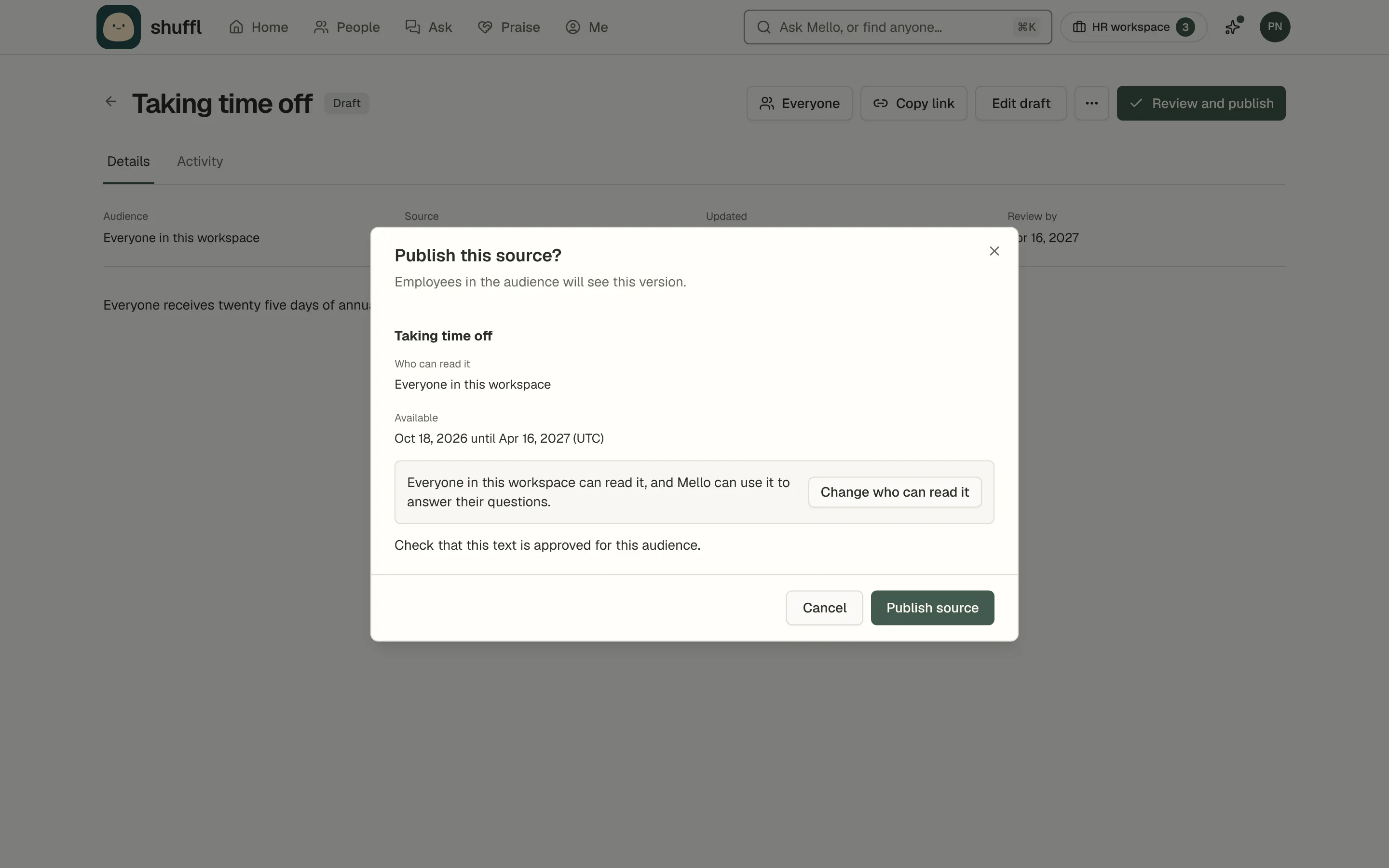
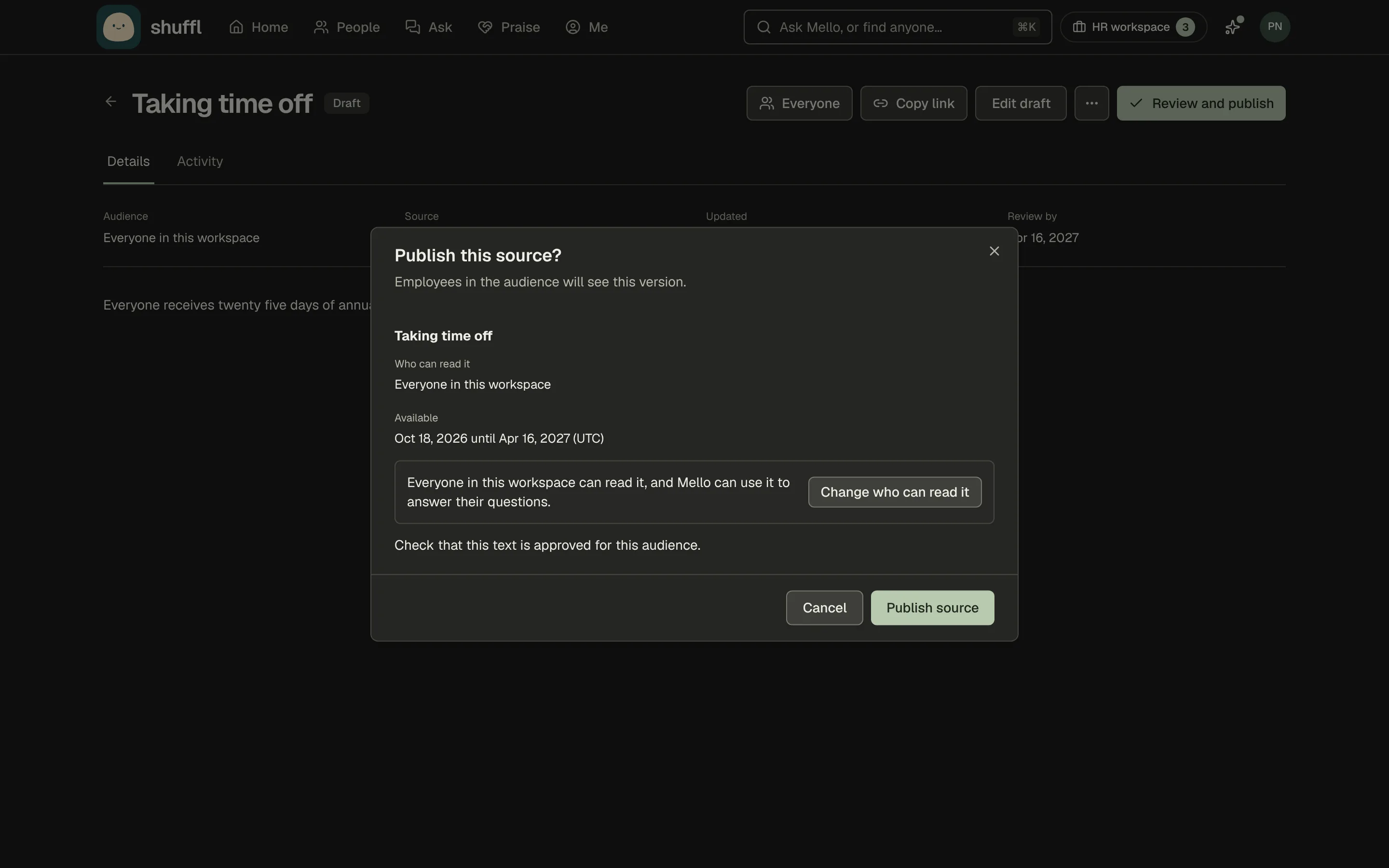
- Open the source and choose Review and publish. Check who can read it: if only HR admins can, Mello won’t answer employees from it.
- Confirm with Publish source. Version history keeps every published version.
- Employees can use the source once the audience includes them and today falls between its effective and review dates.
- To change who can read a published source, choose Who can see this? in its header. Narrowing the audience removes access at once.
- Ask Mello a question the source answers and follow the citation. Reviewers see more than employees do, so check with an employee account.
Ask people to confirm they’ve read it
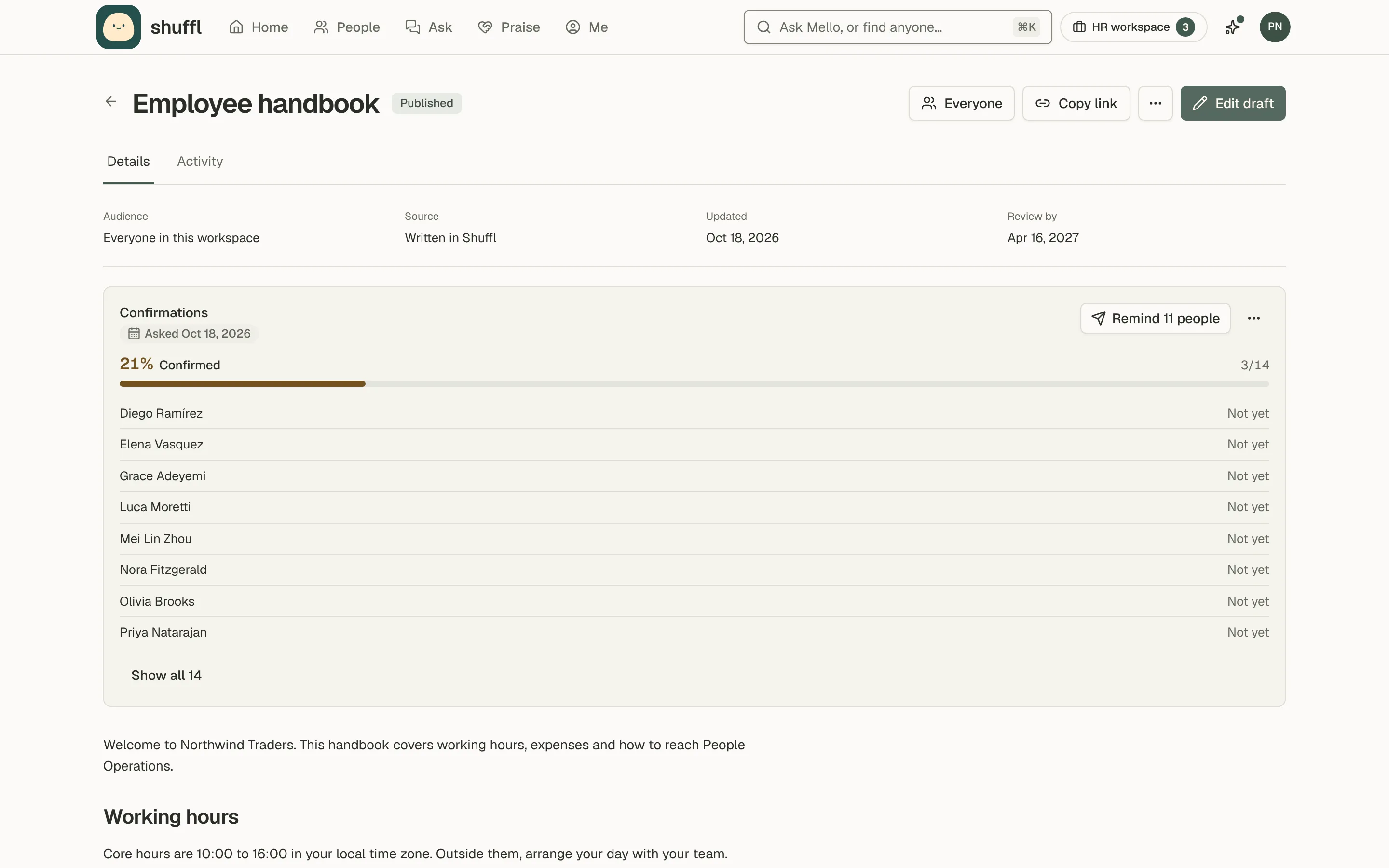
- Open a published source and choose Ask to confirm. Everyone in its audience is asked. Leave Message them now on to message each person in Slack or by email.
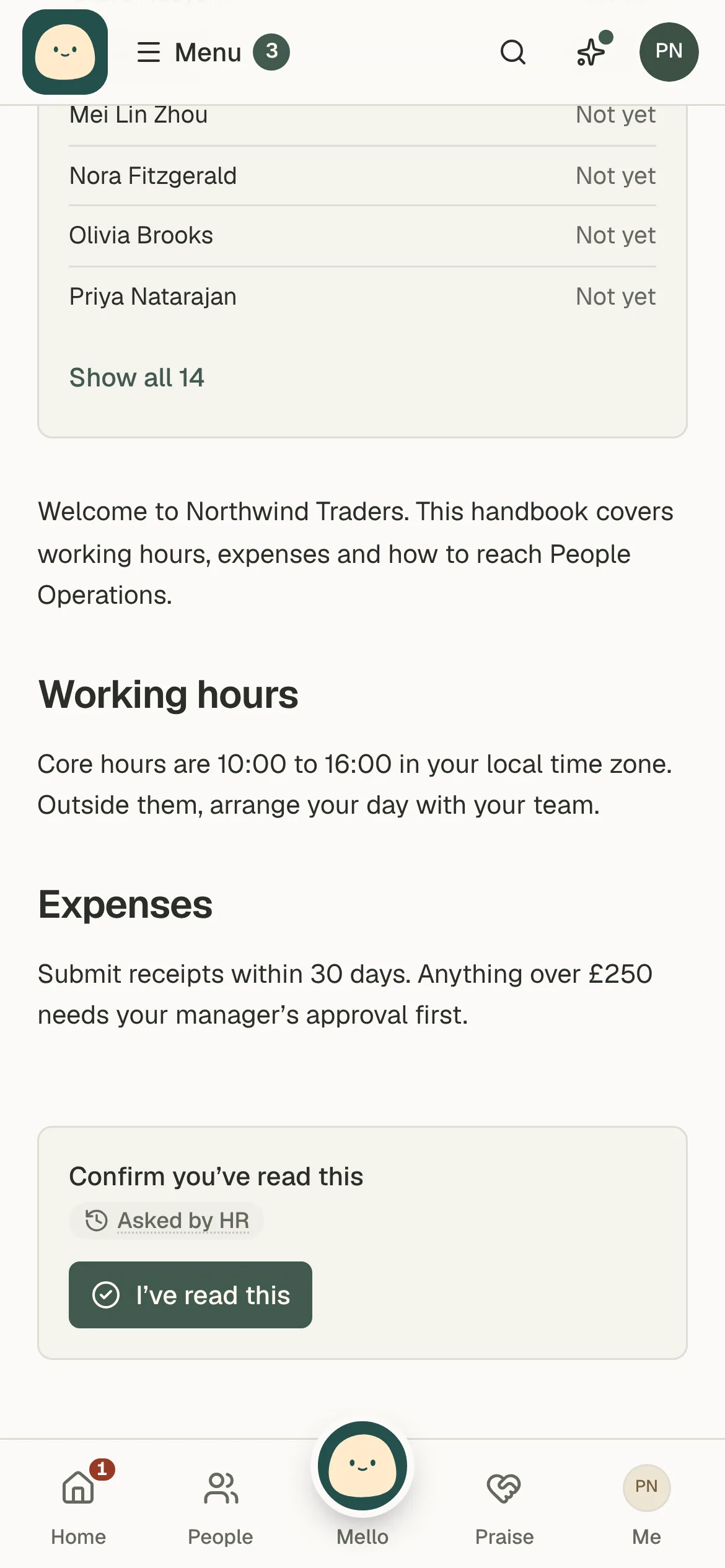
- People see the page under Please confirm on Home and choose I’ve read this at the end.
- Only the person can confirm, in the app, never an API key or agent.
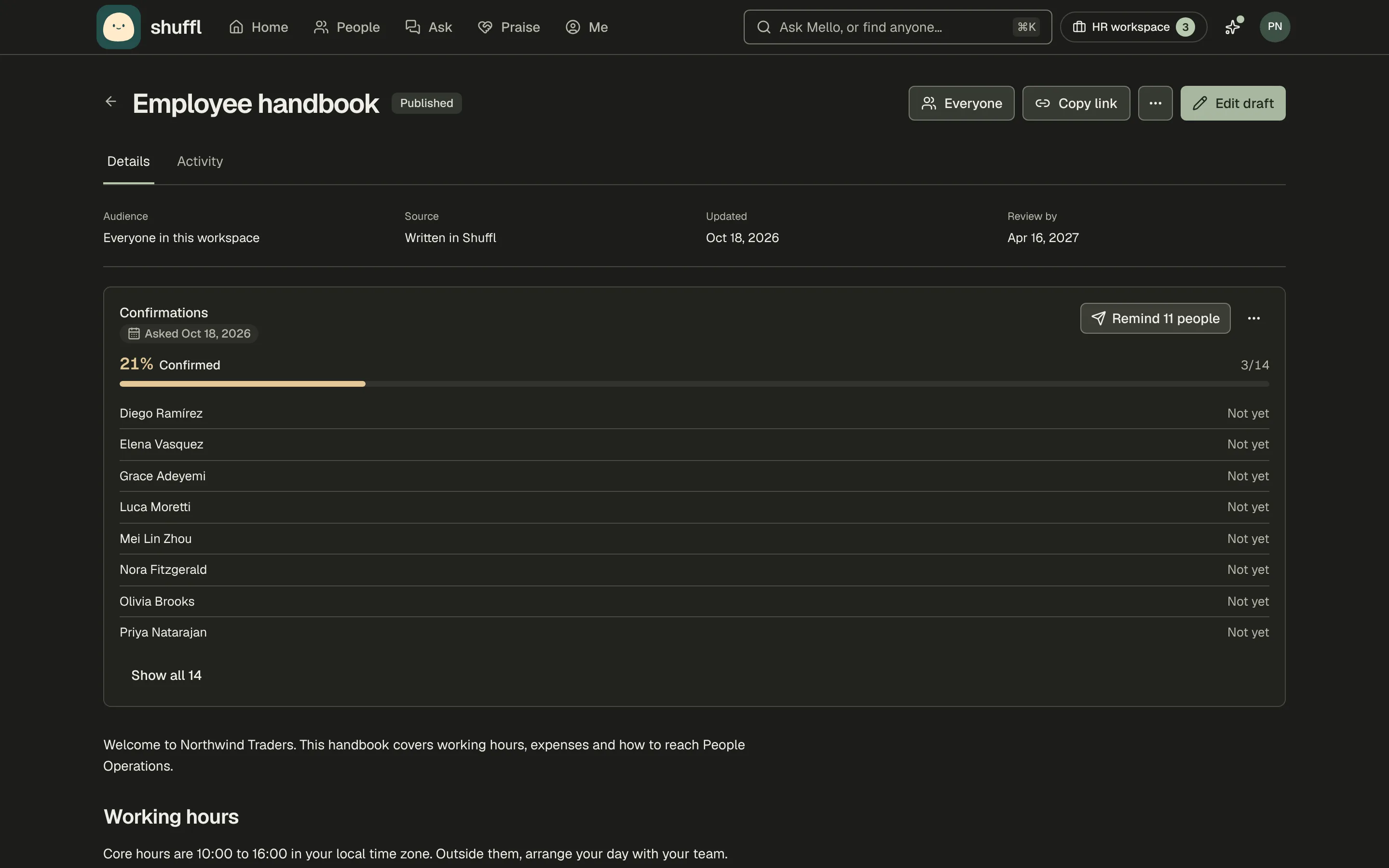
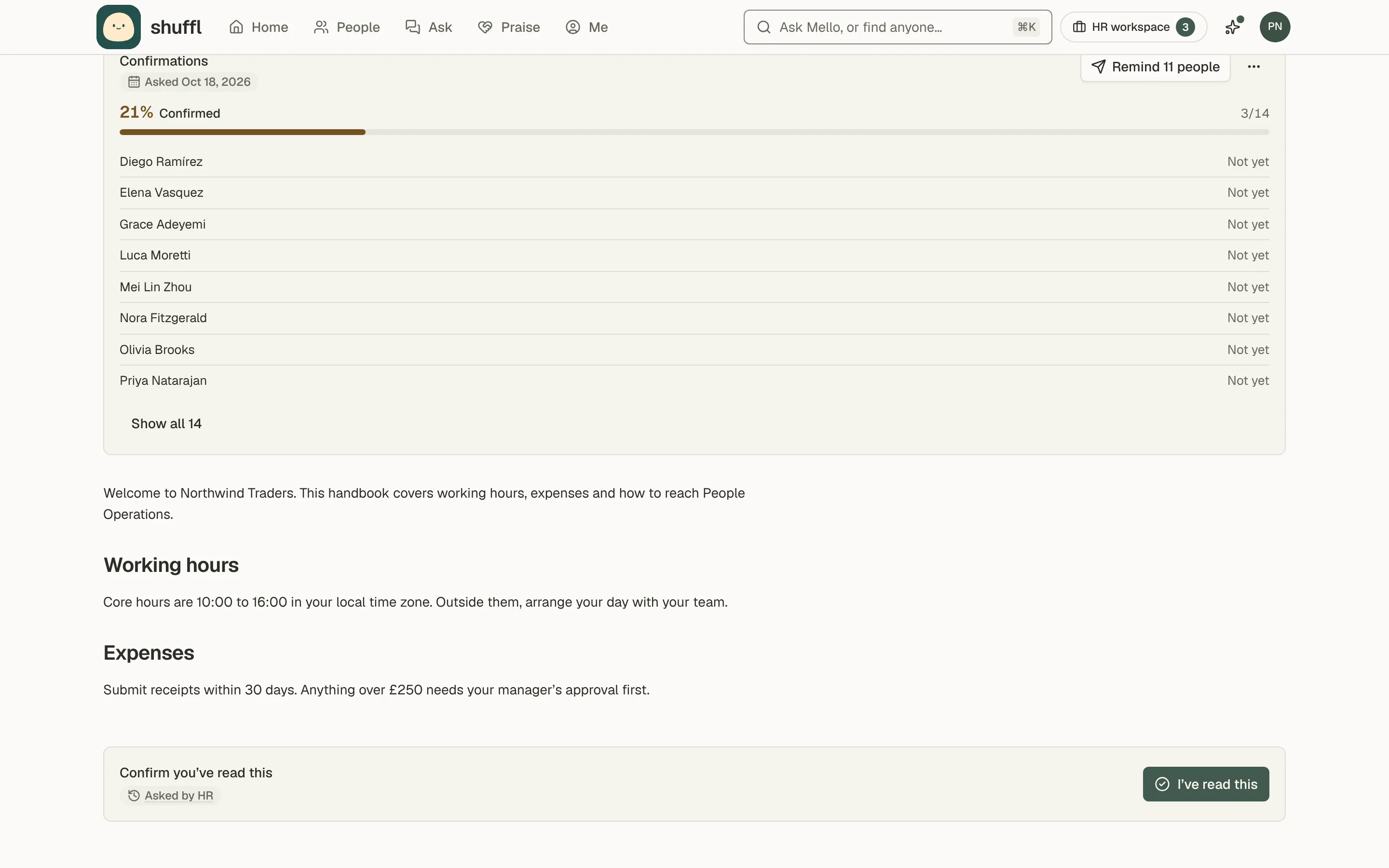
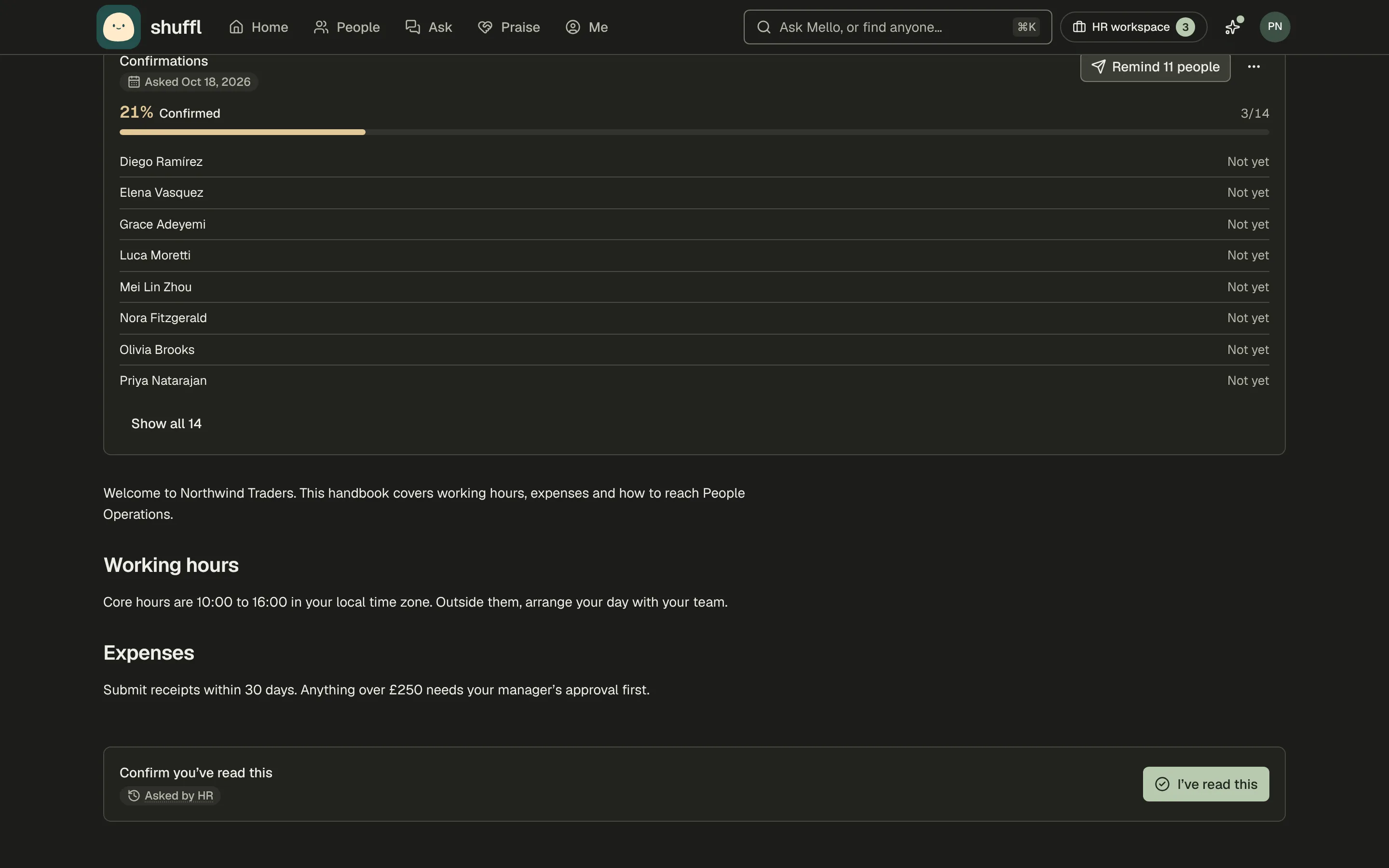
- Confirmations lists who has and hasn’t confirmed. Remind messages the people who haven’t, at most once a day.
- After you publish a new version, earlier confirmations stay on the record. Ask again asks everyone to confirm the new one; Stop asking ends the request.
For a policy people must read, such as a code of conduct, ask everyone who can read it to confirm they have. Shuffl records who confirmed which version and when.
To ask only new hires, add a Read and confirm step to a playbook instead. See Read and confirm a page in Playbooks and onboarding.
Download the handbook
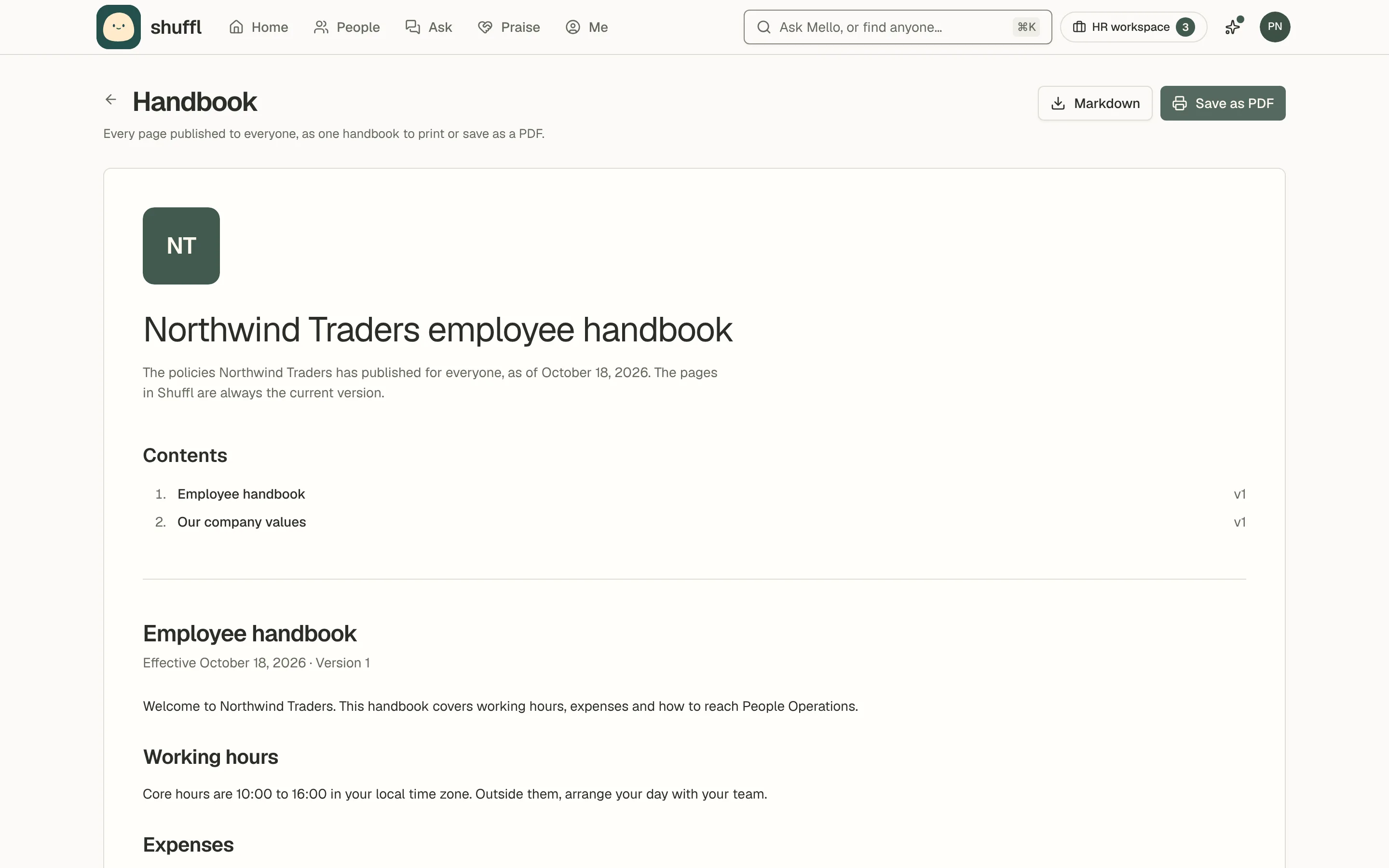
- In Knowledge, choose Handbook. It shows the contents, then each page published to everyone with its effective date and version number.
- Choose Save as PDF, then Save as PDF in the print dialog, or Markdown for a text file.
- Pages for particular groups or only admins are left out, and the page says how many. Drafts never appear.
When someone needs the handbook as a document, for paperwork, an auditor or print, download everything you publish as one handbook.
Verify what Mello proposes
Mello proposes knowledge when an administrator tells it what employees should know, when an HR reply has something reusable, or when it imports a file on request.
Each proposal waits in the Inbox under Reviews, and in Slack as a Knowledge draft with Approve for everyone, Admins only, Edit and Dismiss.
Choose Review, edit the title, text and audience, then Approve knowledge or Decline. Approving publishes the source.
Guidance to re-check lists sources whose review date is due or passed. Employees lose access to an overdue source until someone sets new dates.
Keep sources current
Choose Edit draft to prepare a correction, then review and publish it; employees keep the last published version meanwhile. Withdraw takes a source down at once. Archive tidies away a never-published source, and Restore brings it back.
Status tells you what to do: Needs review means the review date arrived, Scheduled means the effective date is ahead, and Changes need review means a connected document changed.
Company values deserve their own page. Praise settings can point at it, so Mello tags praise with the values people actually wrote down.
See what Knowledge is doing
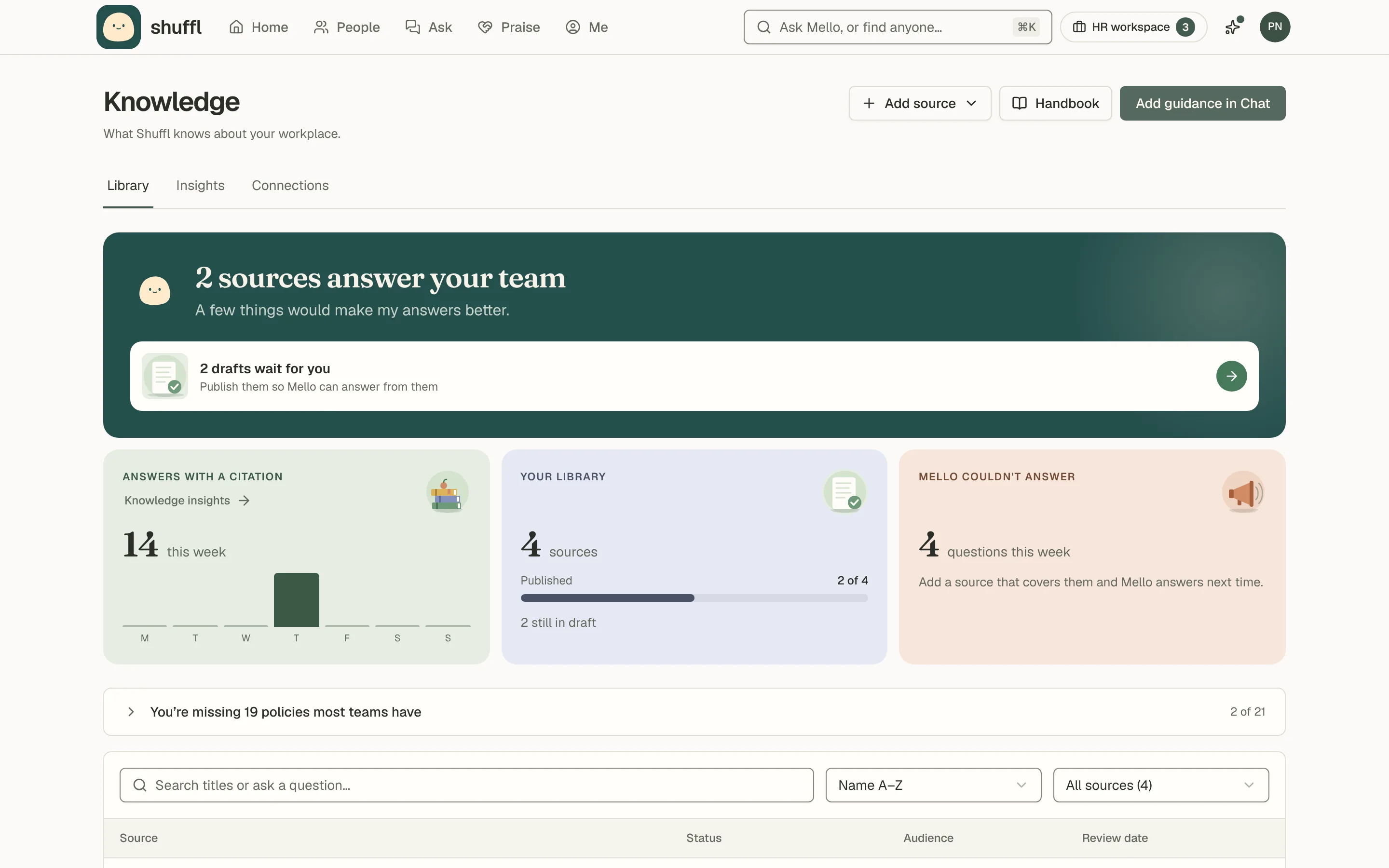
Knowledge → Insights shows how many answers used verified Knowledge, which sources answer most, and Missing guidance where Mello found nothing. Answer feedback lists employees’ ratings with the sources used, and Questions to test Mello on lists questions behind Bad answer ratings. Names stay private.
What employees see
Employees open Knowledge from Home or a citation and see only published sources whose audience includes them. They can search titles, choose Look inside sources to search the text, and Ask in Chat to turn a search into a question.
Public guides and workspace knowledge are separate
These guides explain Shuffl and contain none of your company’s policies. Add private documents only in your signed-in workspace, with the right audience.
Ask the guides, the question box on these pages, searches only these public guides and does not save your question. For answers from your company’s sources, use Chat in your workspace.