
How-to guide
Shuffl for managers
What Shuffl does for you when People lists you as someone’s manager, and what stays private from you.
For People managers
Have your agent do thisPaste the prompt into Claude Code, Cursor or another agent. It follows this guide over MCP and asks before it changes anything others will see.Show the promptHide the prompt
Help me with "Shuffl for managers" in my Shuffl workspace.

1. Read the guide: https://shuffl.ai/docs/markdown/managers
2. Add Shuffl's MCP server: https://shuffl.ai/api/mcp
   Claude Code: claude mcp add --transport http shuffl https://shuffl.ai/api/mcp
   When the browser opens, choose my workspace and allow the access the guide needs.
3. Work through the steps in order: See your team; Check in with a new hire; Change how often you’re nudged; Ask Mello for help. Do what you can over MCP and tell me which steps only I can do in the browser or in Slack.

Show me what you will change and who it affects, and wait for my yes before publishing, inviting or sending anything.
On this page
App links open your signed-in workspace. Check the selected workspace before making changes.
Who counts as a manager
You are a manager in Shuffl when People lists you as the manager of at least one current coworker. It isn’t a role, and job titles don’t count. HR sets reporting lines in People by hand or through Sync.
Being a manager adds a few private Slack prompts and changes which Knowledge and Pulse questions reach you. It gives you no access to your reports’ records beyond what every coworker sees.
If someone is missing from your team, or listed under you by mistake, ask HR to fix their manager in People.
See your team
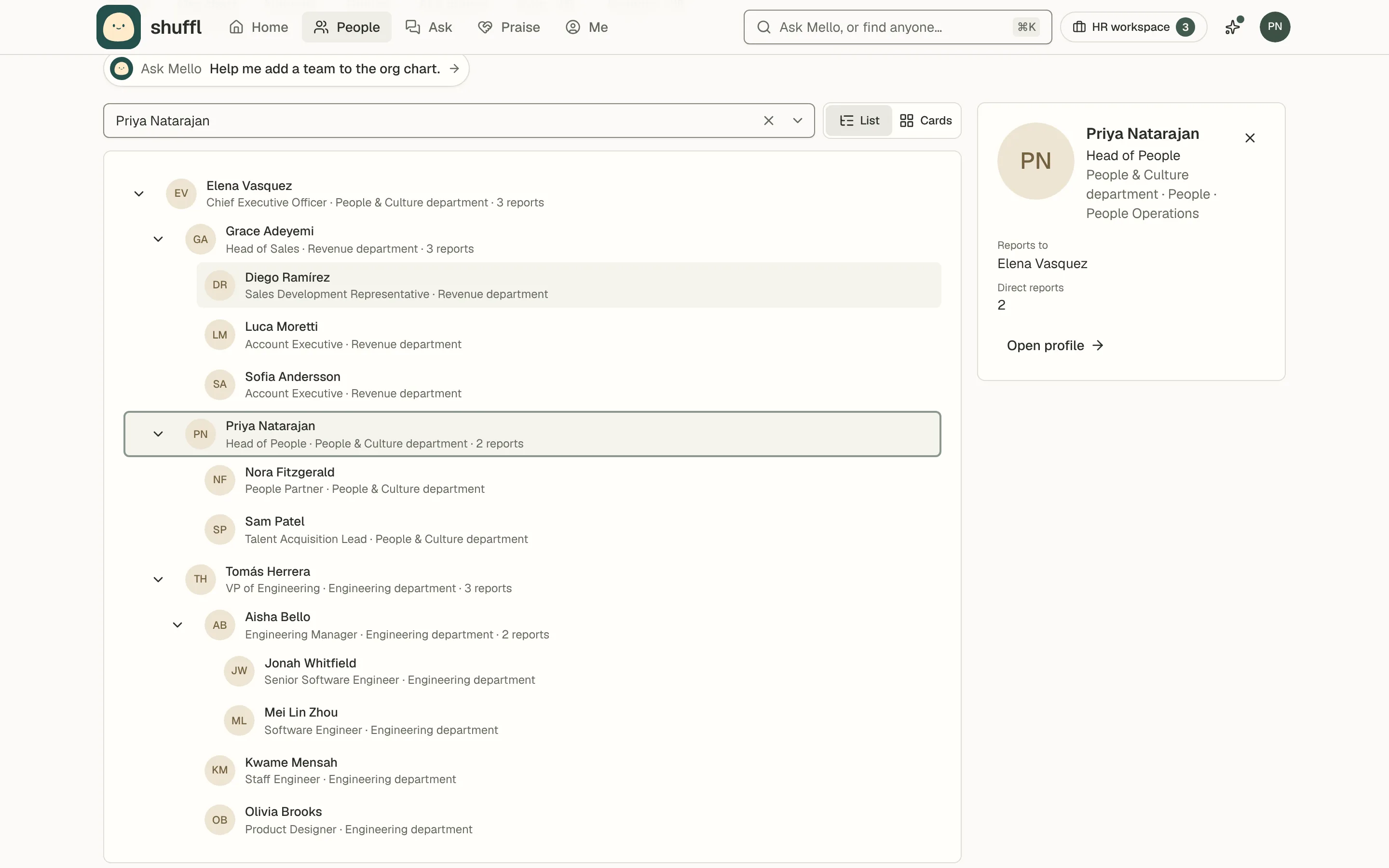
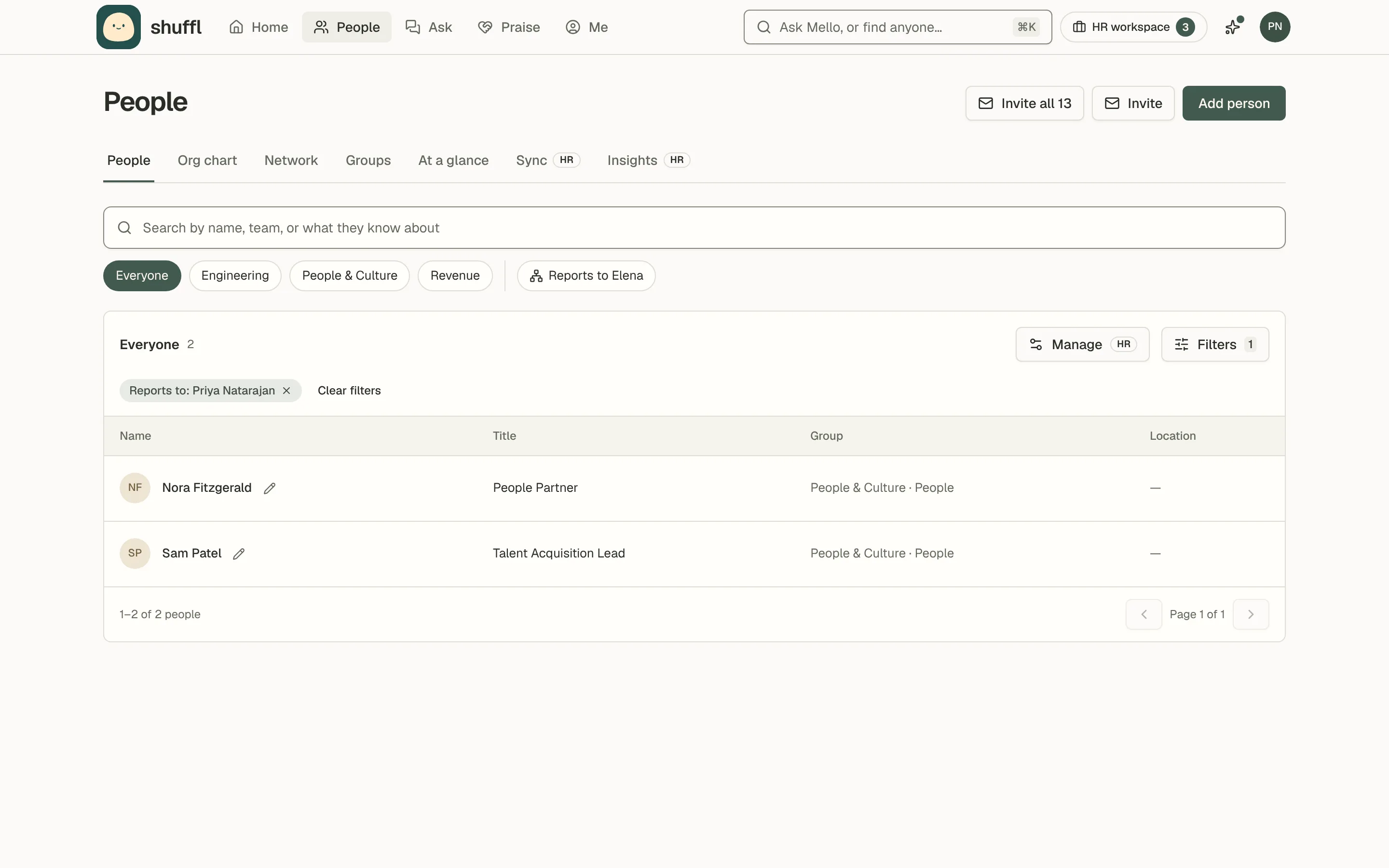
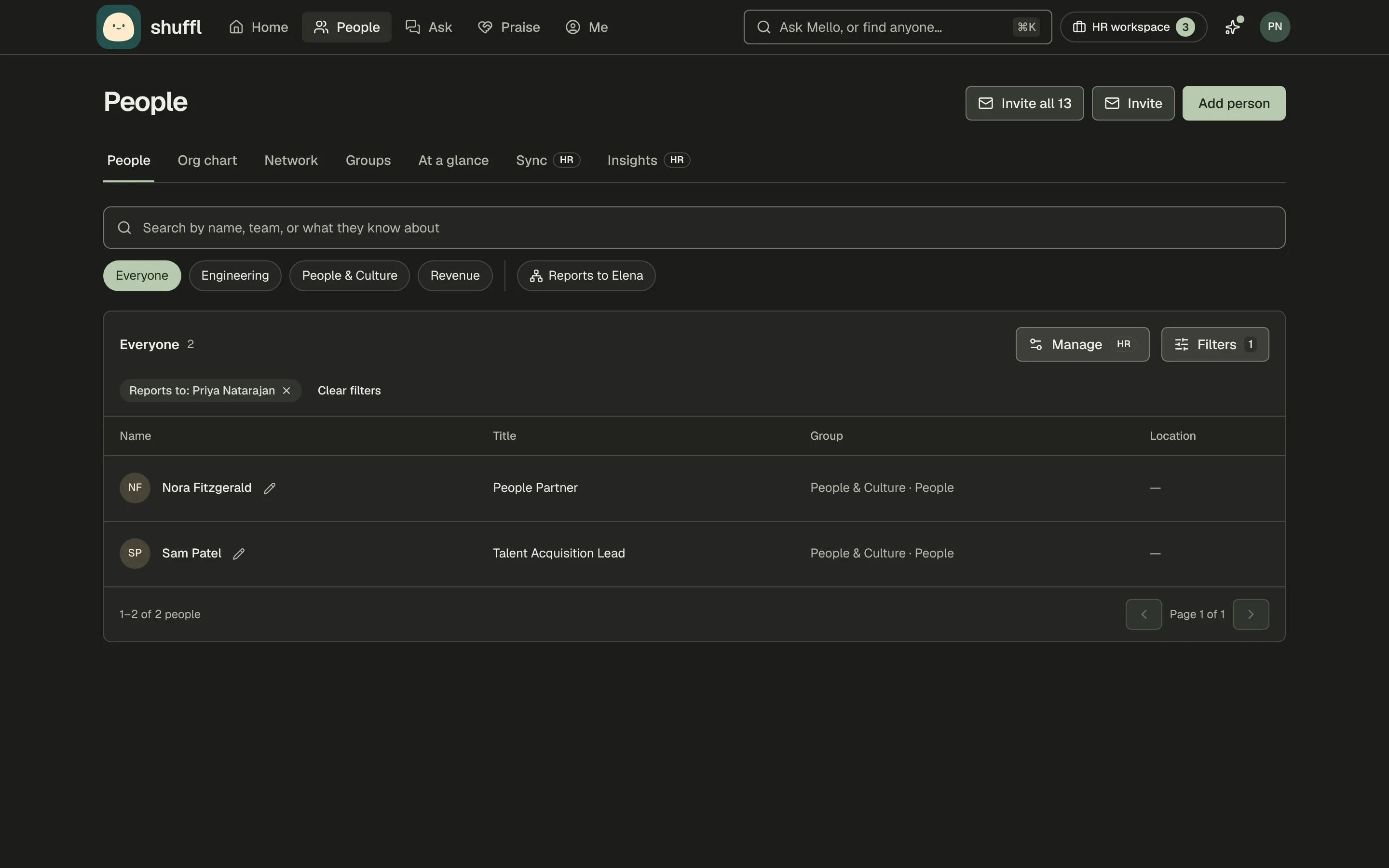
- Open People and choose Filters. Under Add a filter…, choose Reports to and pick your own name.
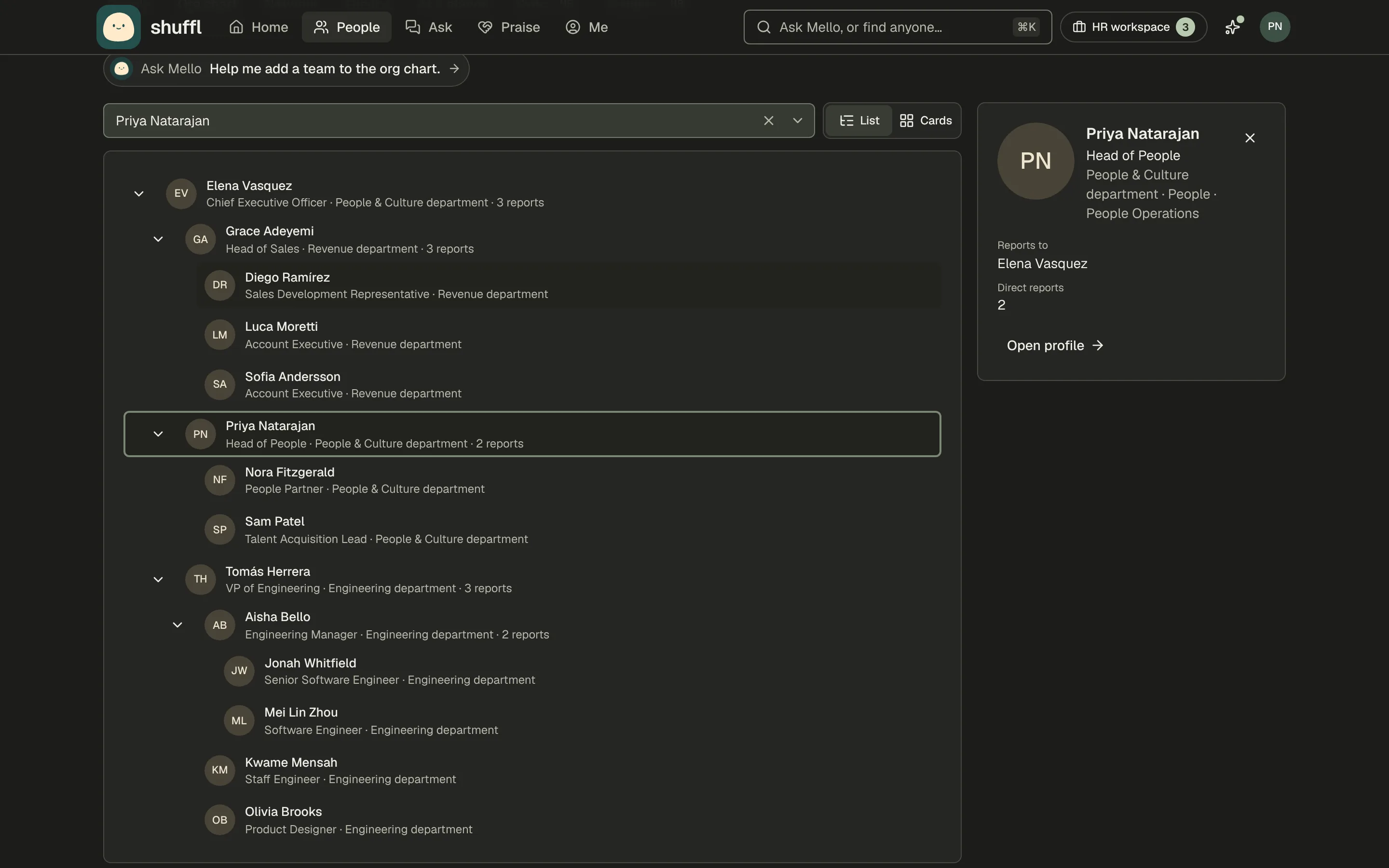
- To see the wider tree, open Me, then See in org chart on the Org card.
- Unless you are also an administrator, you can’t change a report’s manager, team or title. Ask Mello to prepare a request to HR.
Your profile’s Org card lists your Direct reports. Their names, titles, departments, groups on profiles, manager and work email are visible to everyone in the workspace.
Other profile fields follow each person’s choices: a field kept to My team is hidden from you unless you share a group on their profile.
Check in with a new hire
- Read what the step asks and open the links HR added.
- Choose Done beside the to-do once you have had the one-to-one, so HR sees it on the hire’s playbook.
When HR approves a new hire whose manager is you, the manager steps come to you as private Slack messages on their days, with any to-dos. The First 90 days template, for example, books a one-to-one every other week.
Your Playbooks page also lists them under Plans for your new hires. Mello drafts a 30/60/90 plan as soon as they join, for you to edit and share.
You, the hire and HR see its goals, only you change them, and your to-do reminders link to it until it is shared.
Their day 30, 60 and 90 check-in answers are confidential: HR sees them only combined, and you never see them.
ShufflAPP
Anniversaries and birthdays
A week before a report’s work anniversary or birthday, Mello sends you a Slack direct message with the day and a note to start from. It comes only when the person chose to share that day.
If the team is signing a card, the message has Sign the card. Cards waiting on your note are under Cards to sign on Your celebrations.
Mello never posts as you. Send your note on the day, or use Slack’s Schedule message. Nothing comes if their manager changes before the day, either of you has left, or your Slack account isn’t linked.
ShufflAPP
Change how often you’re nudged
- A to-do HR gave you for a new hire gets one Slack reminder if it is still open after its day. Choose Done, or Snooze to Monday.
- Open Settings → Notifications. Under Playbooks, Remind me about overdue playbook to-dos shows while your workspace has these reminders on.
- Pick Your team’s default, another option or Off. Stop these reminders in Slack sets the same choice.
Praise reminders are the same for managers as for everyone. With Nudge quiet managers on, you also get a private note when nobody on your team has been thanked in 60 days, at most once a month.
Knowledge and Pulse aimed at managers
HR can publish Knowledge to Managers only, such as a guide to approving leave. You read it, and Mello answers you from it, while you have at least one report.
Pulse questions can also be aimed at managers or at individual contributors, such as the Manager check-in set your reports may answer.
Your Pulse answers count in the Managers group when HR splits results by Managers and ICs, shown only at or above the reporting floor.
What you can’t see
Your reports’ chats with Mello. Only the person who had a chat can read it.
Your reports’ HR requests. Only the sender and the HR responders it went to see one.
Pulse answers and results. Pulse has no manager dashboards or team view, and no role can read one person’s answer.
New hire check-in answers, a coworker’s manager history and the upcoming celebrations list, which is for administrators.
Ask Mello for help
- In Chat, choose Who reports to me? or ask in your own words.
- Ask about your team: who is on a team, someone’s title, when they started or what time it is where they are.
- Ask about a policy you apply as a manager, such as approving expenses. Mello cites the source.
- To change a report’s details or raise a concern, ask Mello. It drafts a message to HR, sent only when you choose Share with HR or Send to HR.
Mello answers from People and the Knowledge published to you. It never judges your reports, guesses how someone feels, or describes their pay, leave, performance or HR matters.