
How-to guide
Celebrate work anniversaries and birthdays
Work anniversaries and birthdays in Slack, what each person decides, and how administrators set it up.
For Everyone using Shuffl
Have your agent do thisPaste the prompt into Claude Code, Cursor or another agent. It follows this guide over MCP and asks before it changes anything others will see.Show the promptHide the prompt
Help me with "Celebrate work anniversaries and birthdays" in my Shuffl workspace.

1. Read the guide: https://shuffl.ai/docs/markdown/celebrations
2. Add Shuffl's MCP server: https://shuffl.ai/api/mcp
   Claude Code: claude mcp add --transport http shuffl https://shuffl.ai/api/mcp
   When the browser opens, choose my workspace and allow the access the guide needs.
3. Work through the steps in order: Your anniversary and birthday; For administrators. Do what you can over MCP and tell me which steps only I can do in the browser or in Slack.

Show me what you will change and who it affects, and wait for my yes before publishing, inviting or sending anything.
On this page
App links open your signed-in workspace. Check the selected workspace before making changes.
Your anniversary and birthday
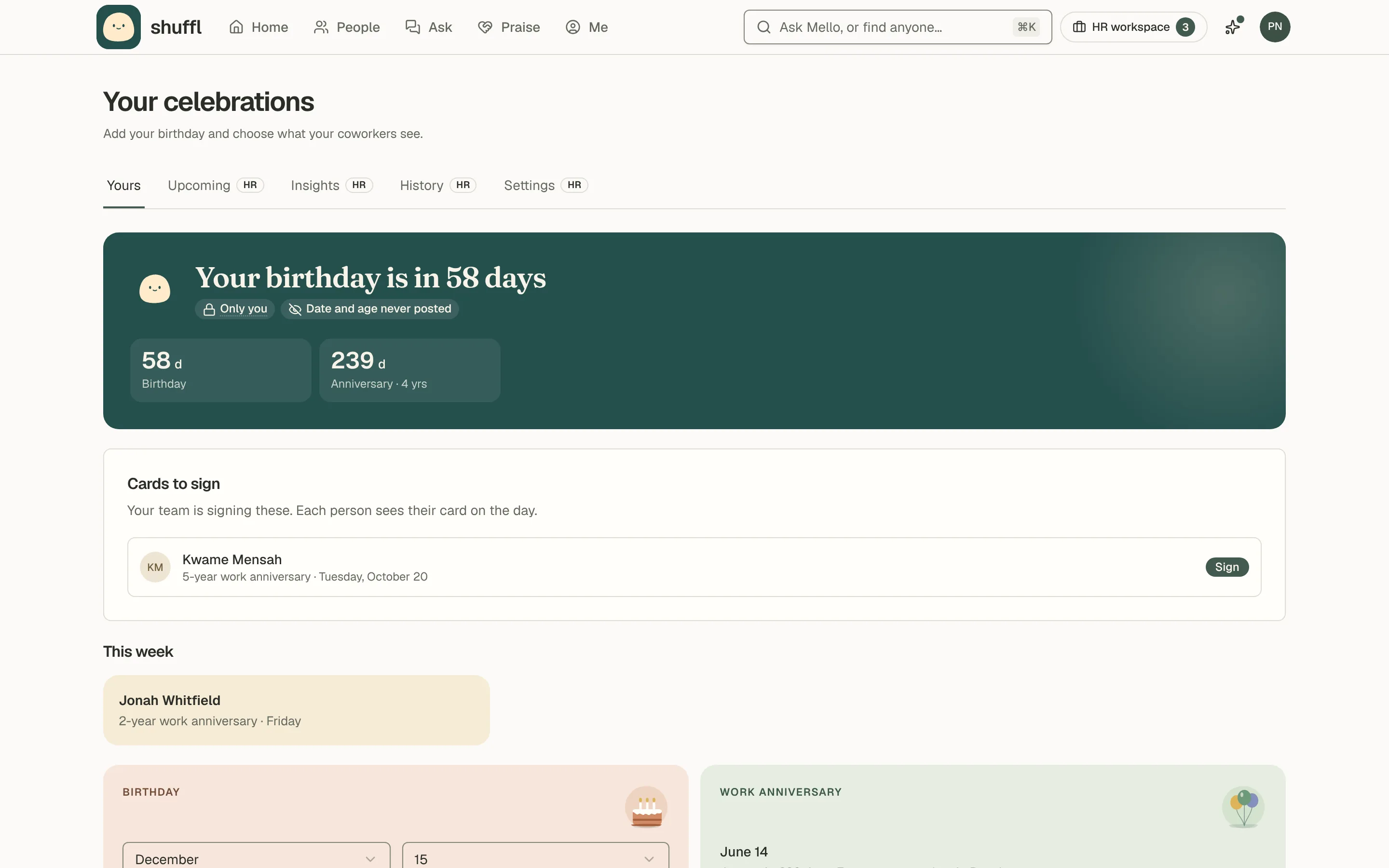
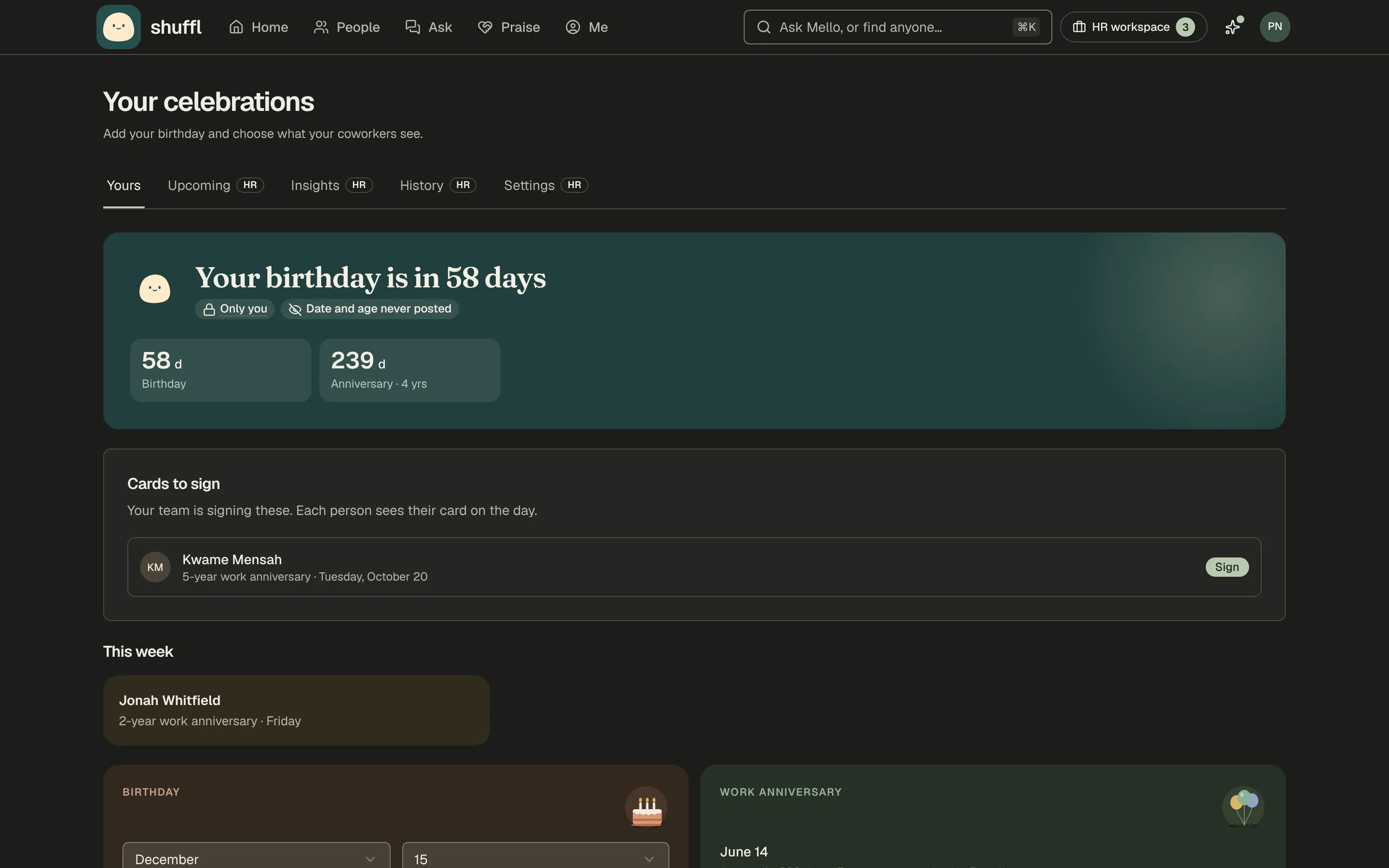
- To add your birthday, open Celebrations from Home, or Me, and enter the month and day. Shuffl never imports a birthday and never asks for the year.
- To stop a celebration, turn it off there. Anything already scheduled for it is cancelled.
Shuffl celebrates two days: your work anniversary, counted from your start date in People, and your birthday, if you add it. Your workspace switches each one on separately.
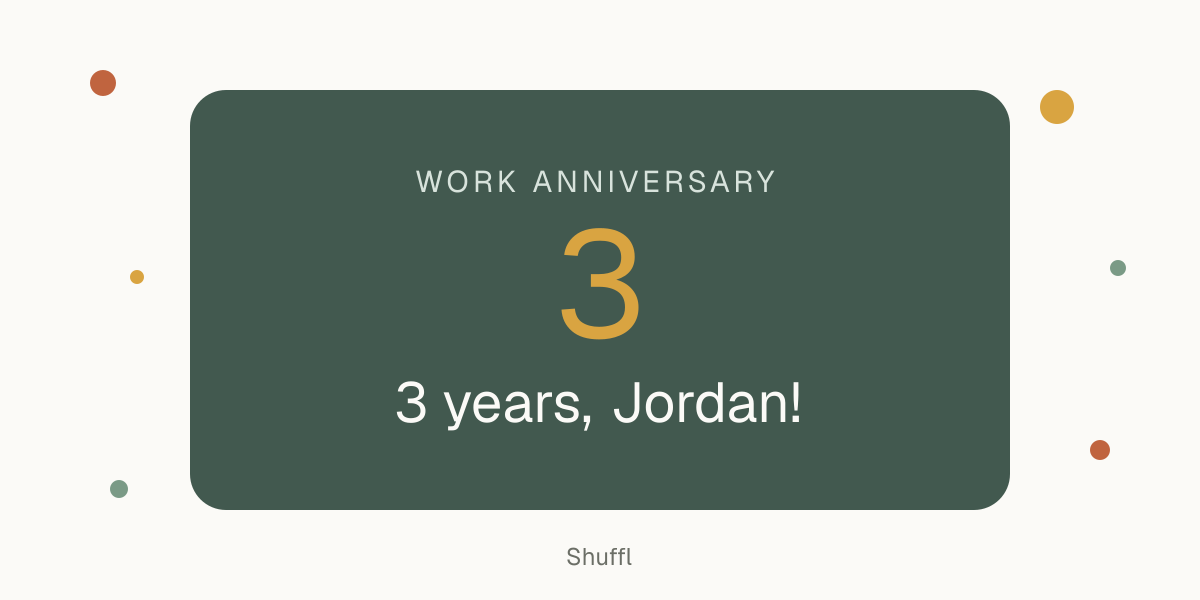
On the day, Mello sends you a private Slack note, with Your celebrations to change what is shared (or a note in Shuffl without linked Slack). Coworkers who know you see your day on Home with a Congratulate button.
This week, on Your celebrations, lists coworkers celebrated in a channel in the last seven days. Private or team-only celebrations aren’t listed, and a birthday never shows an age.
ShufflAPP
ShufflAPP
ShufflAPP
Who sees what
Your workspace may also post in a Slack channel or message your teammates, but only if you say yes, separately for your anniversary and your birthday.
A week before your first shared day, Mello asks you in a Slack direct message: Share it or Keep it private. Either way, you still get your own note on the day.
Change your answer any time in Slack, on Shuffl’s Home tab or on the web under Celebrations. Saying no cancels any shared message still waiting.
No celebration post or note carries the date or your age; only your manager’s heads-up names the day. A birthday has no year stored at all. An anniversary message can say how many years.
A channel post shows a celebration card with your first name and, for an anniversary, the years. It invites coworkers to reply in its thread to add a note for you.
When you share a day, your manager hears about it a week ahead so they can send a note. A private day stays between you and Mello.
Sign a team card
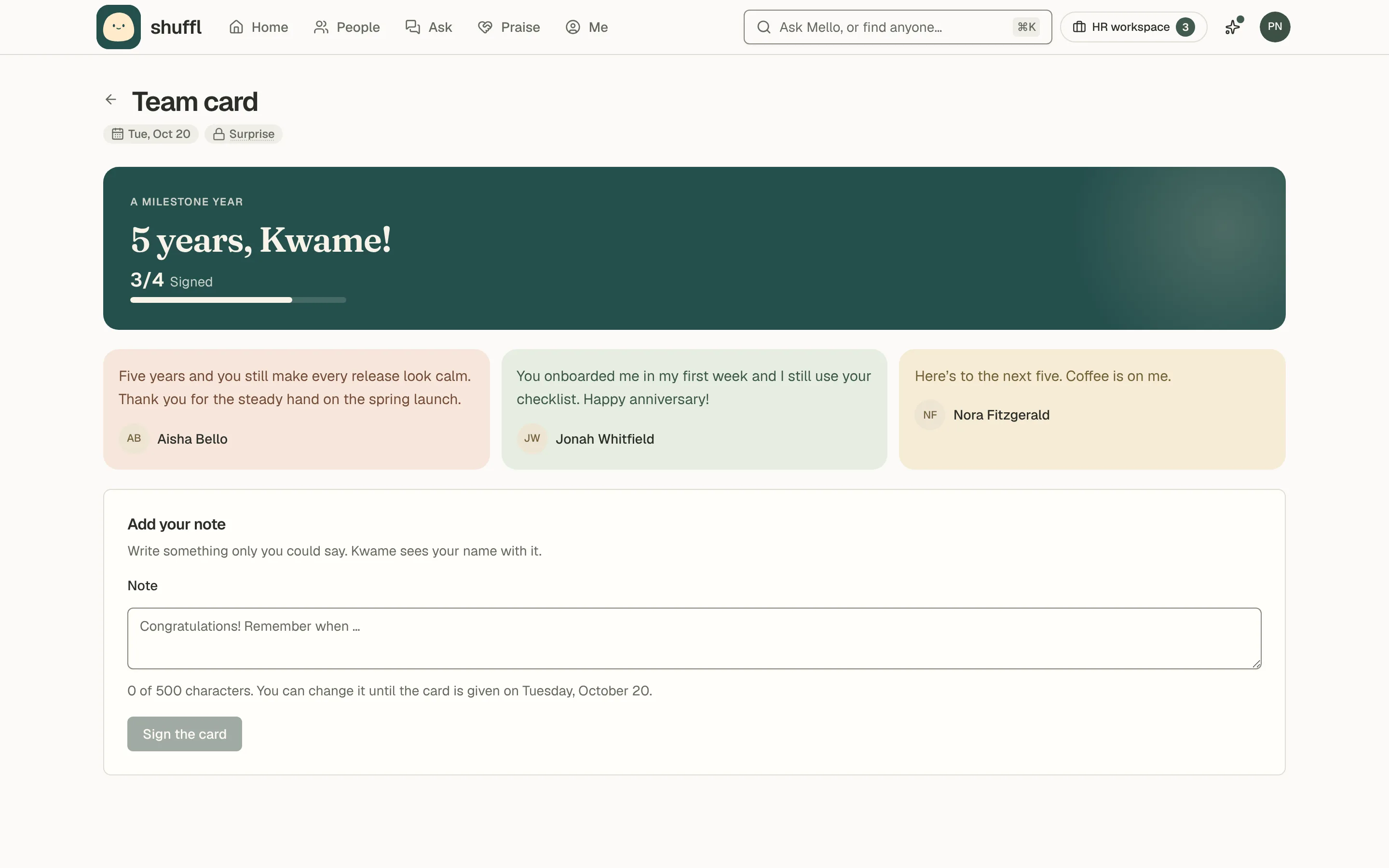
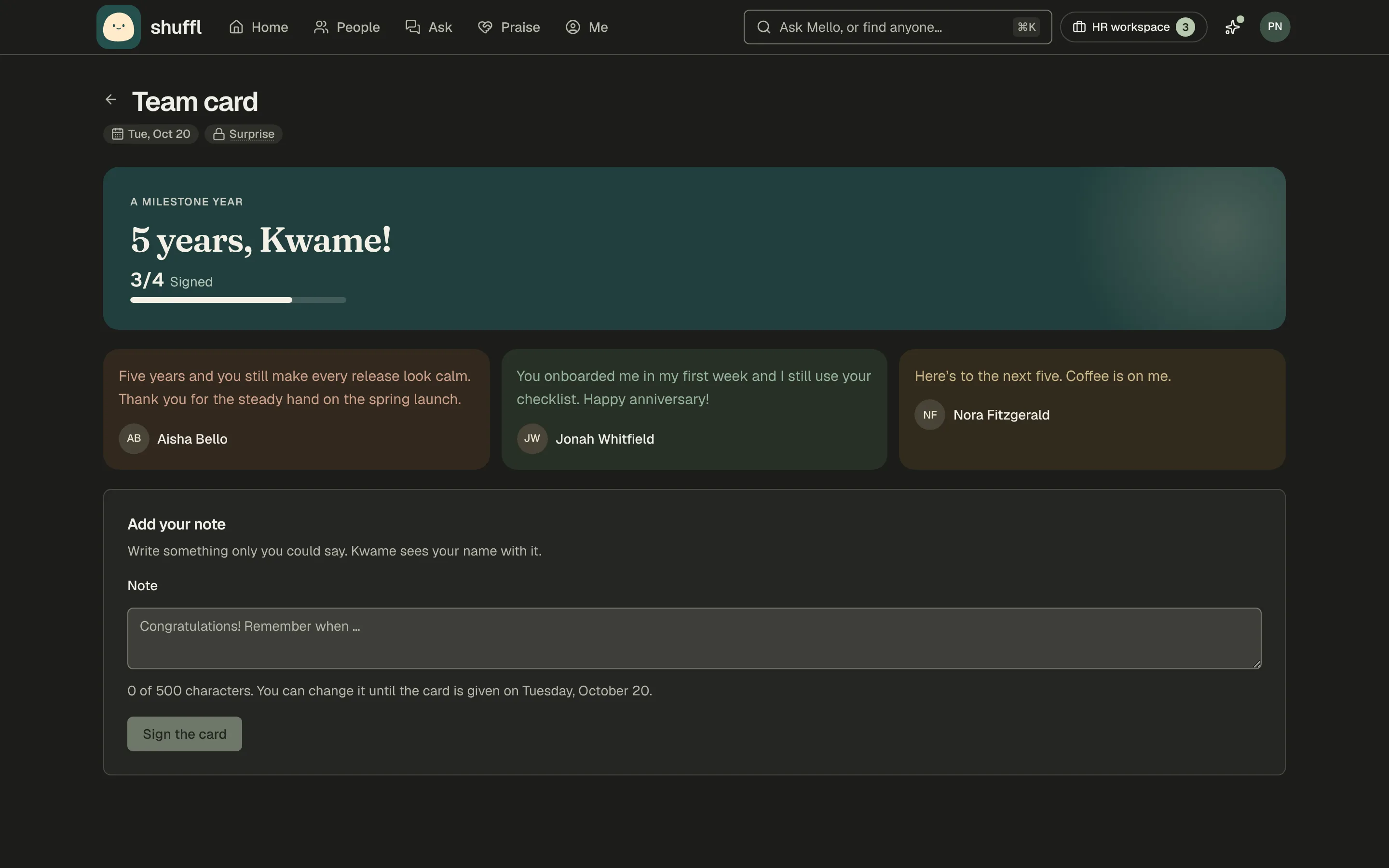
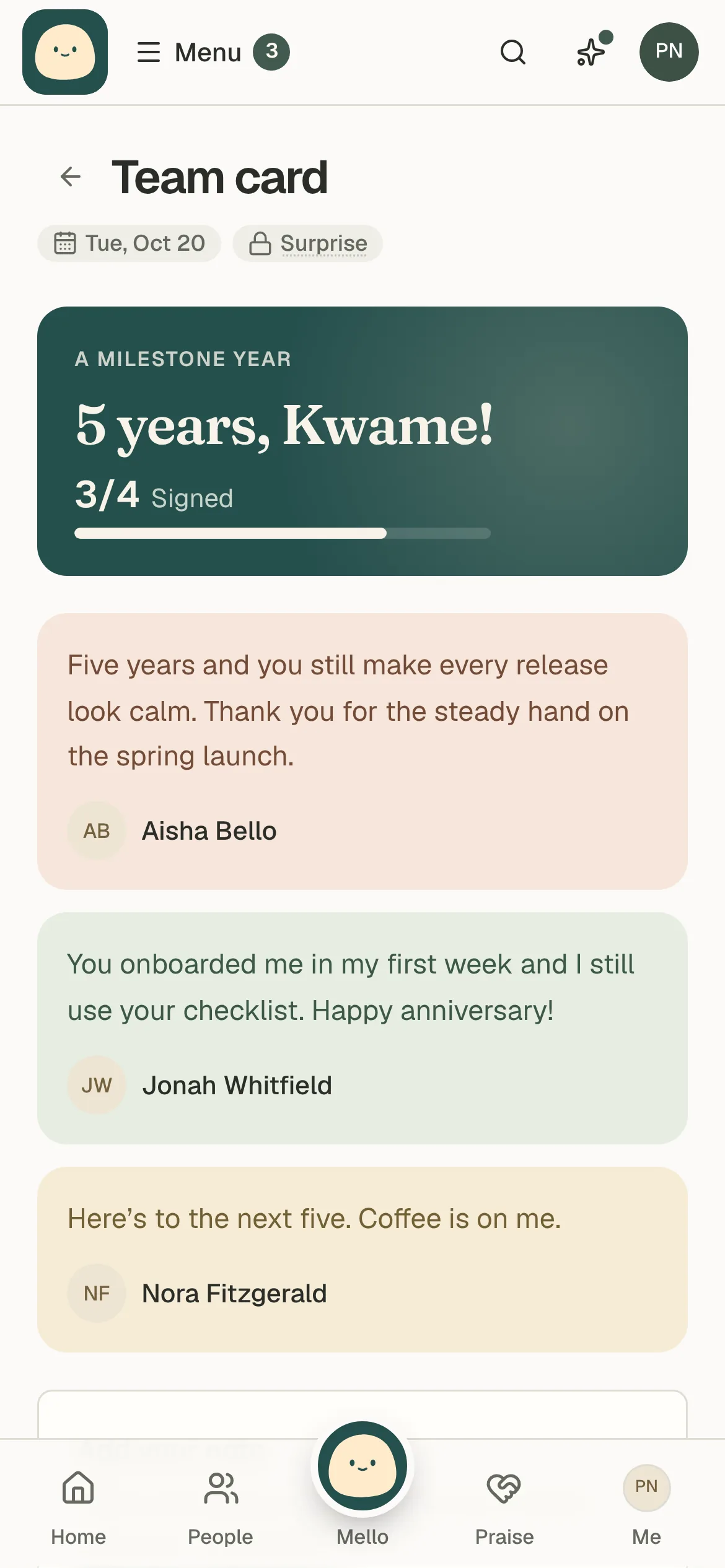
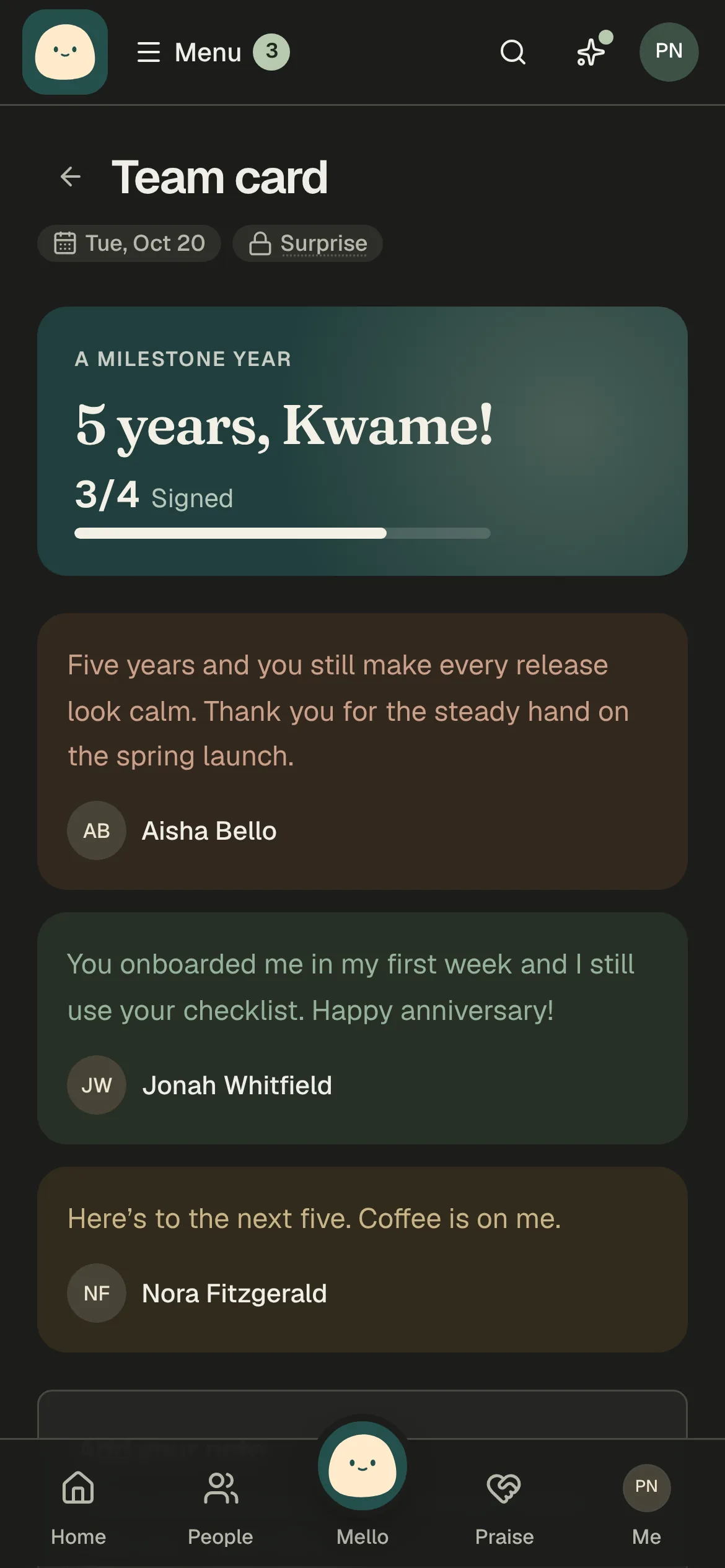
When someone shares their day, Mello opens a card a week before and asks their teammates and manager to sign it. Add a note writes yours in Slack; each person writes one, changeable until the day.
The card is a surprise: the person gets it on the day in a Slack message from Mello quoting every note, and under Your celebrations. A card nobody signed is never sent.
Cards waiting on your note are listed under Cards to sign on Your celebrations.
ShufflAPP
ShufflAPP
For managers
A week before a report’s shared anniversary or birthday, Mello sends their manager a Slack direct message with the day and a note to start from. A first year and every fifth year are called out as milestones.
Mello never posts as you. Send the note yourself on the day, or write it now and use Slack’s Schedule message. Mello still sends its own note.
Nothing goes out for a day the person keeps private, or when People lists no manager for them. If their manager changes before the day, the old manager’s heads-up is not sent.
ShufflAPP
For administrators
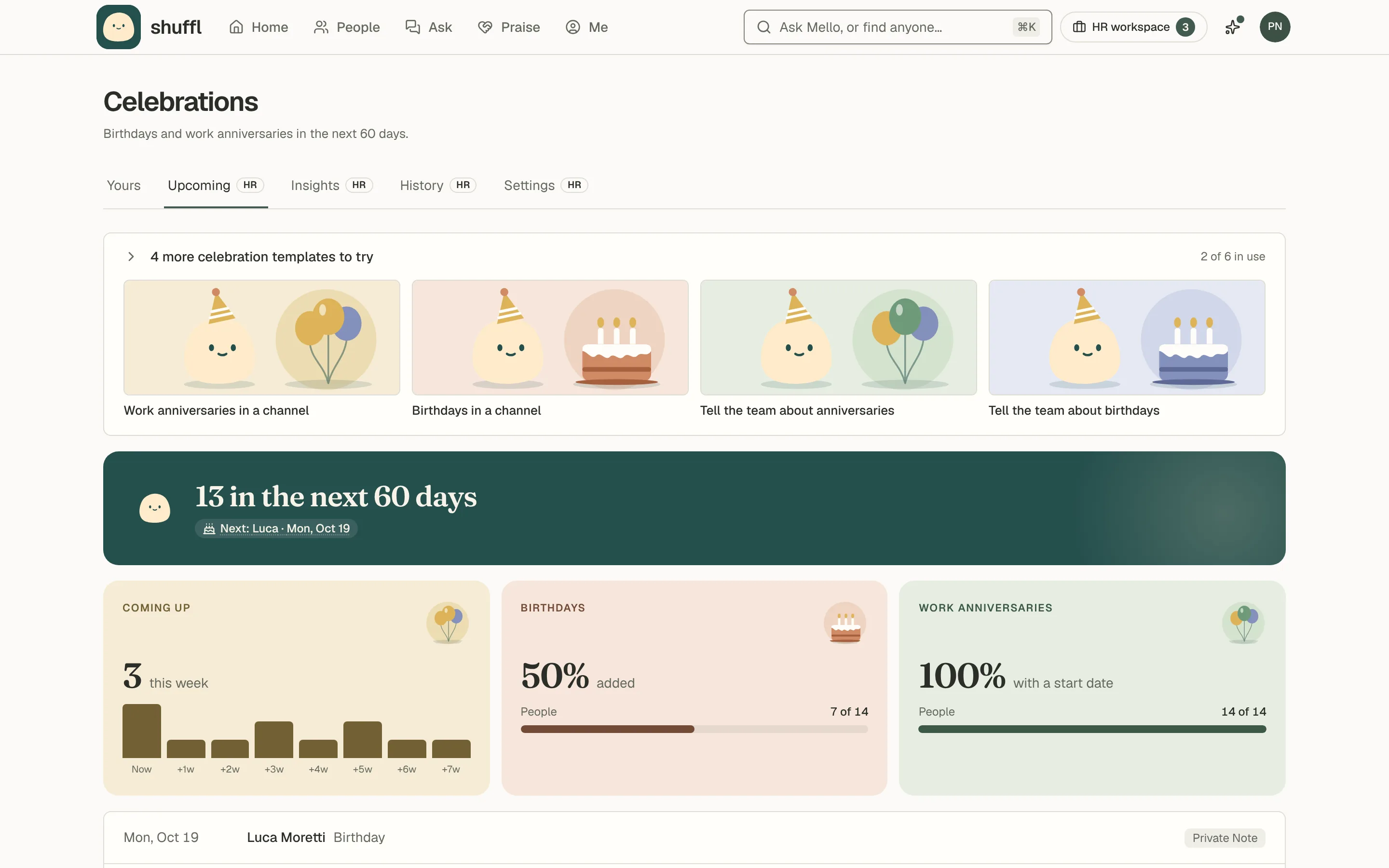
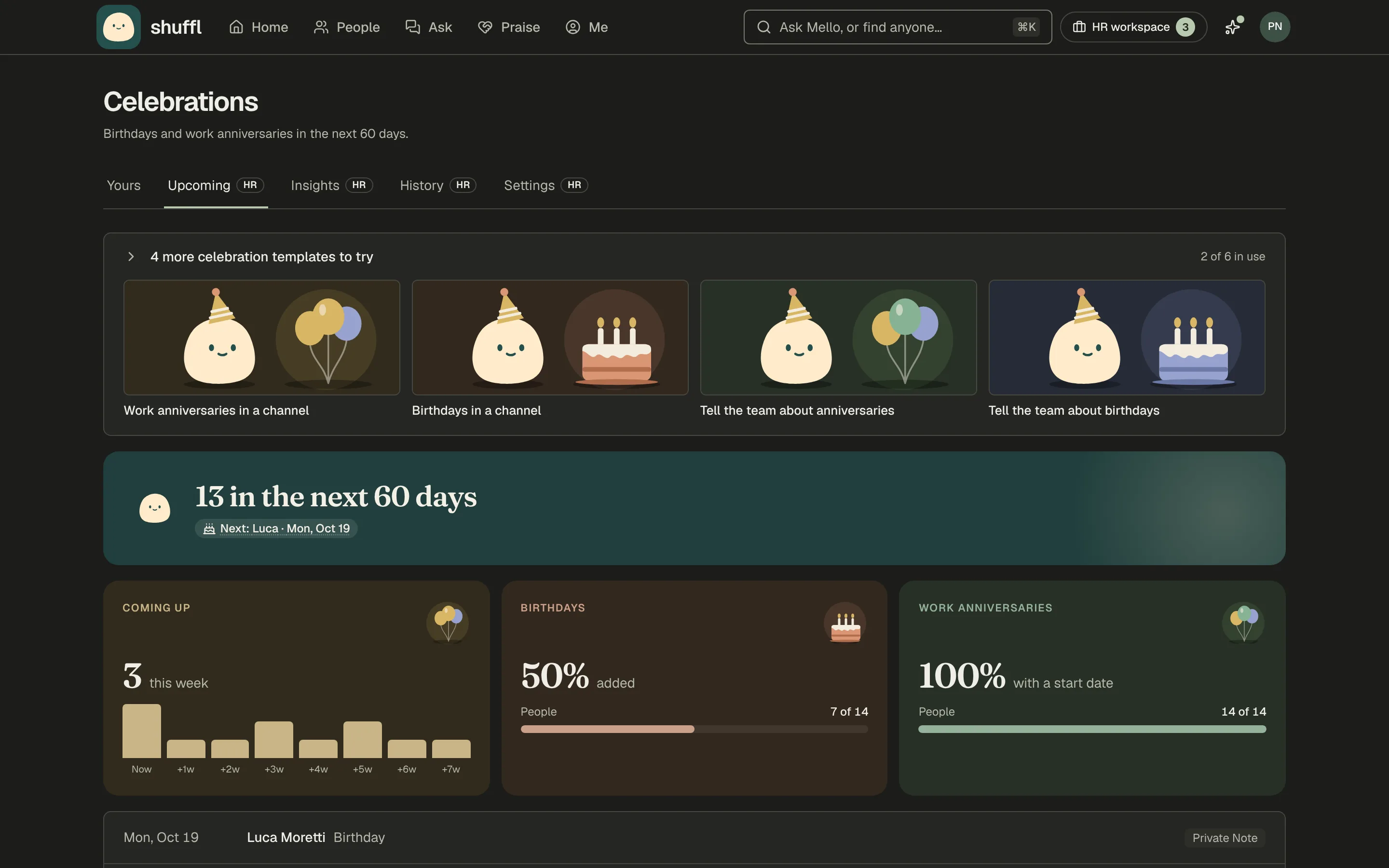
- Open Celebrations from the HR workspace. The HR-only tabs are Upcoming, Insights, History and Settings.
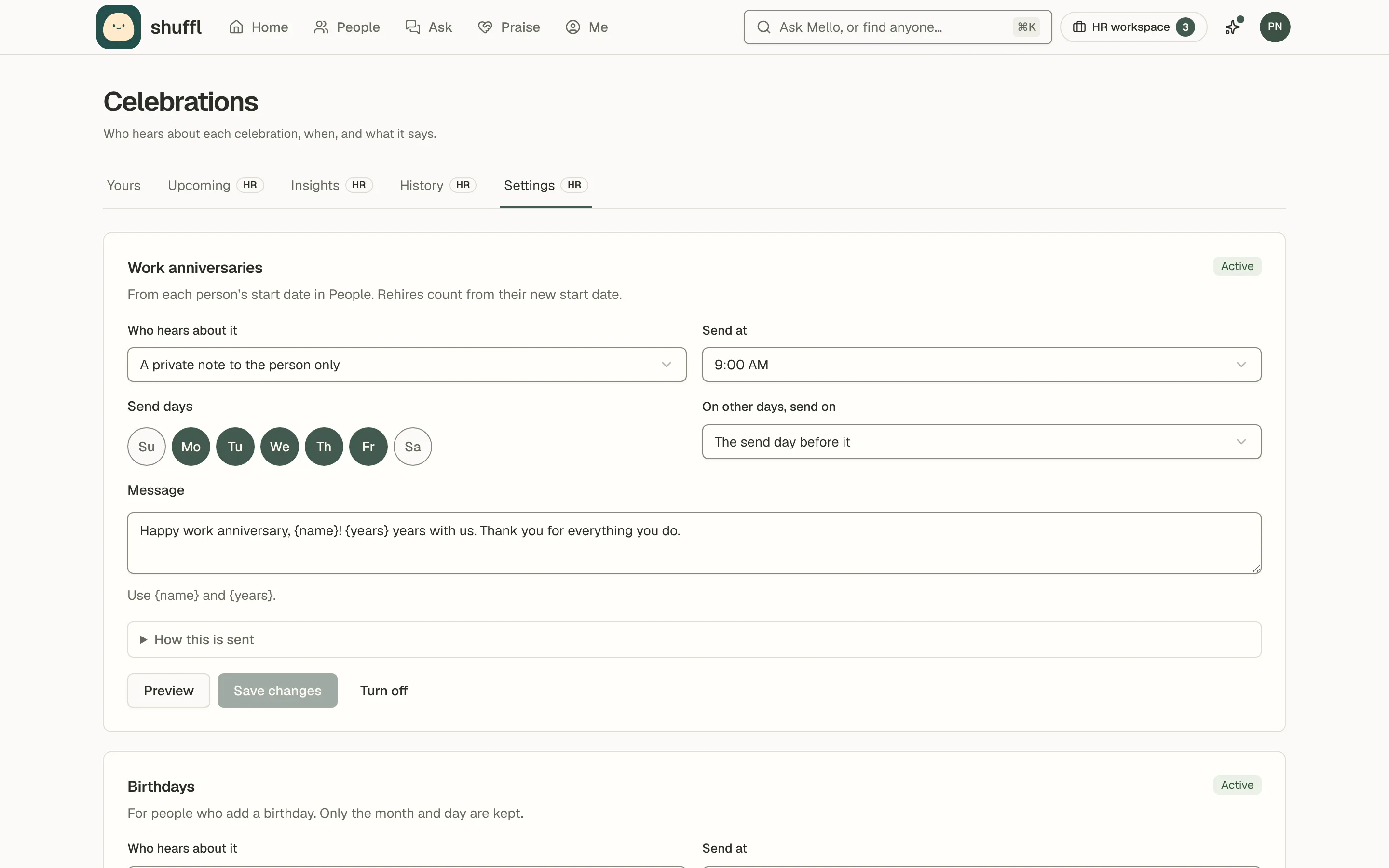
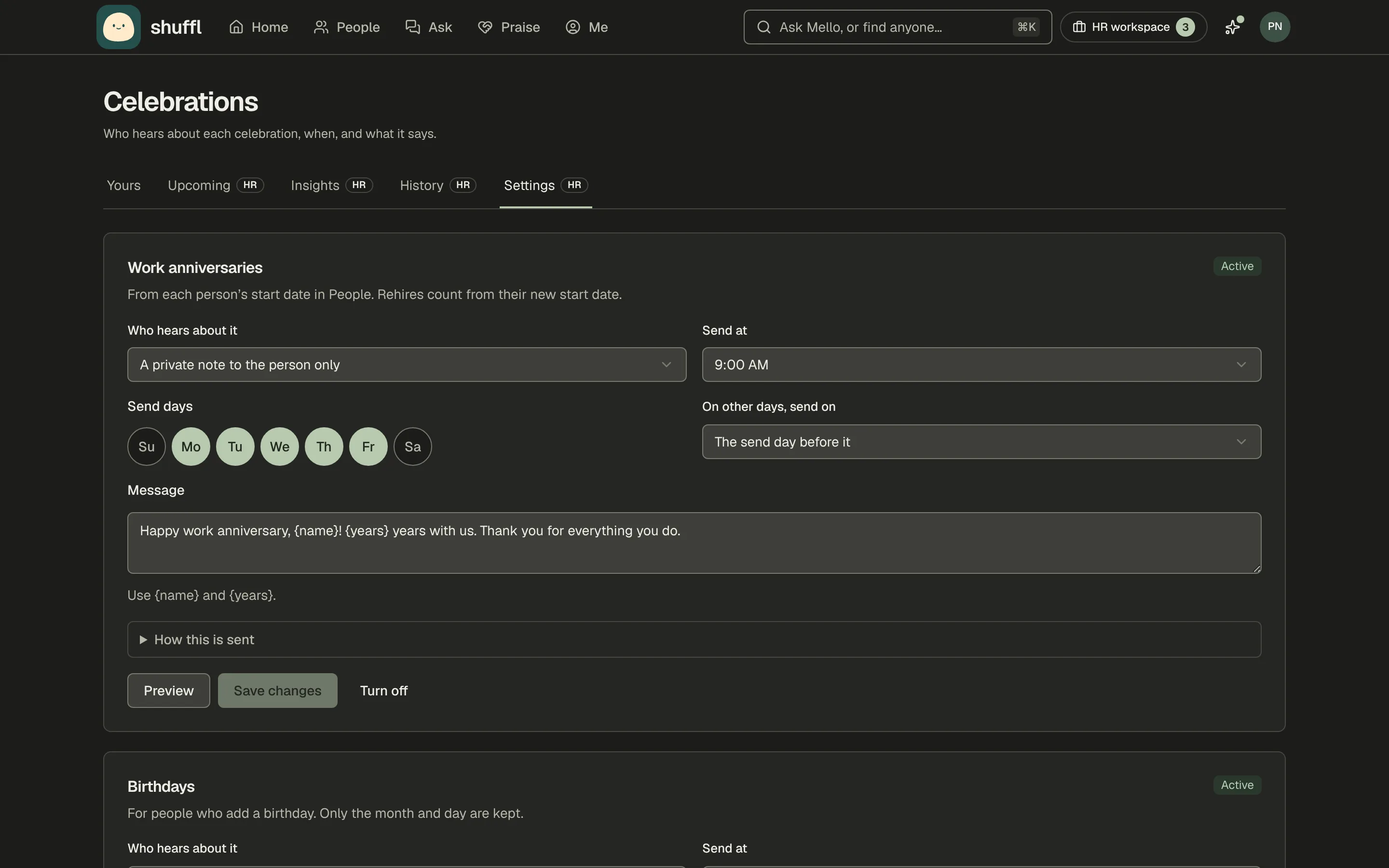
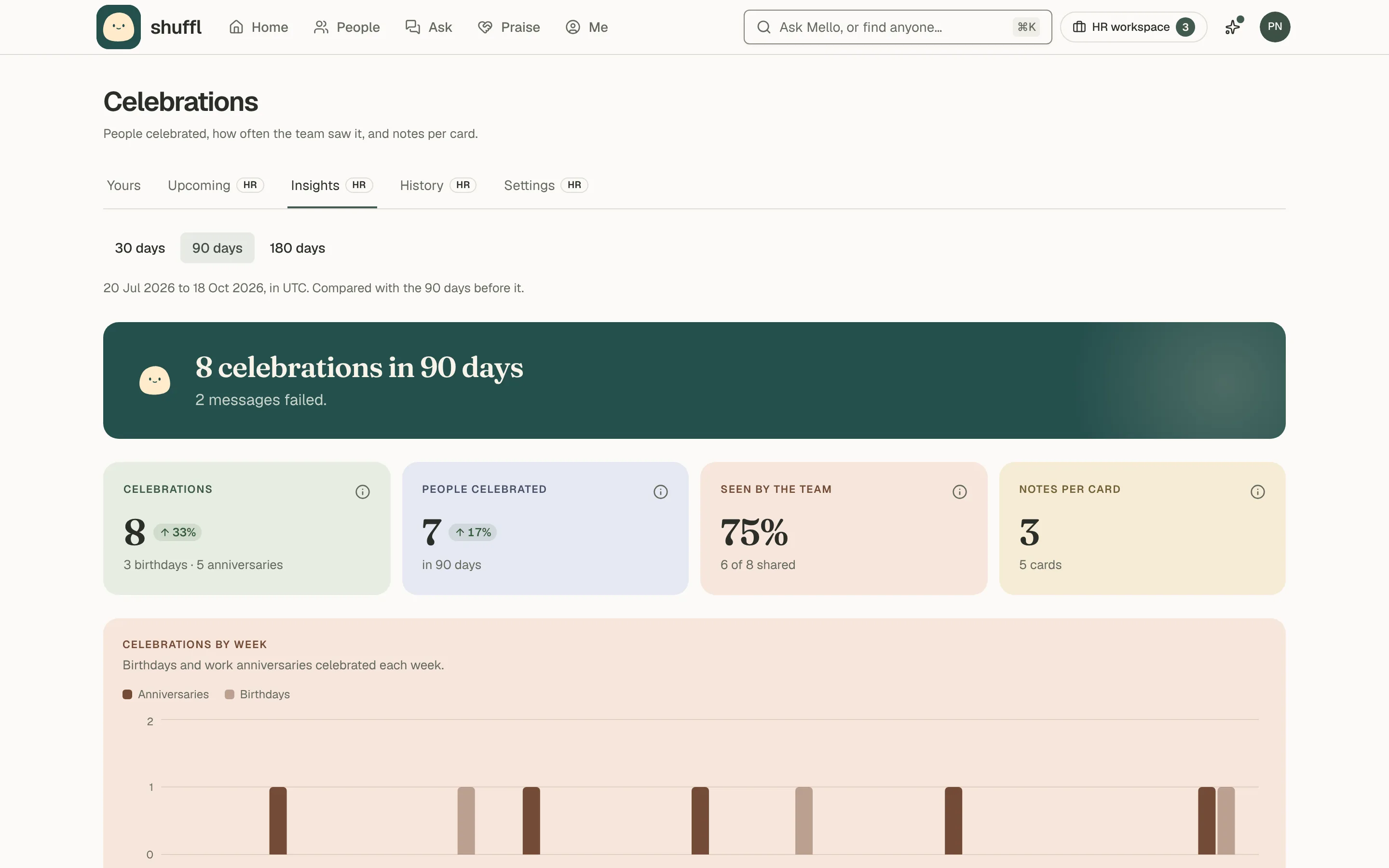
- Upcoming shows the next 60 days, shared or private. Insights shows how celebrations landed, History every message sent or skipped, and Settings one card each for anniversaries and birthdays.
- In a new workspace, pick a starter: Work anniversaries in a channel, Birthdays in a channel, Tell the team about anniversaries, or Private anniversary notes.
- It fills in the settings; nothing is turned on yet.
- Choose who hears about it: a private note to the person only, also a post in a Slack channel you choose, or also a message to each teammate.
- Write the message. Use {name} and {years} for anniversaries, and {name} for birthdays.
- Choose the send time. Each message goes out at that time in the person’s own time zone.
- How this is sent on each card sums up the timing, privacy and Who sees what.
- Choose the send days. Monday to Friday is the default, so a Saturday birthday goes out the Friday before.
- Choose On other days, send on: the send day after it for Monday, or all seven days for the day itself.
- Choose Turn on, after Preview if you want to check the message. Save without turning on keeps your edits.
See how celebrations land
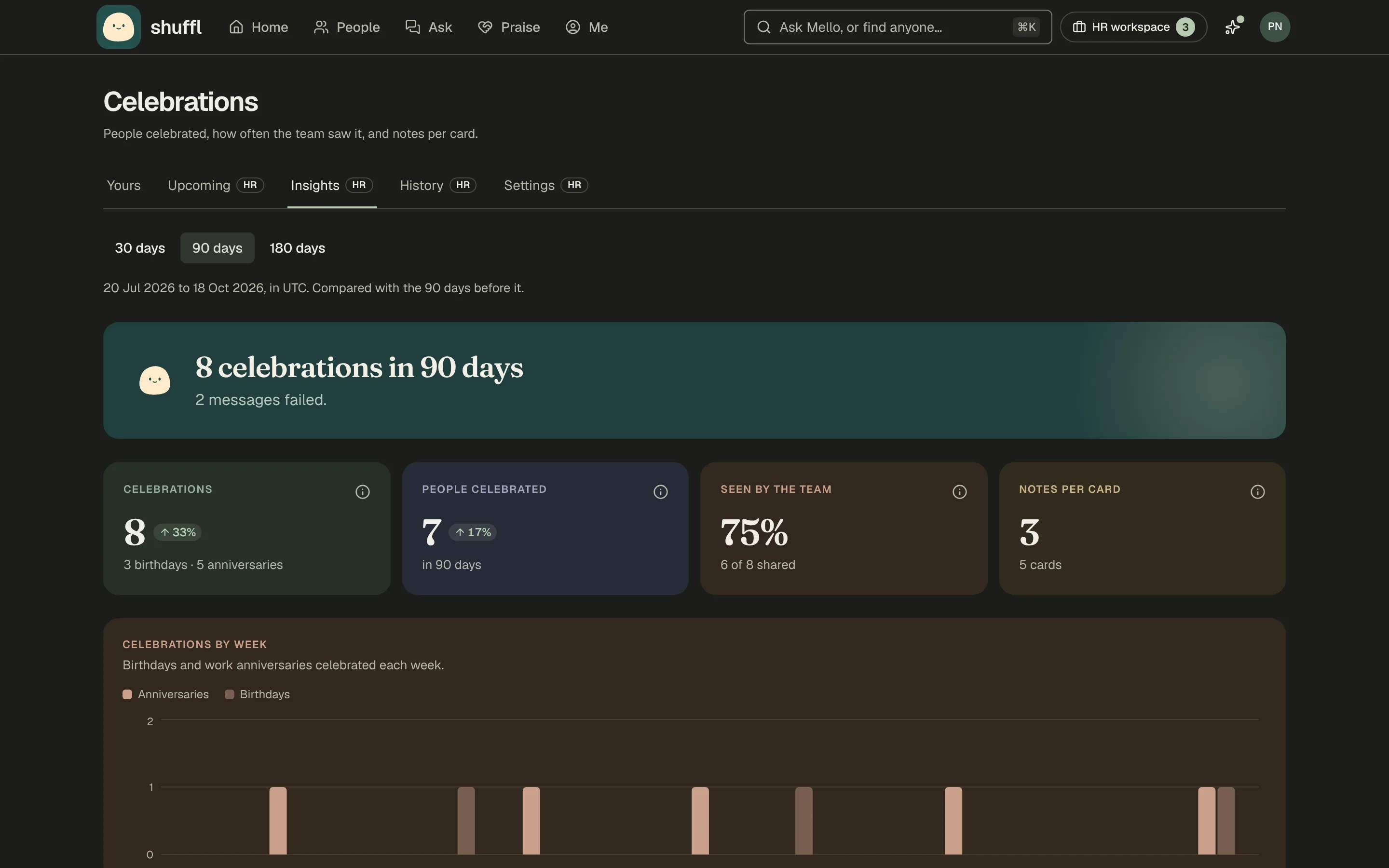
Insights counts celebrations sent in the last 30, 90 or 180 days against the period before. It shows how many, how many people, birthdays and anniversaries, and how many reached a channel or the team.
Notes per card shows how warmly the team signed the cards given. Mello’s line names messages that failed or were skipped, and people who have not said whether to share. Names stay on History.
Start dates
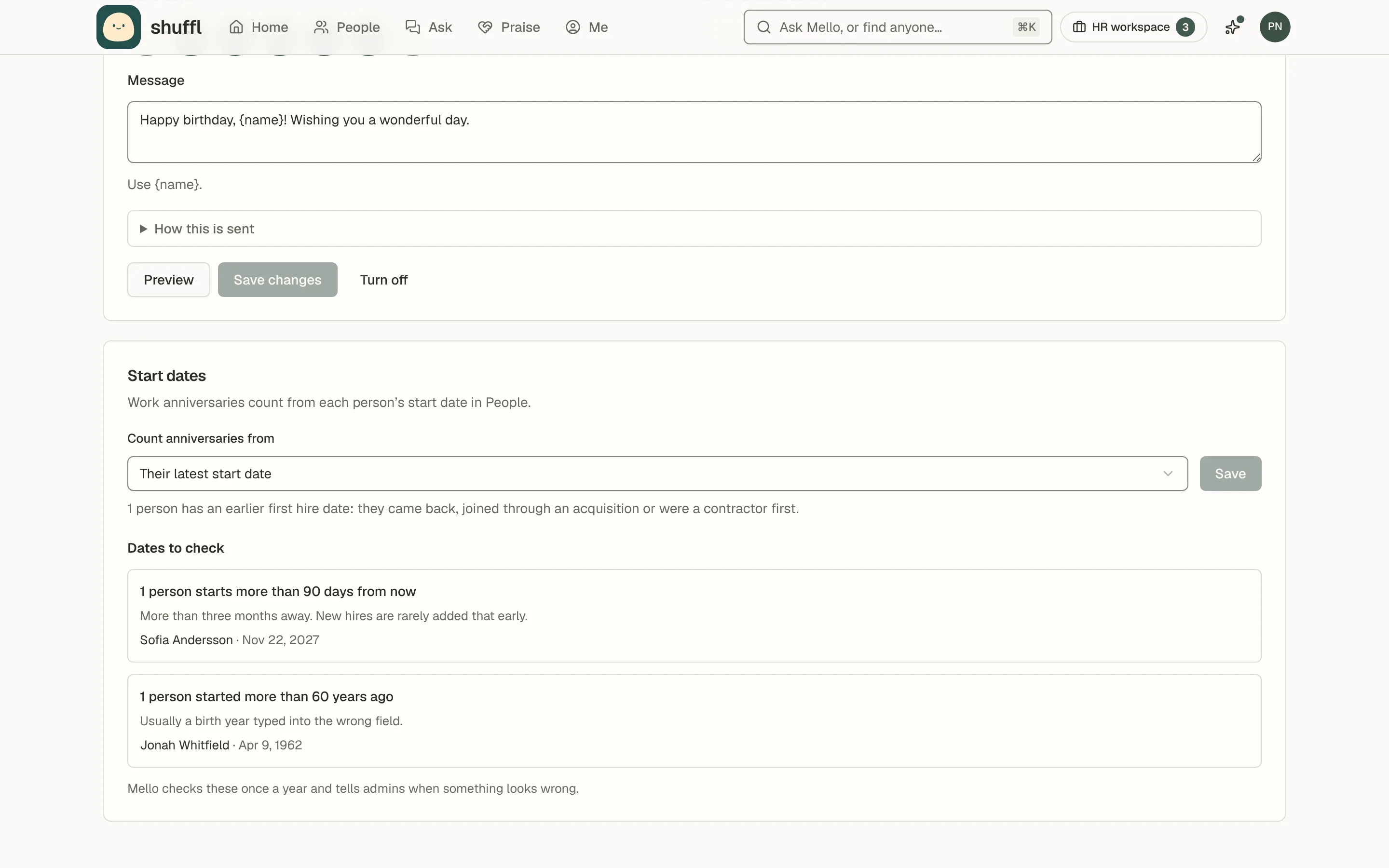
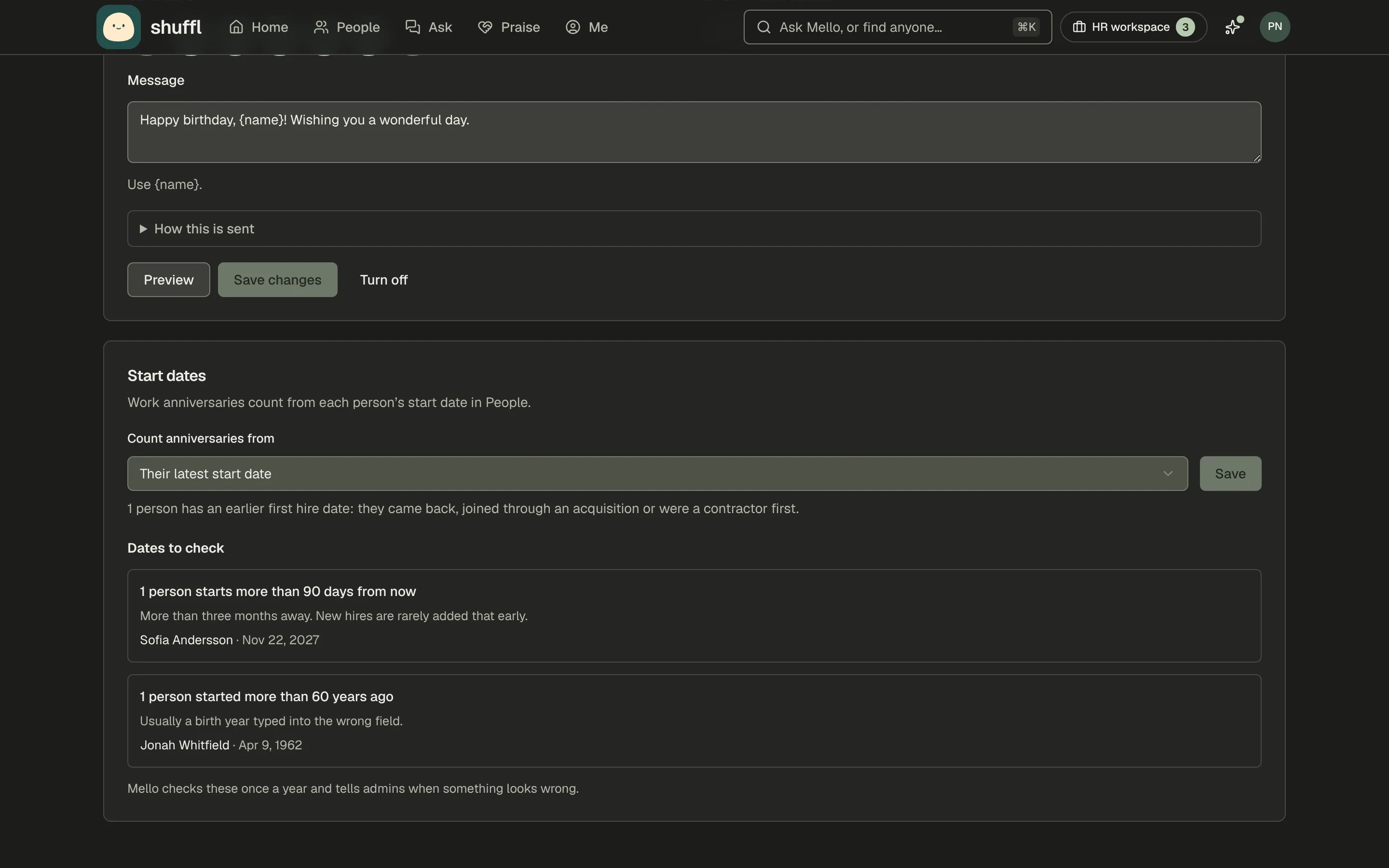
Work anniversaries count from each person’s start date in People. For people who came back, joined through an acquisition or were contractors first, choose whether to count from the latest start date or the first hire date. Changing it reschedules upcoming anniversaries.
People sync keeps the first hire date when your HRIS sends one (BambooHR and Workday do), or when someone whose employment had ended comes back with a later start date.
You can also add a first hire date by hand when you edit a person in People.
The same card lists start dates that look wrong. That means more than 90 days ahead, more than 60 years ago, or shared by five or more people and at least a fifth of everyone.
While anniversaries are on, Mello tells administrators once a year how many it found.
When messages are sent
Each message goes out on the day if it is a send day, otherwise on the nearest send day before or after, as you chose; Upcoming shows when.
Each message is sent at most once, even on retry, and one not sent by the end of the person’s send day is skipped, never sent late.
Turning a celebration off, a person opting out, saying no to sharing or employment ending cancels what was scheduled.
A rehired person’s anniversary counts from their new start date, unless you chose the first hire date under Start dates. A February 29 anniversary or birthday is celebrated on February 28 in other years.