
Tutorial
Set up your workspace
Name your company, set up its first workspace and pick up where you left off.
For Workspace administrators
Have your agent do thisPaste the prompt into Claude Code, Cursor or another agent. It follows this guide over MCP and asks before it changes anything others will see.Show the promptHide the prompt
Help me with "Set up your workspace" in my Shuffl workspace.

1. Read the guide: https://shuffl.ai/docs/markdown/getting-started
2. Add Shuffl's MCP server: https://shuffl.ai/api/mcp
   Claude Code: claude mcp add --transport http shuffl https://shuffl.ai/api/mcp
   When the browser opens, choose my workspace and allow the access the guide needs.
3. Work through the steps in order: Name your company; Work through the checklist. Do what you can over MCP and tell me which steps only I can do in the browser or in Slack.

Show me what you will change and who it affects, and wait for my yes before publishing, inviting or sending anything.
On this page
App links open your signed-in workspace. Check the selected workspace before making changes.
Name your company
- Create your Shuffl account with your work email and a password, or sign in with Google or Slack. Verify your email, then sign in.
- Name your company. Shuffl suggests a name from your work email and creates the company with its first workspace.
- If you were invited, follow the invitation instead. Company owners and administrators can add another workspace later.
- Shuffl opens workspace setup, one of the pages administrators, HR responders and Knowledge verifiers reach from the HR workspace. Employees use Home.
Work through the checklist
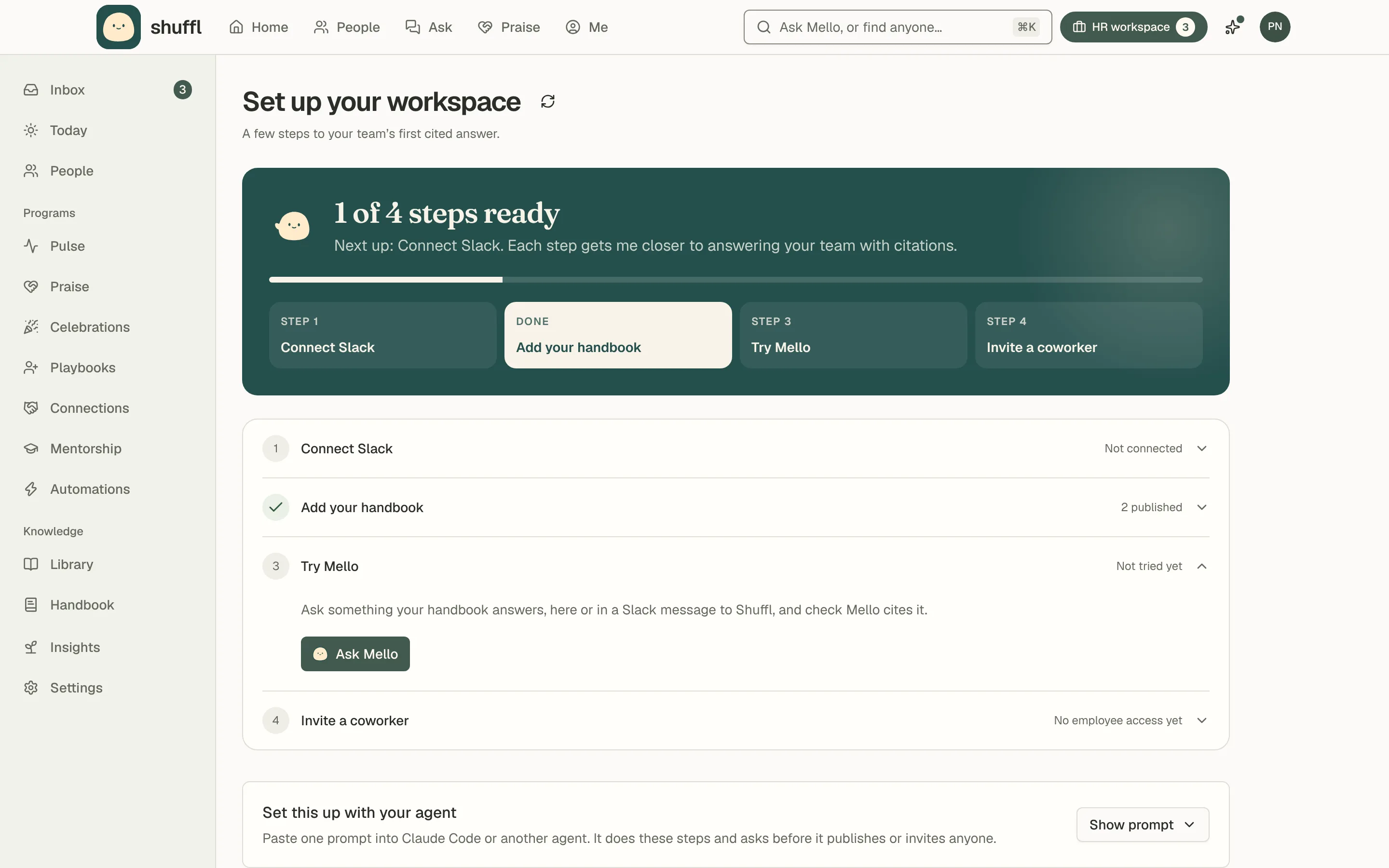
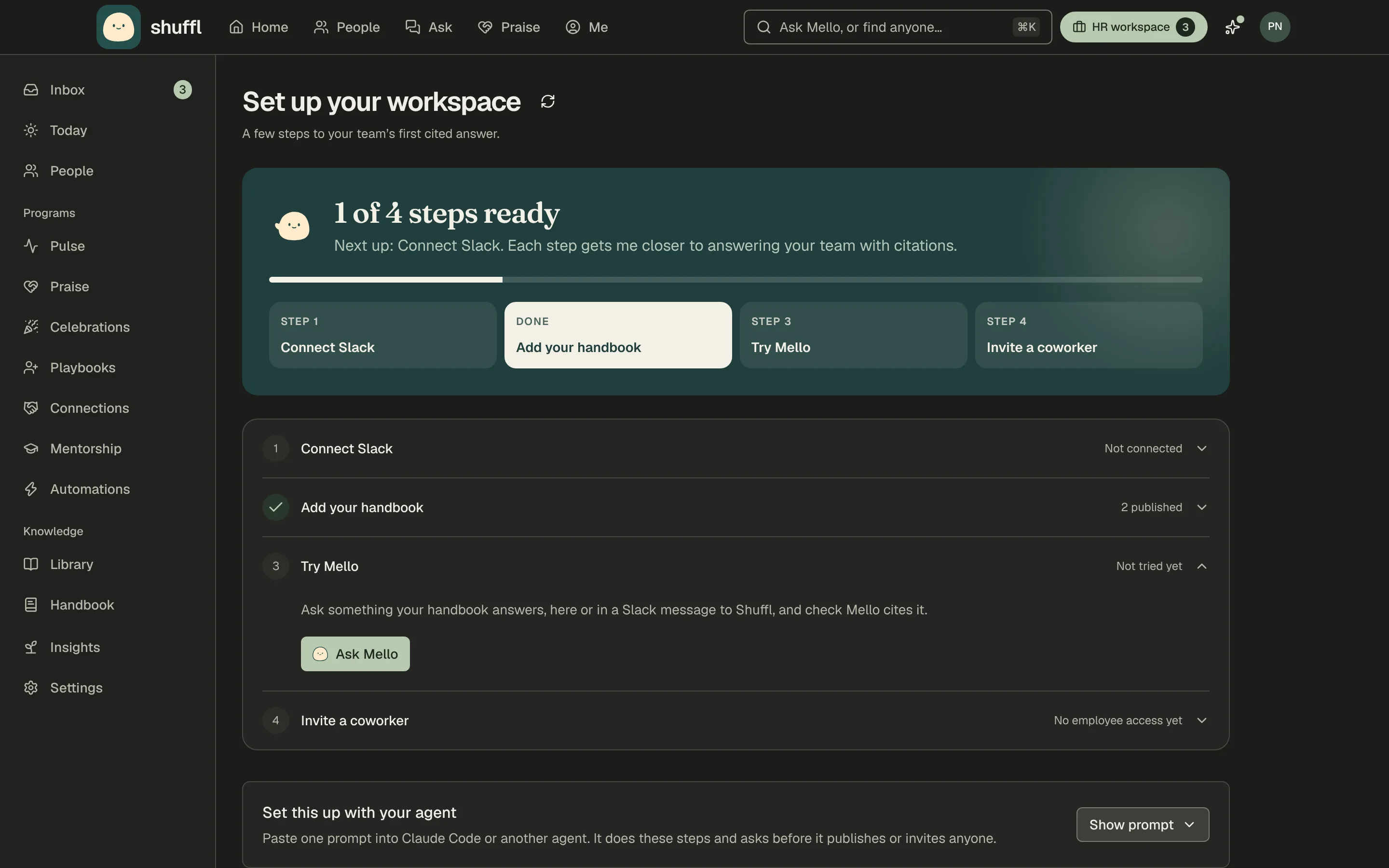
- Connect Slack. Choose Connect Slack and approve the app in Slack. Everyone in your Slack workspace then appears in People, waiting for access.
- Add your handbook. Choose Upload a file or Add a web page, or drop a file anywhere on the page. Check the draft, then publish it.
- Try Mello. Ask something your handbook answers, on the web or in a direct message to Shuffl in Slack. A cited answer completes the step.
- Invite a coworker. Their access turns on when they accept, or turn it on for people already waiting in People.
- Owners get HR requests by default. If nobody can receive them, open People, choose a person and turn on HR responder under Roles.
- To hand setup to Claude Code or another agent, choose Show prompt, then Copy prompt, and paste it into the agent.
- It works through the steps over MCP and asks before it publishes or invites anyone.
- Under Also turn on, start Pulse, Connections, Onboarding, Celebrations and Communities when you’re ready. Each has its own guide.
Workspace setup lists what a workspace needs before employees get value from it. Progress follows your saved settings, so you can leave and come back.
Bring your Slack channels over
If another app already runs coffee chats, shoutouts or celebrations in your Slack, workspace setup offers Bring them over.
Intros become a Connections program, shoutouts become a praise channel with the past year imported, and a celebrations channel gets birthdays and anniversaries once you turn them on. Choose Leave it to skip a channel.
To avoid matching people who already met, add the other app’s CSV report of past intros on the same screen. Shuffl keeps only who met whom, never the names or emails in the file.
Then remove the other app from Slack. Each Connections program starts once that app leaves its channel, so nobody gets two introductions.
People whose birthday the other app celebrated are asked privately whether Shuffl should keep it. For a private channel, type /invite @Shuffl in it first.
ShufflAPP
Resume after an interruption
Sign back in and reopen Workspace setup in the same workspace. Retry the failed step there rather than creating a new workspace.
If progress moves backward, check the setting behind the step. A withdrawn document, a passed review date, a removed responder or a suspended employee reopens a step.
Slack’s Home tab for Shuffl shows the same progress to administrators, with a Continue setup button.