Explanation
Find your way around
Where things are on Home, in the menu and on a phone, and the settings that are yours alone.
For Everyone using Shuffl
On this page
App links open your signed-in workspace. Check the selected workspace before making changes.
Home
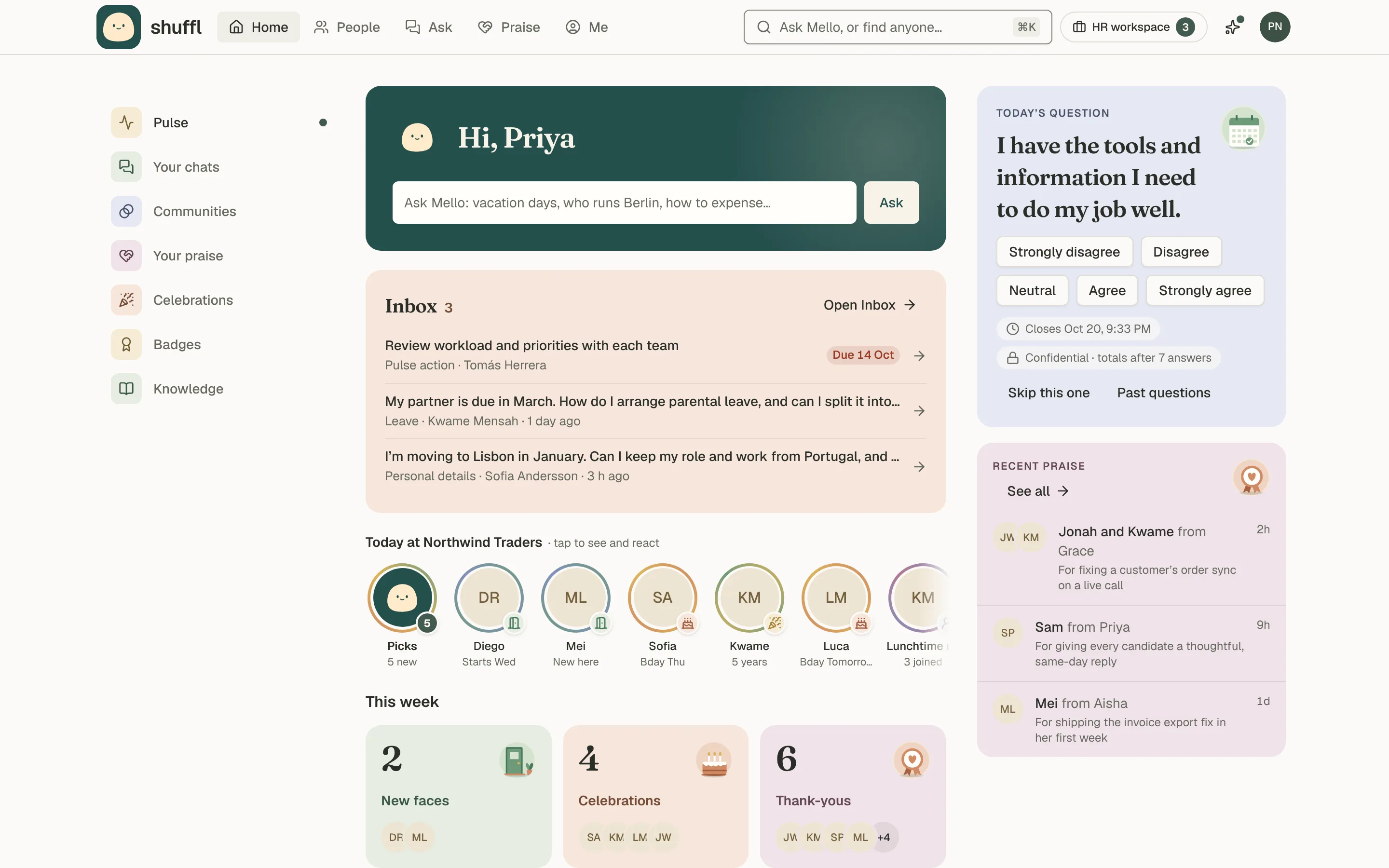
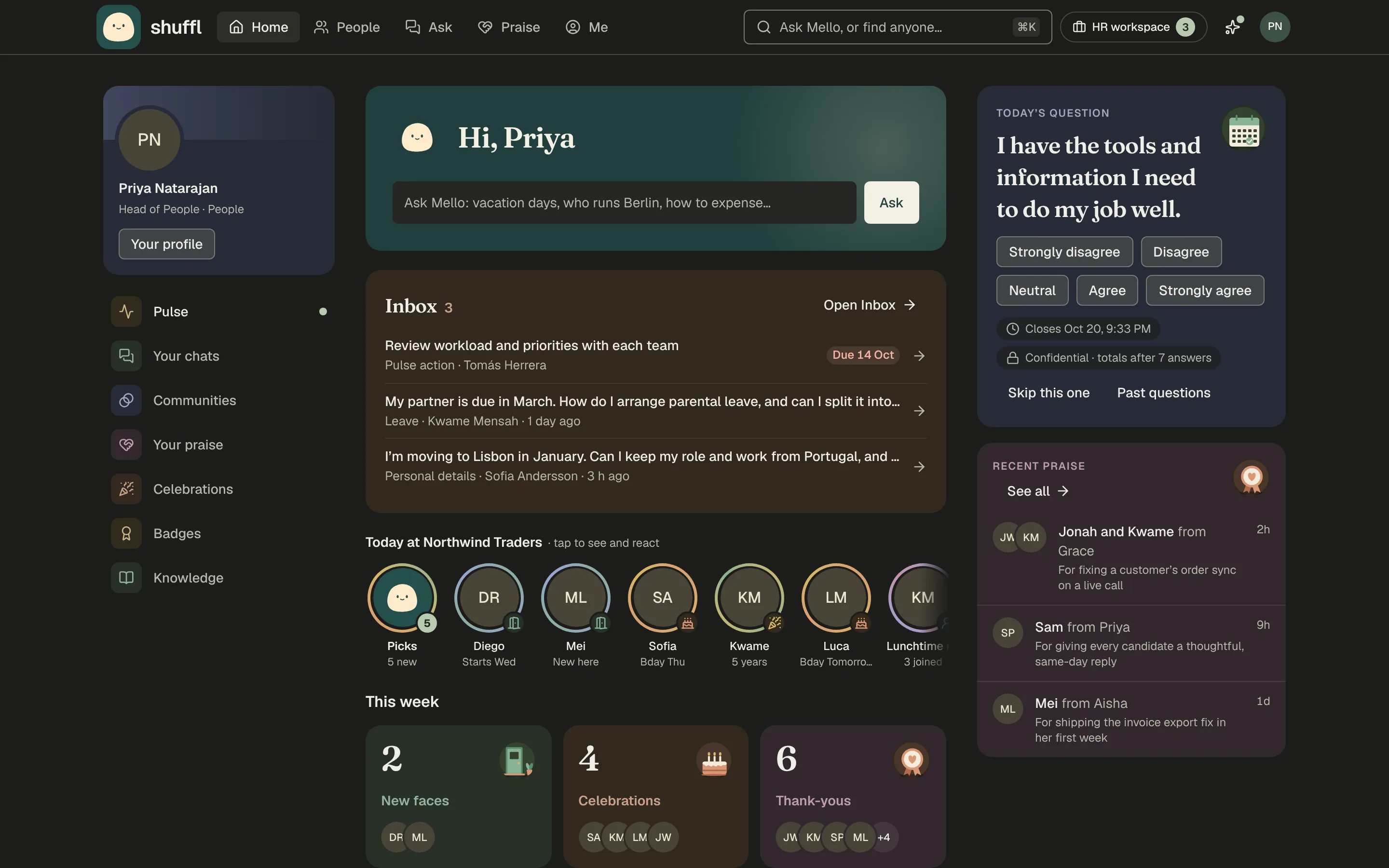
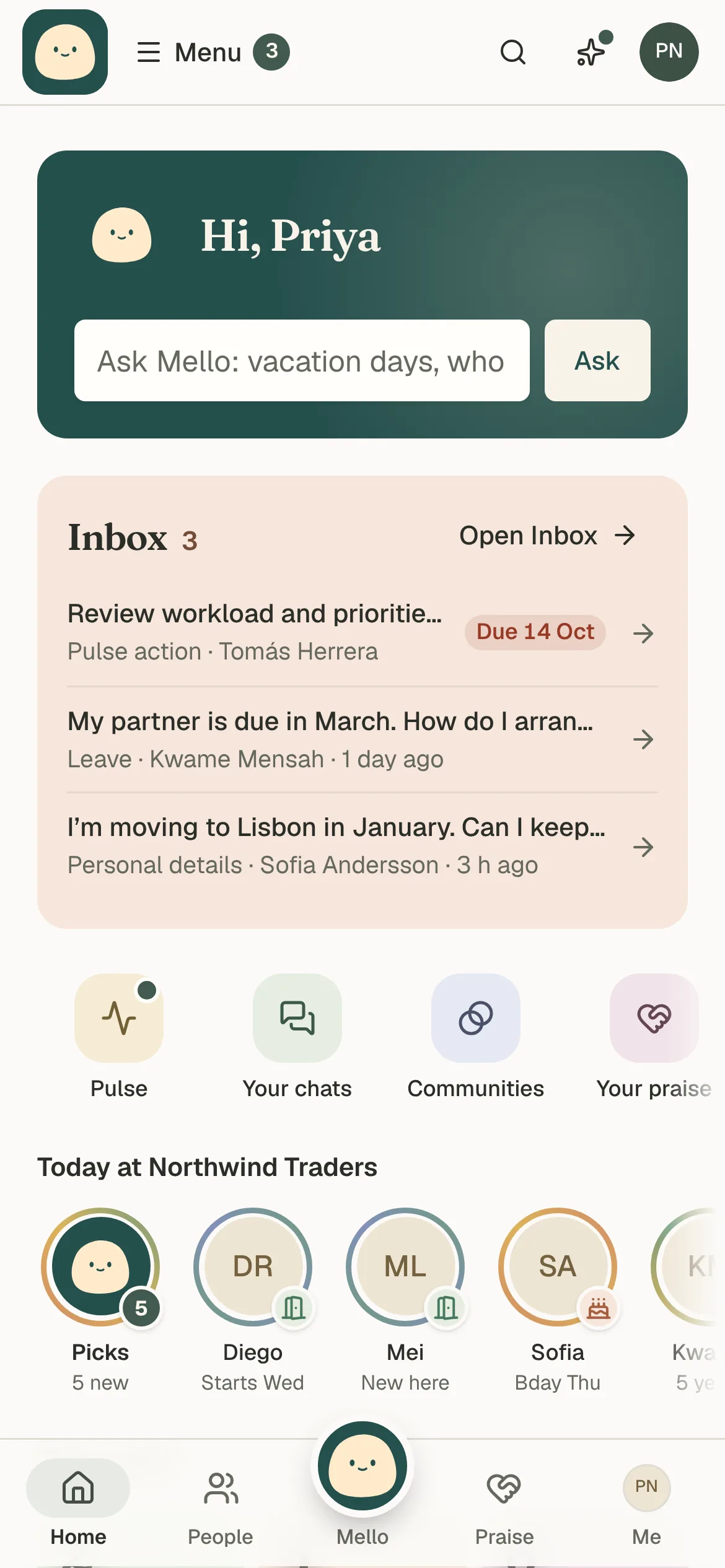
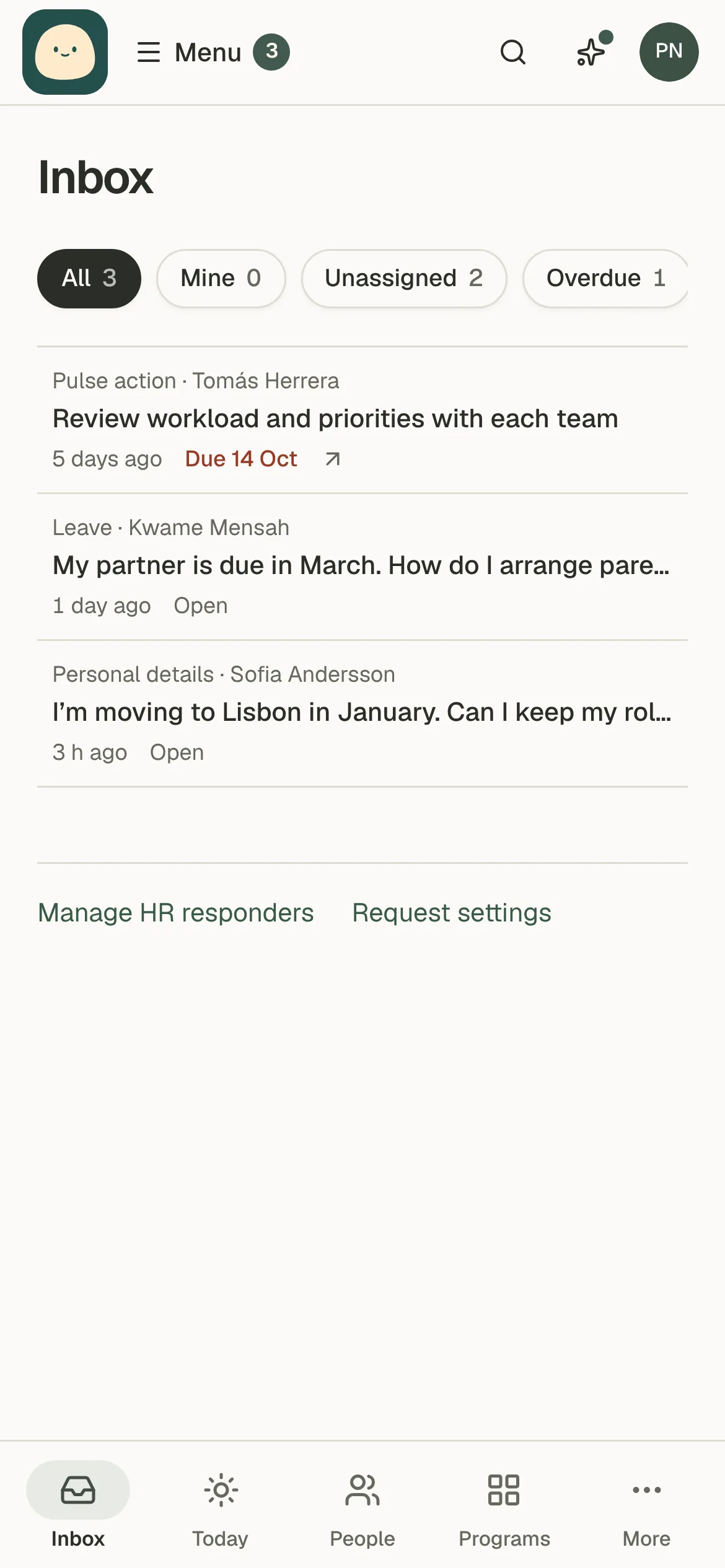
Home fits on about two screens. Mello’s panel greets you with an Ask Mello box. For HR, the Inbox shows its count and first three rows, with a red chip on anything overdue.
This week counts new faces, celebrations and thank-yous, and Your places links to what is on.
The feed below is about people you know: birthdays and anniversaries, introductions Mello made, community joins and badges, and now and then someone you haven’t met.
Three or more of a kind become one entry with the faces. It shows five entries; Show more adds the rest.
The rings show the same moments as stories, unseen first. Picks plays up to five Mello chose for you, like a birthday to wish: pick a quick note and Send in Slack copies it and opens your DM, or Skip. Shuffl never posts as you.
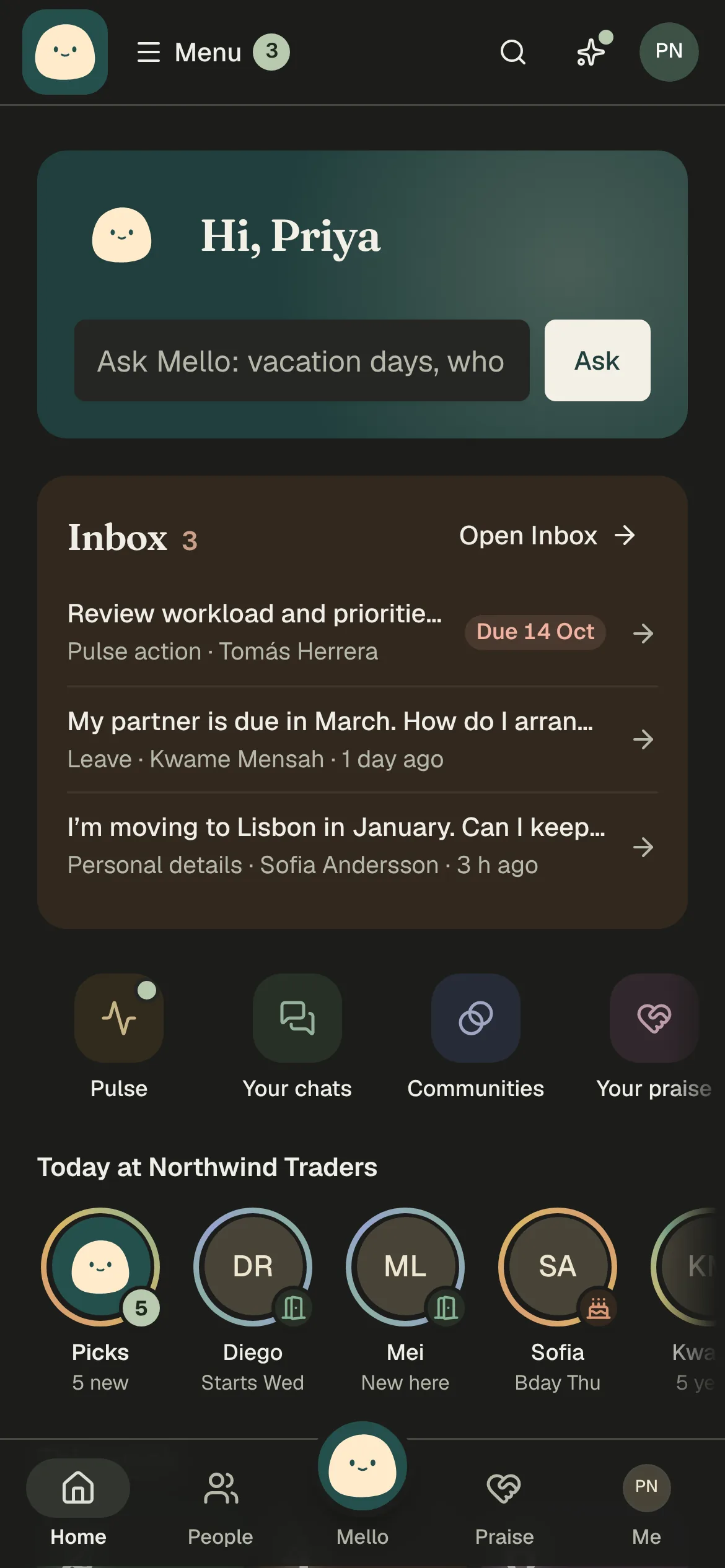
The buttons beside What’s happening switch the feed between Cards and Compact. The settings menu next to them turns the story rings, autoplay and Picks on or off, on every device.
For you lists what waits on you, by due date: pages HR asked you to confirm, and onboarding to-dos and check-ins. In your first week it adds setup steps such as a photo, a community and a hello.
It shows three; Show all opens the rest. The Home tab counts them.
Getting around
The top bar has Home, People, Ask, Praise and Me. Press ⌘K, or choose the Ask Mello field, to search or ask from anywhere.
On a phone, the bottom bar has Home, People, Mello, Praise and Me, and a dot means something waits for you. Communities and Celebrations are on Home, your profile and the phone menu’s More.
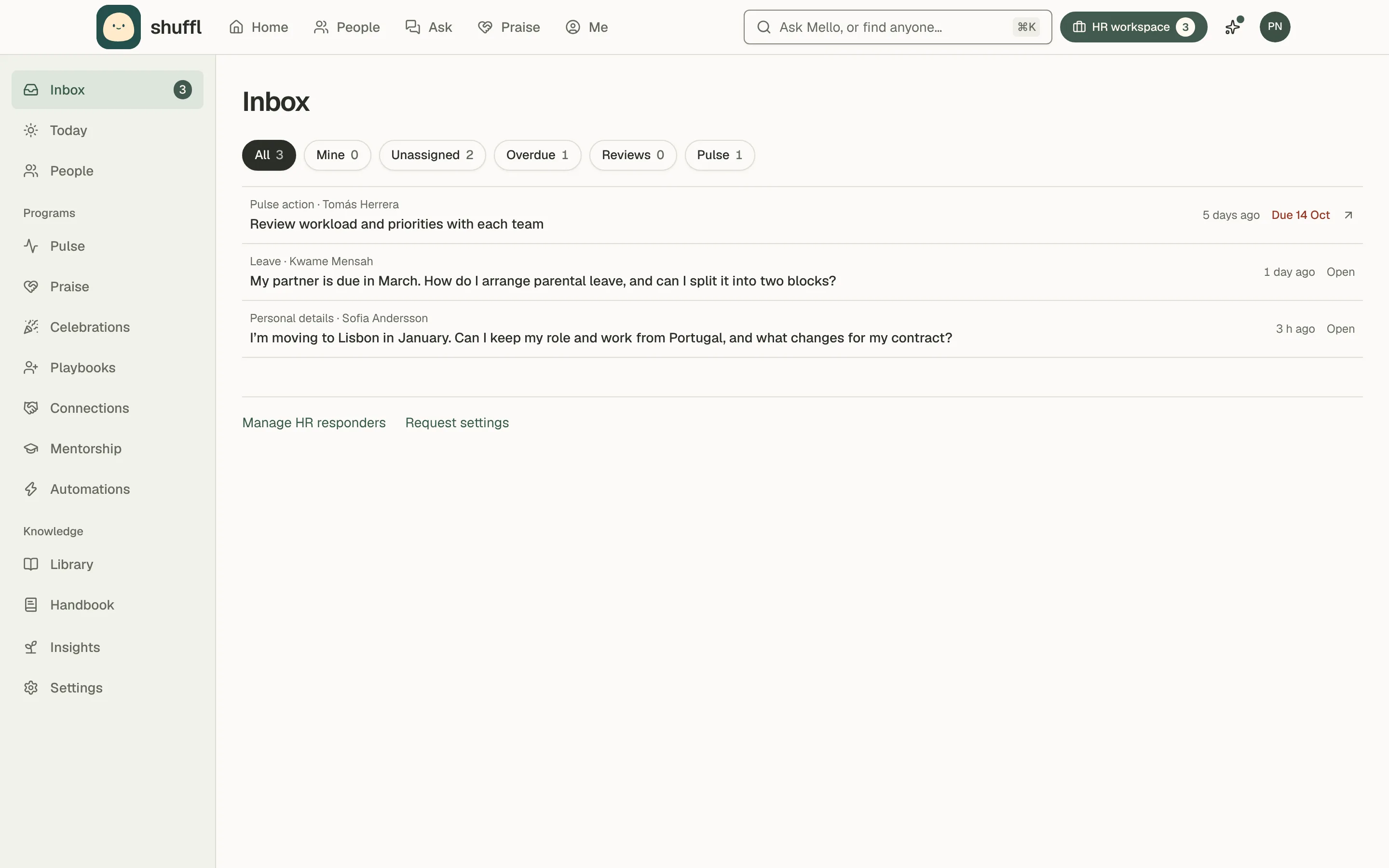
Administrators, HR responders and Knowledge verifiers get an HR workspace switch in the top bar, counting what waits on you.
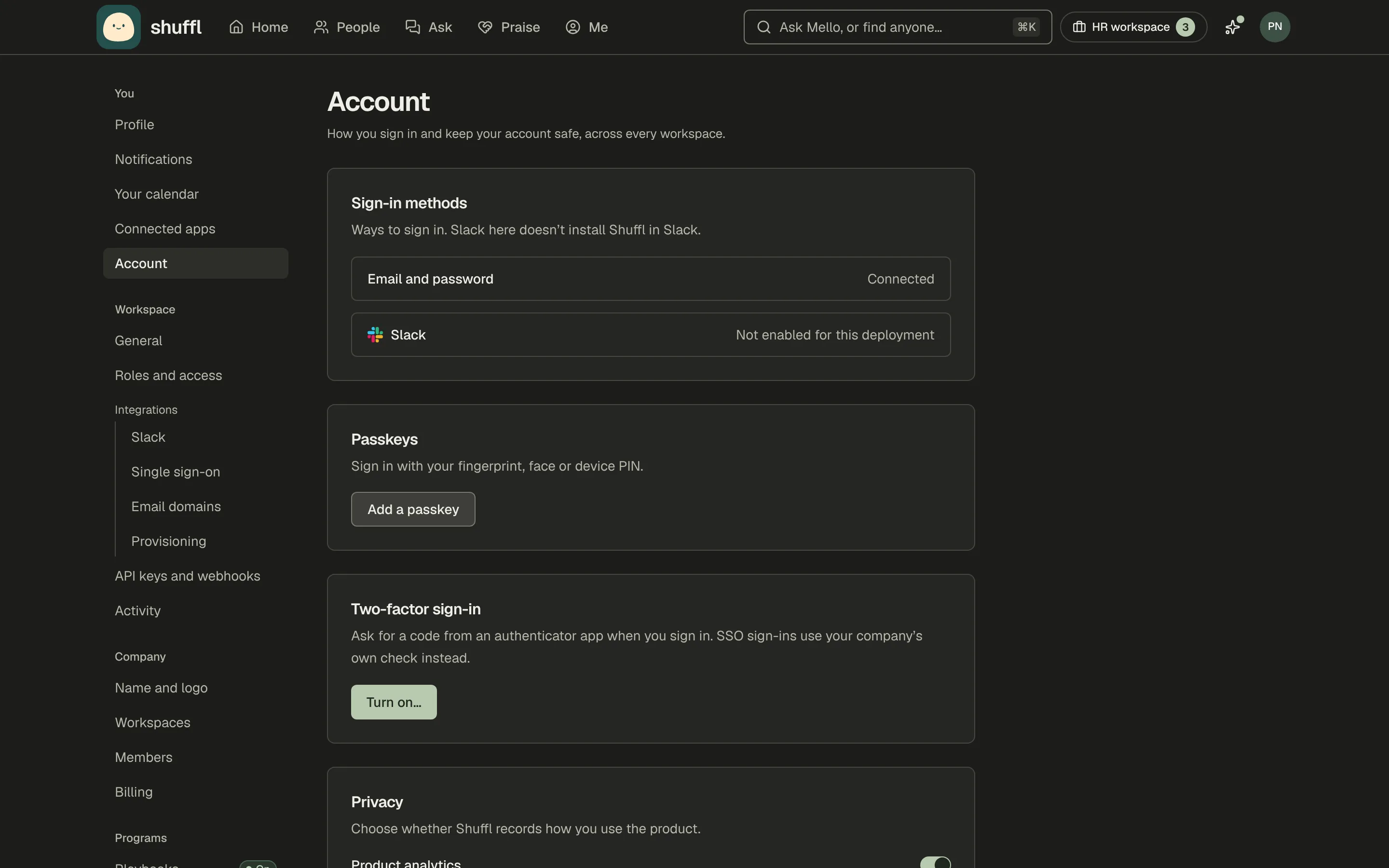
It opens a rail beside HR’s pages: Inbox, Today and People, then Programs (Pulse, Praise, Celebrations, Playbooks, Connections, Automations), Knowledge (Library, Handbook), Insights and Settings. The rail marks where you are; press the switch again to go back.
On a phone, Menu has one HR workspace row that opens the same list as a sheet, and HR’s pages get a bar of Inbox, Today, People, Programs and More. What’s new in the top bar lists the latest changelog entries and blog posts.
A link to an HR page someone can’t use, such as an old bookmark, takes them back to Home with a short note instead of a locked page.
Your photo at the top right opens the account menu: your name, sign-in email and role. Then come You (Your profile, Your settings, Notifications, Account), Company, Workspace, and Help, Privacy choices and Sign out.
Choosing a company opens the last workspace you used there. Owners and administrators find Company settings under Company and can create workspaces.
Profile, notifications and calendar
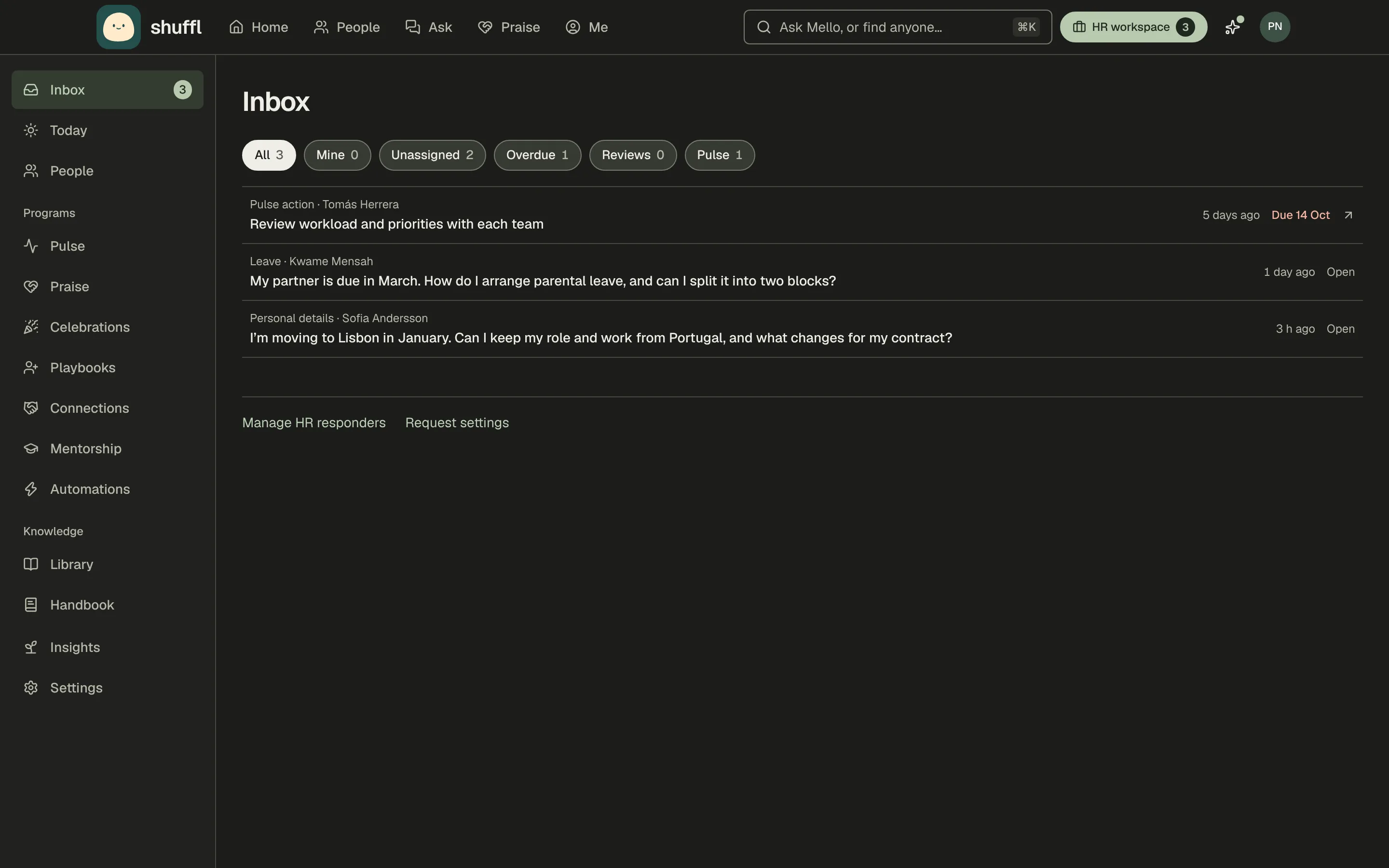
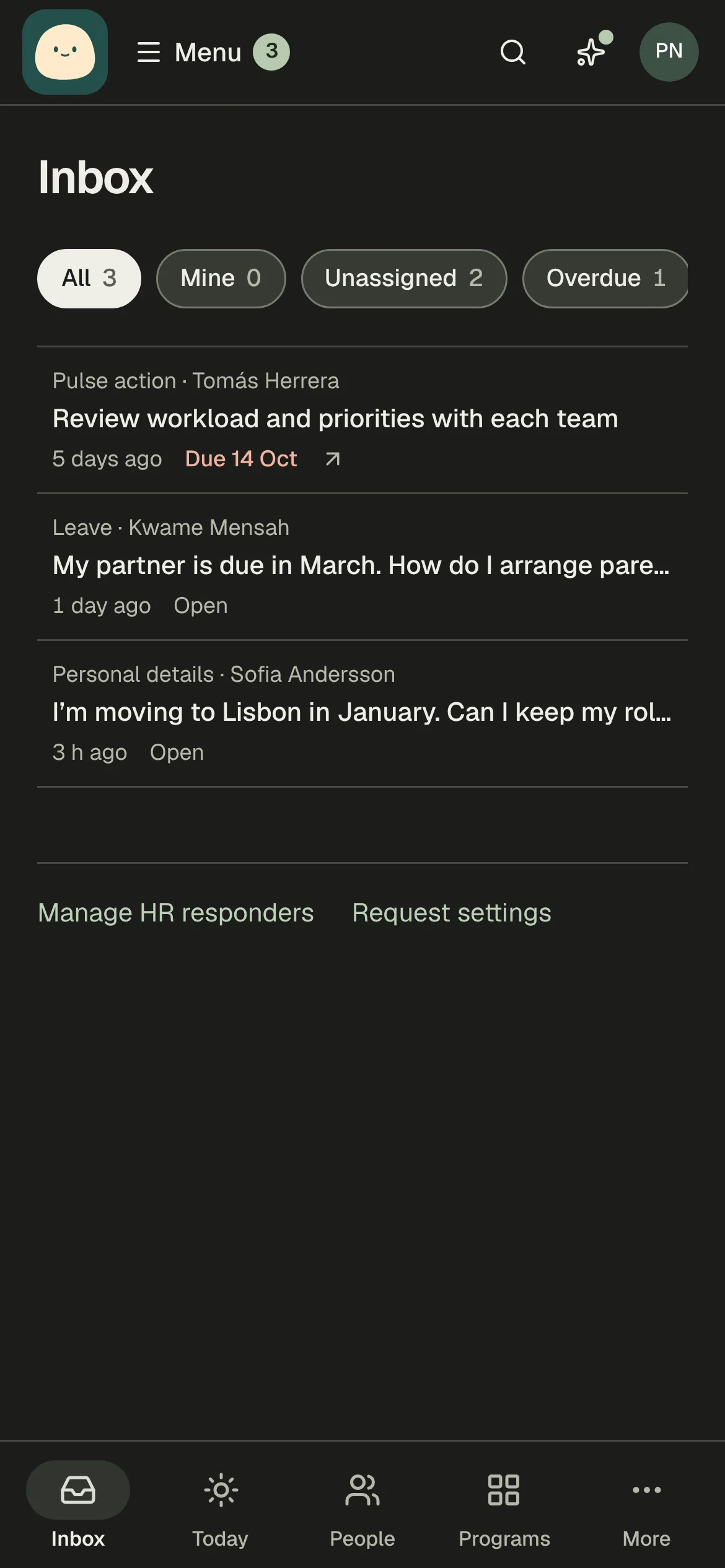
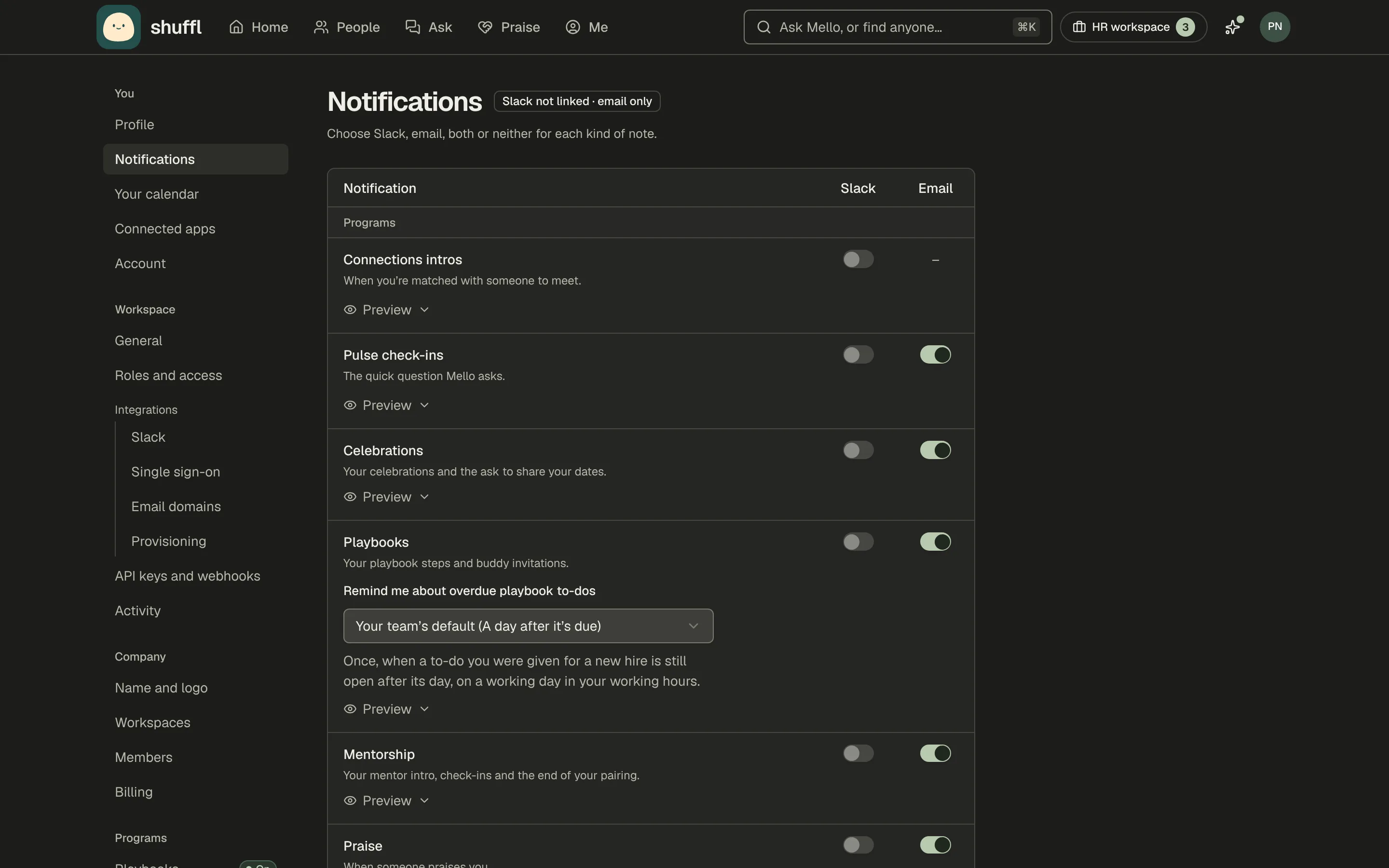
Profile holds your name, photo and sign-in email, links to your page in People, and under Appearance picks light, dark or your device setting.
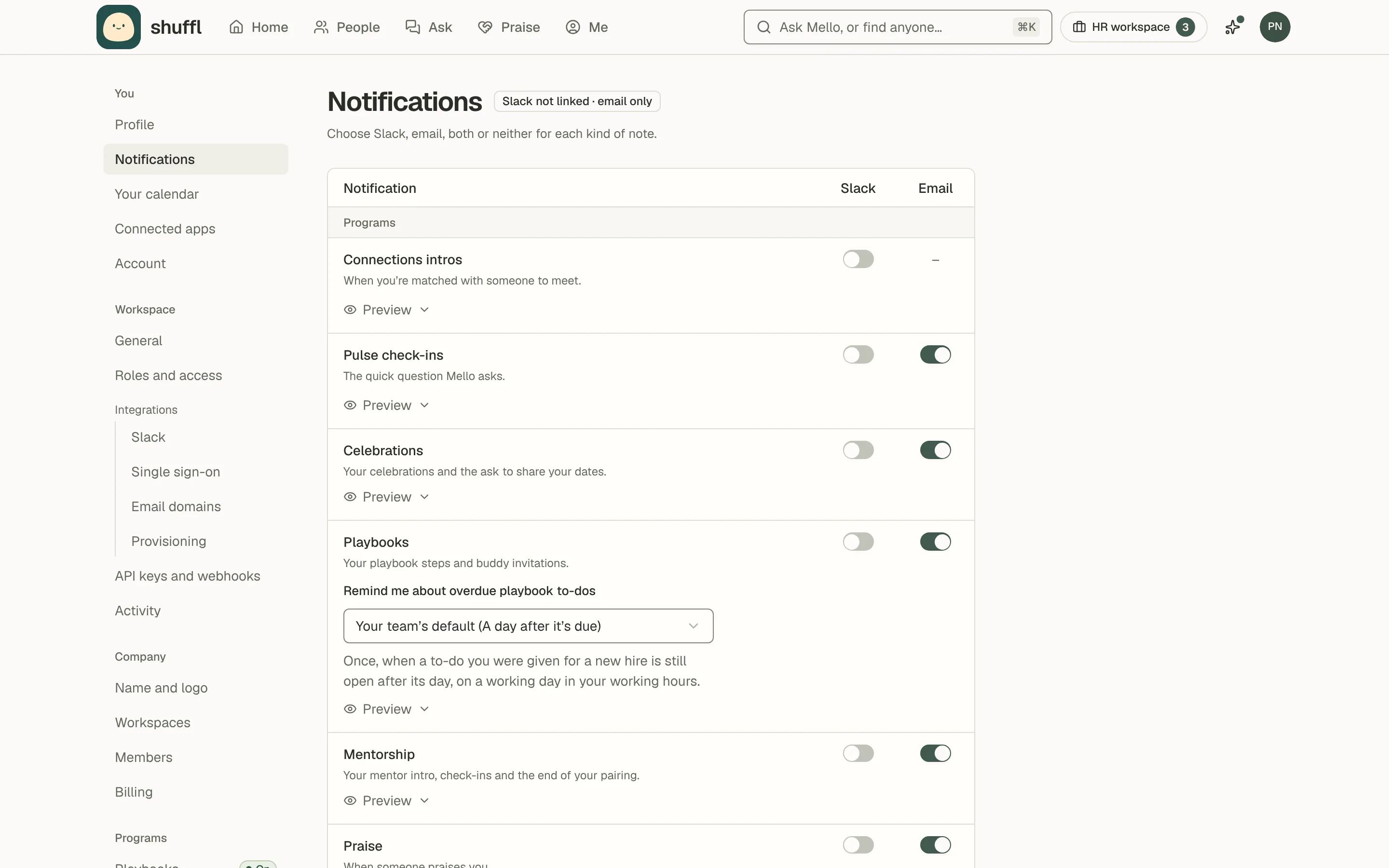
Notifications is one table: a row per notification and a column each for Slack and Email. Intros, onboarding, praise and celebrations are Slack only for now. Someone without a linked Slack account gets email. Preview on a row shows the message with sample people.
Connected apps lets you use Shuffl from Claude or another AI agent. Copy the connector URL, add it in Claude as a custom connector and allow access on the page that opens. The agent works as you, with your role, and Disconnect removes it.
What’s new in Shuffl is a short note after a major update, at least two weeks apart, with a link to the changelog. Turn off both switches to stop it.
Getting started is a few emails in your first ten days: a welcome for everyone (in Slack, if Shuffl reaches you there). Administrators also get setup notes on days 2 and 5 and a day 10 summary.
Turn off its Email switch, or use Unsubscribe, to stop them.
Check-ins are for owners and administrators: one email with one thing to try if nobody has used Shuffl for two weeks, and a last one at 30 days. A fix-it link comes if Shuffl is removed from Slack or a people sync fails.
Turn off its Email switch, or use Unsubscribe, to stop them.
Your calendar connects Google Calendar or Microsoft 365, optionally with Meet, Teams or Zoom, so Schedule time can propose times that suit both people. Shuffl reads free and busy times only.
Your account and sign-in
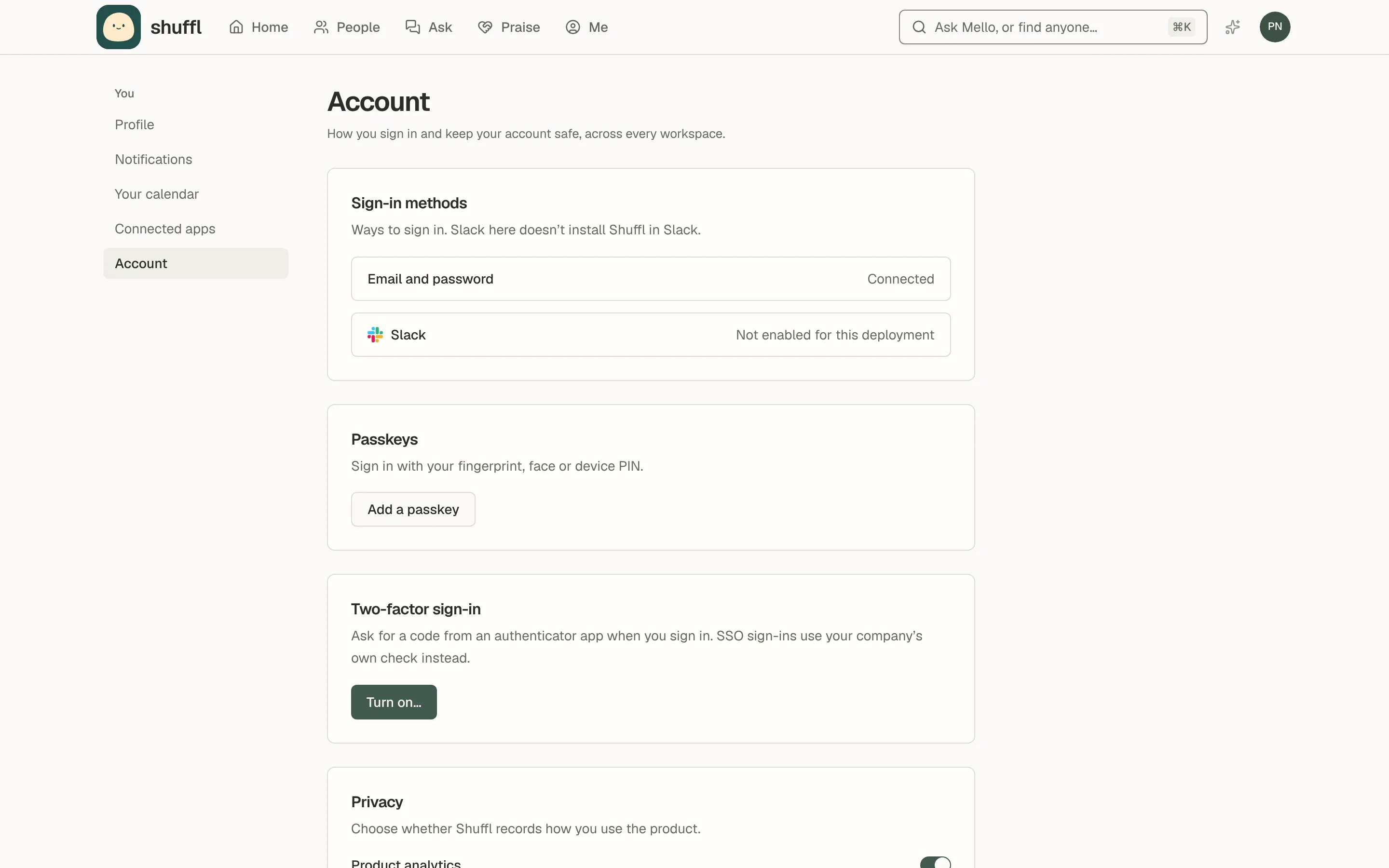
Account holds your sign-in methods: email and password, Google or Slack. Disconnect Slack… stops Slack sign-in but keeps your profile linked. Add a passkey to sign in with your device, or turn on Two-factor sign-in with an authenticator app and keep the backup codes safe.
The first time you open Shuffl in a browser, a banner asks about analytics: Reject all, Choose or Accept all. Choose has a switch per kind of data, then Save choices.
Where the law requires consent, nothing optional starts until you accept. Privacy choices in the account menu changes it for that browser.
Product analytics decides whether Shuffl may see which features you use, never what you write. Delete account works once every company you alone own has another owner or, if empty, has been deleted. Leaving a workspace keeps your company membership.