Reference
Notifications and reminders
Every message Shuffl sends you, where it arrives, and how to change or stop each one.
For Everyone using Shuffl, and administrators who set reminders
Have your agent do thisPaste the prompt into Claude Code, Cursor or another agent. It follows this guide over MCP and asks before it changes anything others will see.Show the promptHide the prompt
Help me with "Notifications and reminders" in my Shuffl workspace.

1. Read the guide: https://shuffl.ai/docs/markdown/notifications
2. Add Shuffl's MCP server: https://shuffl.ai/api/mcp
   Claude Code: claude mcp add --transport http shuffl https://shuffl.ai/api/mcp
   When the browser opens, choose my workspace and allow the access the guide needs.
3. Work through the steps in order: Choose Slack, email or both; Your reminders; Stop one kind of message; For administrators: reminder defaults. Do what you can over MCP and tell me which steps only I can do in the browser or in Slack.

Show me what you will change and who it affects, and wait for my yes before publishing, inviting or sending anything.
On this page
App links open your signed-in workspace. Check the selected workspace before making changes.
Where Shuffl reaches you
Shuffl reaches you in three places: a private Slack message from Mello, email to your account’s address, and Home and the dots in the menu in Shuffl itself.
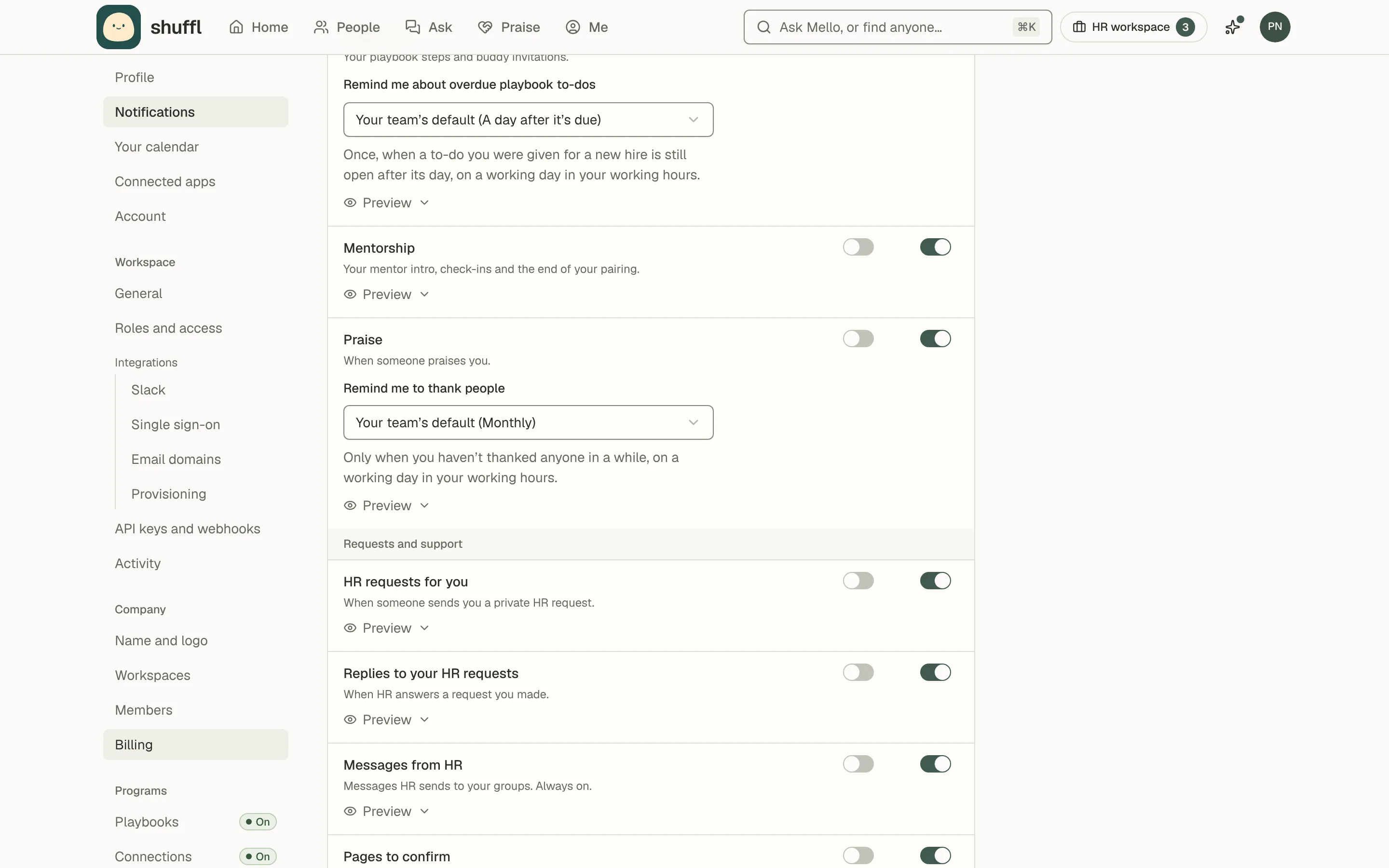
Settings → Notifications decides, for each topic, whether it reaches you in Slack, by email, both or neither. Your choices apply in every workspace you belong to.
If your Slack account isn’t linked to your profile in a workspace, the page shows Slack not linked · email only. Messages that can go by email come by email instead. An administrator can link your Slack account in People.
Connections intros, Onboarding, Praise and Celebrations go in Slack only for now. Without a linked Slack account, onboarding messages wait and celebrations show as a note in Shuffl.
Choose Slack, email or both
- Open Settings and choose Notifications under You, or choose Notifications in the account menu.
- Find the topic under Programs, Requests and support, or From Shuffl.
- Turn its Slack or Email switch on or off. The change saves at once.
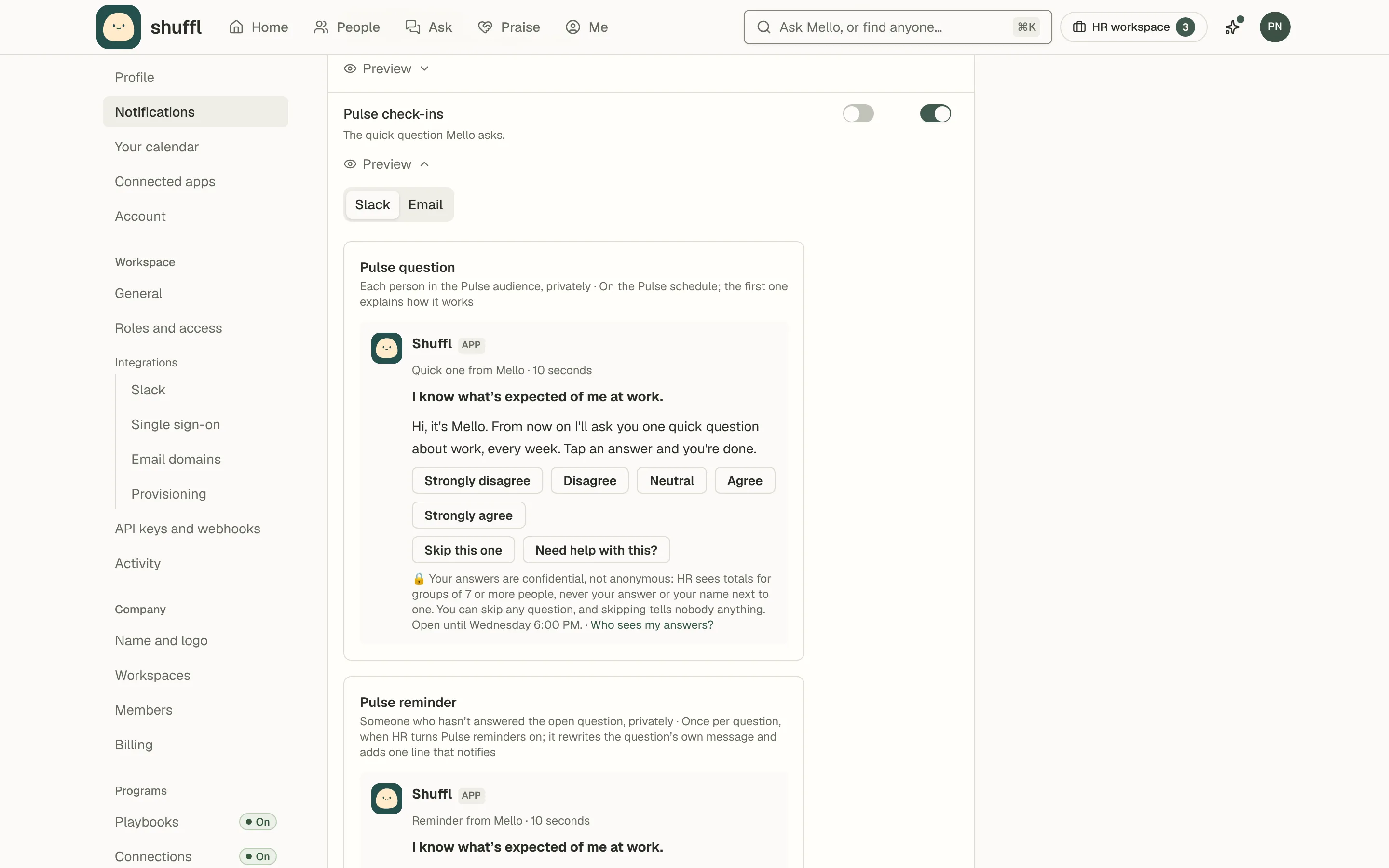
- Choose Preview under a topic to see the message in Slack and by email.
- To stop a topic completely, turn off both switches.
What each topic covers
Programs, which all start in Slack: Connections intros when you’re matched, Pulse check-ins that one tap answers, and Celebrations about your birthday or work anniversary. Also Onboarding steps and buddy invitations, and Praise when someone praises you.
Requests and support: replies to your HR requests and from Shuffl support.
HR responders and administrators also get HR requests for you, whose email leaves out what the person wrote, and the HR digest. Administrators get Pulse results, totals only, and owners and administrators get Billing.
From Shuffl: Getting started emails in your first ten days, with setup notes for administrators. Check-ins go to owners and administrators when nobody has used Shuffl for two weeks, Shuffl is removed from Slack or a people sync fails.
Moving to the new Shuffl reaches only the admin who installed the previous version, until Slack is reconnected.
Your reminders
- Open the reminder’s menu. Your team’s default follows what your administrator picked, including later changes.
- Pick another option, or Off. Your choice wins and applies in this workspace only.
- If your administrator turns a reminder off for the workspace, nobody gets it and its menu disappears.
Some topics carry a reminder menu under their switches, shown while your workspace has it on.
They are Remind me to thank people under Praise and Remind me about unanswered questions under Pulse. Playbooks has Remind me about overdue playbook to-dos, and Connections intros has Ask me who I know.
Reminders come on a working day inside your working hours, never two on the same day.
Stop one kind of message
- To stop one topic, turn off its Slack and Email switches in Settings → Notifications. Other topics keep coming.
- In a Getting started, Check-ins or Moving to the new Shuffl email, choose Unsubscribe at the bottom, then Unsubscribe on the page.
- It turns off that topic’s email only. Account emails, like password resets, still arrive.
- An Unsubscribe link works for 90 days; after that use Settings → Notifications. To get the emails back, turn the Email switch on again.
- For a reminder, choose Off in its menu, or press Stop these reminders on the message in Slack. Both set the same choice.
- What’s new in Shuffl links to Settings → Notifications from both Slack and email.
What’s new
What’s new in Shuffl is a short note after a major update, at least two weeks apart, linking to the changelog. You hear about each update once, even across several workspaces. It starts in Slack; turn on Email to get it by email too.
The What’s new sparkle in the top bar is separate and stays whatever you choose. A dot means a changelog entry or blog post you haven’t seen; opening it clears the dot in every workspace.
For administrators: reminder defaults
- Praise: open Praise, then Settings. Under Reminders, turn on Send praise reminders and choose How often: Every 2 weeks, Monthly or Every 3 months.
- It starts once Praise is reading a channel.
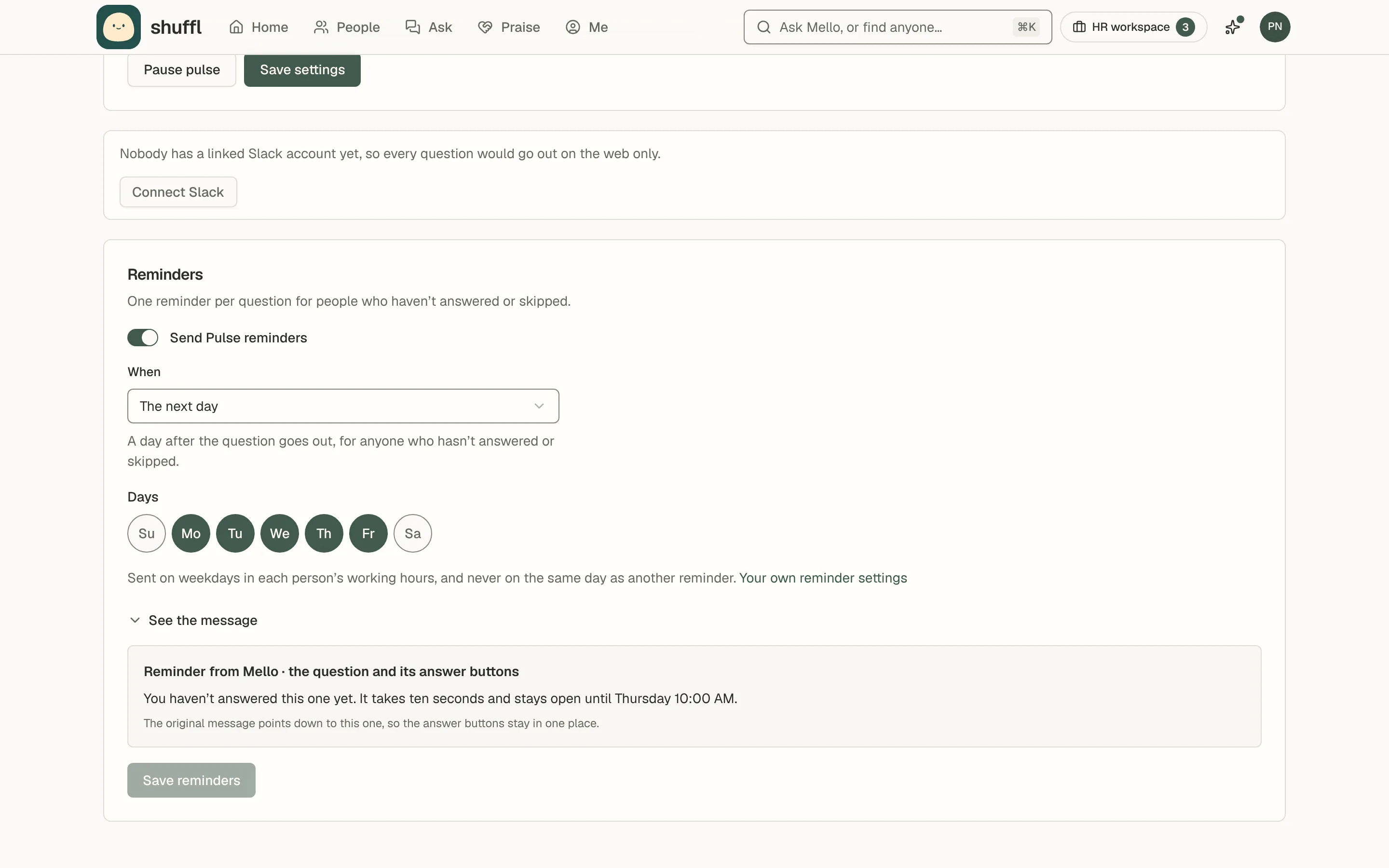
- Pulse: open Pulse settings. Under Reminders, turn on Send Pulse reminders and choose When: The next day, or Before it closes (four hours before).
- Under Days, pick at least one weekday reminders may go out.
- Choose Save reminders.
Administrators decide whether each reminder runs and its default timing, in a card on its program’s settings page with a switch, a timing menu, Days and See the message.
Reminders go out between 9:00 and 17:00 in each person’s time zone, on the days you chose, never on the same day as another Shuffl reminder.
A praise reminder waits 7 days after a badge offer, and a Pulse reminder never comes in a question’s last half hour.
Each person can follow your default, pick another option or turn a reminder off, and their choice wins. The card counts how many turned it off, never who.
The HR digest’s schedule is on your own Notifications page, below the topics.
A new hire’s day 30, 60 and 90 check-ins and manager one-to-ones are onboarding playbook steps, not reminders.