
How-to guide
Invite and enable employees
Invite people or let them join, check they arrived as the right person, and enable employee access.
For Workspace administrators and invited employees
Have your agent do thisPaste the prompt into Claude Code, Cursor or another agent. It follows this guide over MCP and asks before it changes anything others will see.Show the promptHide the prompt
Help me with "Invite and enable employees" in my Shuffl workspace.

1. Read the guide: https://shuffl.ai/docs/markdown/employee-access
2. Add Shuffl's MCP server: https://shuffl.ai/api/mcp
   Claude Code: claude mcp add --transport http shuffl https://shuffl.ai/api/mcp
   When the browser opens, choose my workspace and allow the access the guide needs.
3. Work through the steps in order: Send and accept an invitation; Enable access for the right person. Do what you can over MCP and tell me which steps only I can do in the browser or in Slack.

Show me what you will change and who it affects, and wait for my yes before publishing, inviting or sending anything.
On this page
App links open your signed-in workspace. Check the selected workspace before making changes.
How people get in
People arrive four ways: from Slack, from a directory sync or SCIM provisioning, by joining with a verified email domain, or through Invite and Add person.
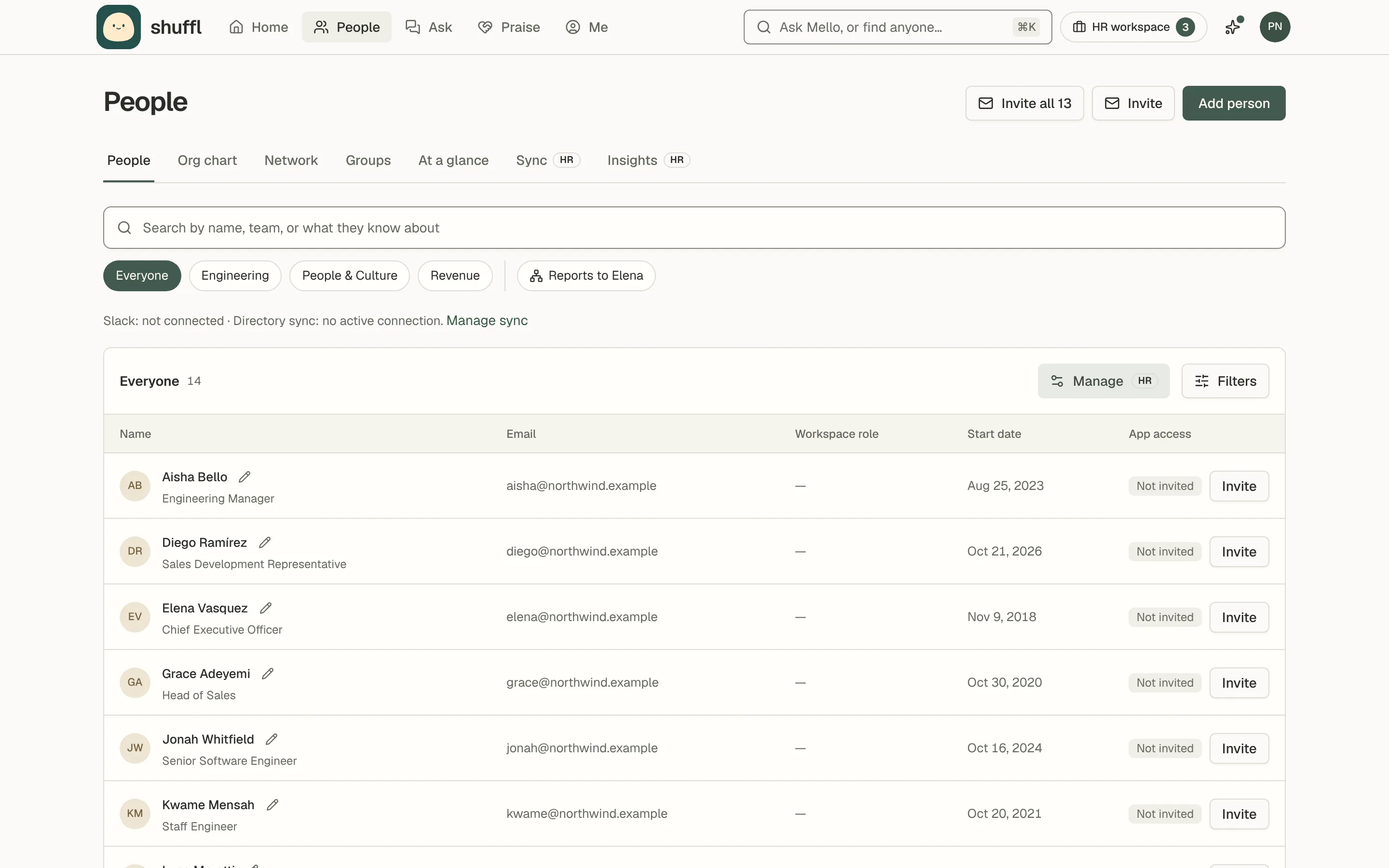
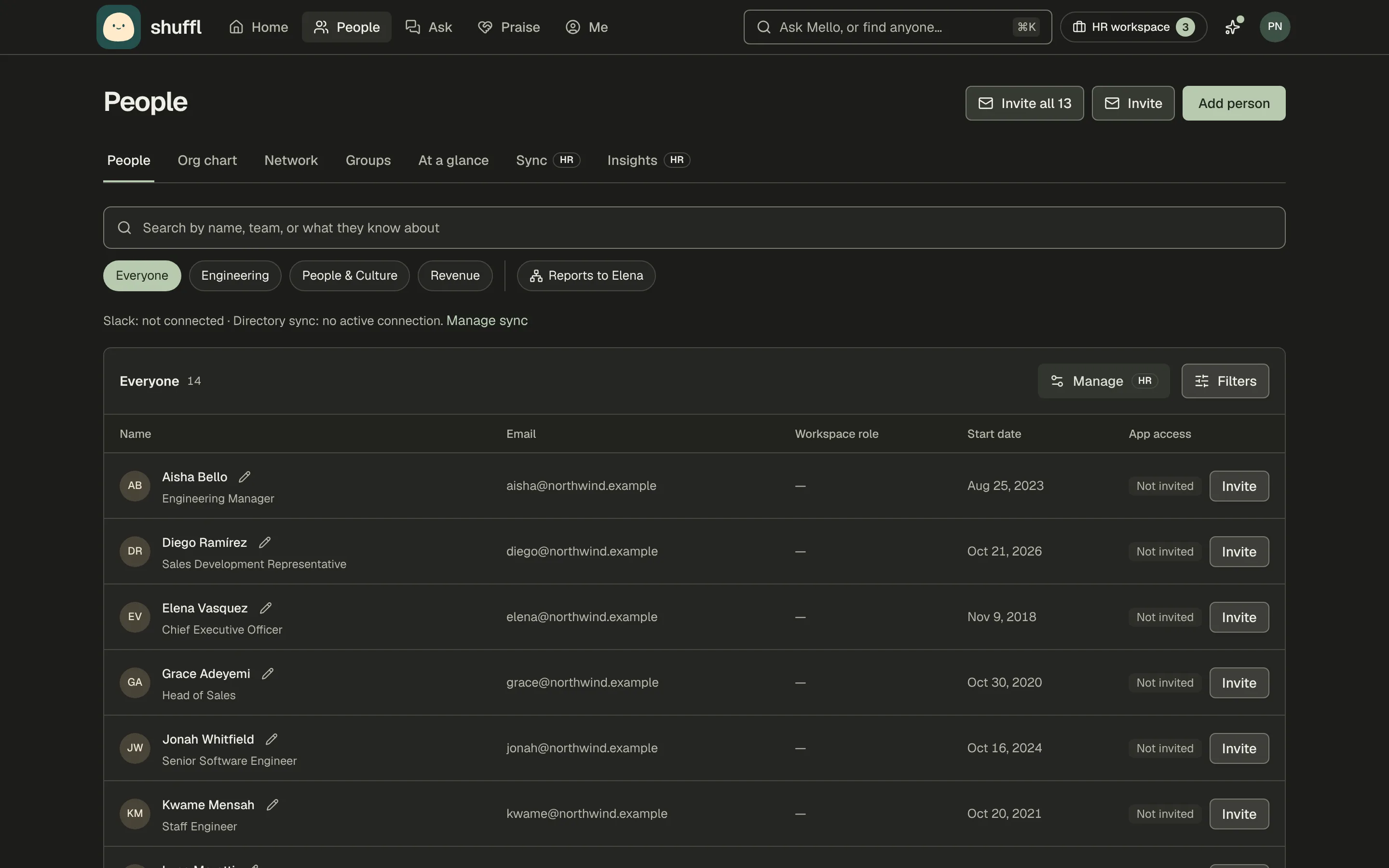
App access on each row says where someone stands, such as Active, Access pending, Invited or Suspended. A Not invited row has its own Invite button.
Someone who accepts an invitation or joins with a verified email domain gets access straight away. Everyone else waits under Members awaiting access until an administrator or a directory policy enables them.
Send and accept an invitation
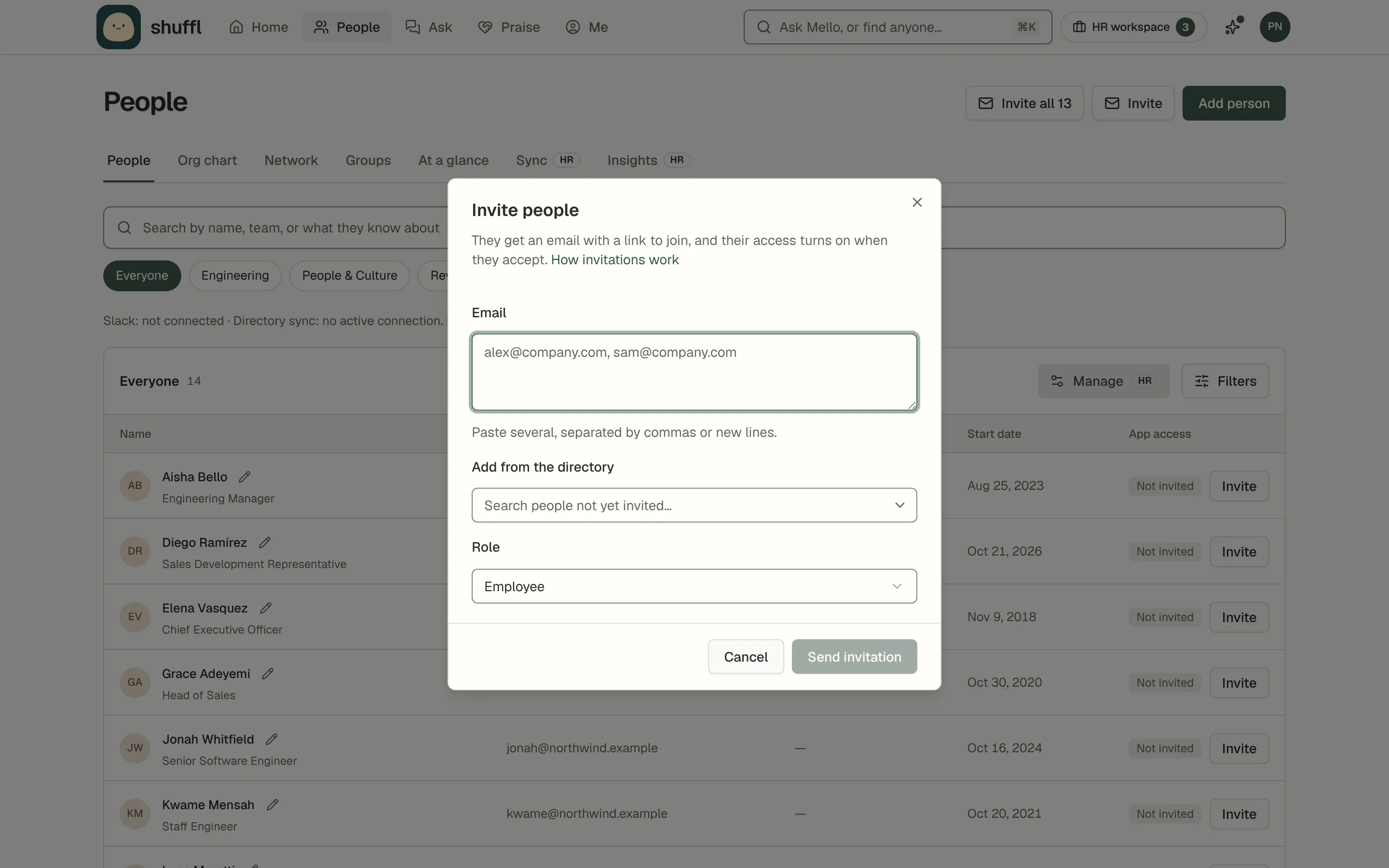
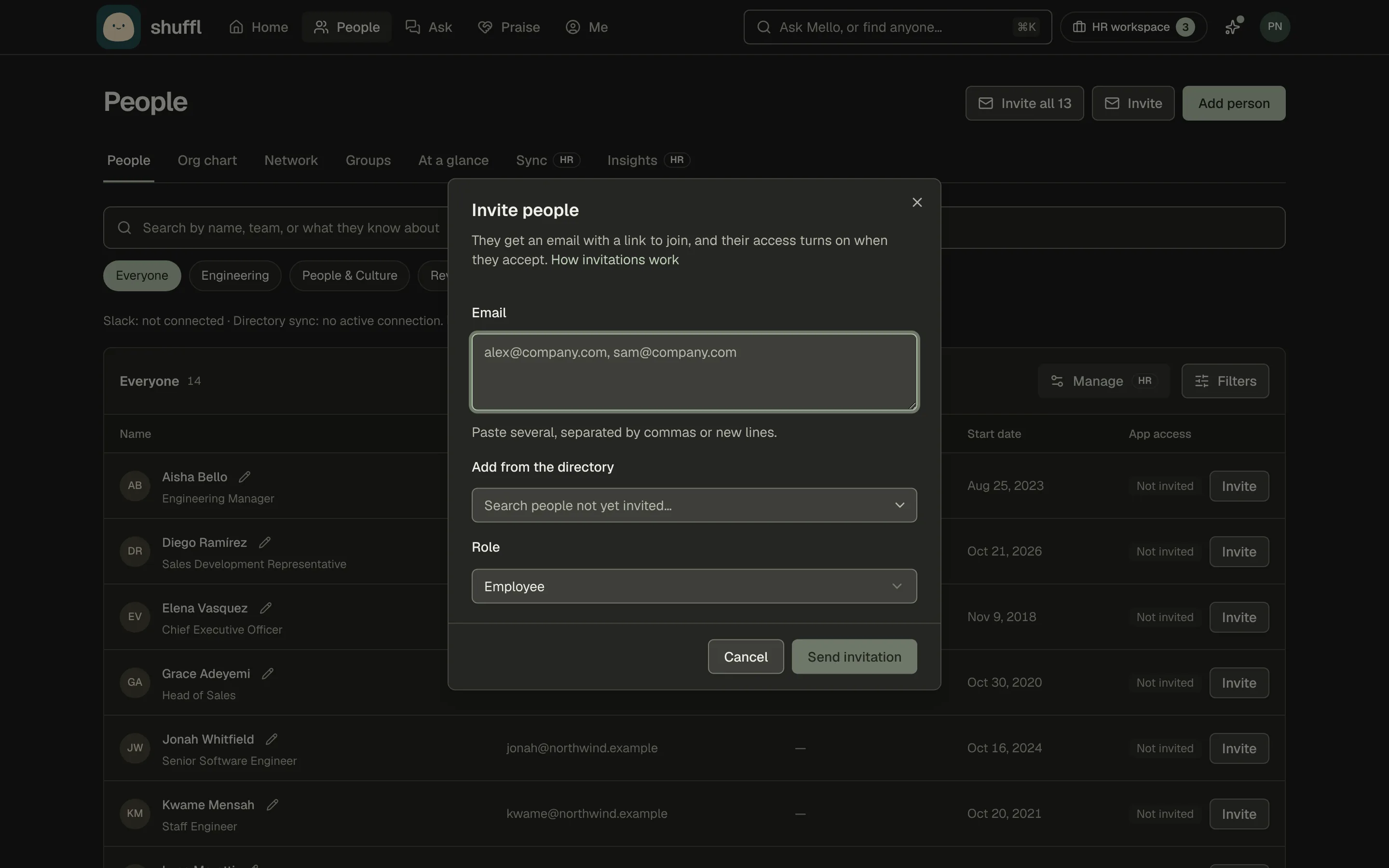
- Administrator: open People and choose Invite. Paste work emails or add people from the directory, choose Employee or Administrator and select Send invitation.
- Pending invitations lists open ones to copy or cancel.
- Invite all, beside Invite on People, invites as employees everyone in the directory with an email and no account or pending invitation.
- Employee: follow the invitation link, sign in or create an account with the invited email, and verify it. Choose Accept invitation.
- The invitation page says whether the link is ready, expired, sent to a different account or already accepted.
- Accepting joins the company and the workspace named in the invitation and turns your access on.
- If an administrator suspended or denied access earlier, you see Your access is pending, with Check again.
Enable access for the right person
- Administrator: open People and choose Review access under Members awaiting access.
- Shuffl links each account to the person with the same work email, or offers Create employee profile. If two people share the email, pick the right one.
- To move an account to a different person, open the person, expand Connected accounts, choose Disconnect app, then open the right person and choose Link app account.
- Expand Employment and access, enable Employee access, enter a reason and choose Save access. Enable access for N people enables waiting Slack members at once.
- Employee: reopen the workspace and try Chat. Once your Slack account is linked too, Slack chats show in your web history.
Let people at your company join by email domain
In Settings → Workspace → Integrations → Email domains, choose Add a domain and add the DNS record Shuffl shows at your registrar, then Check DNS record.
Once Verified, anyone who signs in with that domain joins the company’s default workspace with access. Remove a domain to stop new joins.
Provision people from your directory
People → Sync connects HR systems and directories with a key or a sign-in and reads them daily, or when the provider sends a change. Shuffl never writes back.
Settings → Workspace → Integrations → Provisioning takes a SCIM 2.0 connection from Okta, Microsoft Entra ID, OneLogin, JumpCloud or another provider.
Choose New SCIM connection, copy the base URL and token into your identity provider and assign people or groups. Rotate tokens within 90 days.
Under Who gets workspace access choose Everyone assigned to this app or Selected groups only; until you do, people arrive suspended in the default workspace. Removing someone in your identity provider takes effect at once; restoring them doesn’t undo a manual suspension.
To bring a pushed group into People → Groups, choose Groups on the SCIM card under People → Sync and turn it on.
It comes into every workspace of the company, marked From provisioning, with members following your identity provider. Turned off, it stays as a list.
Sign in with your identity provider
In Settings → Workspace → Integrations → Single sign-on, choose Add connection, pick SAML or OpenID Connect and verify it with its DNS TXT record.
The dialog has steps for common providers and shows the values they ask for. SAML assertions must be signed with SHA-256.
Single sign-on proves who someone is; People still decides who gets in. It admits someone only when the default workspace lists exactly one person with that email and enabled access. Password sign-in keeps working while you test.
Everyone can also add a passkey or an authenticator app under Settings → Account, whichever way they sign in.
Recover invitation or access problems
An expired or cancelled invitation needs a new one. An administrator who sees You’re not in People yet can choose Add me to People.
A personal email is a different account: invite the work email or link it. Suspended usually means a deactivated Slack account or ended employment; the access card says why.