
Reference
Roles and permissions
Who can see and do what in Shuffl, from company owner to employee, and how to give or take away each role.
For Company owners and administrators
Have your agent do thisPaste the prompt into Claude Code, Cursor or another agent. It follows this guide over MCP and asks before it changes anything others will see.Show the promptHide the prompt
Help me with "Roles and permissions" in my Shuffl workspace.

1. Read the guide: https://shuffl.ai/docs/markdown/roles-and-permissions
2. Add Shuffl's MCP server: https://shuffl.ai/api/mcp
   Claude Code: claude mcp add --transport http shuffl https://shuffl.ai/api/mcp
   When the browser opens, choose my workspace and allow the access the guide needs.
3. Work through the steps in order: Make someone a workspace administrator; Add an HR responder or Knowledge verifier; Change company roles and transfer ownership; Restore and resume a deleted workspace. Do what you can over MCP and tell me which steps only I can do in the browser or in Slack.

Show me what you will change and who it affects, and wait for my yes before publishing, inviting or sending anything.
On this page
App links open your signed-in workspace. Check the selected workspace before making changes.
How roles fit together
Shuffl has two layers of role. A company role (owner, administrator or member) applies across the company and all its workspaces. A workspace role (administrator or employee) applies to one workspace.
Two more roles are given inside one workspace: HR responder, who answers private HR requests, and Knowledge verifier, who reviews and publishes Knowledge. Anyone with enabled employee access can hold them.
Manager is not a role you assign. It comes from the manager field in People, and it adds a few prompts but no extra access.
Who can see and do what
Company owner: everything a company administrator can do, plus change company roles, transfer ownership, remove administrators and owners, and delete or restore the company. Owners start as HR responders and Knowledge verifiers wherever they have an enabled profile in People.
Company administrator: all of Company settings and every workspace in the company, including ones they haven’t joined. They create, delete, restore and resume workspaces and choose the default, and can remove ordinary members.
Workspace administrator: runs one workspace, including People, Knowledge, the Inbox, Culture and every program. They manage access, workspace roles, Request settings and workspace Settings. They can’t open Company settings beyond the workspace list, delete their workspace or change their own role.
HR responder: gets new HR requests by Slack or email and works them in the Inbox. They see only requests sent while they were a responder, and a sensitive category only when named on it. The role opens no People, Pulse or settings pages.
Knowledge verifier: writes drafts, approves what Mello proposes, and publishes and withdraws sources. The role does not open HR requests, People or settings.
Manager: whoever People lists as someone’s manager. They get onboarding check-in nudges and a heads-up before a report’s shared anniversary or birthday, and Knowledge and Pulse can target Managers. A manager can’t see their reports’ chats, HR requests or Pulse answers.
Employee: uses Home, Chat with Mello and People, reads Knowledge published to them, answers Pulse, gives praise, joins communities and sends reviewed requests to HR.
What no role opens
Some things stay private whatever someone’s role. Mello chats are seen only by the person who had them; managers, HR and administrators cannot read them.
An HR request is seen by the employee who sent it and the responders it went to. An administrator needs to be an HR responder too to read them.
Pulse answers are stored apart from who gave them. No role, export, report or agent can read one person’s answer, and results show only for groups at or above the reporting floor.
Make someone a workspace administrator
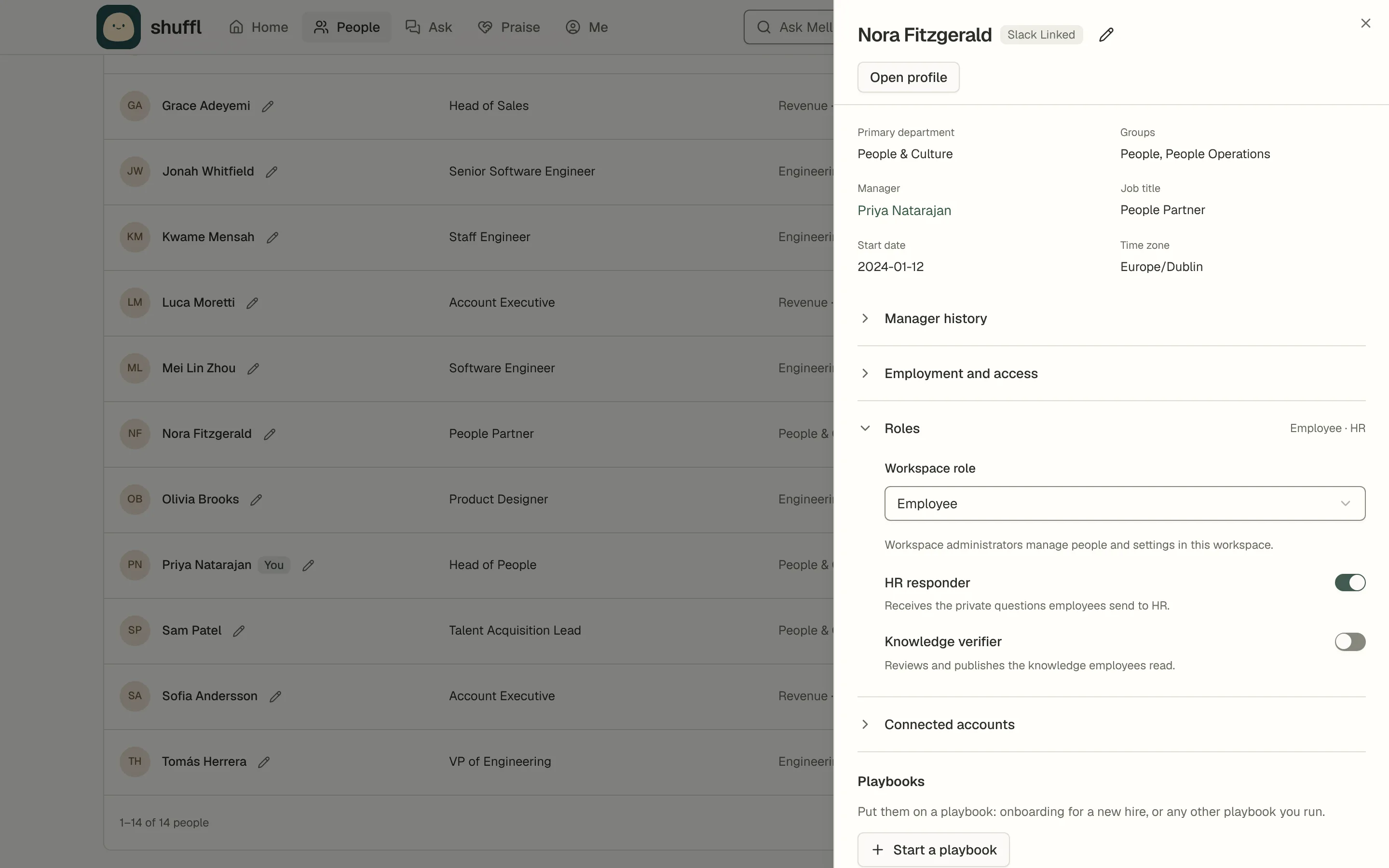
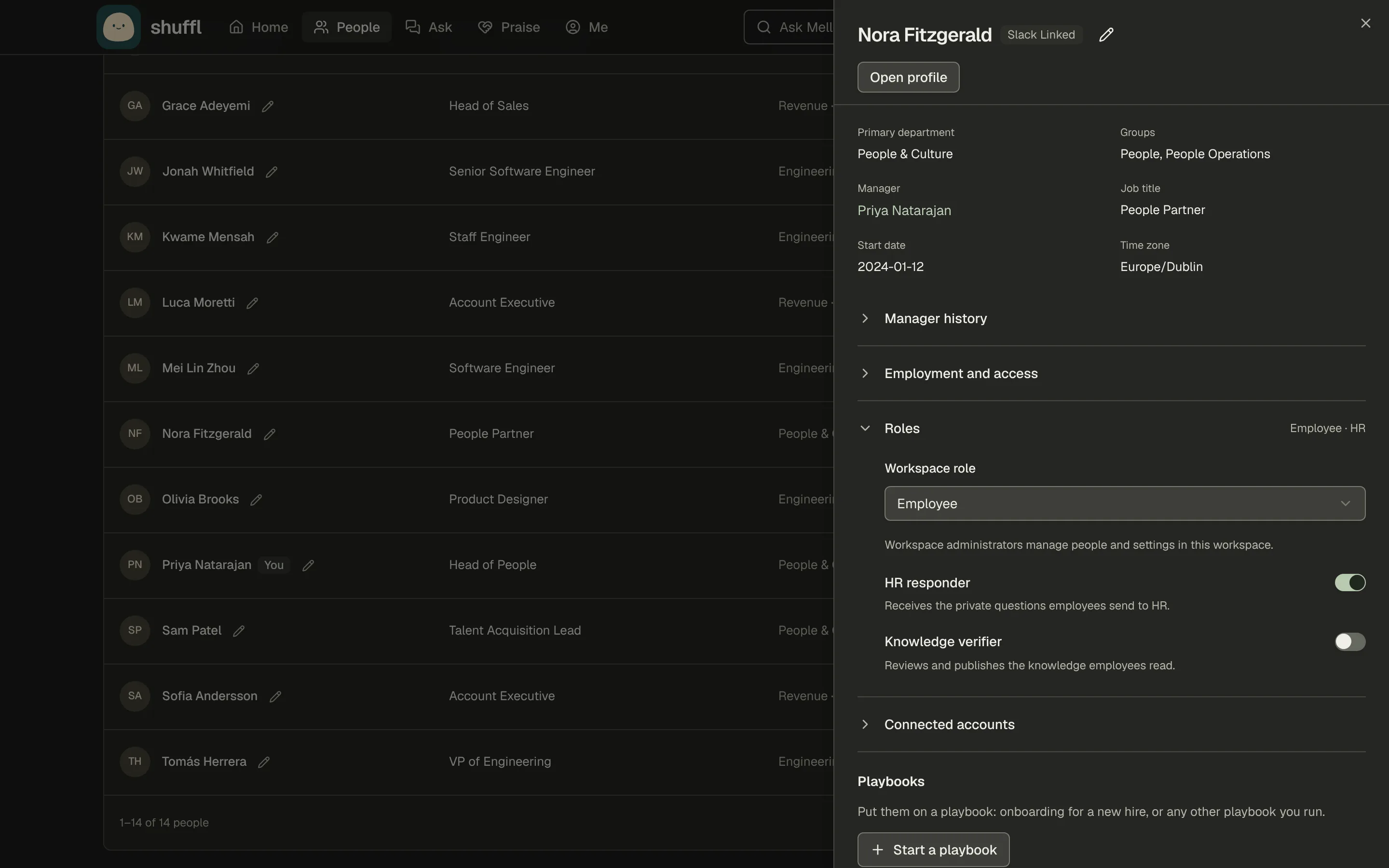
- Open People and choose the person to open their details.
- Expand Roles. Under Workspace role, choose Administrator, then Save role. The change shows in Settings → Activity.
- To take the role away, choose Employee and Save role.
- If Roles says No workspace role yet, the person has no linked app account. Invite them or link their account under Connected accounts first.
- You can’t change your own role. Company owners’ and administrators’ roles are changed under Settings → Company → Members.
- To bring in a new administrator, choose Invite on People and pick Administrator as the role. They become one when they accept.
Add an HR responder or Knowledge verifier
- Open Settings → Roles and access from the HR workspace. View HR responders and View Knowledge verifiers open People filtered to them.
- Open the person, expand Roles and turn on HR responder or Knowledge verifier. It takes effect at once.
- If the switch is greyed out, enable their employee access and link their app account in People first.
- Turn the switch off to take the role away. The only HR responder can’t be turned off: make someone else a responder first.
- Under HR responders on Settings → Roles and access, HR team name is what employees see when they send a question to HR. Change it and choose Save name.
Change company roles and transfer ownership
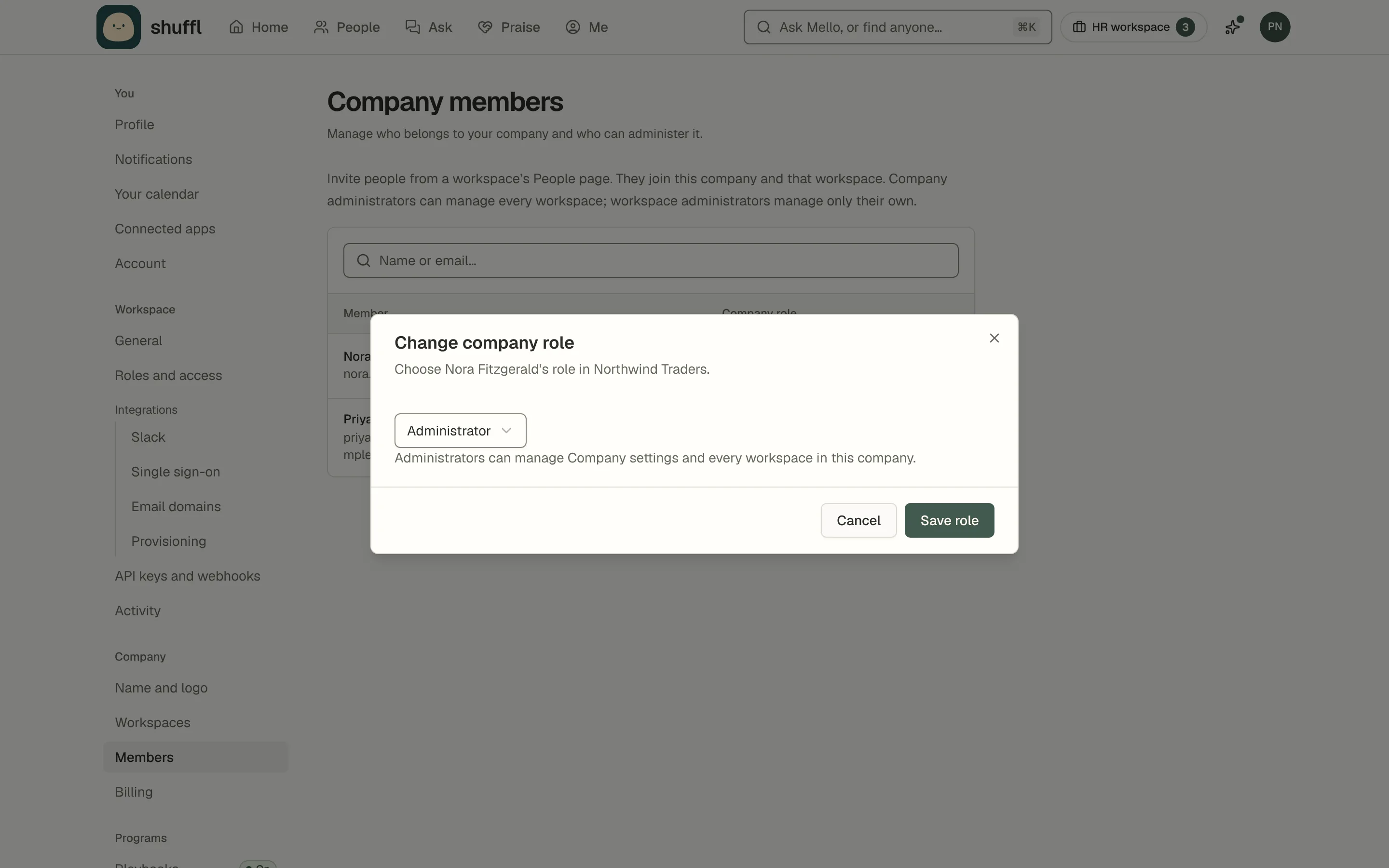
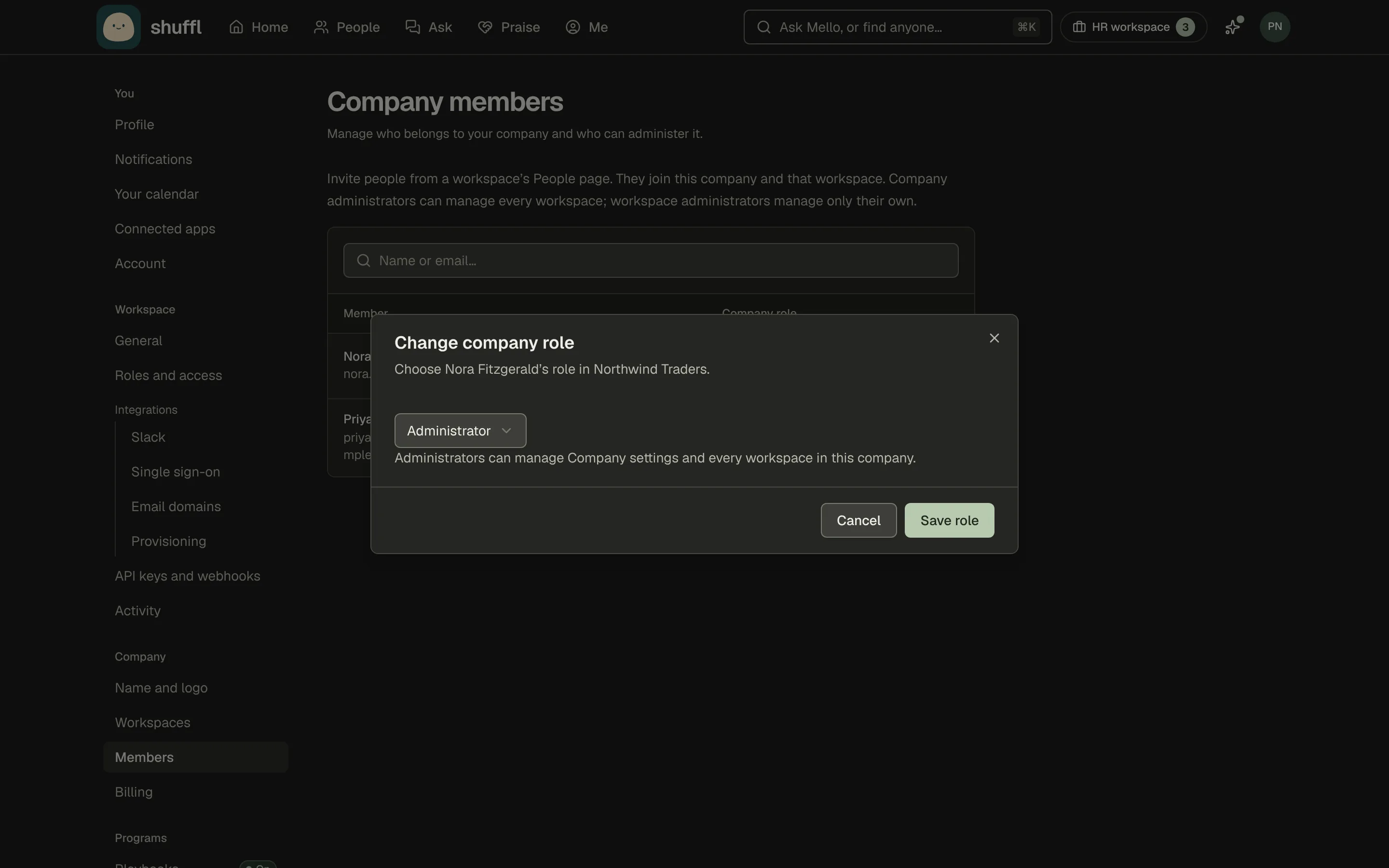
- To make a company administrator or another owner, open Settings → Company → Members, open the person’s actions menu and choose Change role. Pick Administrator or Owner, then Save role.
- To transfer ownership, open Settings → Company → Name and logo and choose Transfer ownership… on the Company owner card.
- Pick a new owner who is already a company member, then Transfer ownership.
- You stay in the company as an administrator. The new owner also becomes an HR responder and Knowledge verifier wherever they have an enabled profile in People.
- Remove from company in the same menu takes away access to the company and all its workspaces. Administrators can remove ordinary members; only owners can remove administrators or other owners.
Restore and resume a deleted workspace
- Open Settings → Company → Workspaces. A deleted workspace has a Deleted badge.
- Choose Restore on its row. Only company owners and administrators see it.
- The workspace comes back paused, so programs don’t send anything for dates that passed. Its People, Knowledge and history are as they were.
- Check its programs’ next dates, then choose Resume on its row, or Resume workspace in its Settings → General.
- Restore works for 30 days after deletion, then Shuffl permanently erases the workspace. If the whole company was deleted, restore the company first.
API keys follow their creator
An API key acts as the person who created it. A workspace key can do only what its grants name and its creator’s current role allows; if the creator loses a role, the key loses it too.
A company key works with its creator’s current company role and pauses while they aren’t a company owner or administrator.