
How-to guide
Companies and workspaces
Keep one workspace for most companies, or add separate spaces for regions, subsidiaries and teams.
For Company owners and administrators
Have your agent do thisPaste the prompt into Claude Code, Cursor or another agent. It follows this guide over MCP and asks before it changes anything others will see.Show the promptHide the prompt
Help me with "Companies and workspaces" in Shuffl.
Read the guide: https://shuffl.ai/docs/markdown/companies-and-workspaces
Company settings requires my signed-in browser and a company owner or administrator role. A workspace API key or MCP connection cannot manage it.
Help me choose the company and workspace, then explain the changes and who they affect. Wait for my confirmation before changing roles, removing people or deleting anything.
On this page
App links open your signed-in workspace. Check the selected workspace before making changes.
One company, one or more workspaces
A company is your organization in Shuffl. It holds your company members, administrators, sign-in settings and billing. Most companies need one workspace.
A workspace is where people use Shuffl together. Each has its own People, Knowledge, HR requests, Mello chats, programs, Pulse, praise, communities and celebrations. Add another when a subsidiary, region or team needs to keep that work separate.
Your company shares verified email domains, single sign-on, SCIM provisioning, Slack connections, billing and the product analytics switch. Each workspace keeps its own name, logo, settings, API keys and activity log. Content does not move between workspaces.
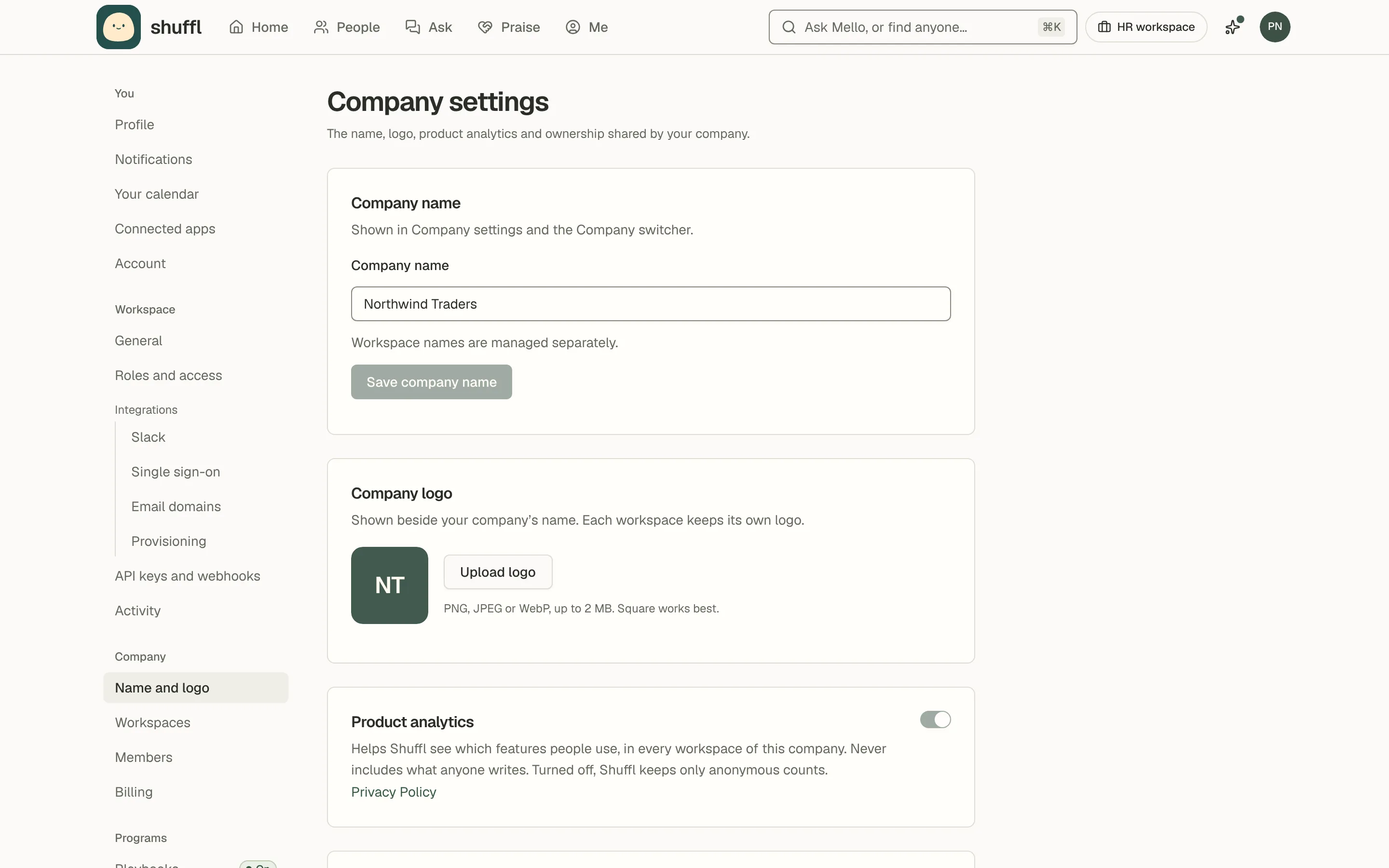
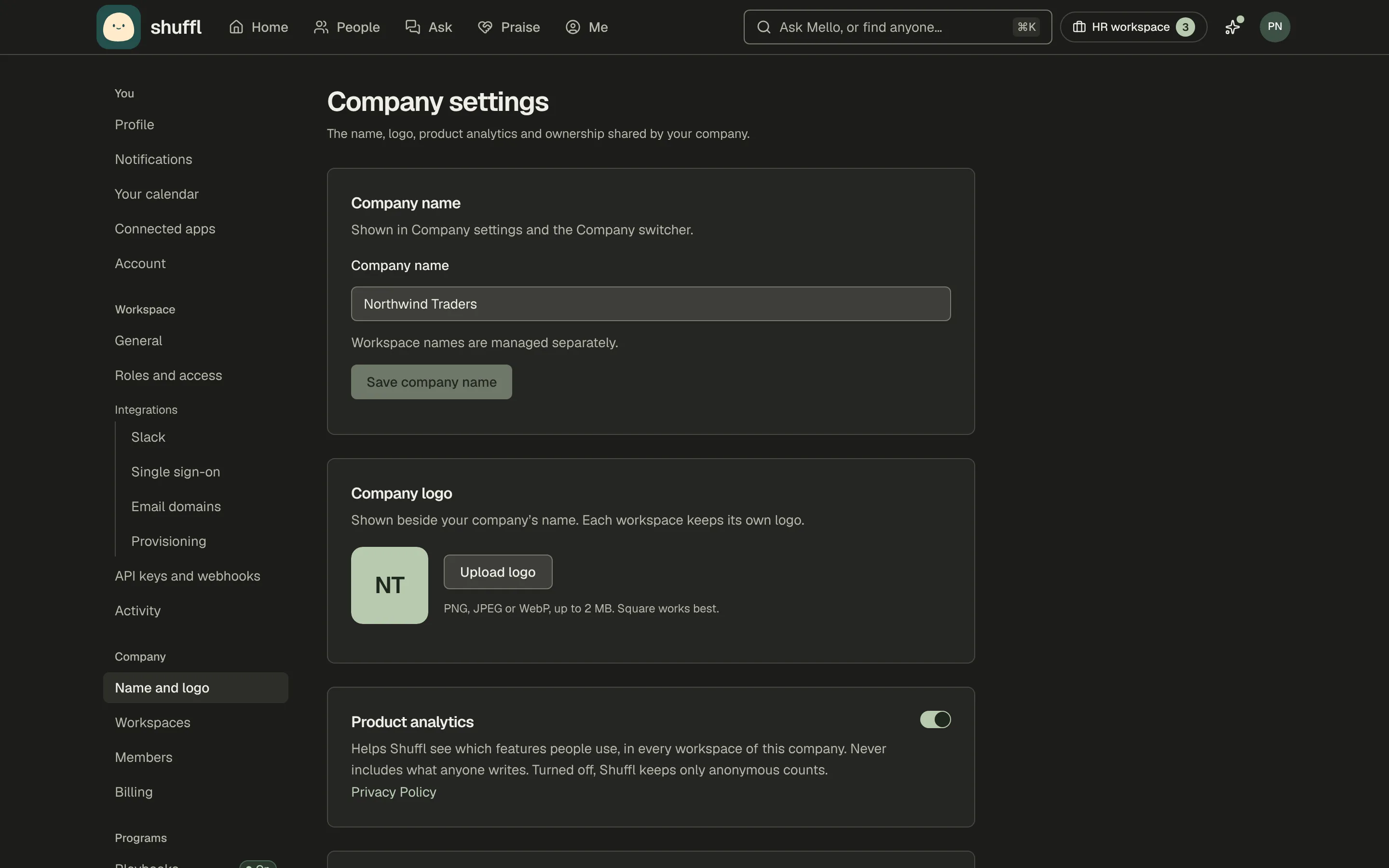
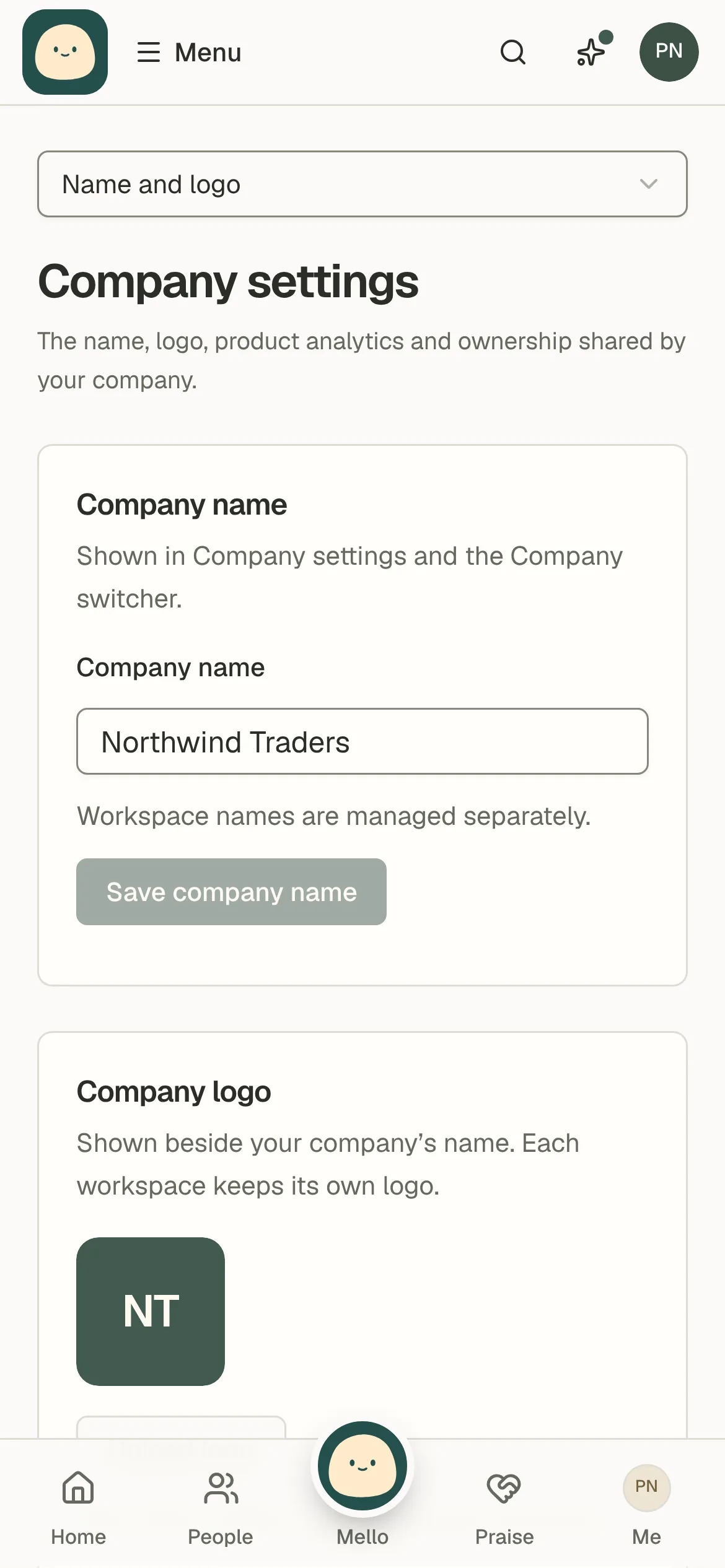
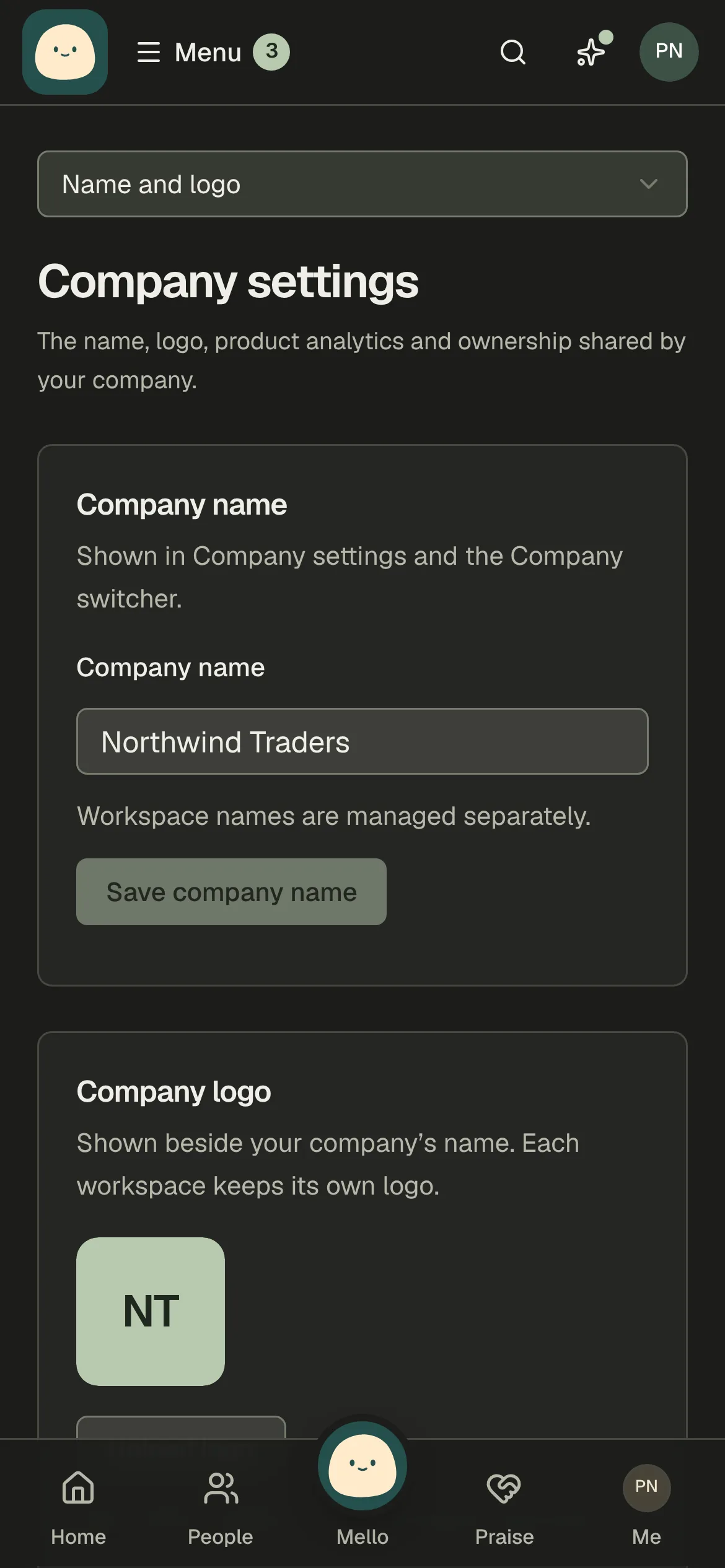
Open Company settings
Company settings are the Company group in Settings; owners and administrators can also open them from the account menu.
Name and logo also holds the product analytics switch and ownership, Members manages company roles and removal, and Billing the plan. Slack, single sign-on, email domains and provisioning are under Workspace → Integrations. Everyone else sees the company’s Workspaces.
Add a workspace and choose the default
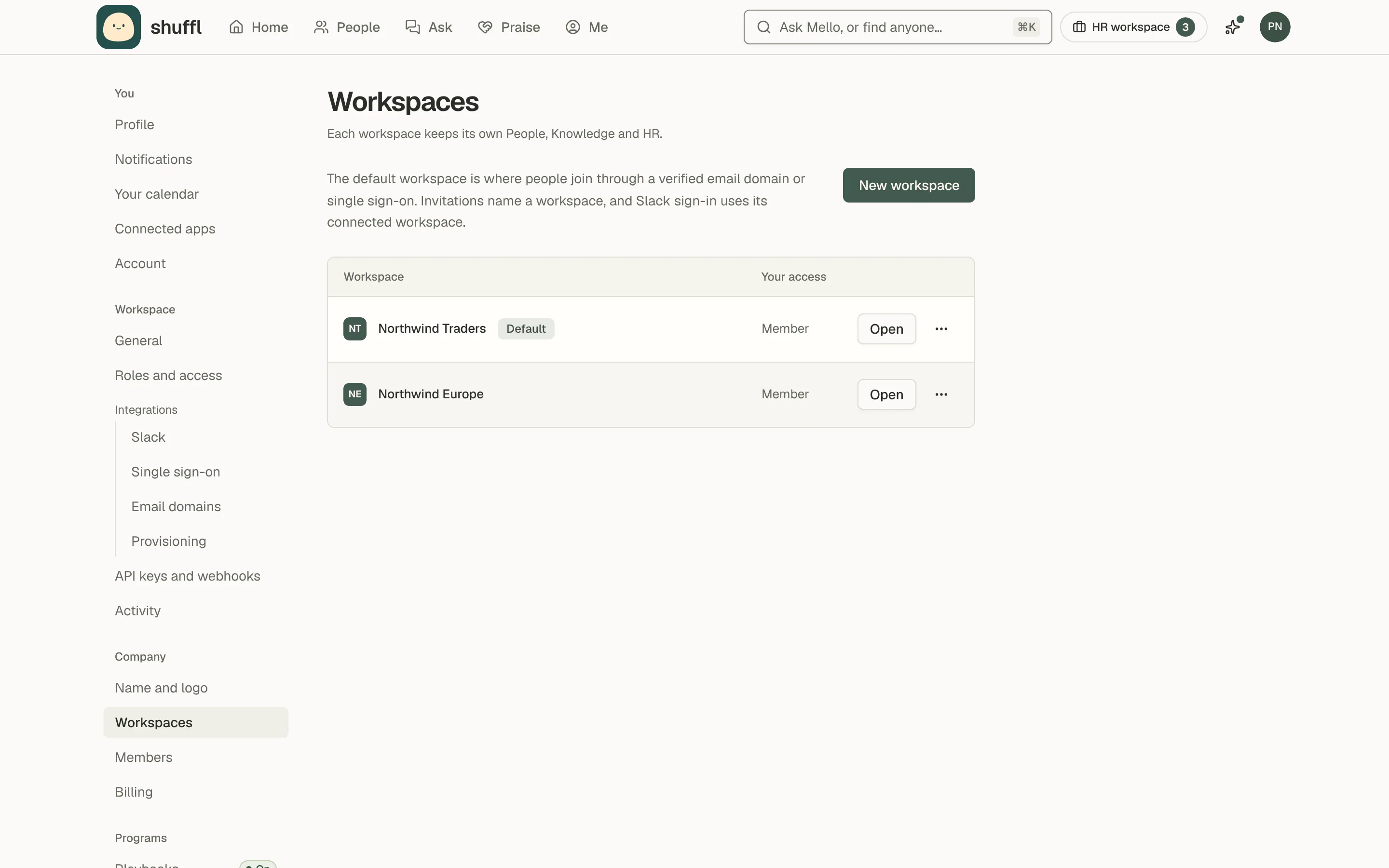
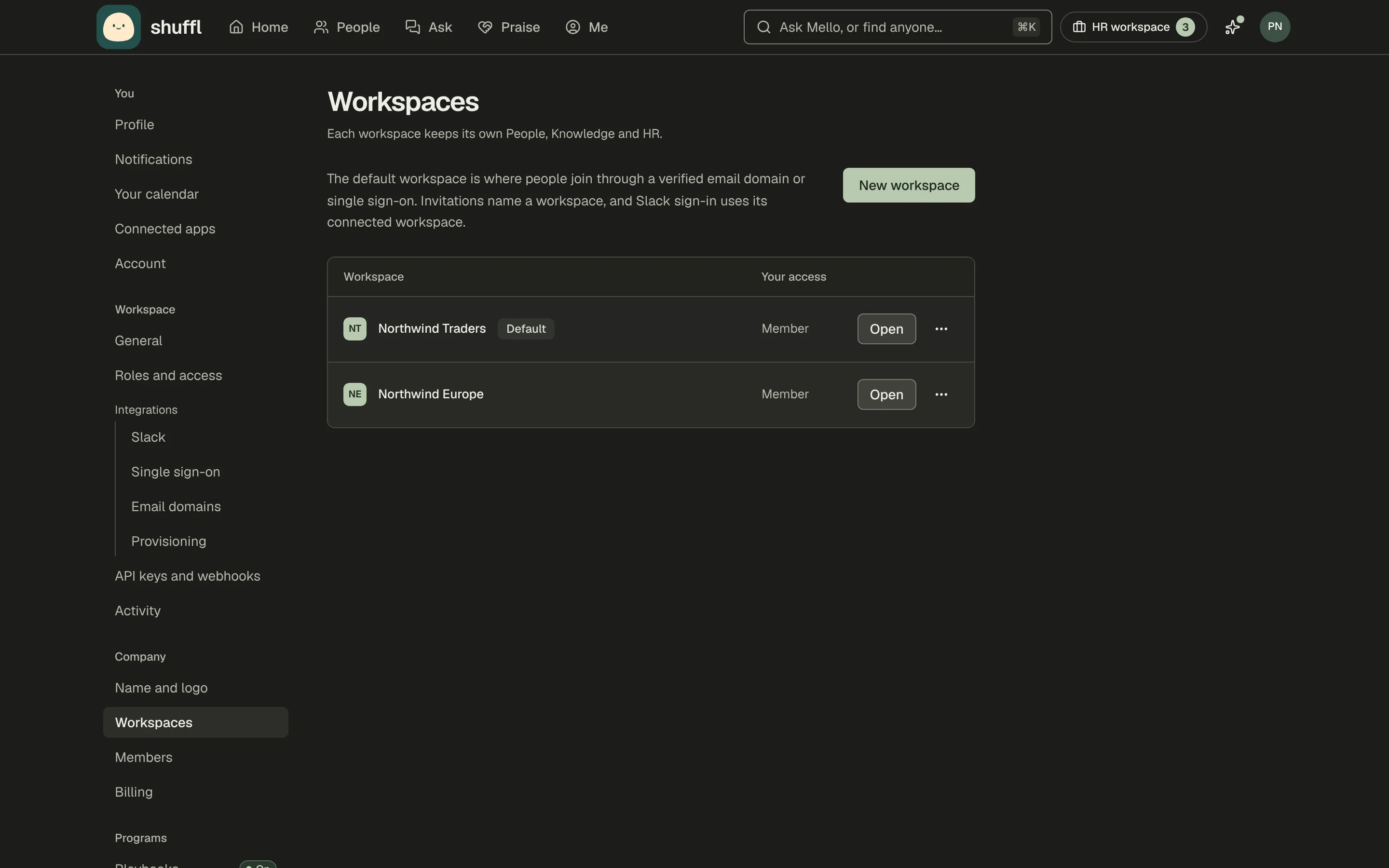
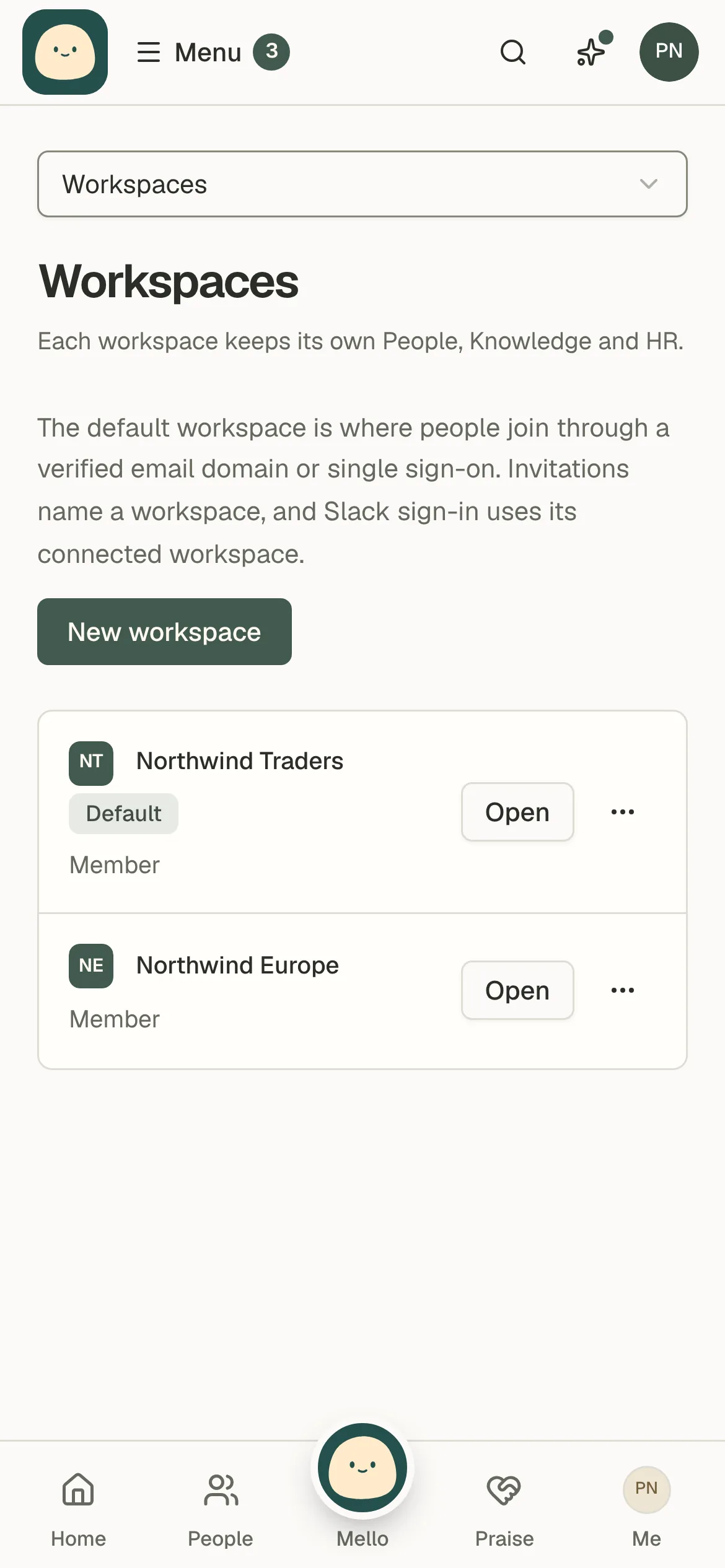
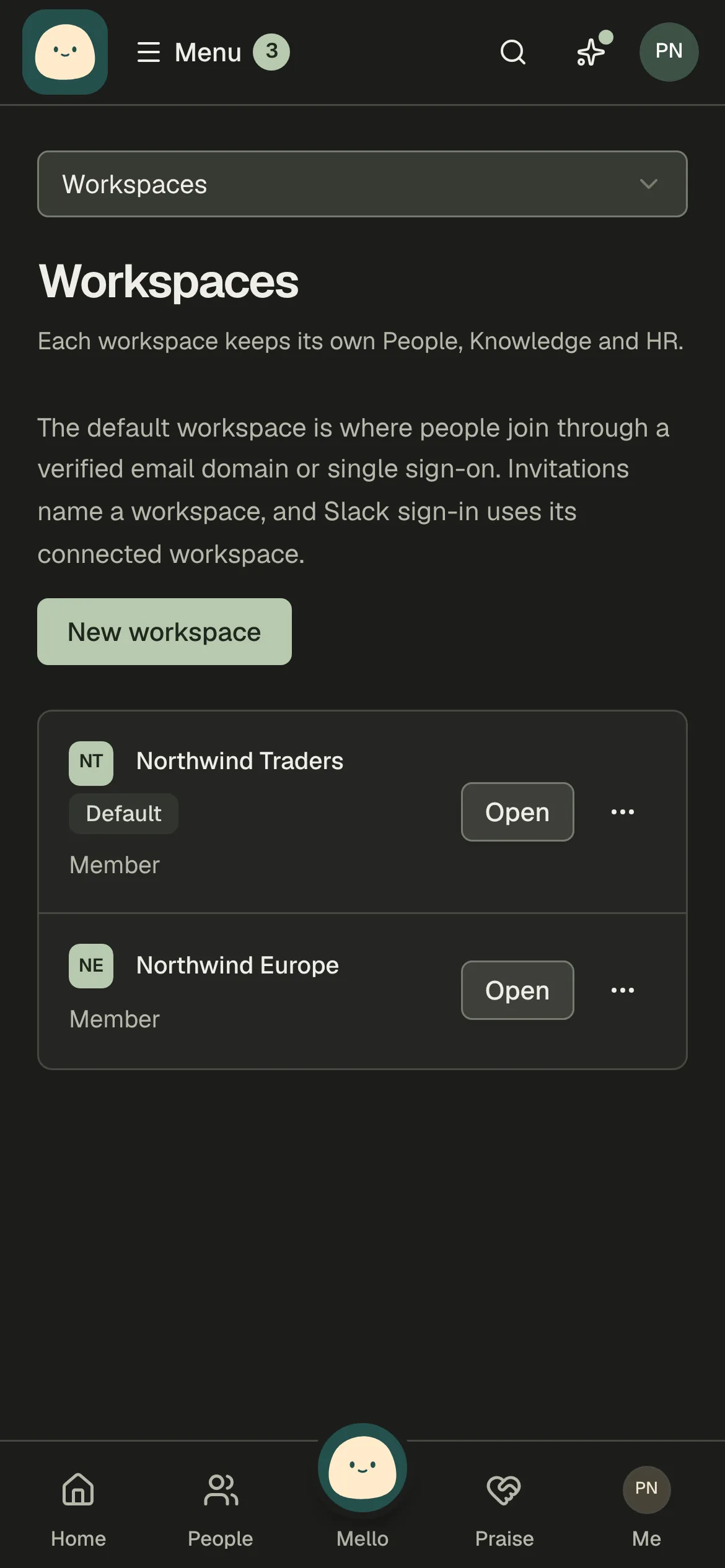
- Open Settings → Company → Workspaces and choose New workspace. Enter a name, then follow its setup checklist. Owners and administrators also find New workspace in the workspace picker.
- On the Workspaces page, open a workspace’s actions menu and choose Rename to change its name.
- Choose Set as default on the workspace that new domain and single sign-on members should enter.
- Changing the default affects future joins only. It does not move people or records, and Slack keeps its own mapping.
- Delete workspace stops it immediately; type its name to confirm. You can restore it for 30 days, then Shuffl permanently erases its People, Knowledge, programs and history.
Switch workspaces or companies
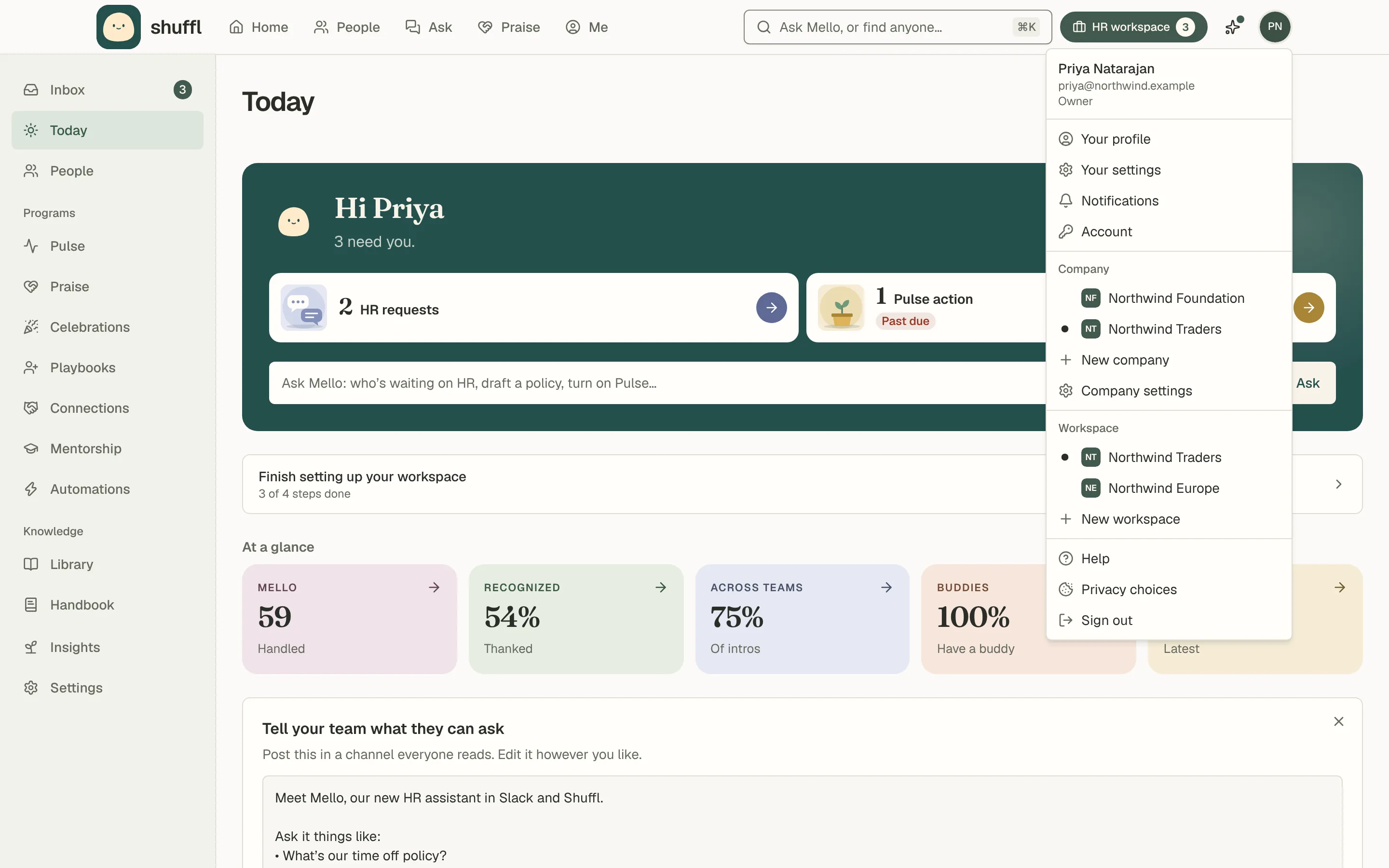
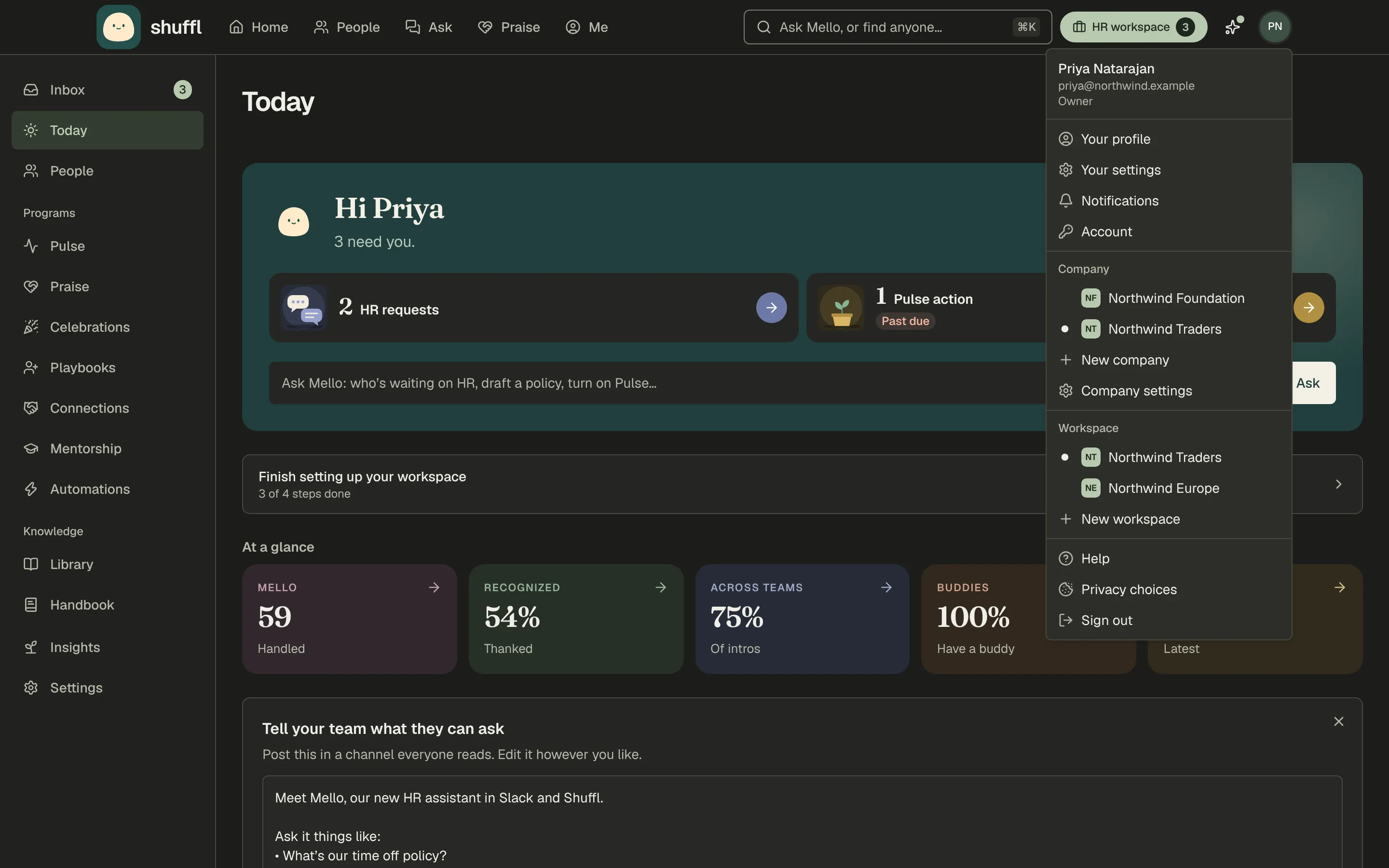
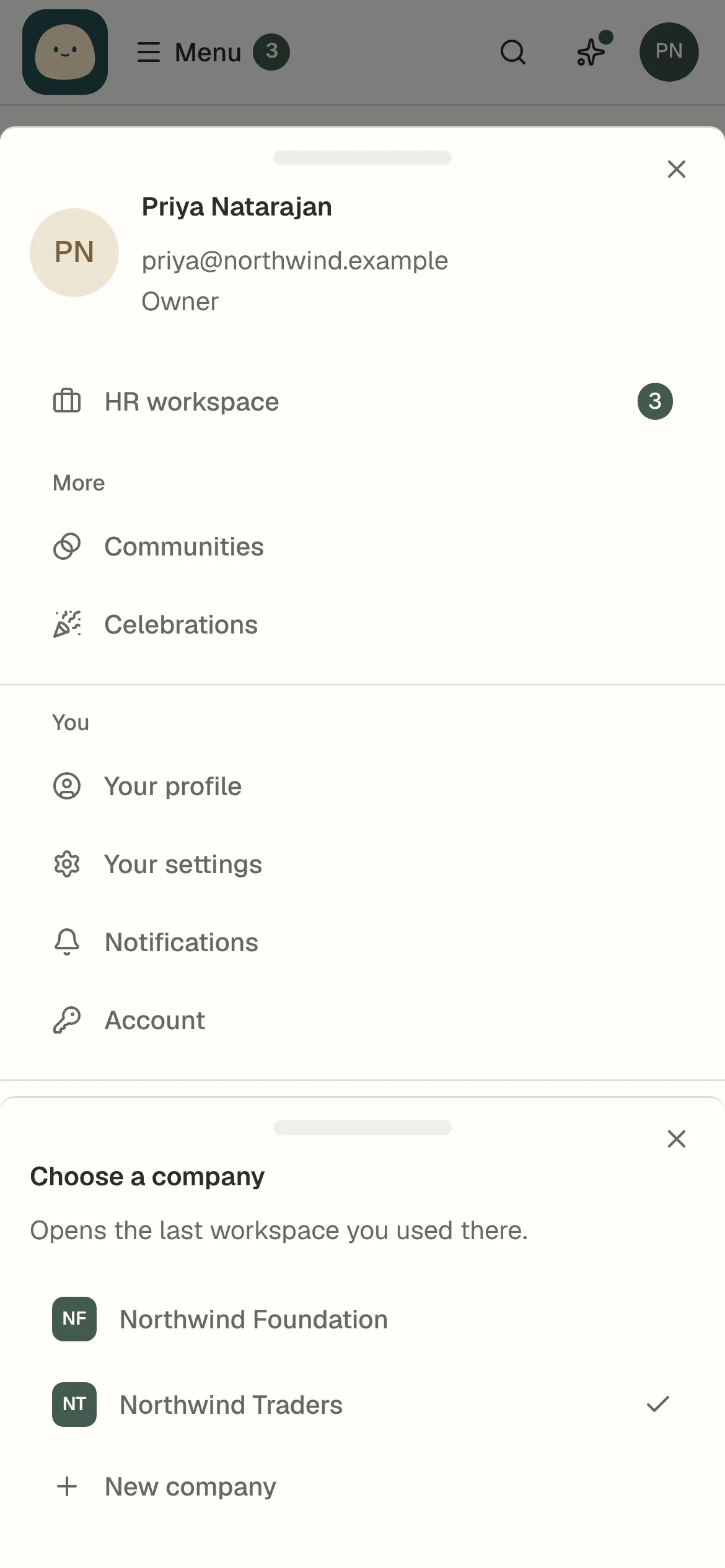
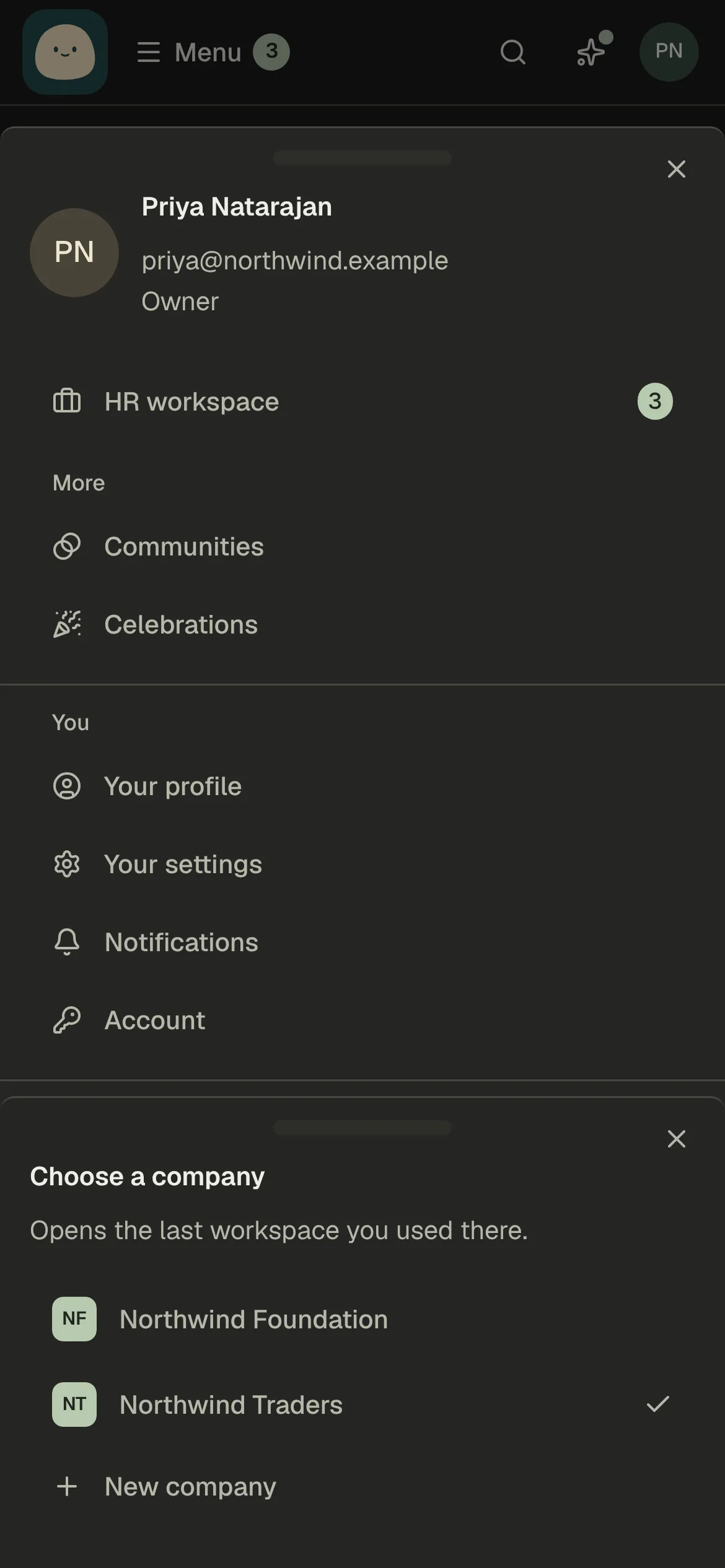
The workspace picker in your account menu lists the workspaces you can use in the current company. On a phone, tap your picture at the top right, then the workspace row.
To choose a company, click your picture at the top right, then the company row. It opens the last workspace you used there, or the company’s workspace list.
Create another company
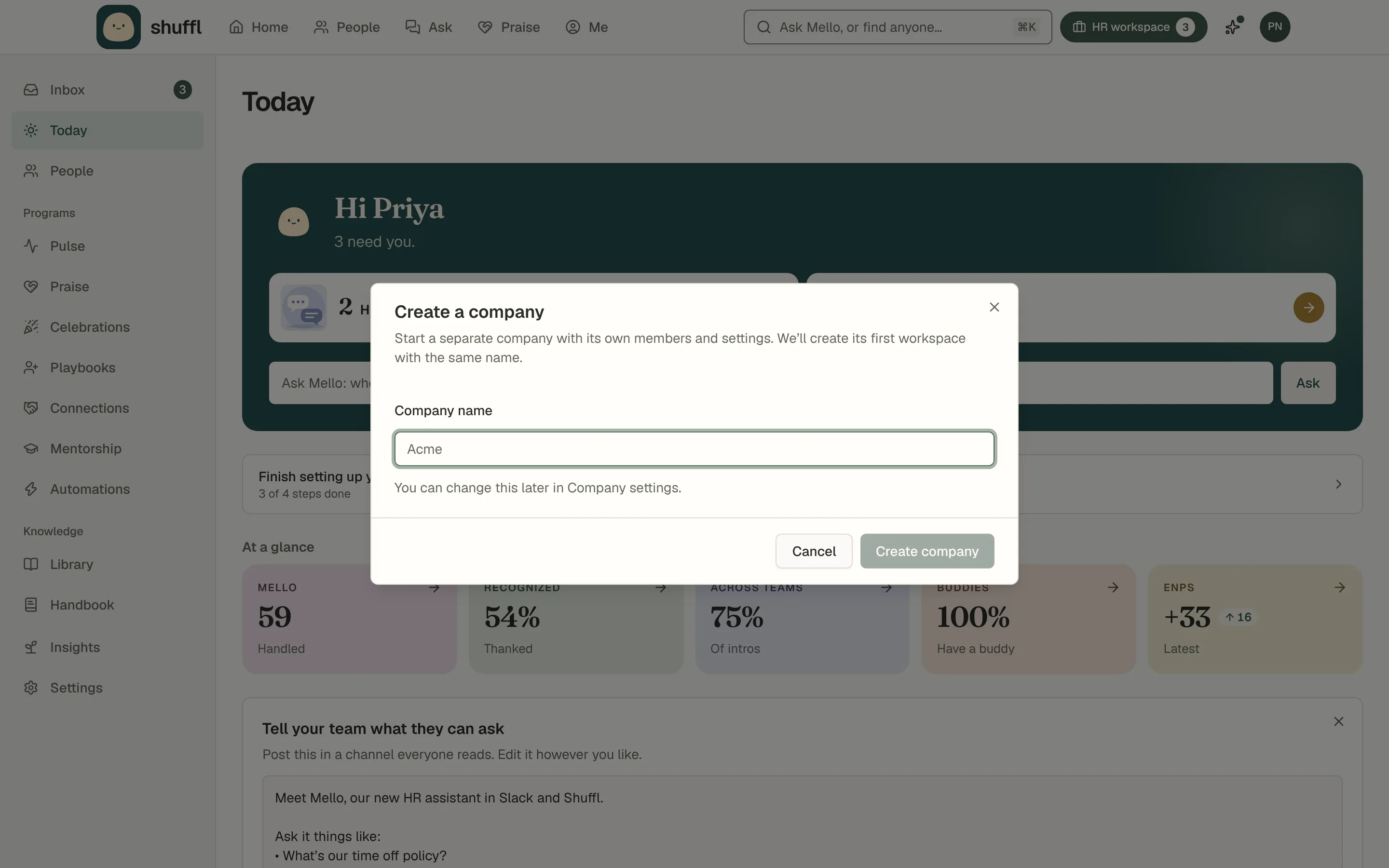
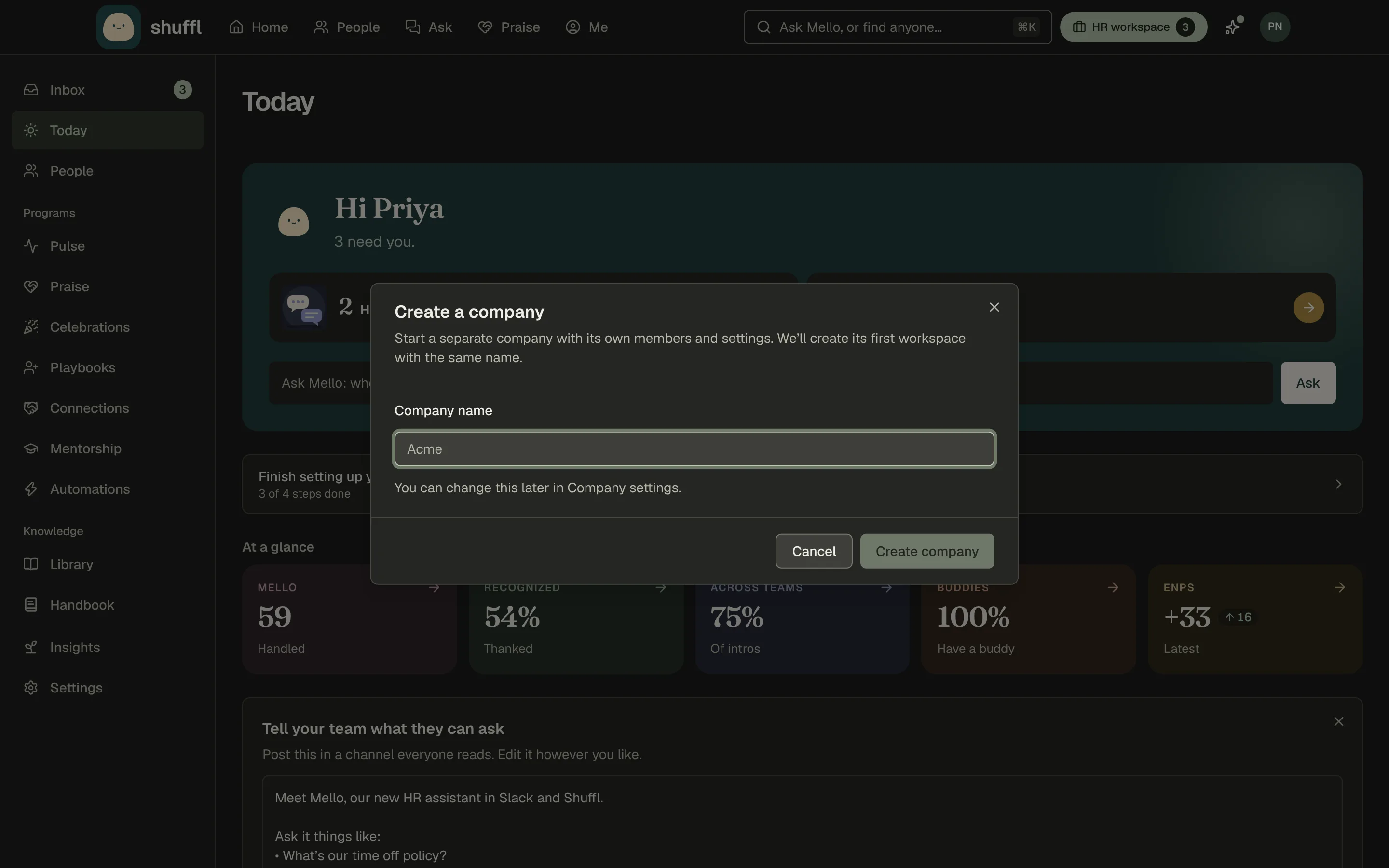
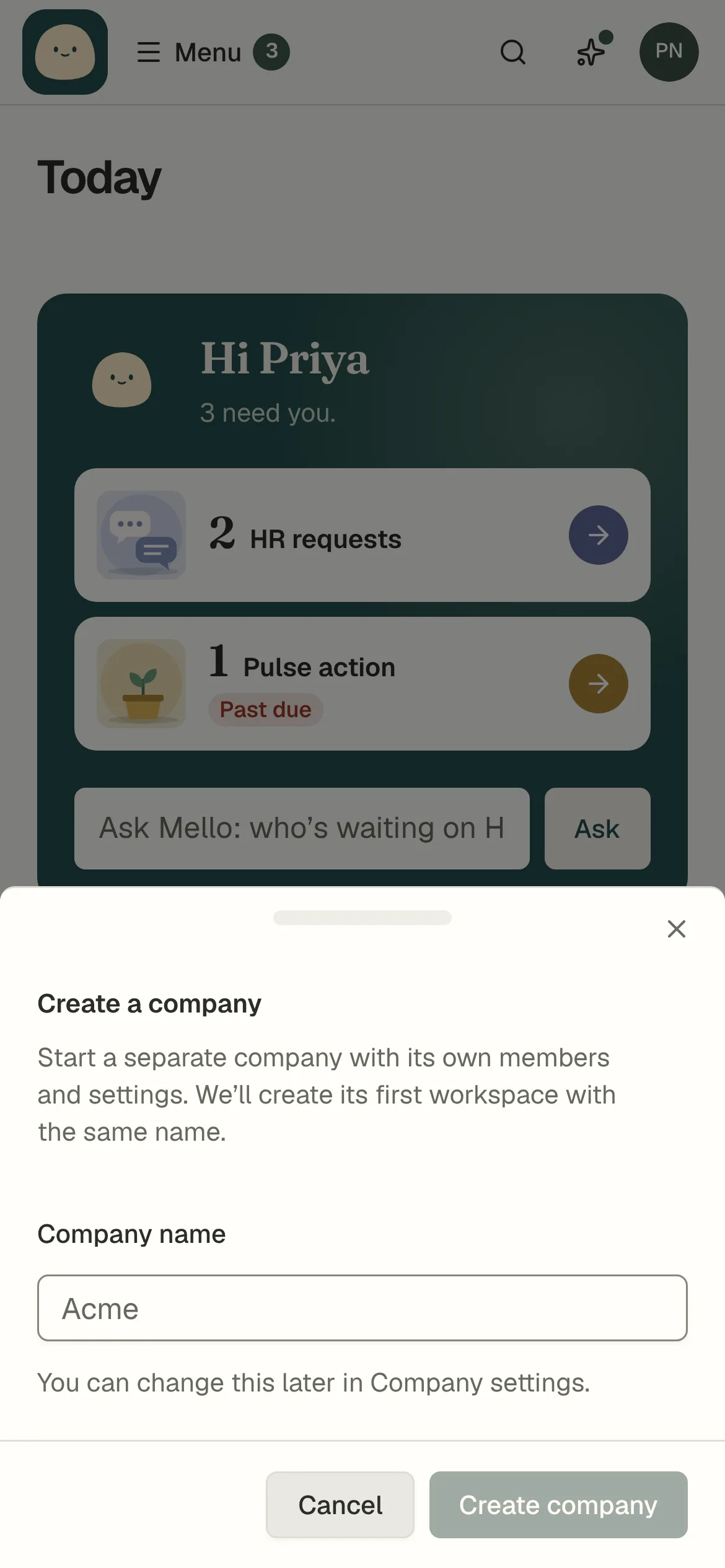
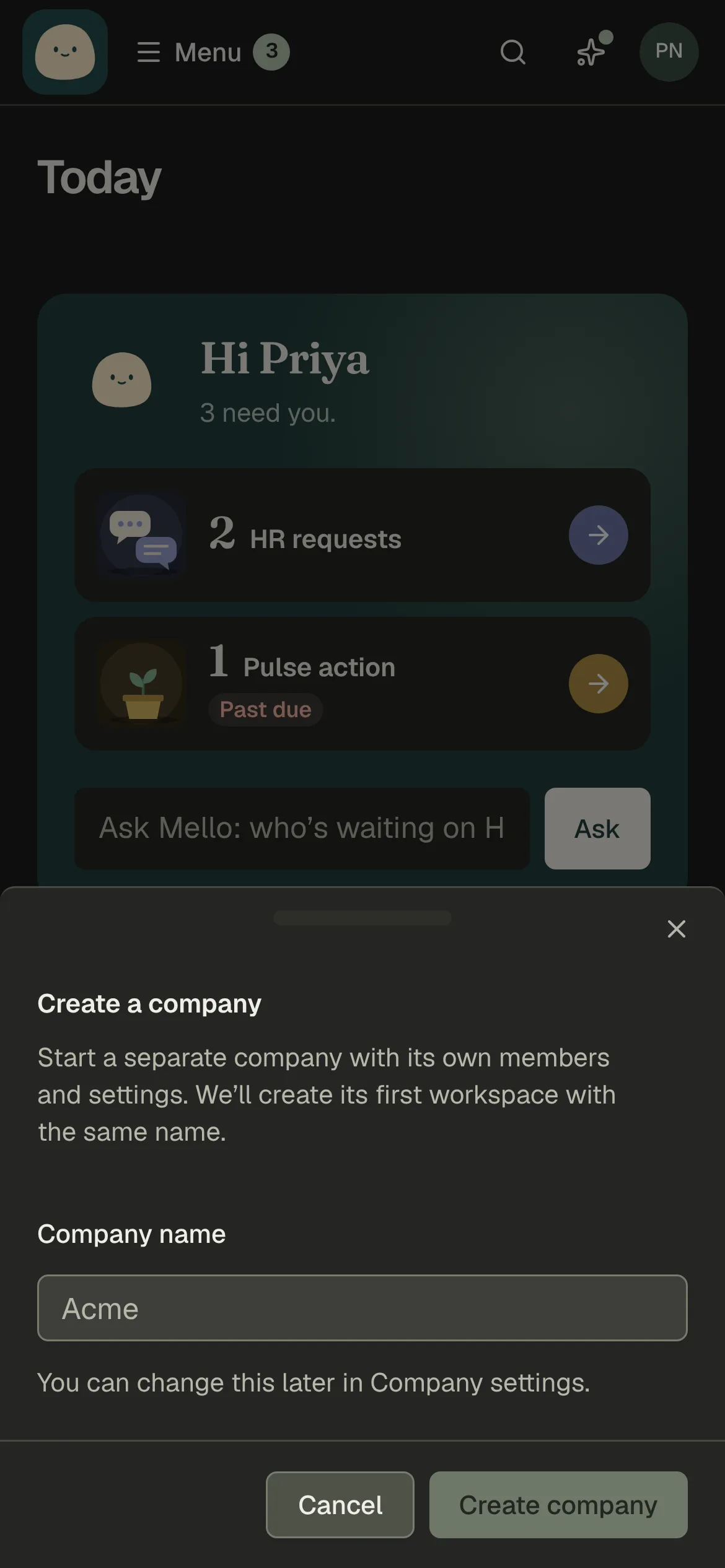
To start a separate organization, company owners and administrators choose New company in the account menu, enter the name and choose Create company. Shuffl creates it with a first workspace of the same name.
To add a workspace to your current company instead, use New workspace in the workspace picker.
Delete or restore a company
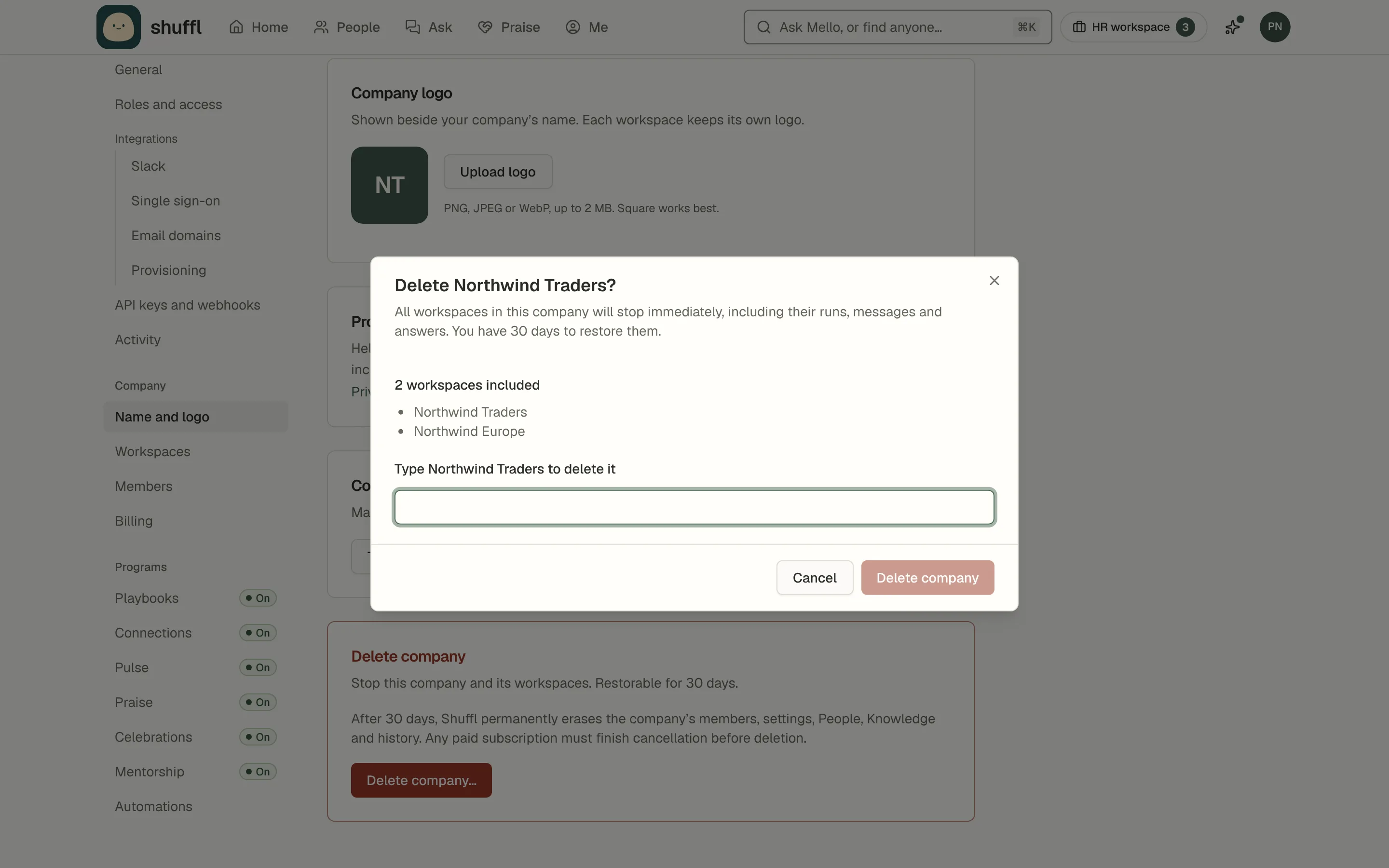
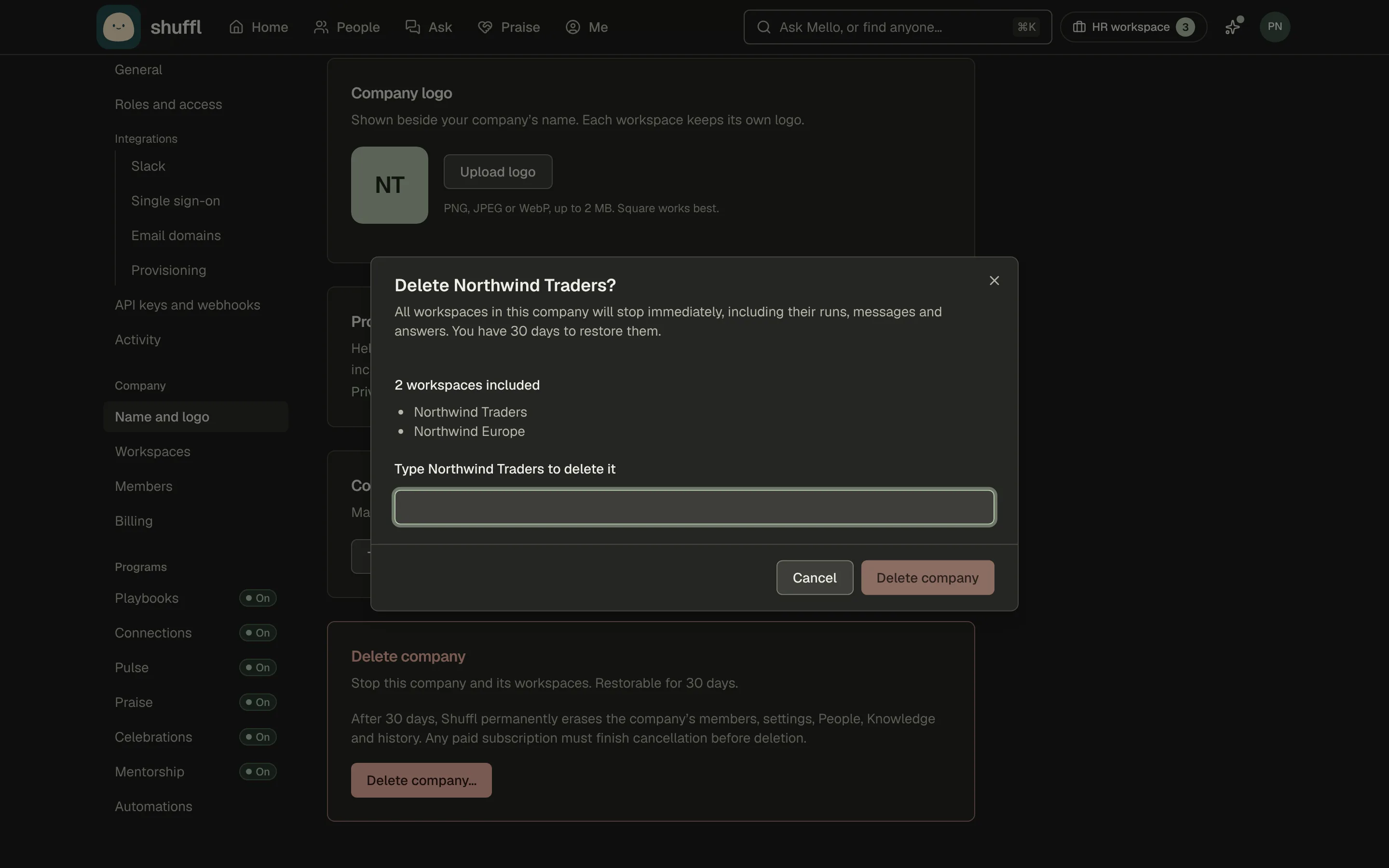
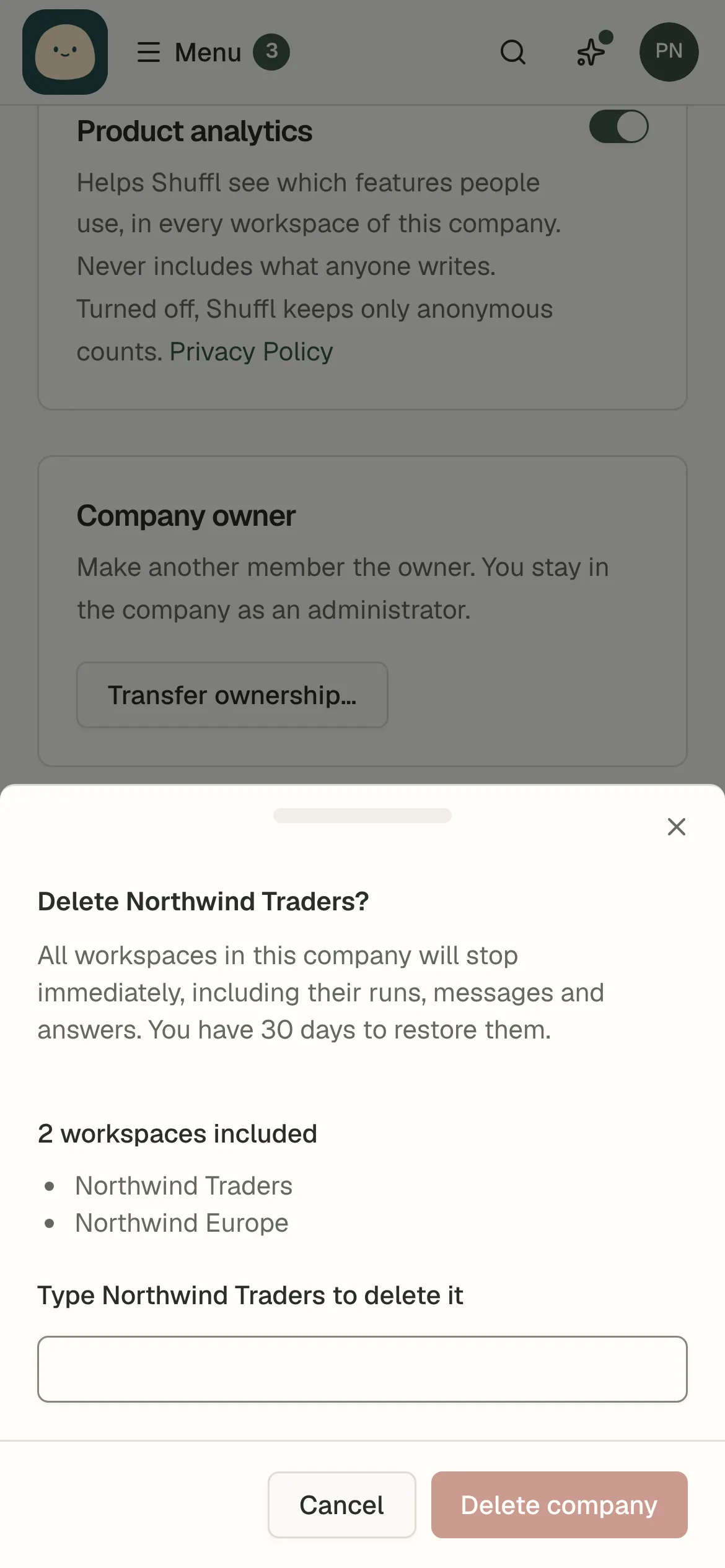
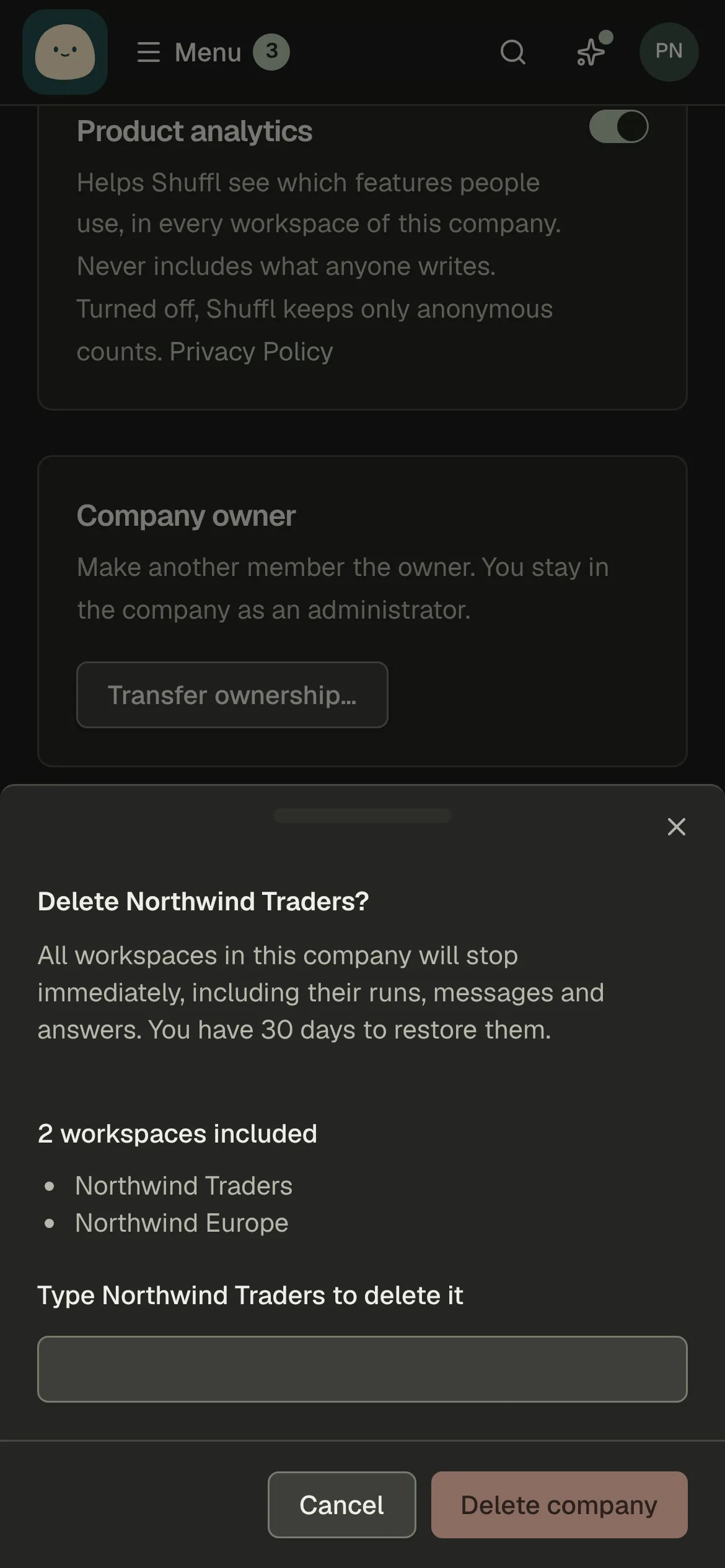
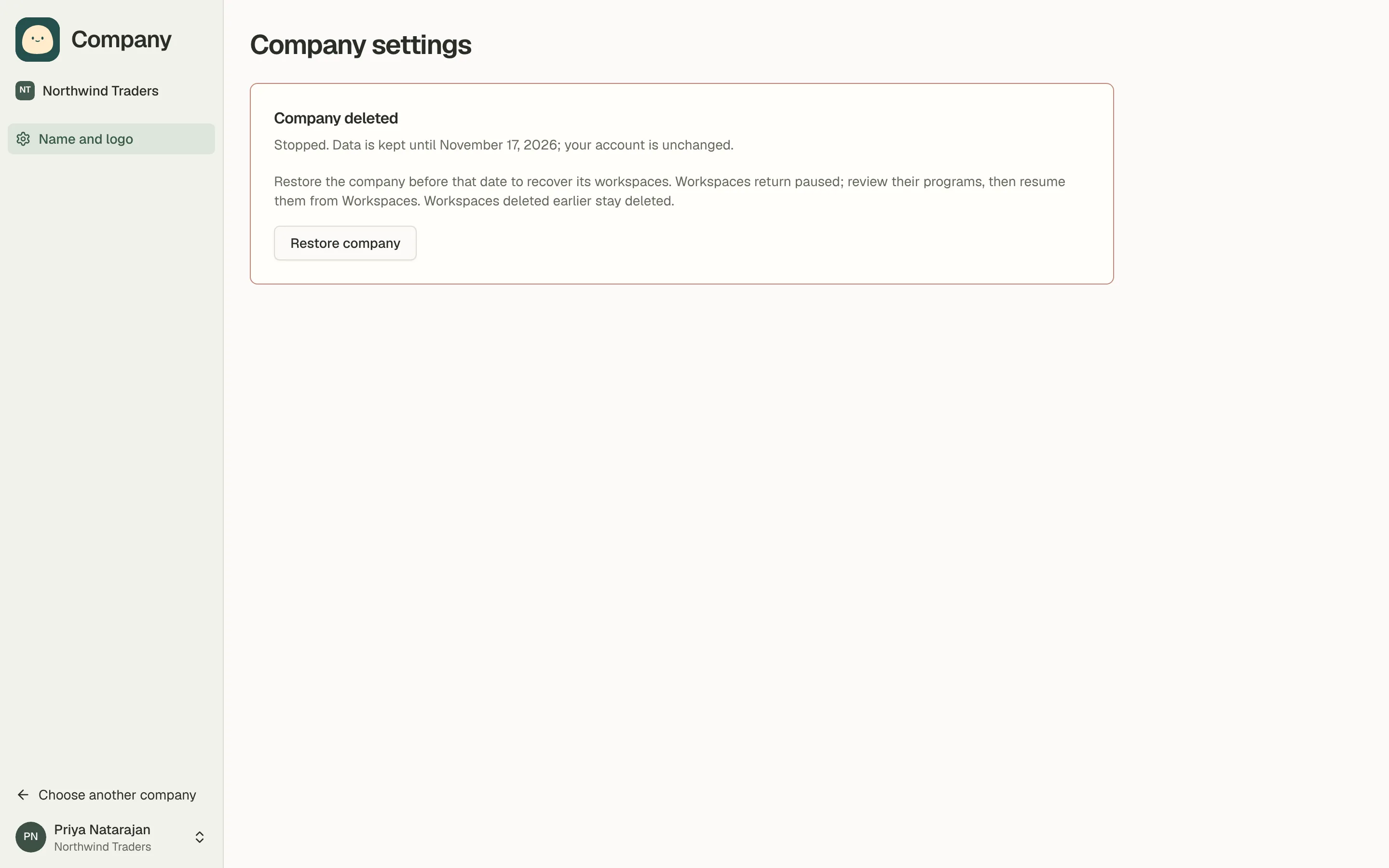
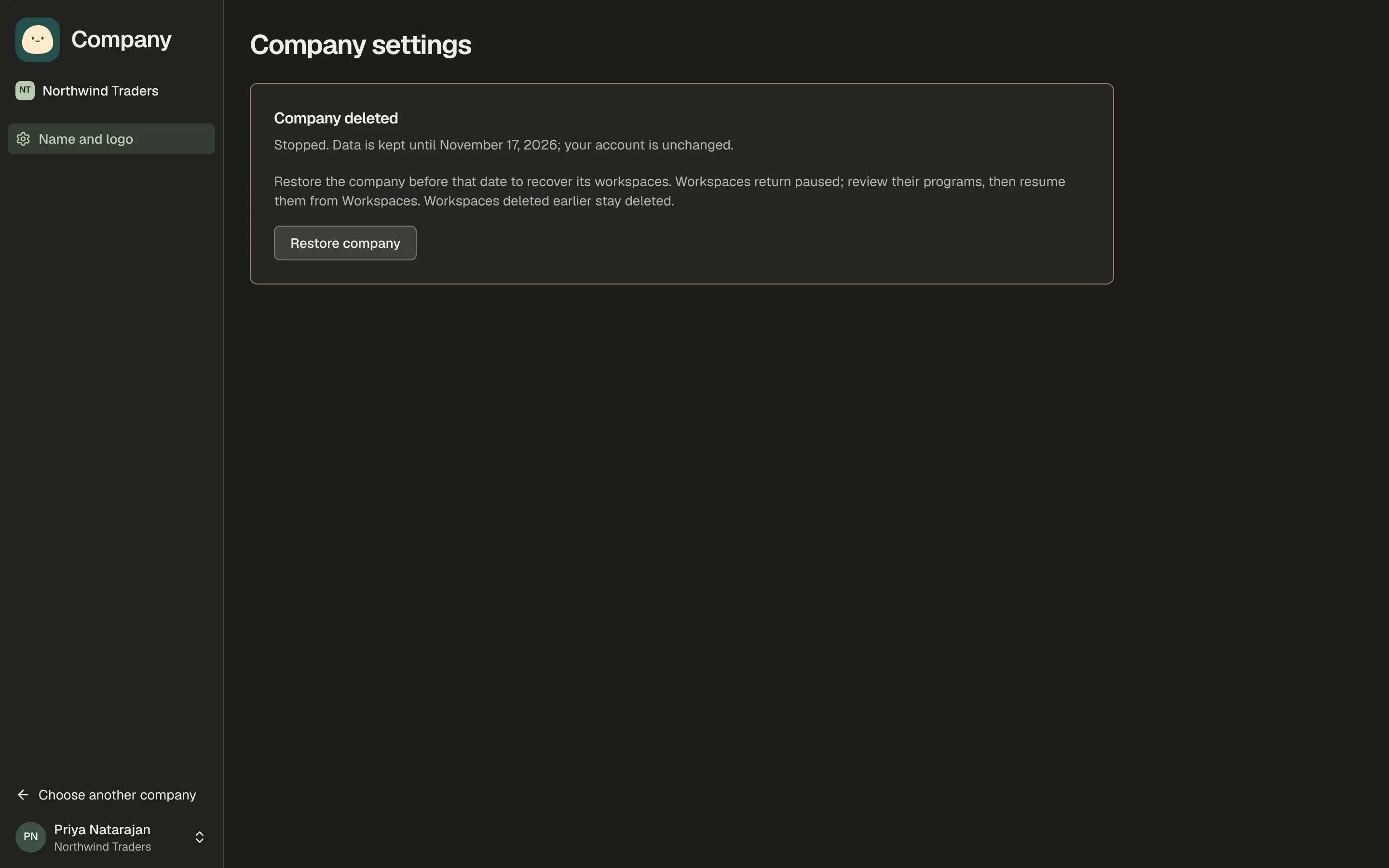
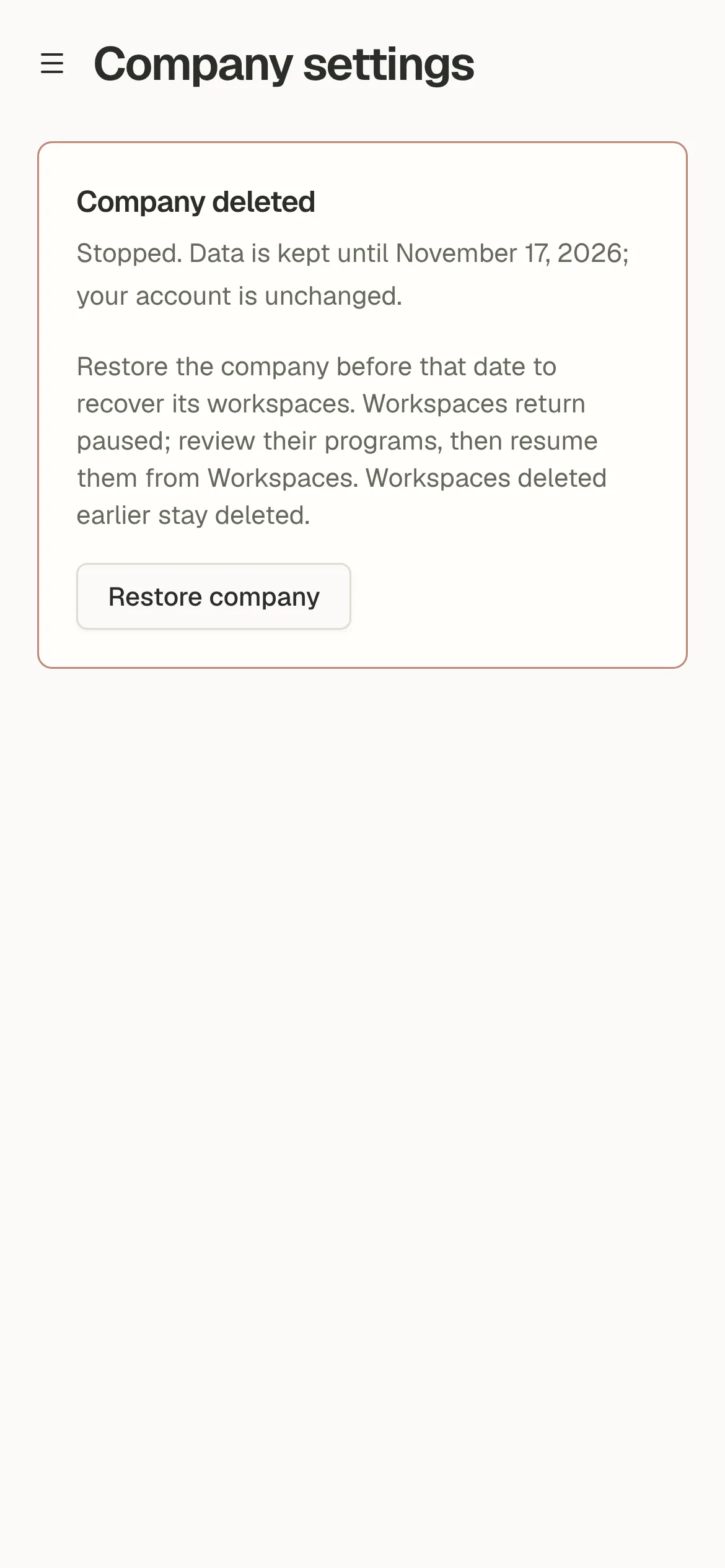
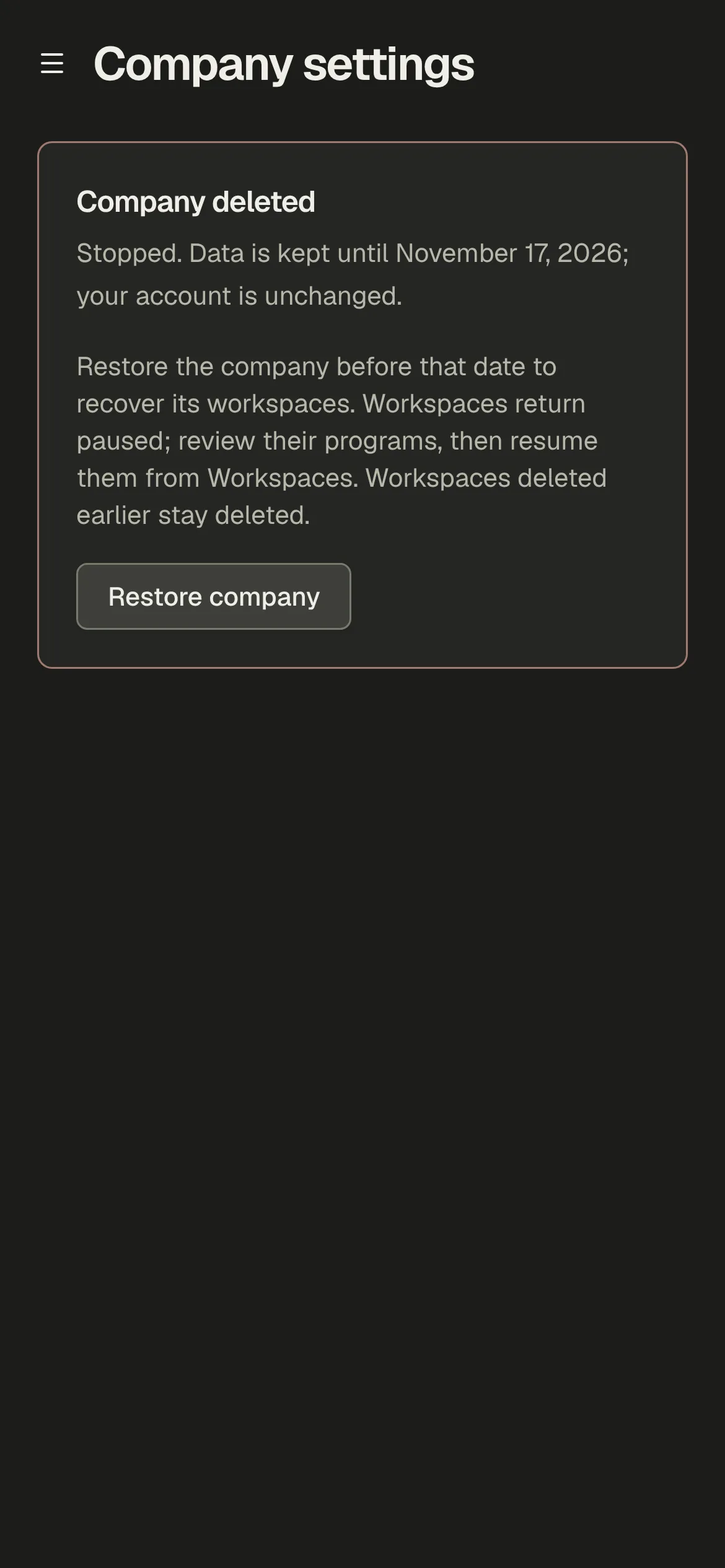
A company owner can open Settings → Company → Name and logo, choose Delete company, review the affected workspaces and type the company name. The company and all its workspaces stop immediately. Your personal account and other companies stay.
An owner can choose the deleted company in the account menu and Restore company for 30 days. Workspaces return paused so you can review their programs, then resume each from Settings → Company → Workspaces.
After 30 days, Shuffl permanently erases the company and everything in it. A paid subscription must finish cancellation before company deletion is available.
Who can manage what
A company owner or administrator can manage Company settings and every workspace in that company. Only owners can change company roles, transfer ownership or delete a company and all its workspaces. A company must always have at least one owner.
A workspace administrator manages their own workspace. That role does not grant Company settings or access to another workspace. Ordinary company members can use only the workspaces they have joined.
Settings → Company → Members lists these company roles. Use People inside a workspace to manage its employee access and workspace roles.
How people join
An invitation joins the company and the workspace named in the invitation. An Administrator invitation grants a workspace role, not a company role.
A verified email domain joins people to the company and its default workspace. Single sign-on also uses the default workspace, where the person must already be listed with their work email and enabled access.
New SCIM provisioning goes to the default workspace under the company’s access policy. Changing the default leaves existing provisioning assignments in place.
Slack sign-in uses the Shuffl workspace mapped to that Slack connection. It may be different from the default. Employee access rules still apply.
Move or remove people
To give someone access to another workspace, invite them from that workspace’s People page. Their Knowledge, chats and HR history stay with the original workspace.
Leaving a workspace keeps company membership. Someone who leaves their last workspace sees the company’s workspace list and can ask for an invitation.
Removing a member in Company settings removes their access to the company and all its workspaces. Only owners can remove administrators or other owners, and the last owner must transfer ownership first.
Connect the right Slack workspace
In Settings → Workspace → Integrations → Slack, the Slack workspaces table lists each Shuffl workspace and its connection state. Choose Manage on a row, then connect the Slack workspace that should use it.
Connect individual Slack workspaces or one Enterprise Grid organization. On the same page, map granted Slack workspaces together to share people and settings, or separately for different regions or subsidiaries.