How-to guide
People and the org chart
Find anyone, read the org chart, see who knows whom, and keep the directory right.
For Everyone using Shuffl, with an administrator section
Have your agent do thisPaste the prompt into Claude Code, Cursor or another agent. It follows this guide over MCP and asks before it changes anything others will see.Show the promptHide the prompt
Help me with "People and the org chart" in my Shuffl workspace.

1. Read the guide: https://shuffl.ai/docs/markdown/people
2. Add Shuffl's MCP server: https://shuffl.ai/api/mcp
   Claude Code: claude mcp add --transport http shuffl https://shuffl.ai/api/mcp
   When the browser opens, choose my workspace and allow the access the guide needs.
3. Work through the steps in order: Get introduced by someone you both know; Fill in reporting lines; Keep the directory right. Do what you can over MCP and tell me which steps only I can do in the browser or in Slack.

Show me what you will change and who it affects, and wait for my yes before publishing, inviting or sending anything.
On this page
App links open your signed-in workspace. Check the selected workspace before making changes.
Find a person
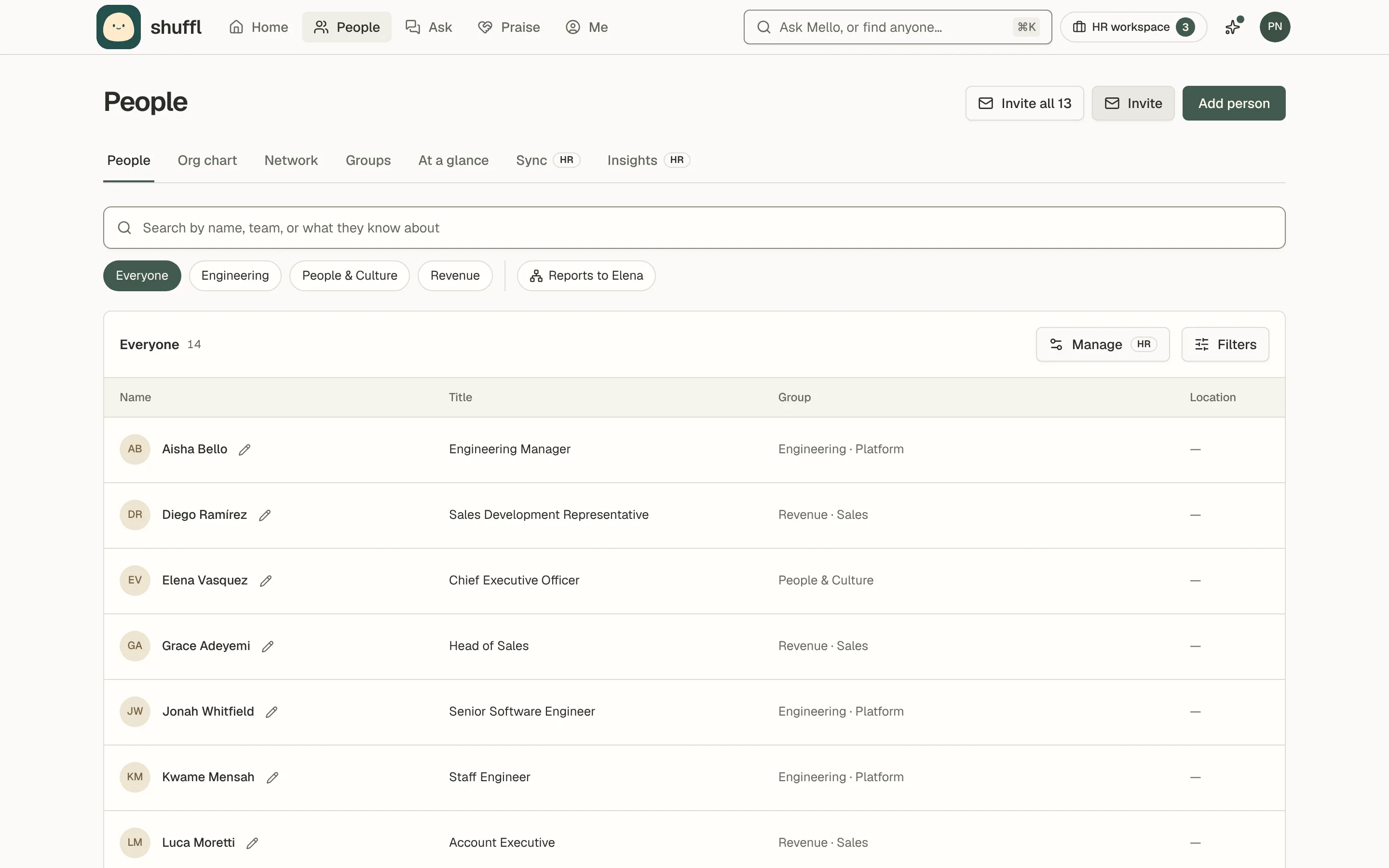
People opens on a search and the list of everyone, with each person’s title, group and location.
Type a name or a topic, choose a department chip, or pick a suggested search such as Who knows a topic or your manager. A topic shows who offered to be asked about it.
Open Filters to narrow by manager, department, job title, location, time zone or Slack. Choose a person to open their profile.
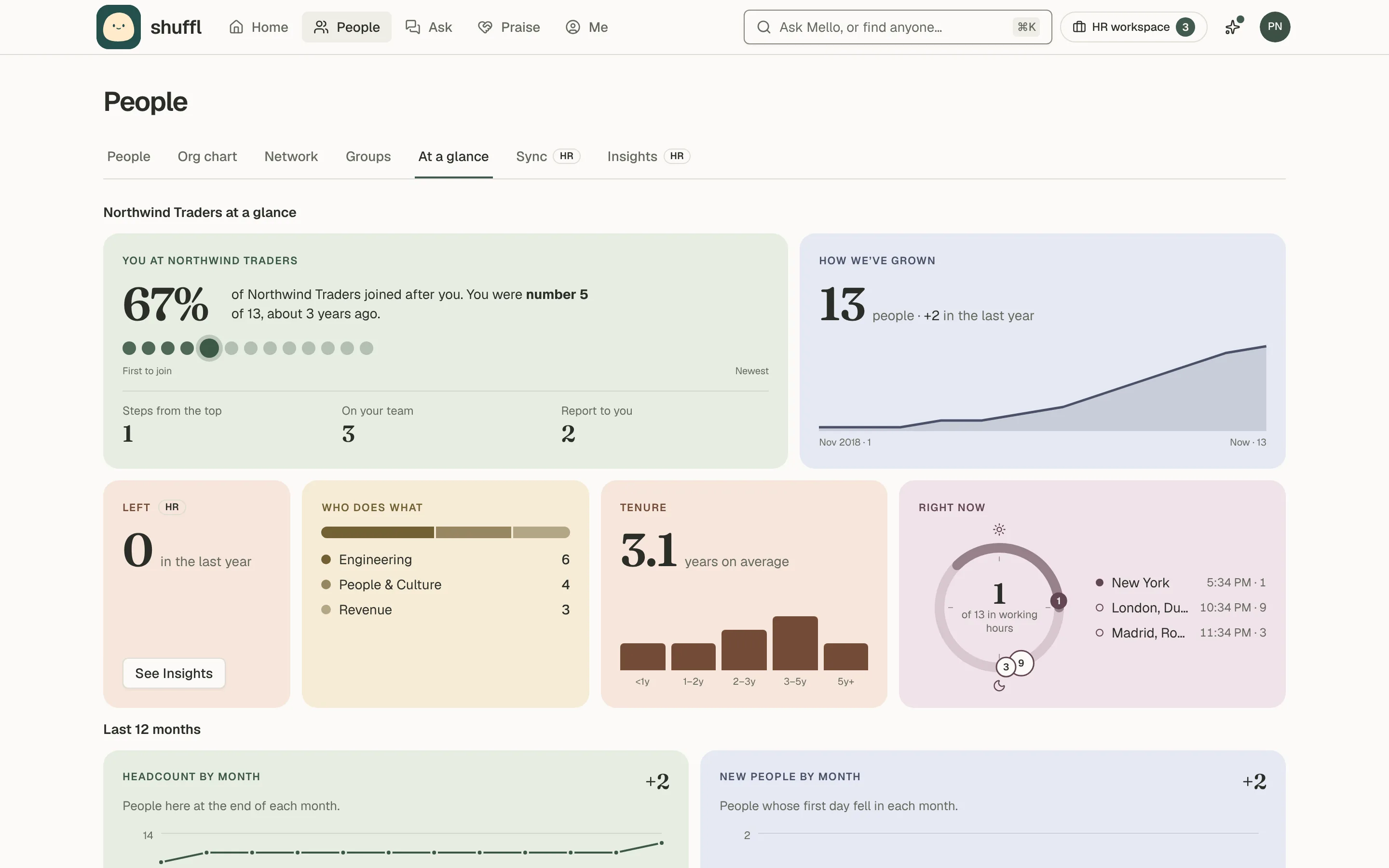
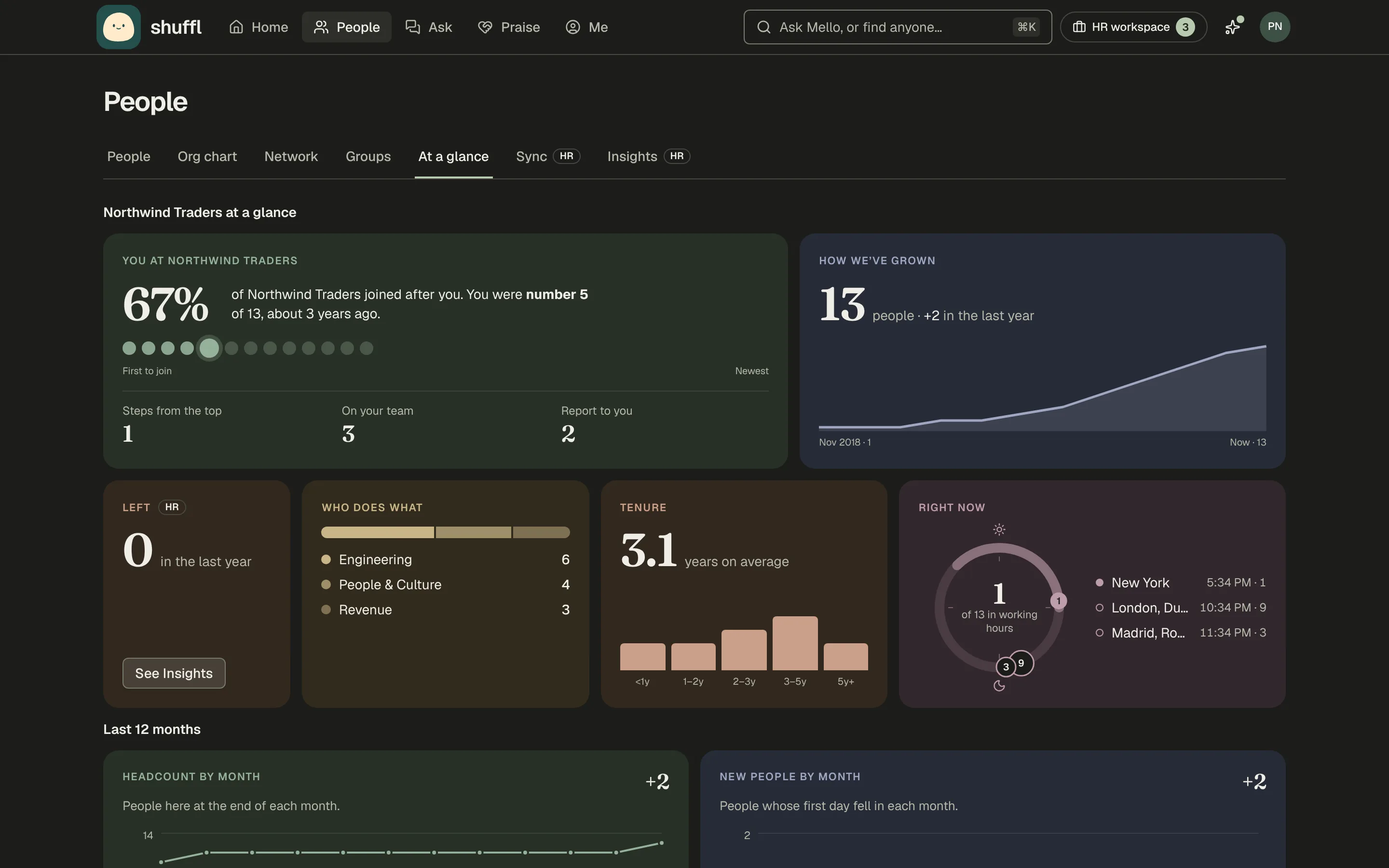
The At a glance tab shows where you sit, how the company has grown, its departments and tenure, and who is in working hours now.
Every figure is a count; nobody’s own dates are shown, and a workspace under five people sees no splits or charts.
You can ask Mello the same things, such as who runs a team or what time it is where someone is. Mello also answers who knows about a topic from people’s profiles, and offers Introduce me to draft a Slack message.
Org chart, departments and your network
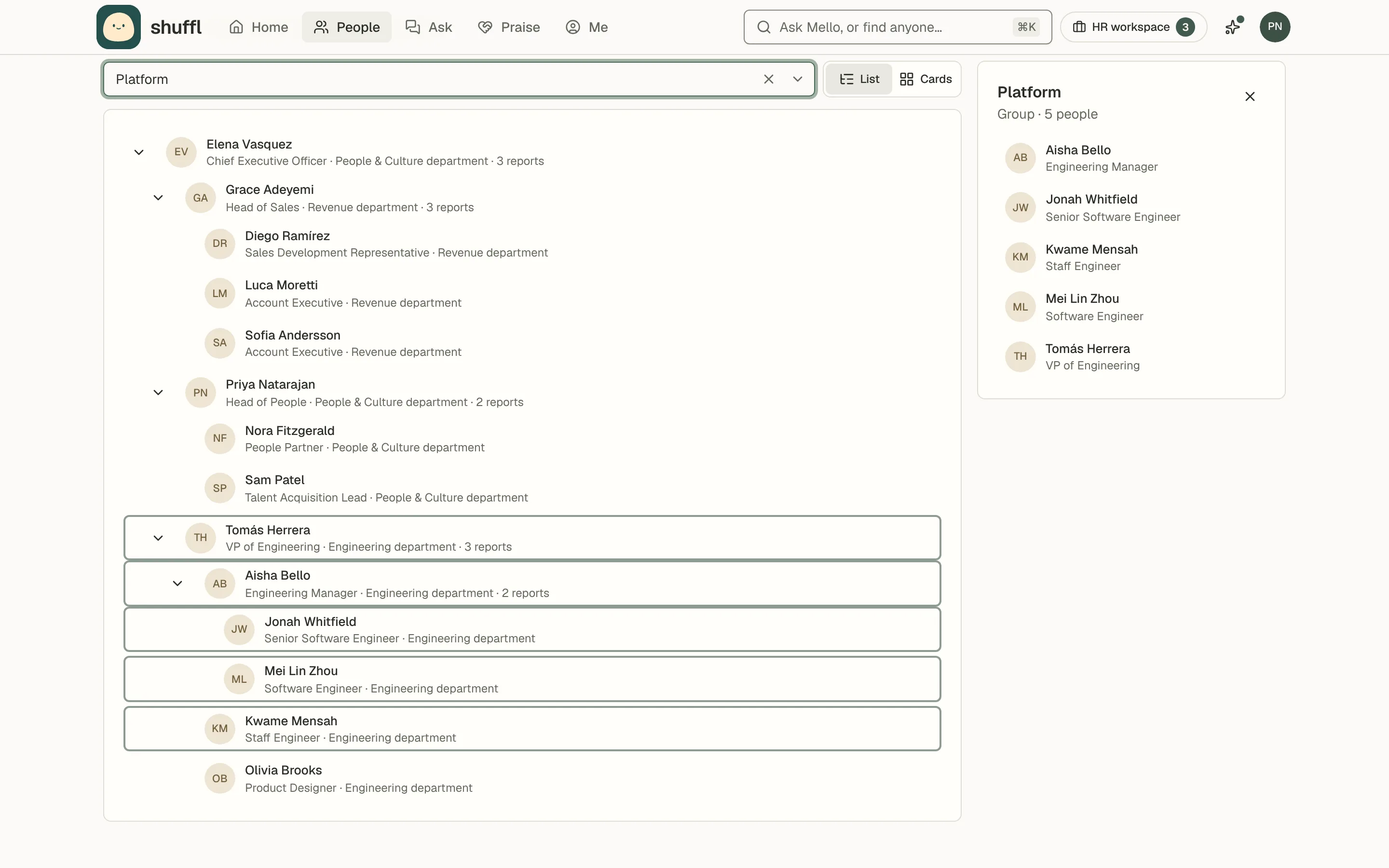
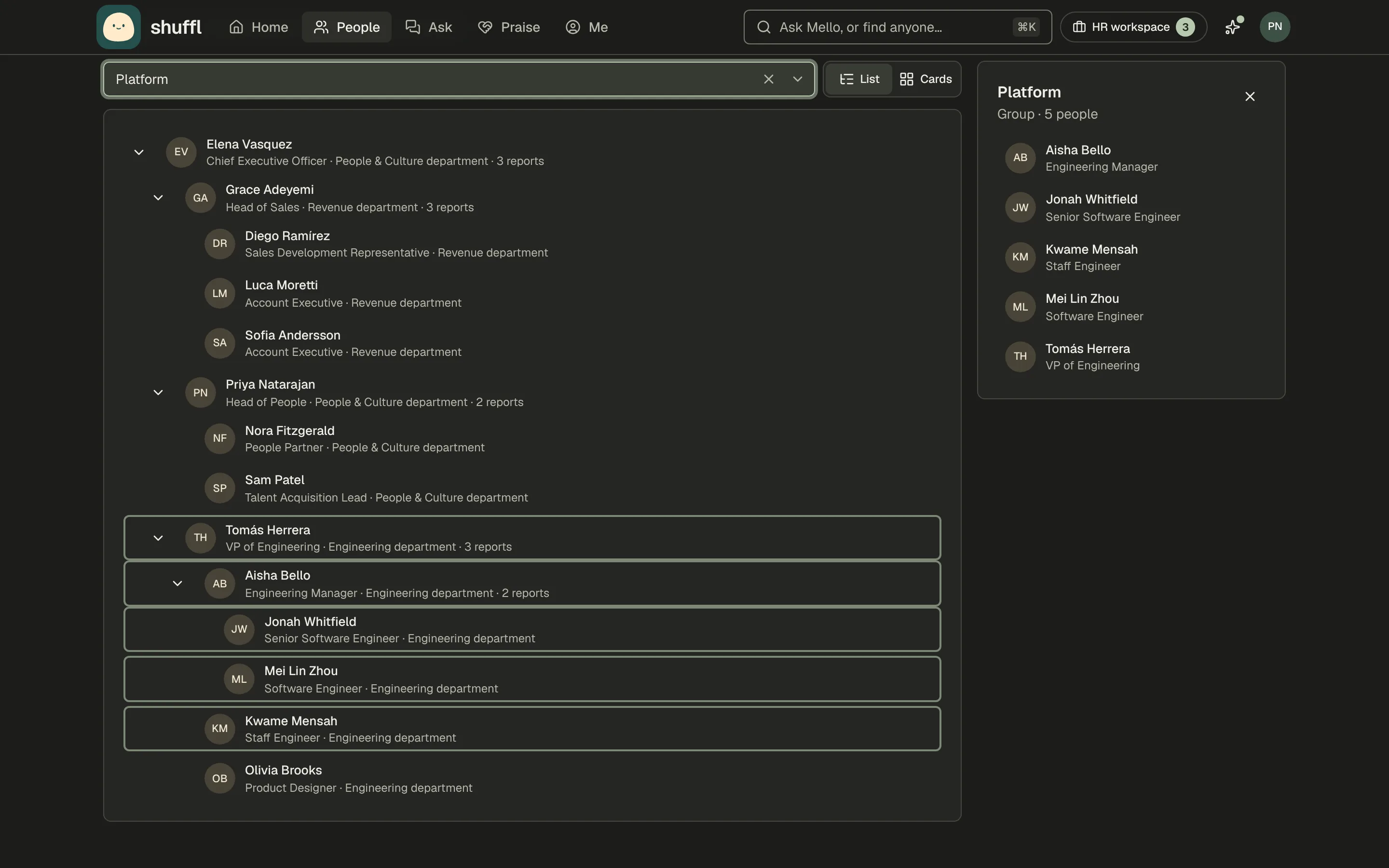
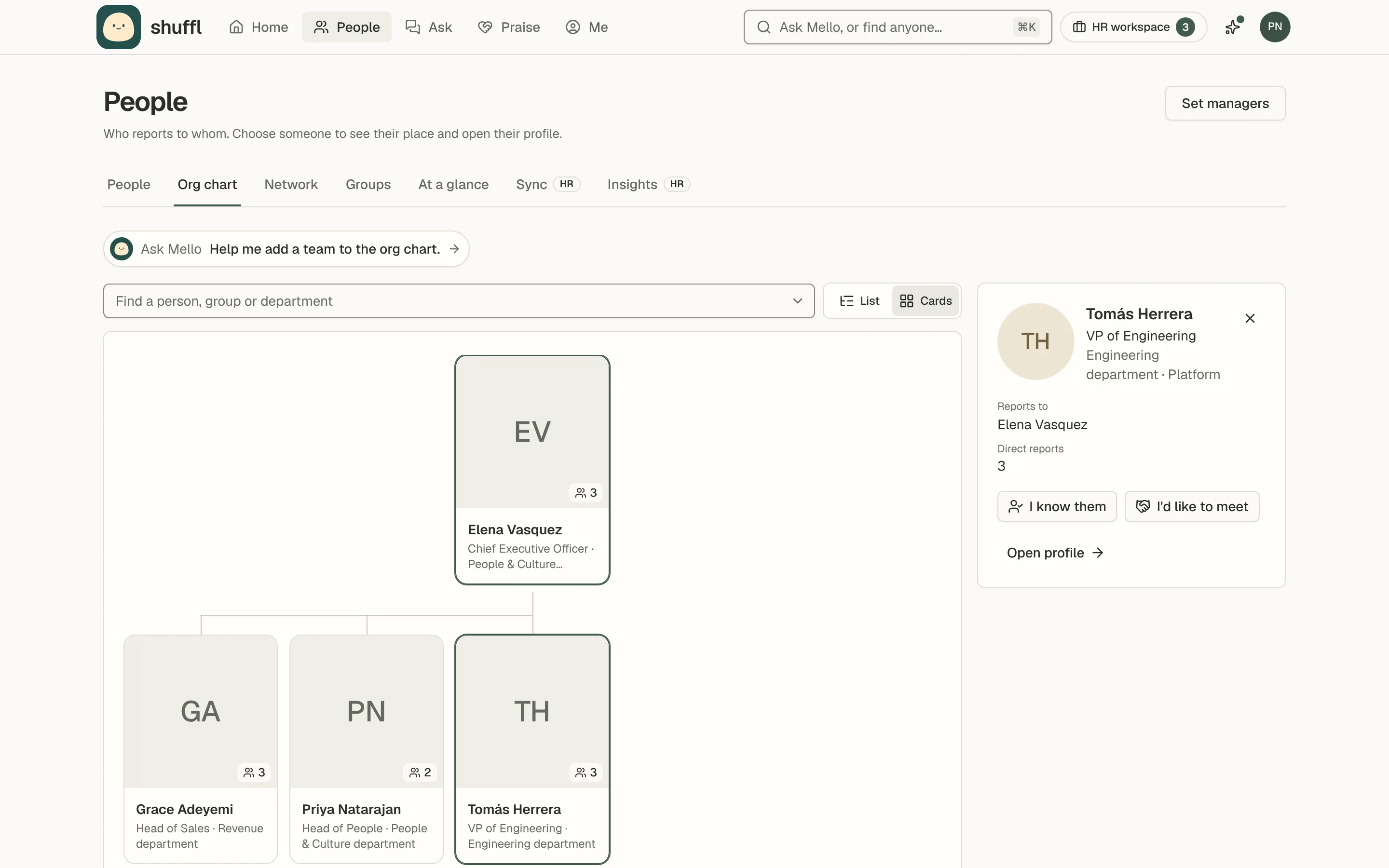
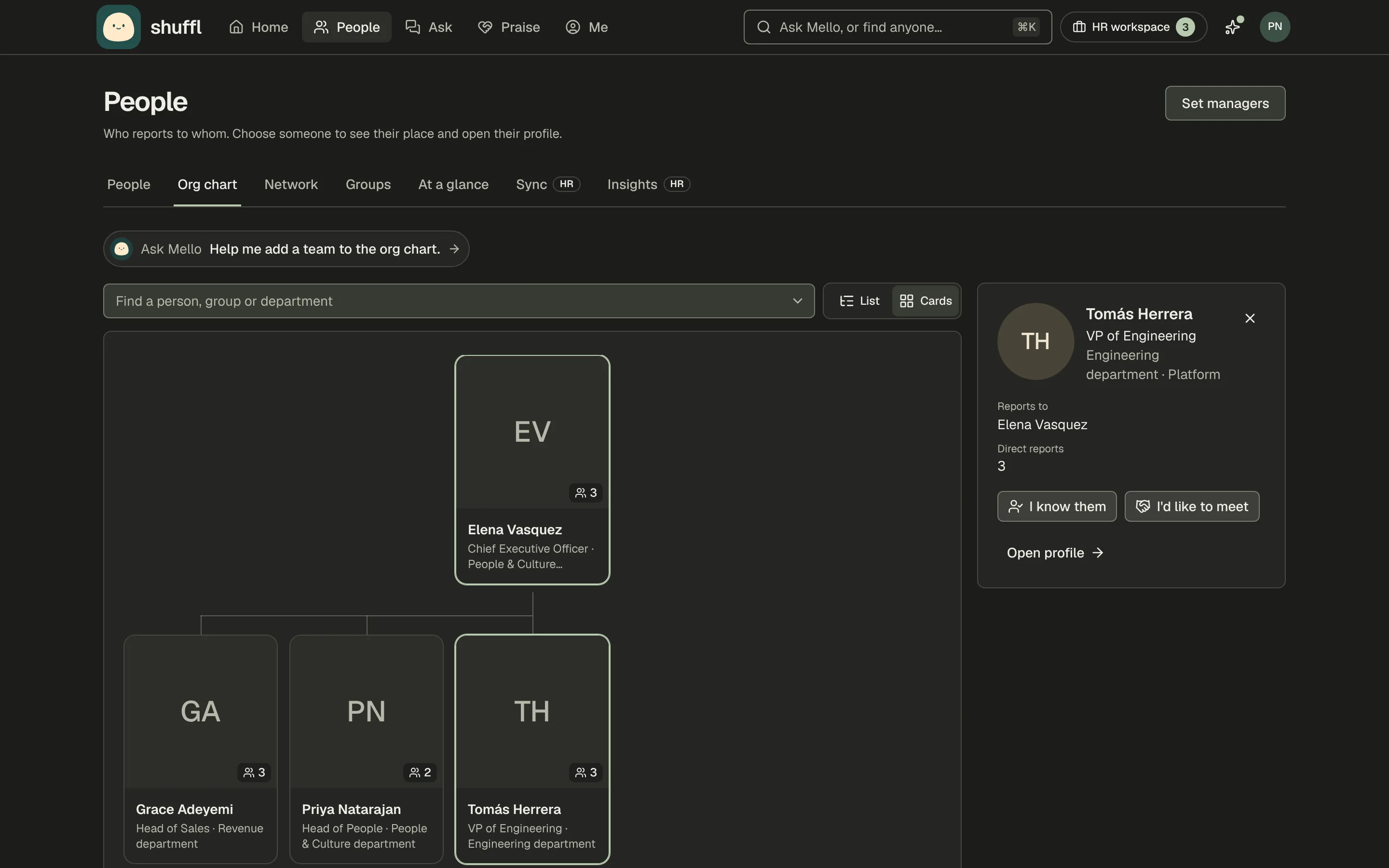
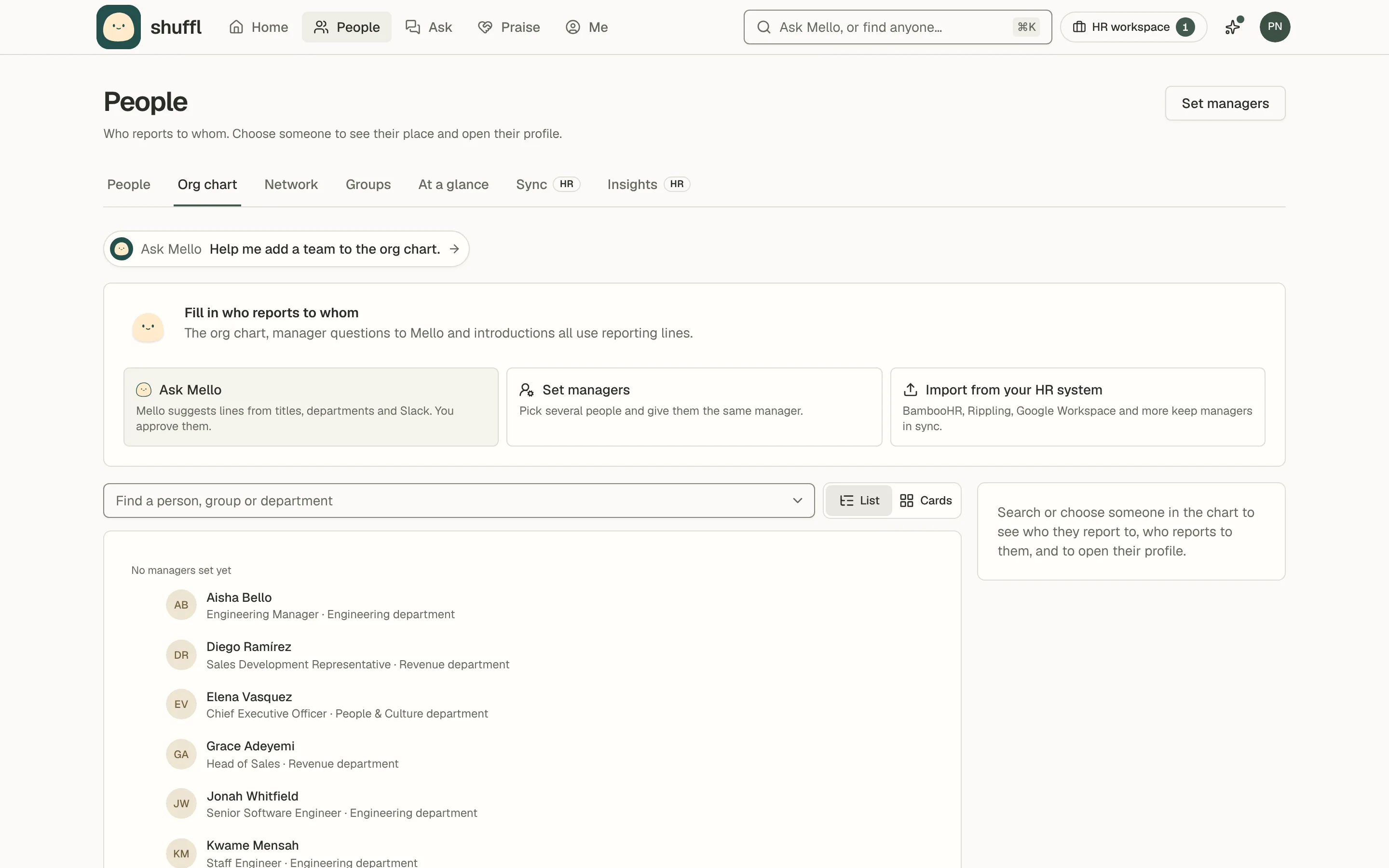
Org chart draws who reports to whom from the manager field in People. Find a person, group or department highlights the match. List shows a foldable outline; Cards shows one reporting line per row, and choosing a card opens the people who report to them.
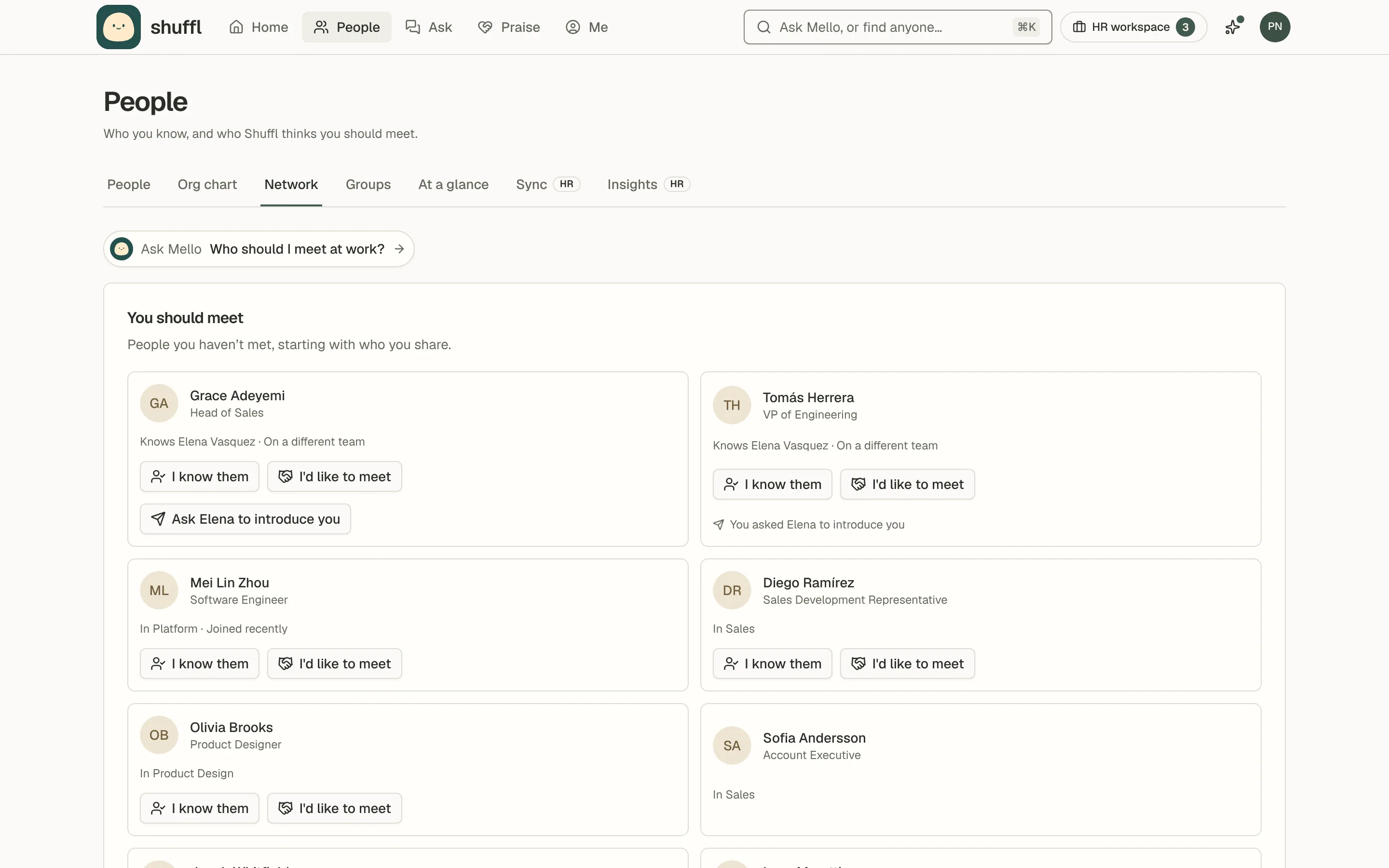
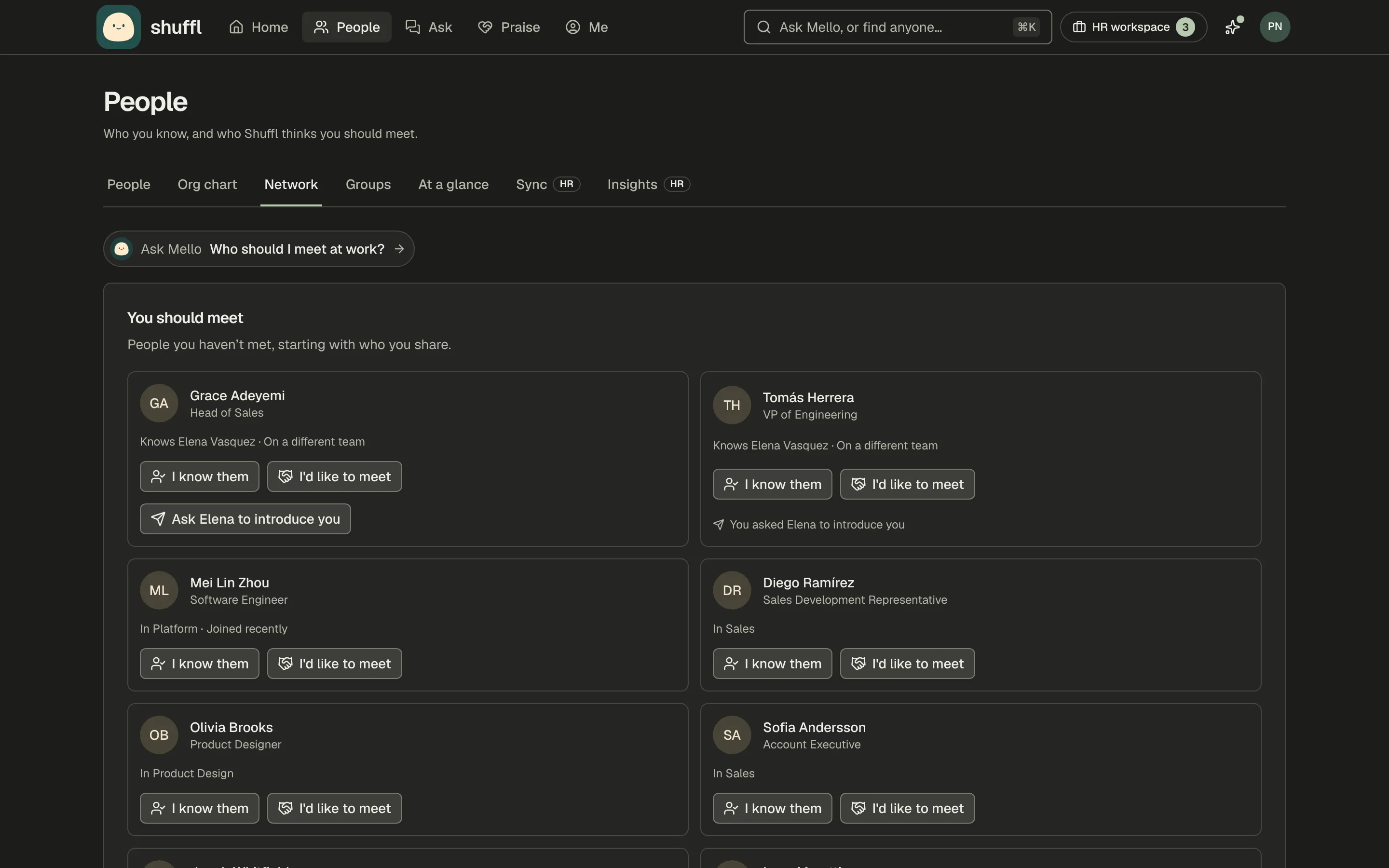
Network shows You should meet, people Mello thinks you would benefit from knowing, and People you know, from I know them notes and past introductions. Departments are on the Groups tab, under the Departments filter.
Get introduced by someone you both know
- On People → Network, a You should meet card that names people in common has Ask … to introduce you. Choose it.
- They get a private Slack message with Introduce them or Not this time.
- Introduce them starts a group DM with the three of you.
- Not this time ends the request, and you can ask someone else. A request nobody answers lapses after two weeks.
- You can have three requests waiting at once, and each card says where it stands.
Shuffl can ask a coworker you both know to introduce you. Only the two of you see the request, and if they pass you never hear why.
Slack Home shows your top two under People to meet.
Fill in reporting lines
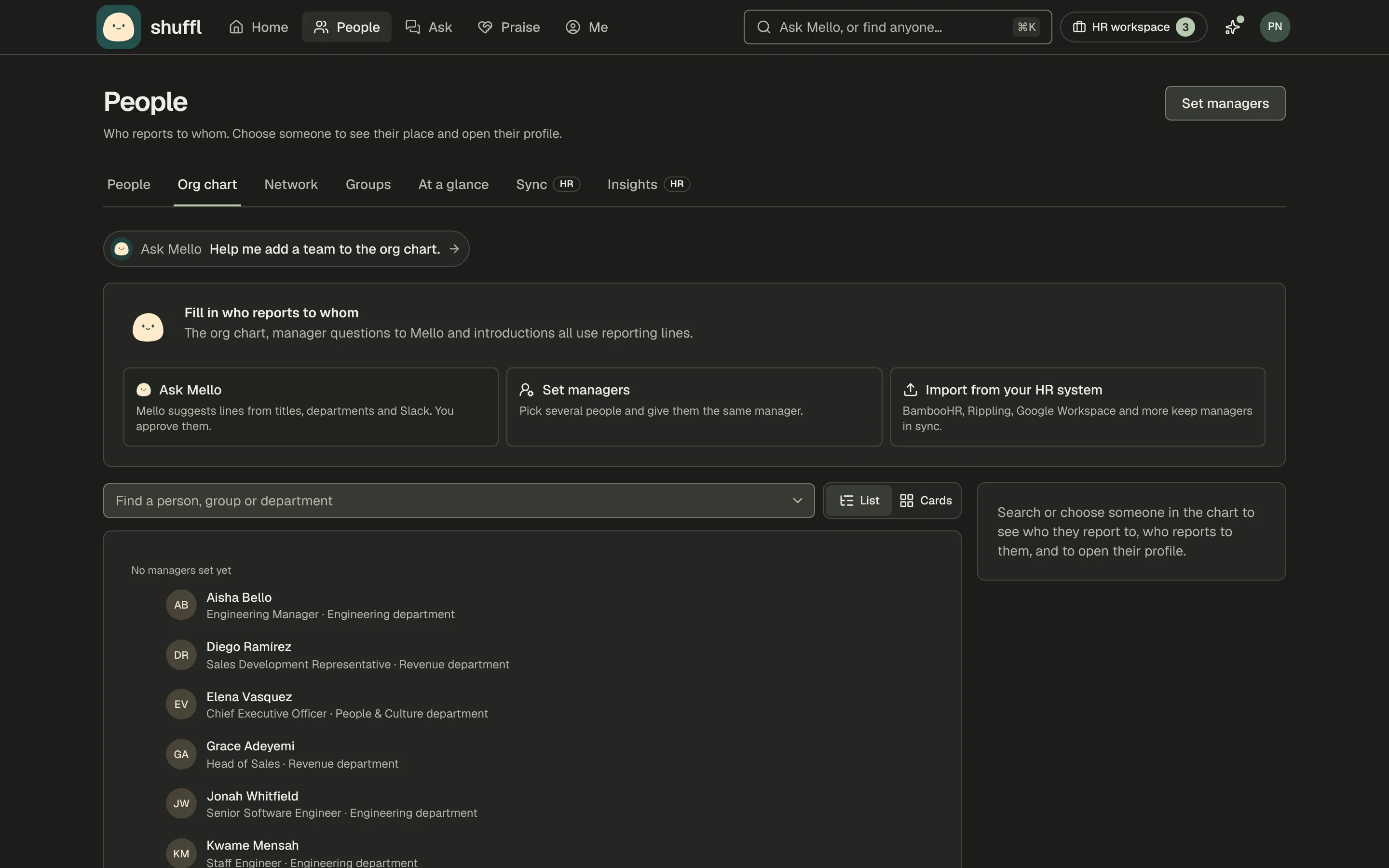
- Ask Mello proposes who reports to whom from job titles, departments and Slack, with a reason for each line. Untick any that look wrong, then Approve.
- Set managers gives several people the same manager at once.
- Import from your HR system opens Sync, so your HR system keeps managers up to date.
While more than one person has no manager, Org chart shows a Fill in who reports to whom panel with three ways to fill it in.
Keep the directory right
- On People, Invite sends an email invitation and Add person creates a record by hand.
- Administrators also see access requests and tabs marked HR: Sync, and Insights with people marked as left and gaps in the directory.
- Choose a row to open the Person details sheet. Employment type lets Mello answer with the right policy.
- On the sheet, Roles sets the Workspace role and HR responder or Knowledge verifier. Connected accounts shows linked accounts, and Playbooks puts the person on a playbook.
- Employment and access sets Employment (Not recorded, Employed, On leave or Employment ended) and access, with a reason.
- Suspending access cancels queued messages and revokes agent keys, and keeps their history.
- Department on the sheet picks the person’s one department; picking another moves them out of the old one.
- To add one, choose New group on the Groups tab and pick A department: one per person.
- Groups on the sheet ticks the lists a person belongs to; rule and synced groups show under Also in.
- Start dates drive work anniversaries, New hires on Home and onboarding messages.
- Insights counts joins and people marked as left by week, how complete the directory is and how many people hold each role.
- Headcount covers 12 months, built from start dates.
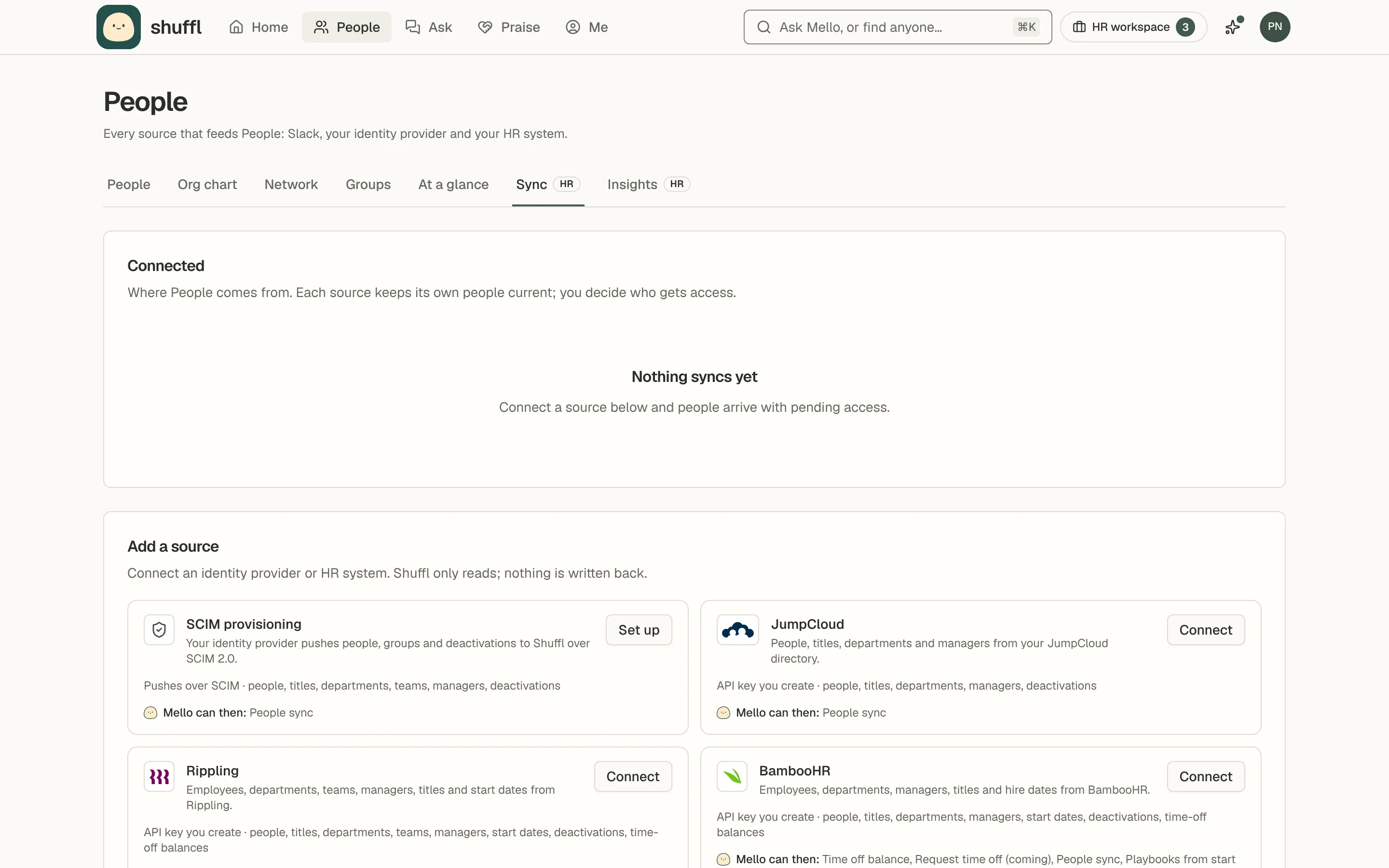
Sync People from your HR system
Sync keeps People in step with your HR system or directory: people, titles, departments and managers, plus start dates from HR systems. Rippling, BambooHR, HiBob and Deel also let Mello read a person’s own time-off balance. Slack is a source too.
Google Workspace needs a separate administrator authorization for read-only access. Disconnect stops sync and removes the stored credential; imported records remain.
Gusto and Justworks wait on each company approving Shuffl’s app. You can request a provider not listed yet from the same tab.