
Explanation
What Mello can do for you
What Mello can look up and change in Shuffl for you, how you confirm each change, and what it never does.
For Everyone using Shuffl, with a part for administrators
Have your agent do thisPaste the prompt into Claude Code, Cursor or another agent. It follows this guide over MCP and asks before it changes anything others will see.Show the promptHide the prompt
Help me with "What Mello can do for you" in my Shuffl workspace.

1. Read the guide: https://shuffl.ai/docs/markdown/what-mello-can-do
2. Add Shuffl's MCP server: https://shuffl.ai/api/mcp
   Claude Code: claude mcp add --transport http shuffl https://shuffl.ai/api/mcp
   When the browser opens, choose my workspace and allow the access the guide needs.
3. Work through the steps in order: Check and run an action; When Mello is offline. Do what you can over MCP and tell me which steps only I can do in the browser or in Slack.

Show me what you will change and who it affects, and wait for my yes before publishing, inviting or sending anything.
On this page
App links open your signed-in workspace. Check the selected workspace before making changes.
How Mello acts for you
Mello can look things up in Shuffl and make changes for you, but only what your role lets you do in Shuffl yourself. When something needs a role you don’t have, Mello says so instead of trying.
Looking something up changes nothing and happens straight away. Anything that changes something, such as joining a community, is prepared first and runs only when you press its button.
Mello uses the same actions as the app, with the same checks, so the result is the same as doing it yourself.
The whole list
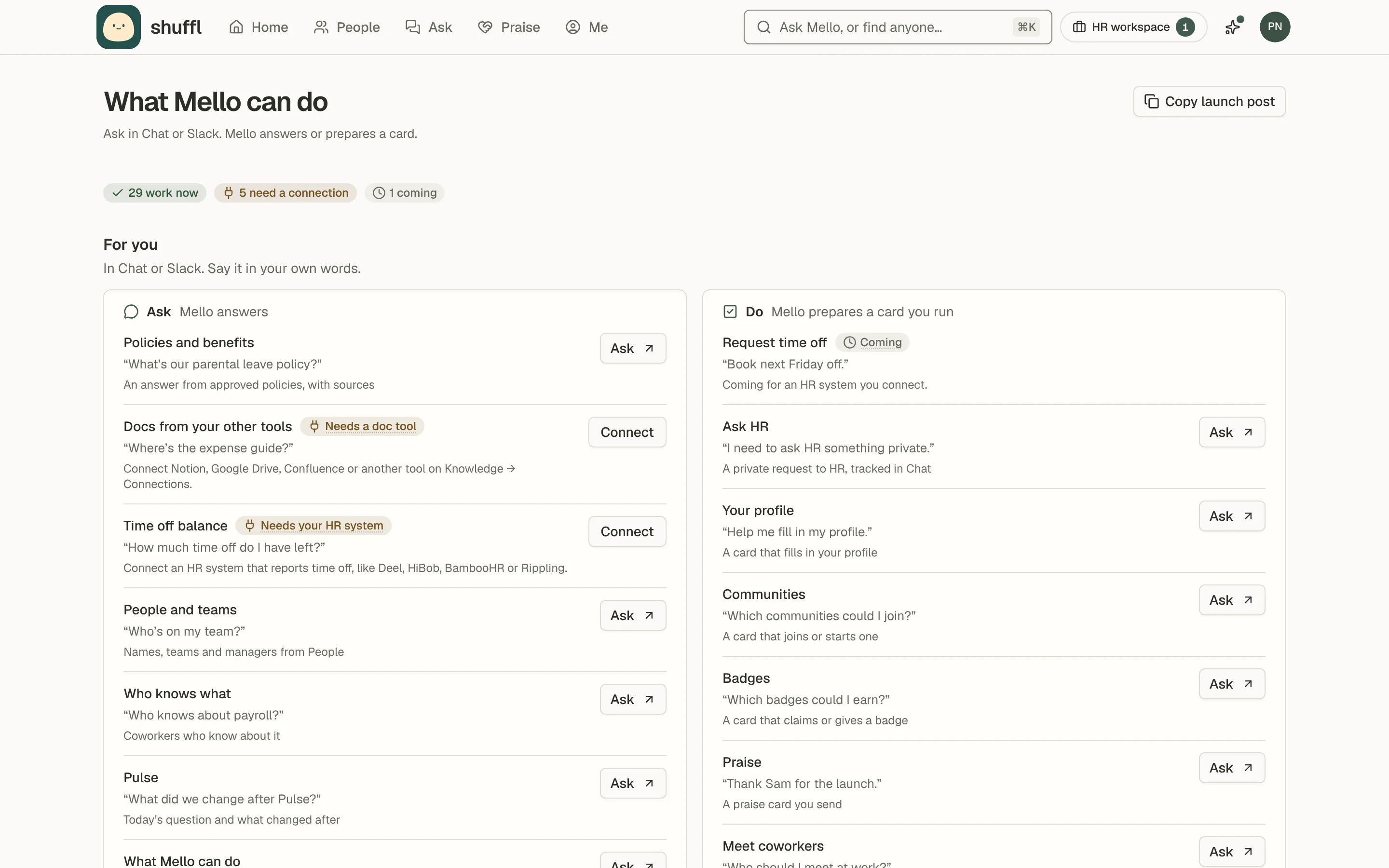
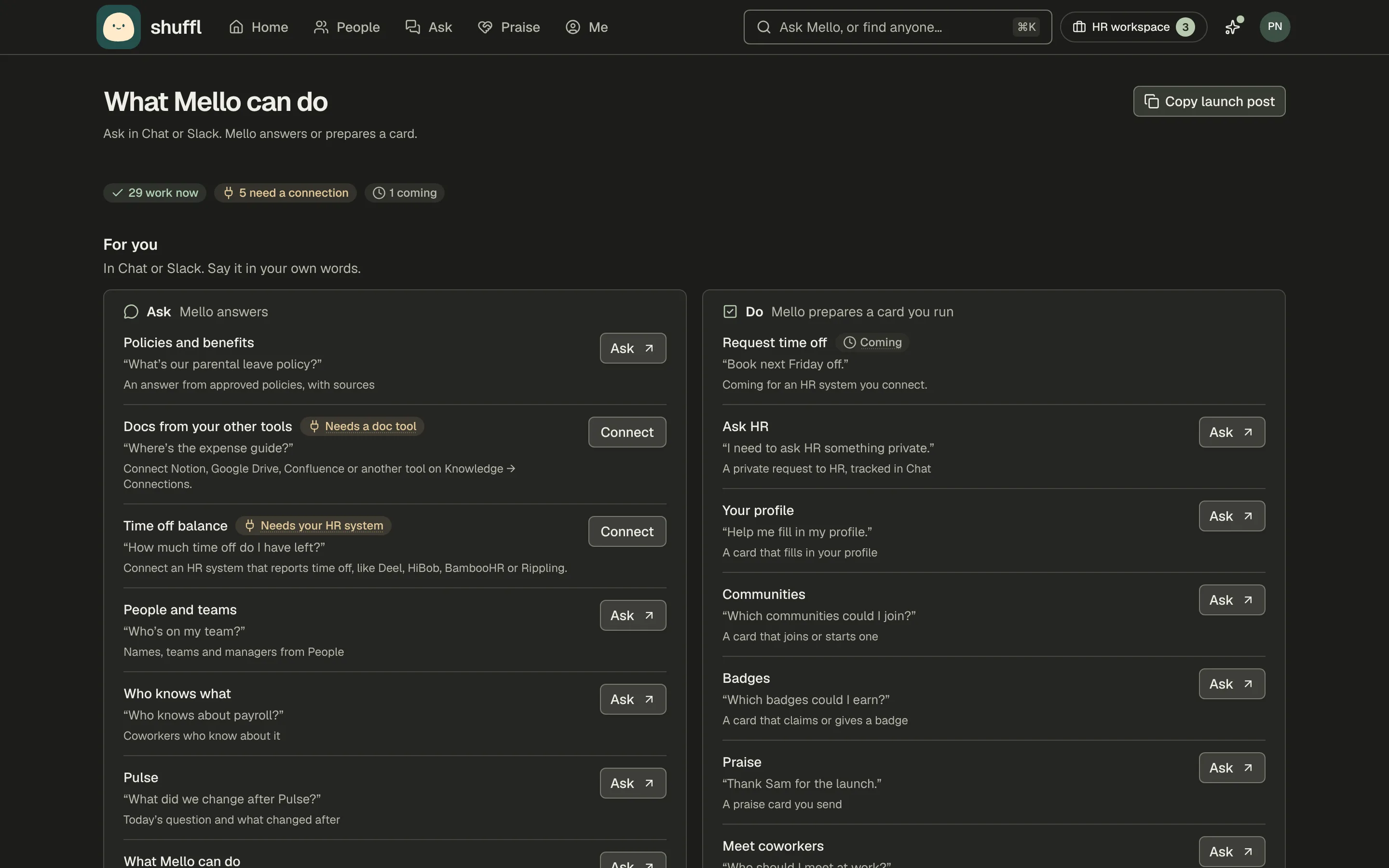
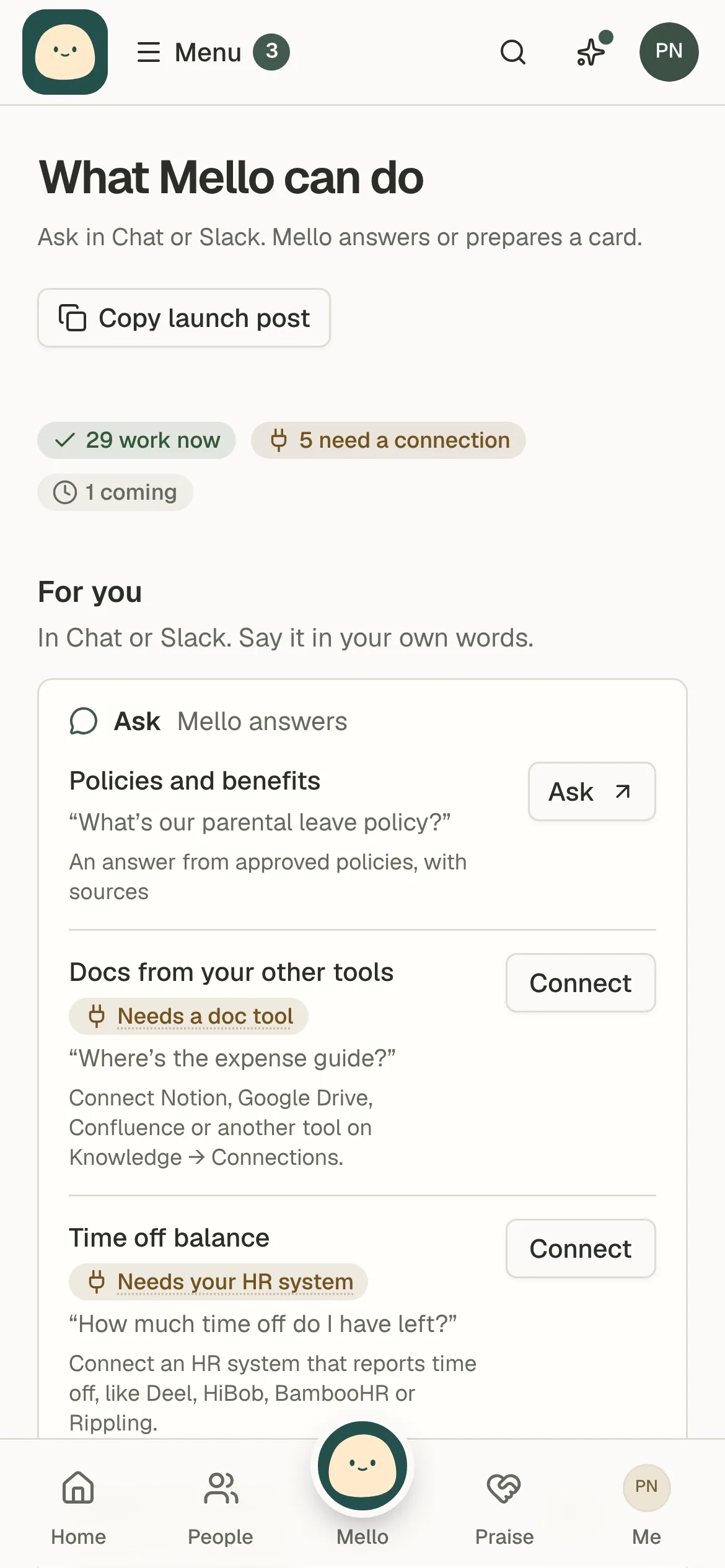
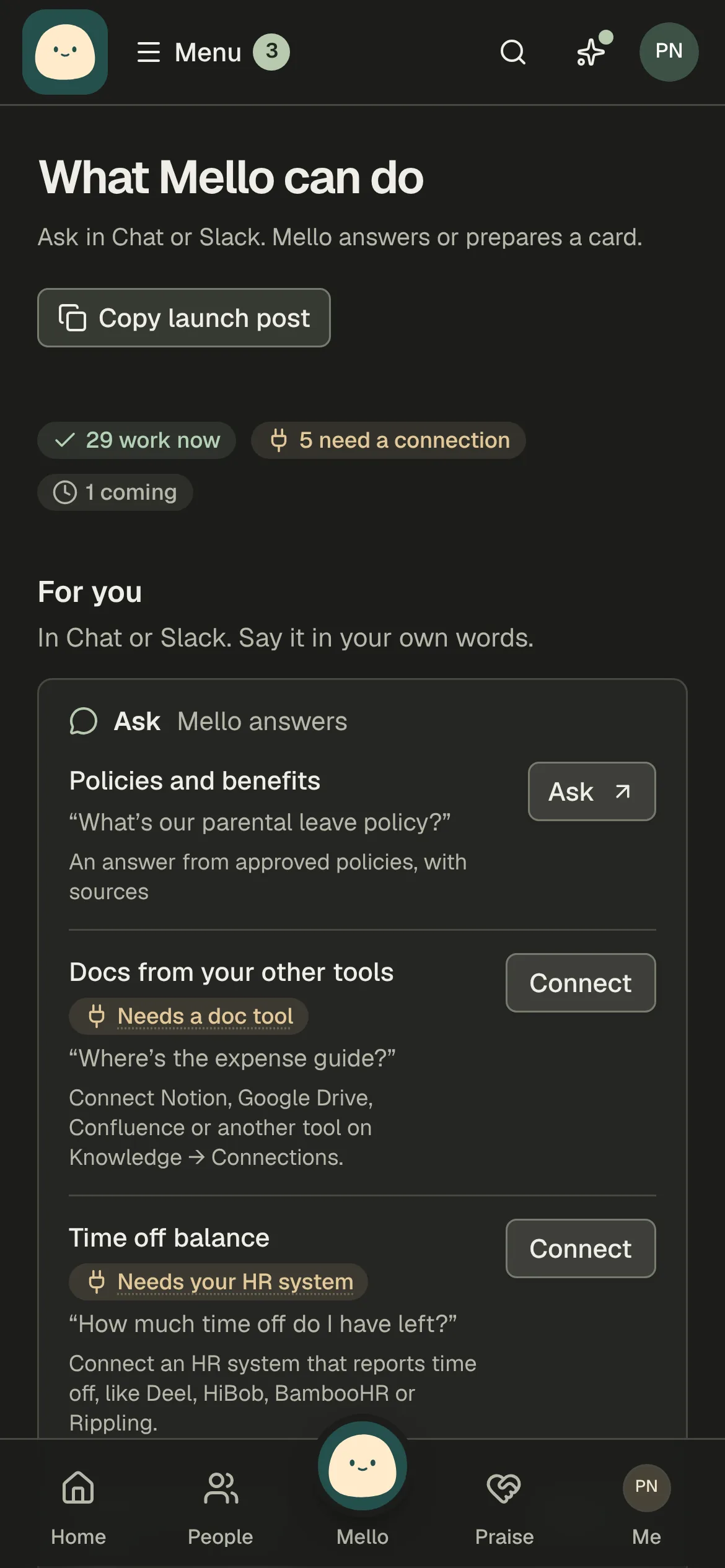
What Mello can do, under Help or Chat, lists what you can ask and do in your workspace, with what to say. Ask rows are answered; Do rows are prepared as a card you run once. Each row names the system it reaches.
Ask Mello “What can you do?” in Chat or Slack for the top five, and Slack’s Home tab shows a few with See everything.
Ask, for everyone
- Policies and benefits: “What’s our parental leave policy?”
- Docs from your other tools: “Where’s the expense guide?”
- Time off balance: “How much time off do I have left?”
- People and teams: “Who’s on my team?”
- Who knows what: “Who knows about payroll?”
- Pulse: “What did we change after Pulse?”
- What Mello can do: “What can you do for me?”
Do, for everyone
- Ask HR: “I need to ask HR something private.”
- Your profile: “Help me fill in my profile.”
- Communities: “Which communities could I join?”
- Badges: “Which badges could I earn?”
- Praise: “Thank Sam for the launch.”
- Meet coworkers: “Who should I meet at work?”
- Celebrations: “Whose birthday is this week?”
- Onboarding and buddies: “What should I do next this week?”
- Mentorship: “Find me a mentor.”
- Your notifications: “Stop the weekly reminder.”
For managers
- Your reports: “Who reports to me?”
- New hire plans: “Draft a 30/60/90 plan for my new hire.”
For HR
- Company guidance: “Help me draft a remote work policy.”
- Import from your tools: “Import our Notion handbook.”
- HR requests: “Set up HR request categories.”
- People and access: “Invite our three new hires.”
- Groups and automations: “Make a group for everyone in London.”
- People sync: “When did People last sync?”
- Connections: “Help me set up coworker introductions.”
- Playbooks: “Start onboarding for our new hire.”
- Playbooks from start dates: “Start onboarding on each start date.”
- Mentorship programs: “Start a mentorship program.”
- Celebrations: “Help me turn on Celebrations.”
- Pulse: “How is Pulse going?”
- Praise: “Which values got the most praise?”
- Insights: “How many questions did Mello answer this month?”
- Workspace settings: “Send the Slack welcome again.”
What connecting a system adds
Some rows need a system your company connects. Until then, the row says what it takes, and Mello says the same when you ask. Choose Tell HR, or say yes when Mello offers, and HR’s Inbox counts the asks, never with names.
People → Sync and Knowledge → Connections show what each system adds before you connect it. Once it is live, HR’s Home shows Mello now can, with a post to share.
An HR system adds
- Time off balance: “How much time off do I have left?”
- People sync: “When did People last sync?”
- Playbooks from start dates: “Start onboarding on each start date.”
A document tool adds
- Docs from your other tools: “Where’s the expense guide?”
- Import from your tools: “Import our Notion handbook.”
What you can ask Mello to do
Your profile: “Add SQL and pricing to what people can ask me about” or “Only my team should see my phone number”.
Praise and communities: “Thank Kwame for fixing the order sync in the praise channel” or “Join the Lunchtime runners community”.
Finding people: “Who knows about Kubernetes?” names coworkers whose profiles match, using only what each person shares. “Who should I meet?” suggests people you haven’t met.
Your HR requests: “Show my HR requests” lists each with where it stands. HR responders also see what waits on them, each with Draft a reply.
Time off: “How much vacation do I have left?” works when your company connected BambooHR, Rippling, HiBob or Deel. Mello does not book leave; it prepares an HR request with your dates.
Reminders and settings: “Turn off my Pulse reminders” or “Email me when HR replies to my requests”.
Badges, cards and onboarding: “Sign Mei Lin’s birthday card” or “Claim the badge with code ROCKET”.
Your playbooks, while you are new: “What should I do this week?” or “I enrolled in benefits, tick that off”. Mello answers from your own onboarding only, and checking off a to-do is prepared for you to confirm.
Check and run an action
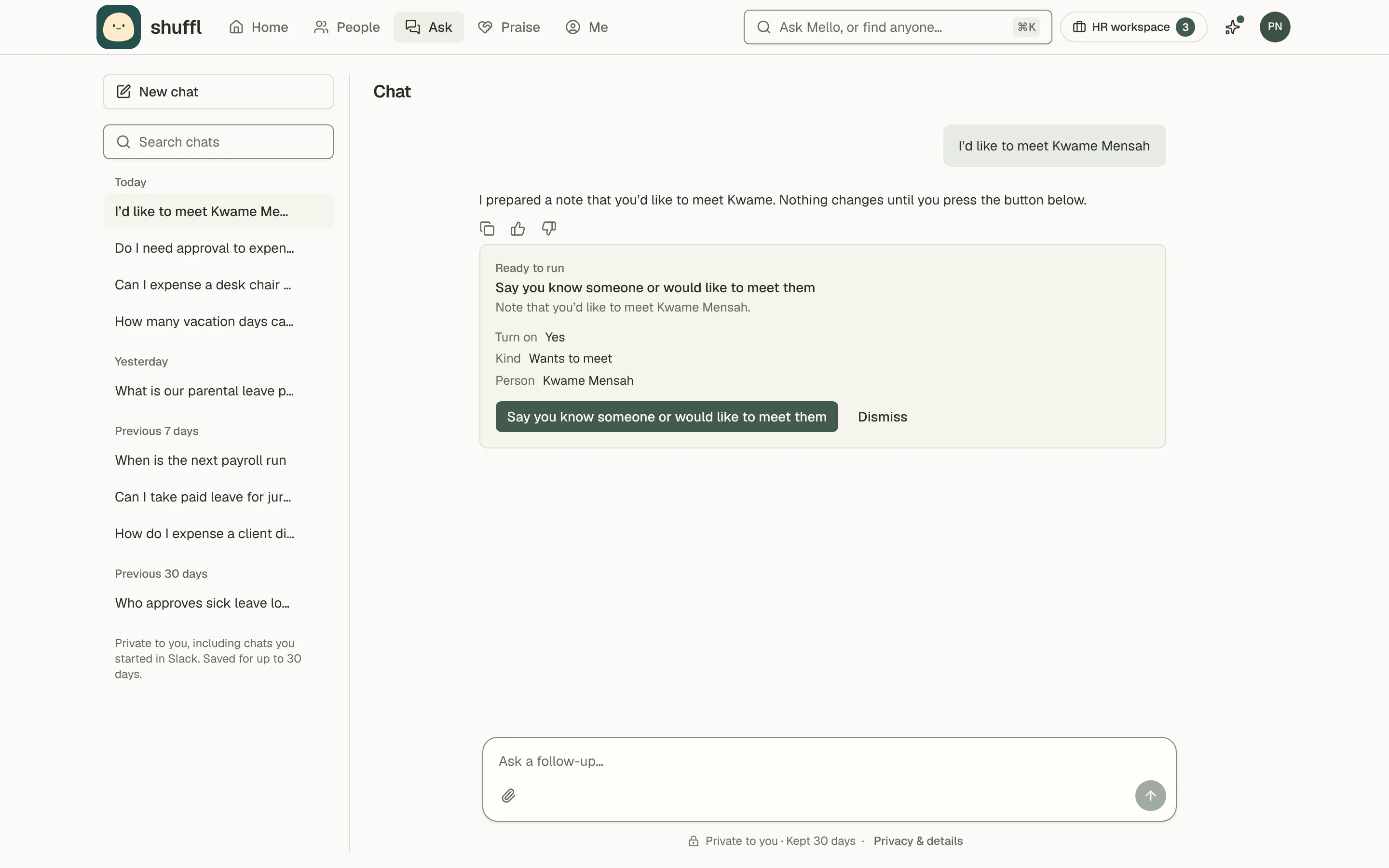
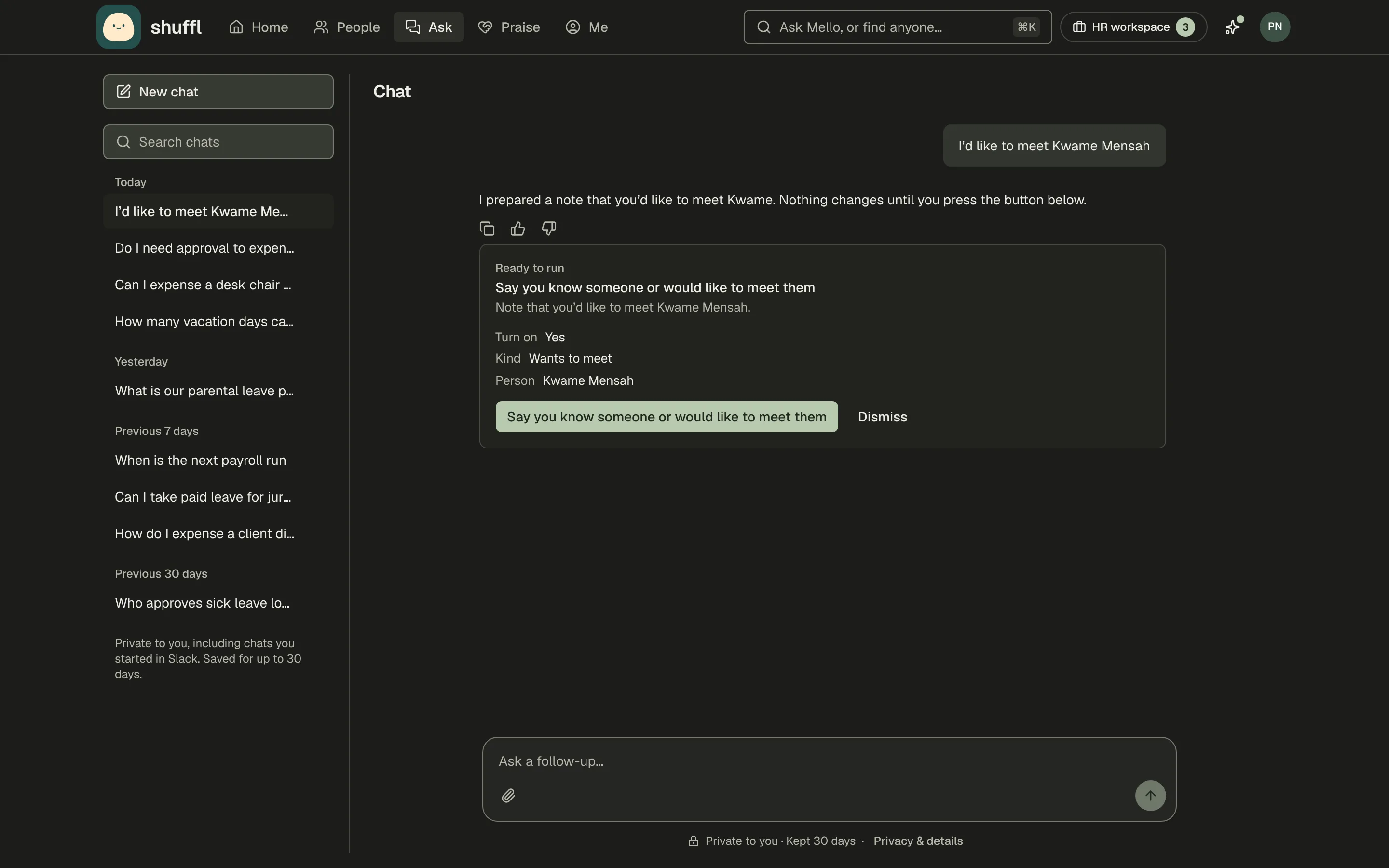
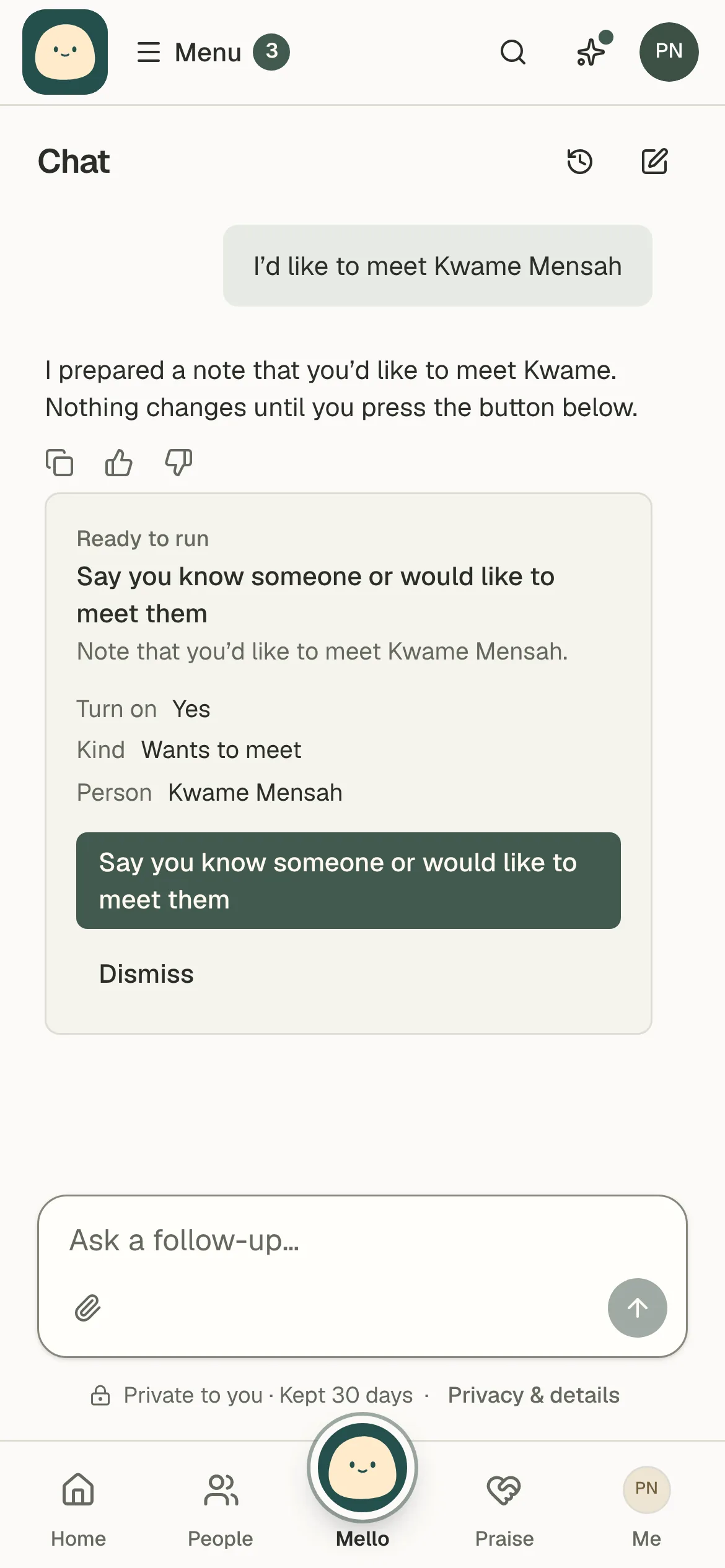
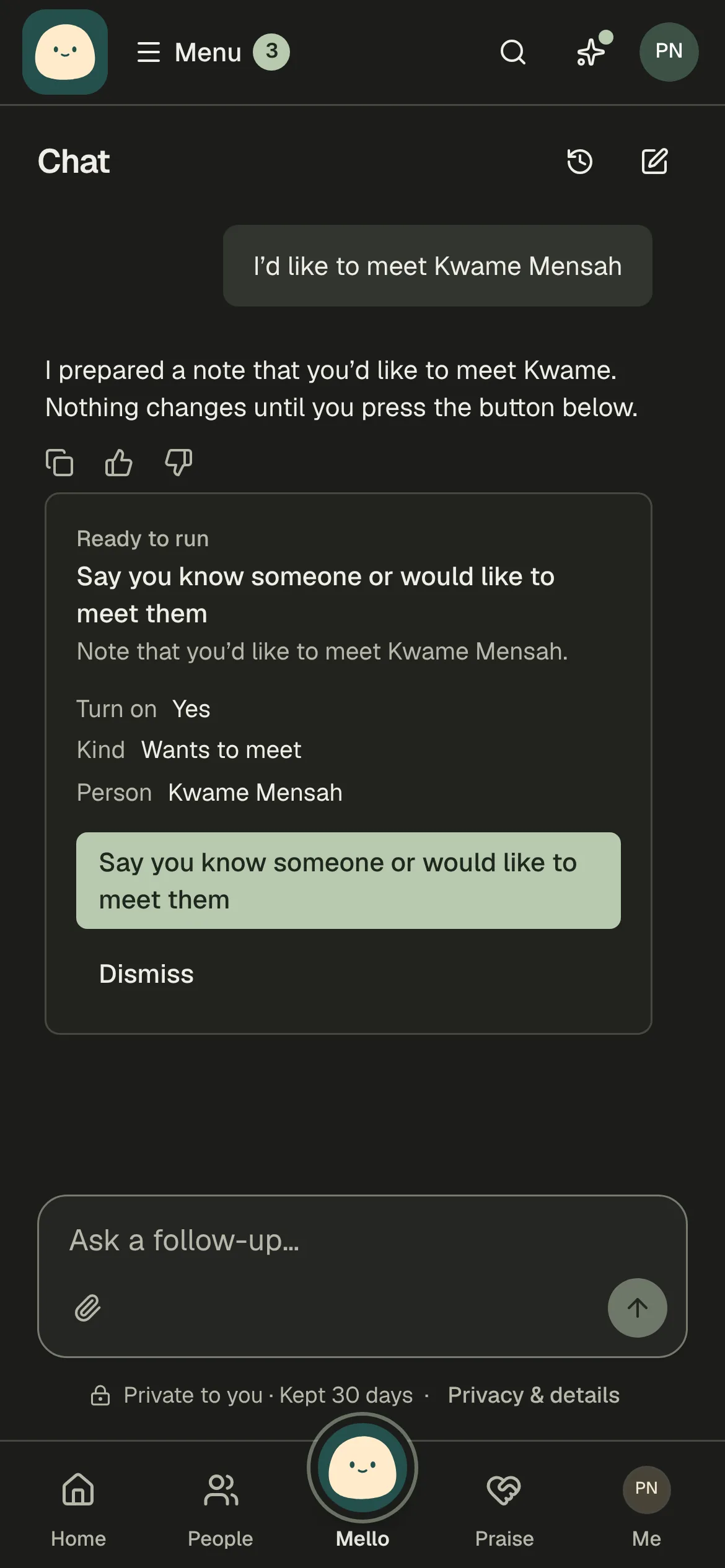
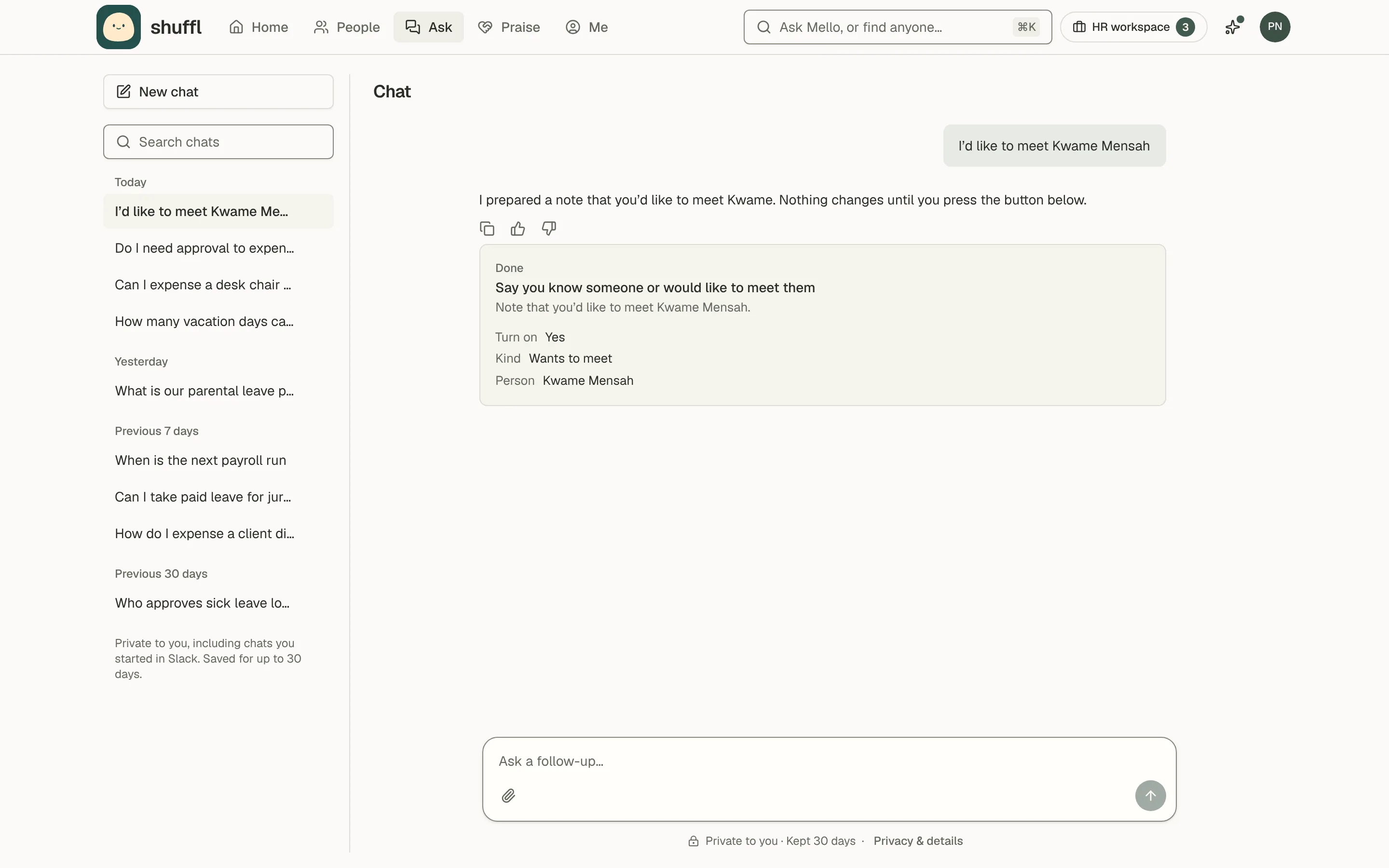
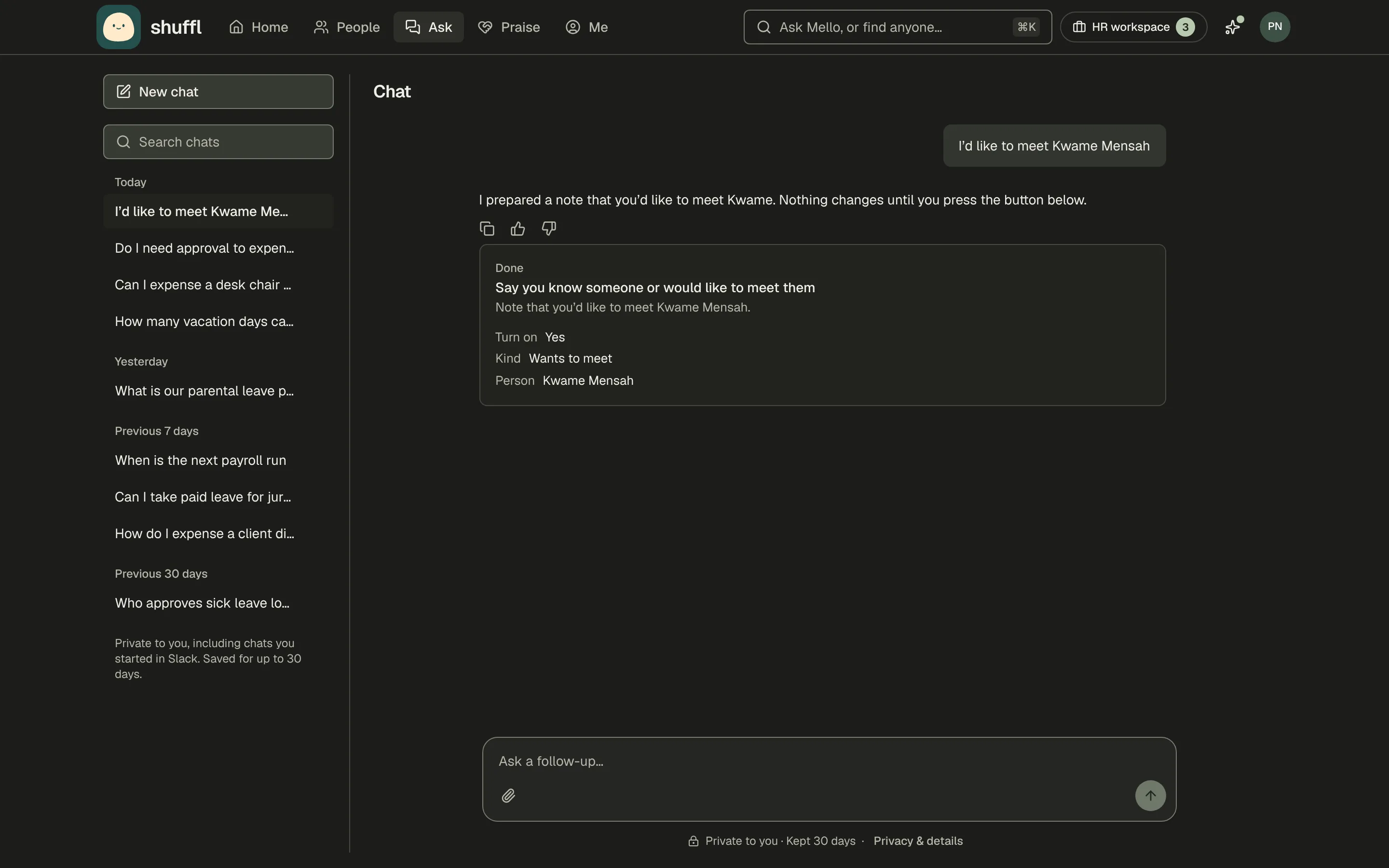
- Ask Mello in your own words, such as “I’d like to meet Kwame Mensah”. If it needs something you didn’t say, it asks first instead of guessing.
- Under the answer, a Prepared action card shows Ready to run, what the action does and each value it will use.
- Check the values and press the button, which is named after the action (or Run), or choose Dismiss. A button that removes or stops something is red.
- To change a value, dismiss the card and tell Mello what to change.
- The card then shows Done, or Could not run with the reason. Mello checks your role again when you press the button.
- Each card runs once, even if pressed again or on another device.
For administrators
Administrators can ask Mello for workspace changes too. Each is prepared the same way and runs only from its button.
Pulse: “Turn on Pulse”, “Ask the workload question to Engineering only” or “Plan an action on the workload result, owned by Nora, due end of month”.
Programs and celebrations: “Set up a Connections program for the new joiners channel” drafts one with a Review and create button in Chat on the web. “Pause the coffee chats program” or “Turn on work anniversaries” prepare the change.
People and access: “Invite Sam Patel as an employee” or “Move Diego to the Sales department”. Mello reads the current record first and changes only what you asked.
Knowledge and HR requests: save a Knowledge draft, publish a ready version or check which common HR policies Knowledge covers. Administrators can change HR request categories, owners and the response target.
Insights: “How did the last eNPS go?” or “What did Mello handle this month?”. Pulse and Praise totals are the published ones, for groups of seven or more.
What Mello never does
Mello never answers or skips a Pulse question for you, and never answers your first 90 days check-in, so those answers stay apart from your name.
It never reads or tells anyone one person’s Pulse answer, only the published totals.
It never sends anything to HR on its own. You see the exact message and who receives it, and choose Share with HR or Send to HR.
It never takes a password, API key or token in chat; an administrator enters those under People → Sync or Knowledge → Connections. It does not upload pictures, but can draw a badge or cover with AI.
Choosing who answers HR requests and billing stay in Settings. Mello cannot book or approve leave or change pay. To change your own manager, team or title, it prepares a request to HR.
It never says something happened before you pressed the button and the card shows Done.
Questions about Shuffl, and choosing between options
Ask how Shuffl works, such as “Who can see my Pulse answers?”, and Mello reads these guides and says so. The guides describe Shuffl in general, never your company’s policies. When they don’t cover it, Mello says it isn’t sure.
When a request could mean more than one thing, such as two people with the same name, Mello asks one question with two to four choices to tap. It never offers choices for anything sensitive, such as health, pay or a complaint.
In Slack and on the web
Actions work in Chat on the web and in a direct message with Shuffl in Slack. In a channel or group message, Mello asks you to message it privately.
In Slack, Mello acts as your Shuffl account, so both accounts must belong to the same person in People. If they don’t, ask in Chat on the web, or ask an administrator to link your Slack account in People.
The Slack card has the same button, Dismiss and Open in Shuffl. For an action that removes or stops something, Slack asks Run this? once more. Program drafts appear only in Chat on the web.
When Mello is offline
- When Mello can’t answer, Chat and Home show Mello is offline. Find people or policies still searches People and Knowledge.
- Choose Ask HR. What you typed is already in Your question; edit it so it has what HR needs and nothing more.
- Check Sent to and Who can read it, tick I approve this text and these responders, and choose Send to HR.
- The request opens in Chat, where HR’s reply arrives. It also stays in HR requests above your chats.
- Administrators see Contact Shuffl instead of Ask HR, to tell us the AI connection isn’t answering.