
How-to guide
Share a request with HR
Choose who answers HR requests, review what you share before it is sent, and work the queue in the Inbox.
For Employees, HR responders and workspace administrators
Have your agent do thisPaste the prompt into Claude Code, Cursor or another agent. It follows this guide over MCP and asks before it changes anything others will see.Show the promptHide the prompt
Help me with "Share a request with HR" in my Shuffl workspace.

1. Read the guide: https://shuffl.ai/docs/markdown/hr-requests
2. Add Shuffl's MCP server: https://shuffl.ai/api/mcp
   Claude Code: claude mcp add --transport http shuffl https://shuffl.ai/api/mcp
   When the browser opens, choose my workspace and allow the access the guide needs.
3. Work through the steps in order: Administrator: choose responders; Administrator: categories and response target; Employee: review before sharing. Do what you can over MCP and tell me which steps only I can do in the browser or in Slack.

Show me what you will change and who it affects, and wait for my yes before publishing, inviting or sending anything.
On this page
App links open your signed-in workspace. Check the selected workspace before making changes.
Administrator: choose responders
- Open People, choose a person and turn on HR responder under Roles. Owners start as responders; administrators don’t unless you add them.
- Settings → Roles and access lists every responder and the HR team name employees see.
- A responder needs an enabled account of their own. If nobody eligible appears, enable the person in People first.
- Responders get a Slack direct message for each new request, or an email if their Slack account is not linked.
New responders get new requests only. Existing requests keep the responders the employee approved. Removing someone takes effect at once.
Administrator: categories and response target
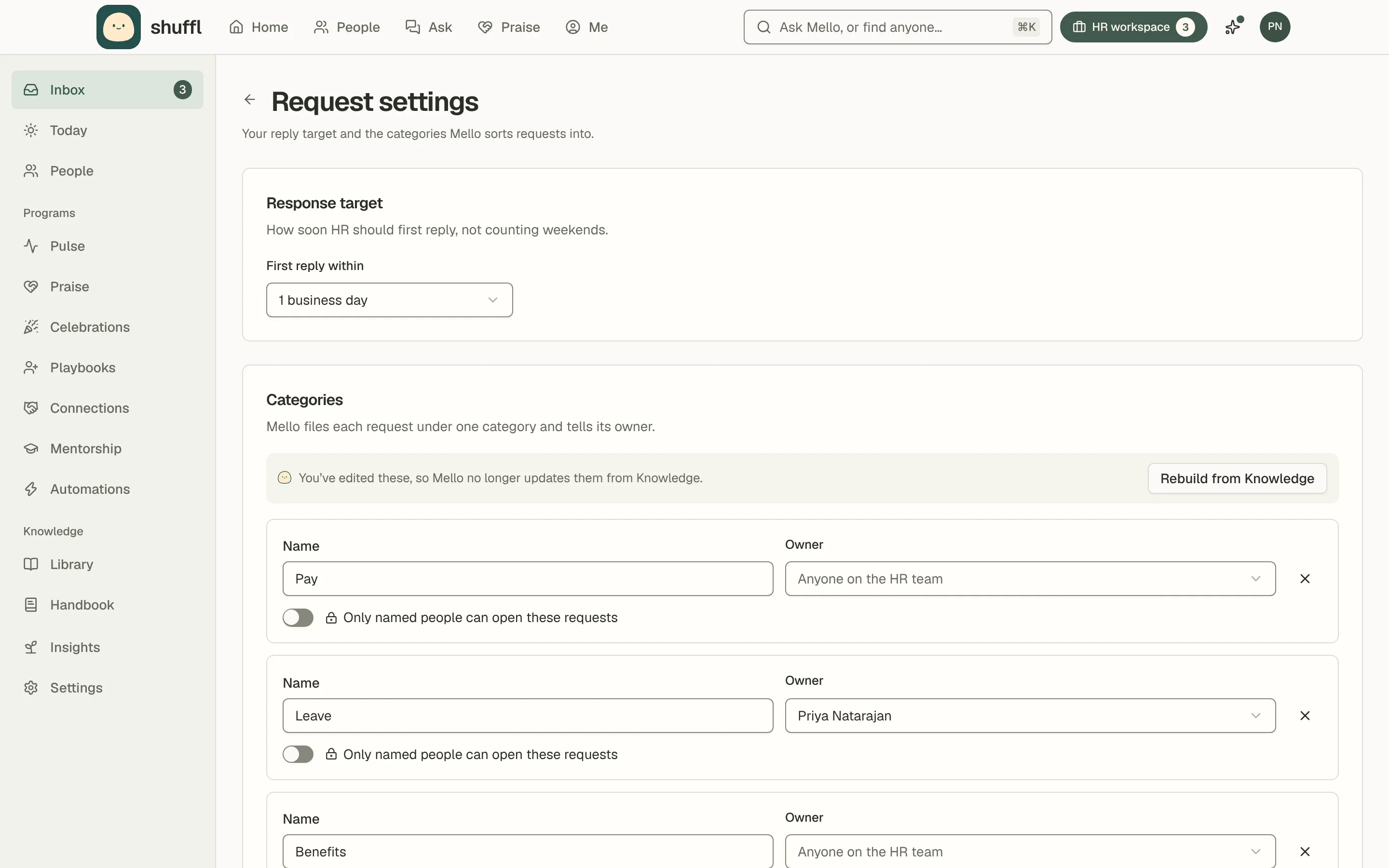
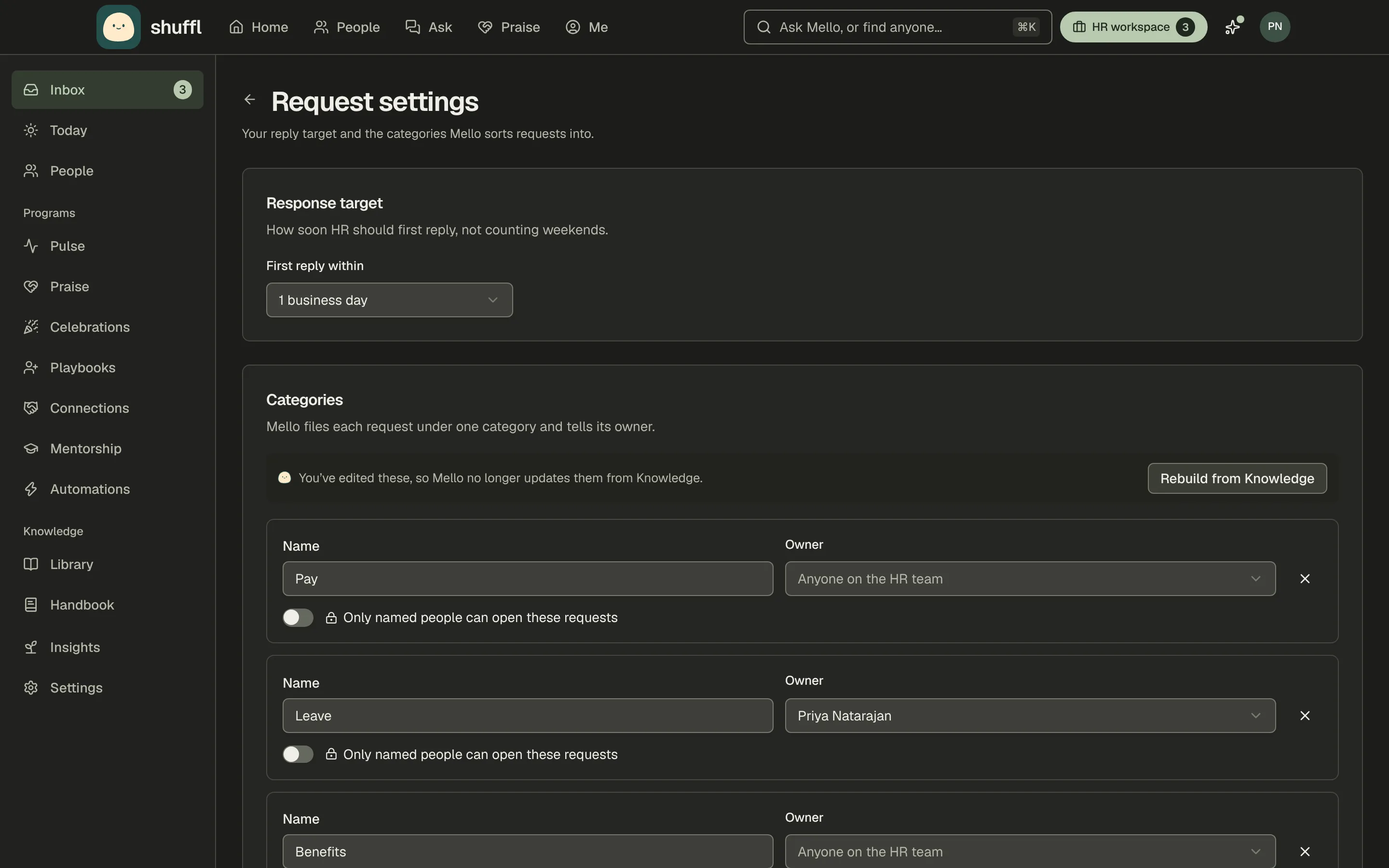
- Open the Inbox from the HR workspace, then Request settings at the foot of the page.
- A note says whether Mello built the list from Knowledge or it is the starting list.
- Rename, add or remove categories if you want to. Keep the list short.
- Choose an owner for each one, or leave it with anyone on the HR team.
- Turn on Only named people can open these requests for sensitive topics, and tick who can.
- Set the response target: how soon HR should first reply, in business days. Weekends don’t count.
Mello builds the categories from your published Knowledge and updates them as you publish more; until then a starting list is used. Once you edit the list, Mello leaves it alone, and Rebuild from Knowledge brings Mello’s back.
Mello puts every new request in one category and tells its owner first. Responders can move a request to another category.
A sensitive category, such as complaints or medical leave, opens only for the people you name; other responders can’t list or open those requests, even with a link. The person who asked always sees their own request.
Employee: review before sharing
- Ask Mello in Chat or a Slack direct message. When a person needs to help, Mello prepares a short message and names the responders who would receive it.
- Read it. Choose Edit message to change it, and include only what you want HR to see.
- Choose Share with HR on the web or Send to HR in Slack once the message and recipients look right. Nothing is sent before that.
- Replies arrive in the same chat or Slack thread, with who on HR wrote them.
- HR requests in your Chat history lists every request you sent, each with Mark resolved, and Reopen question once resolved.
HR receives the reviewed request, not your whole conversation. If HR is not set up, contact your HR team the usual way.
ShufflAPP
ShufflAPP
ShufflAPP
Responder: own and answer a request
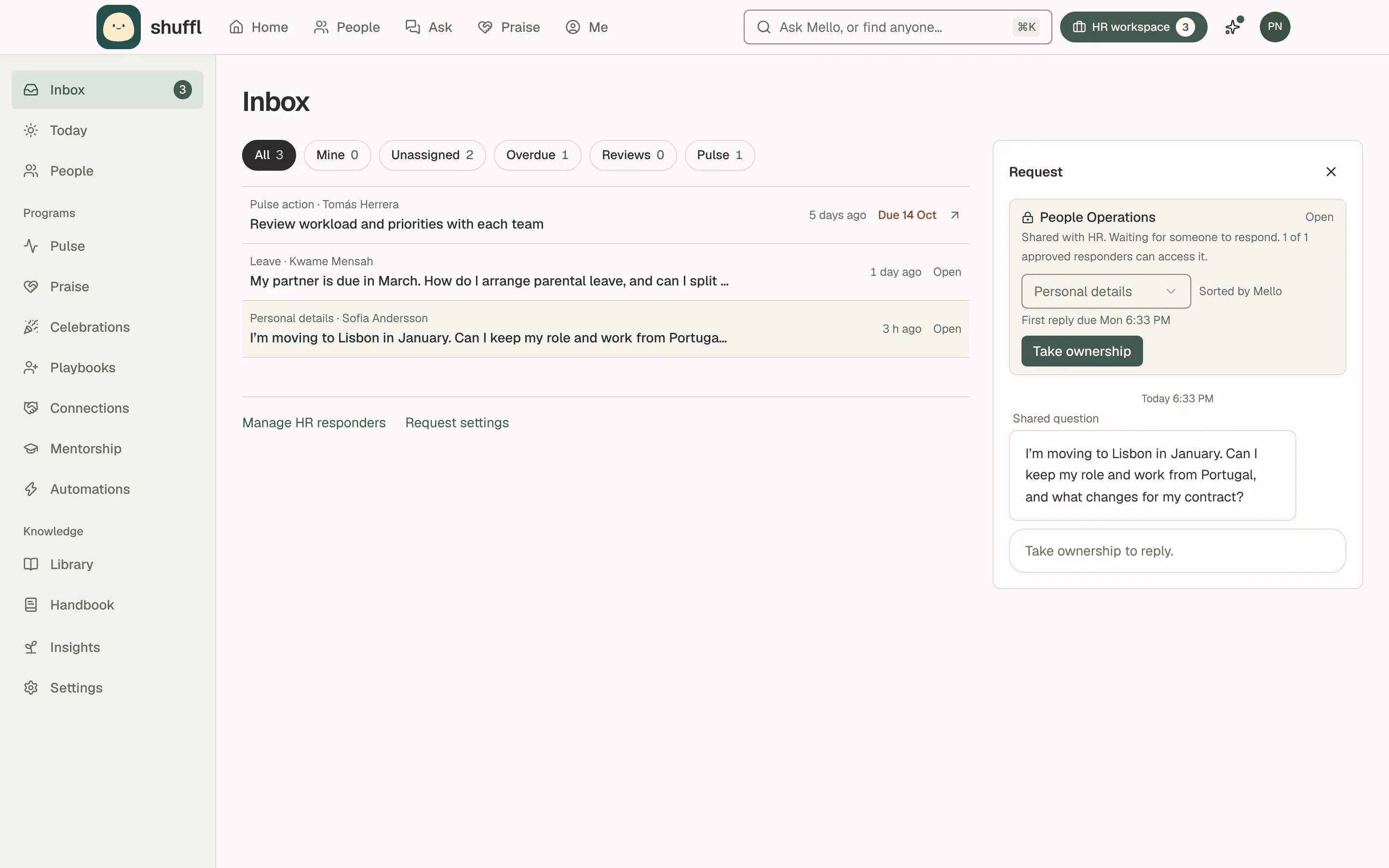
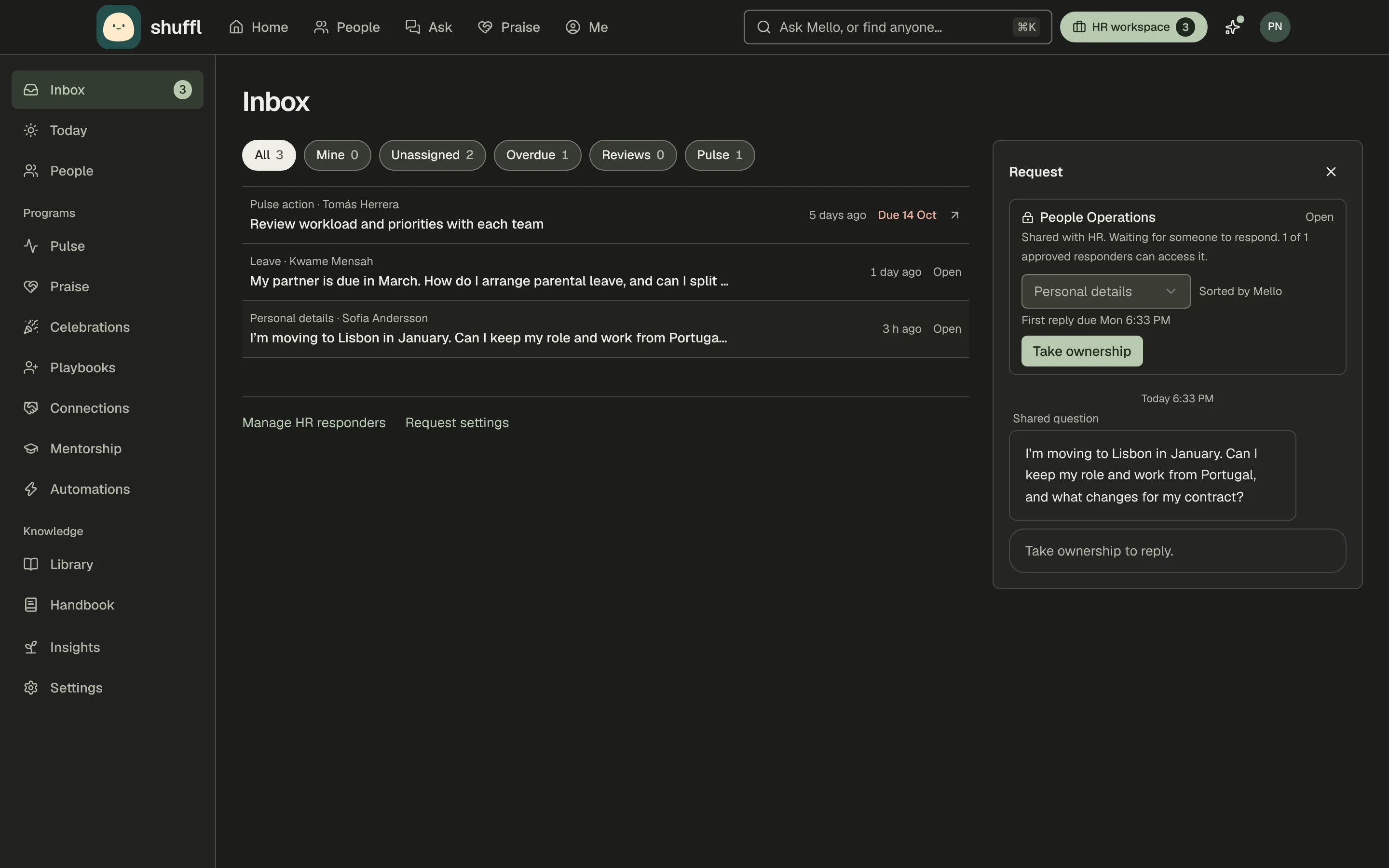
Responders see open requests in the Inbox and on the Shuffl app’s Home tab in Slack.
A request opens beside the list, or over it on a phone, with the employee’s reviewed message and the thread so far. Take ownership tells others you have it; Release to HR team hands it back.
Write your reply and choose Send reply, or Draft with Mello to have it drafted in Chat; the employee gets it in their original conversation.
Mark resolved asks how it was answered: by a published article, Needs an article, or No article needed. If you can verify Knowledge, Needs an article also starts a draft from your last reply.
Reopen question brings a request back. A reply sent from Slack or the web shows in both.
In Slack, a new request arrives from Shuffl as a card with its category, who asked and the question quoted. Reply drafts an answer with Mello in the thread; Assign to me tells others you have it.
ShufflAPP
ShufflAPP
See how requests are going
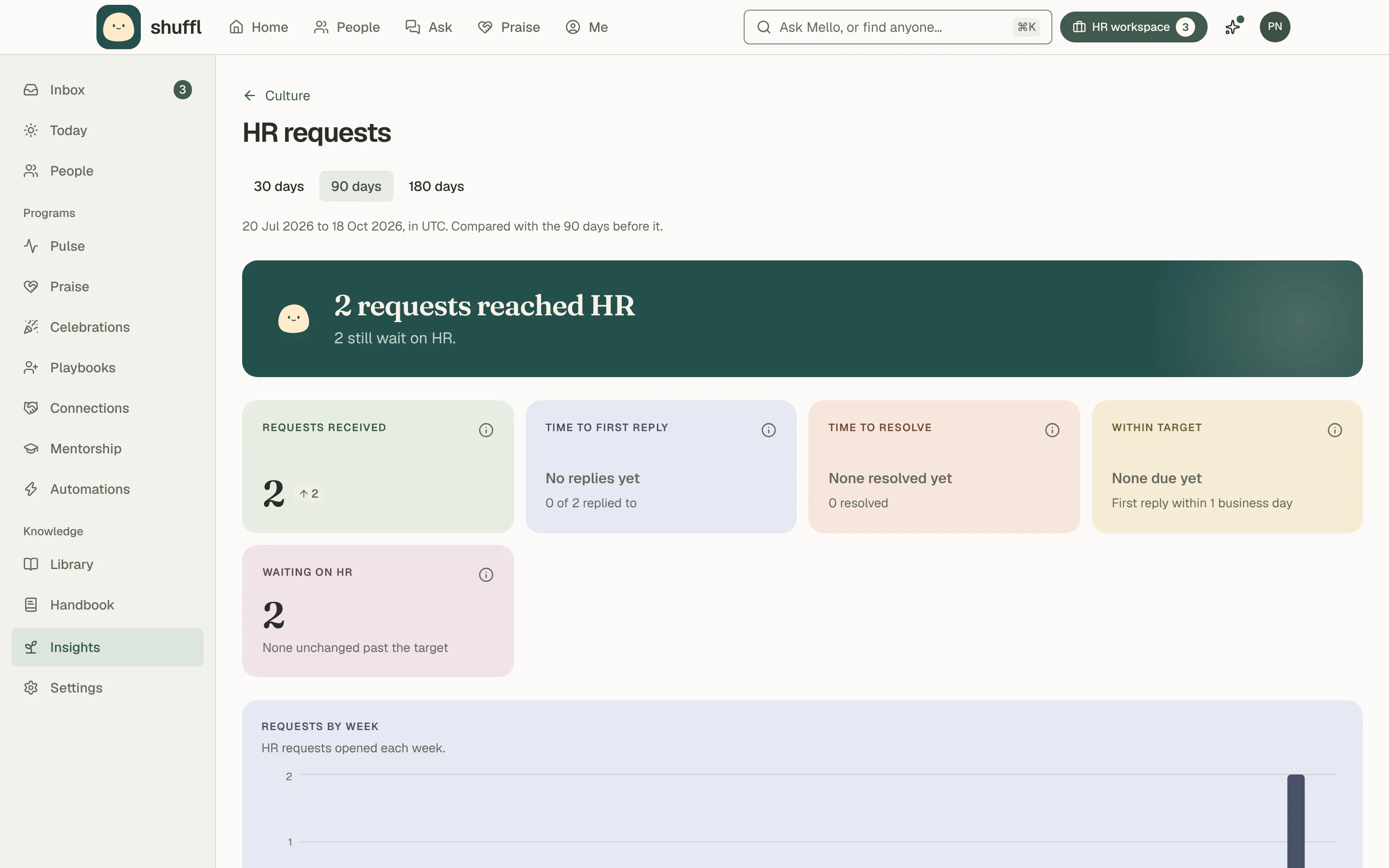
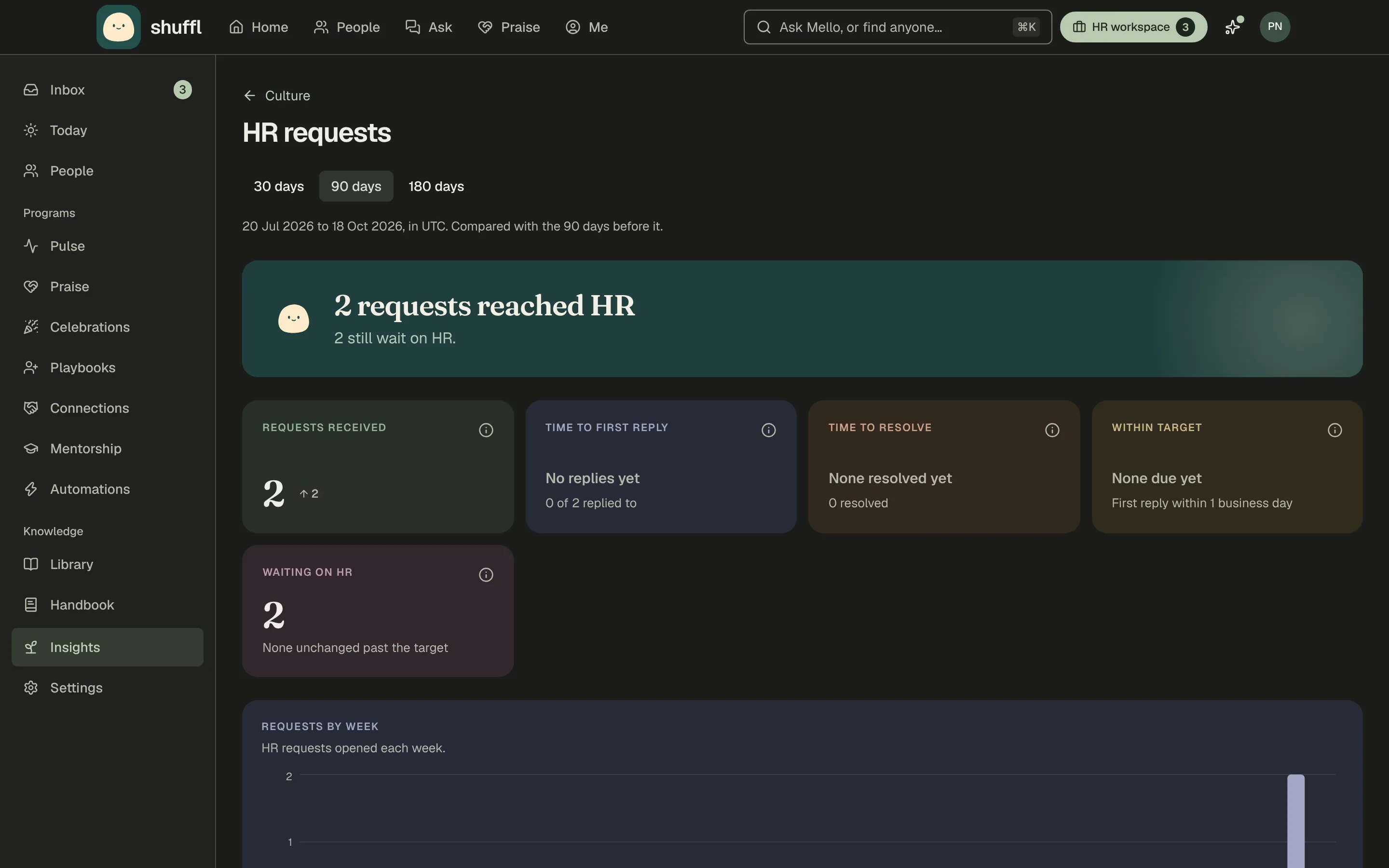
Culture shows four HR request tiles for administrators. All figures opens the full page: how many requests came in, time to first reply and to resolve, the share answered within target, and how many wait on HR.
By category lists the busiest categories first, with how many need an article. Review the top ones each quarter and write the articles they need.
The weekly HR digest carries the totals to administrators and responders.
Product help is a separate conversation
Help & feedback → Contact Shuffl is for product questions, not your organization’s HR requests.