How-to guide
Mentorship programs
Pair mentors and mentees for a few months, with goals, booked meetings, private notes and check-ins.
For Everyone using Shuffl
On this page
App links open your signed-in workspace. Check the selected workspace before making changes.
Join a program
Open Mentorship from Home once HR starts a program. Until you have a pair, How mentorship works sums up the four steps: join, get matched, meet, check in. Each program shows how long pairings last and how often you check in.
Choose Find a mentor or Become a mentor, and say what you want to learn or can help with. Your match reads it too. The program then says whether you’re waiting for a match or matched. You can join as both, and leave any time.
Pick your mentor
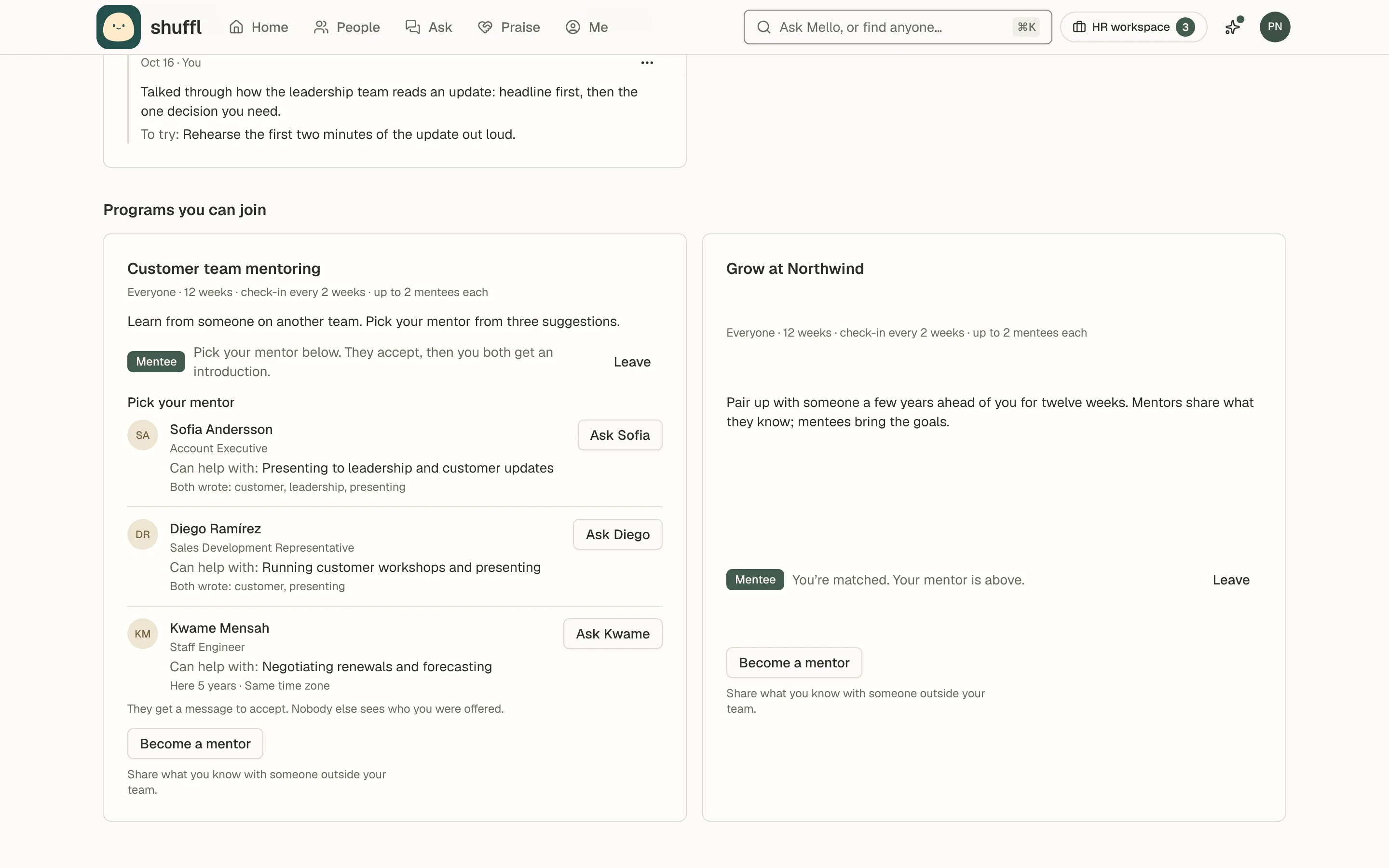
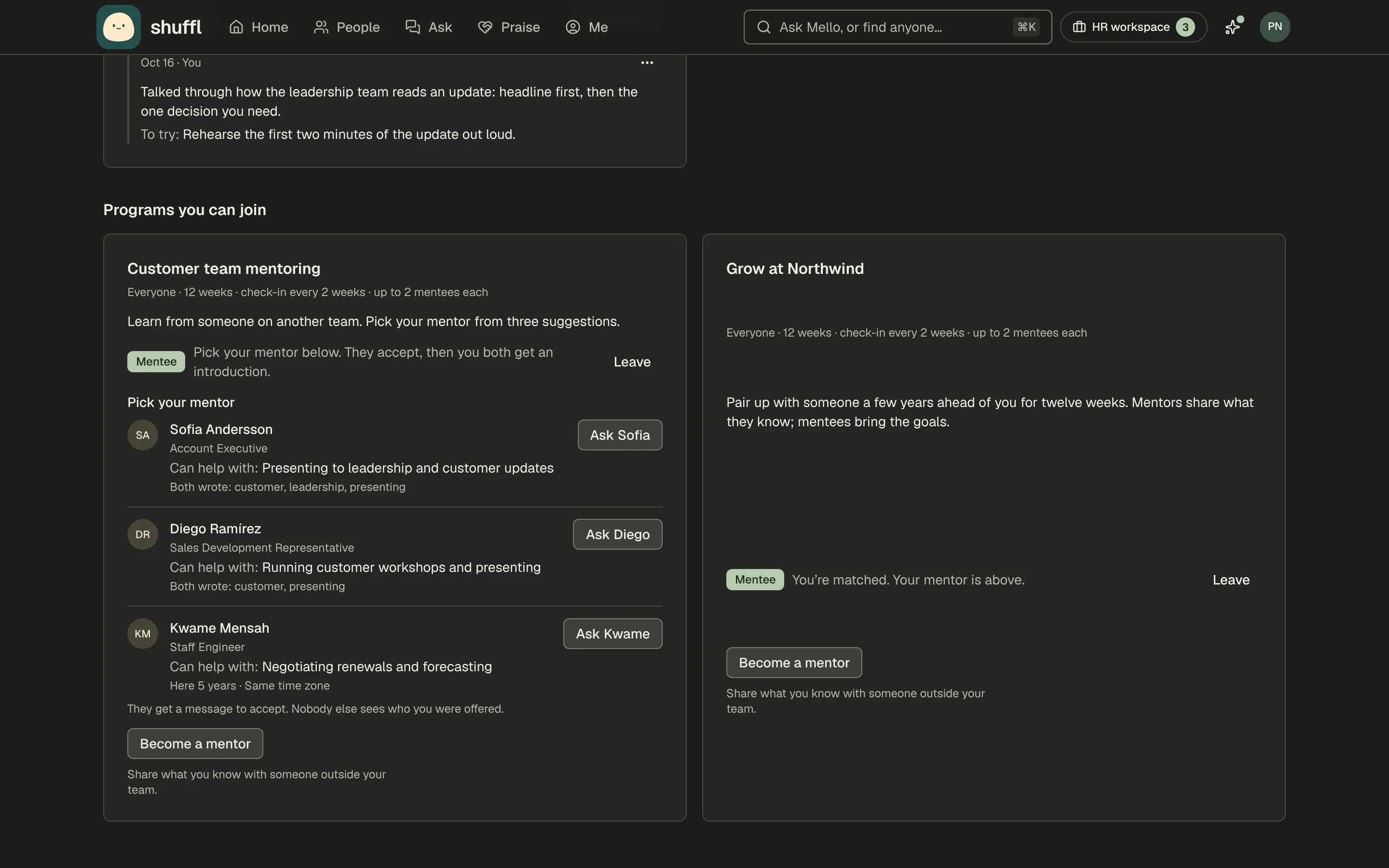
Some programs let you pick your mentor. Shuffl shows up to three mentors with room, outside your reporting line, with why each fits. Choose Ask and they get a message.
The mentor accepts, which starts your pairing and introduces you both, or passes, and you pick again. Nobody sees who else you were offered, and you’re never told why someone passed.
Your pairing
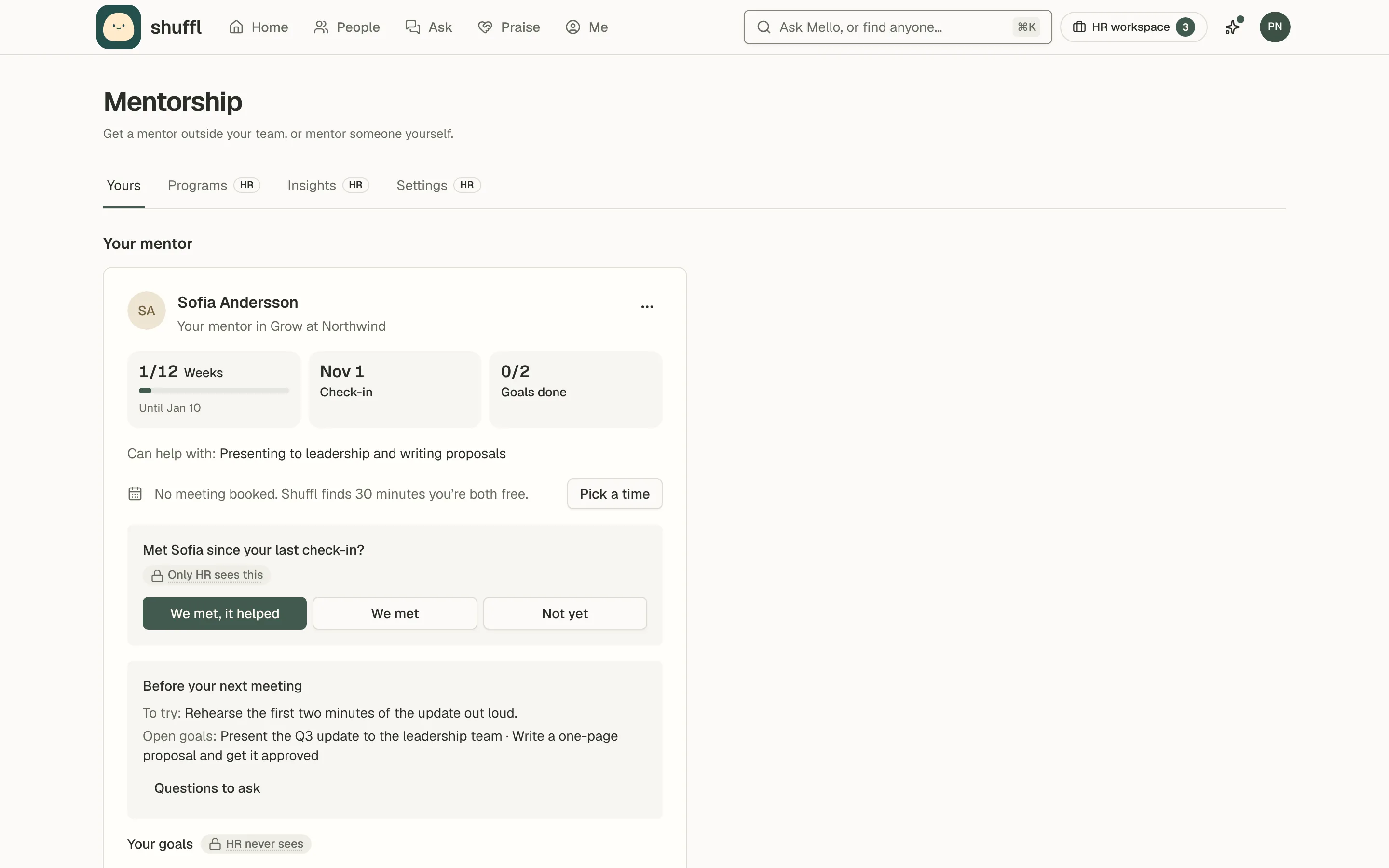
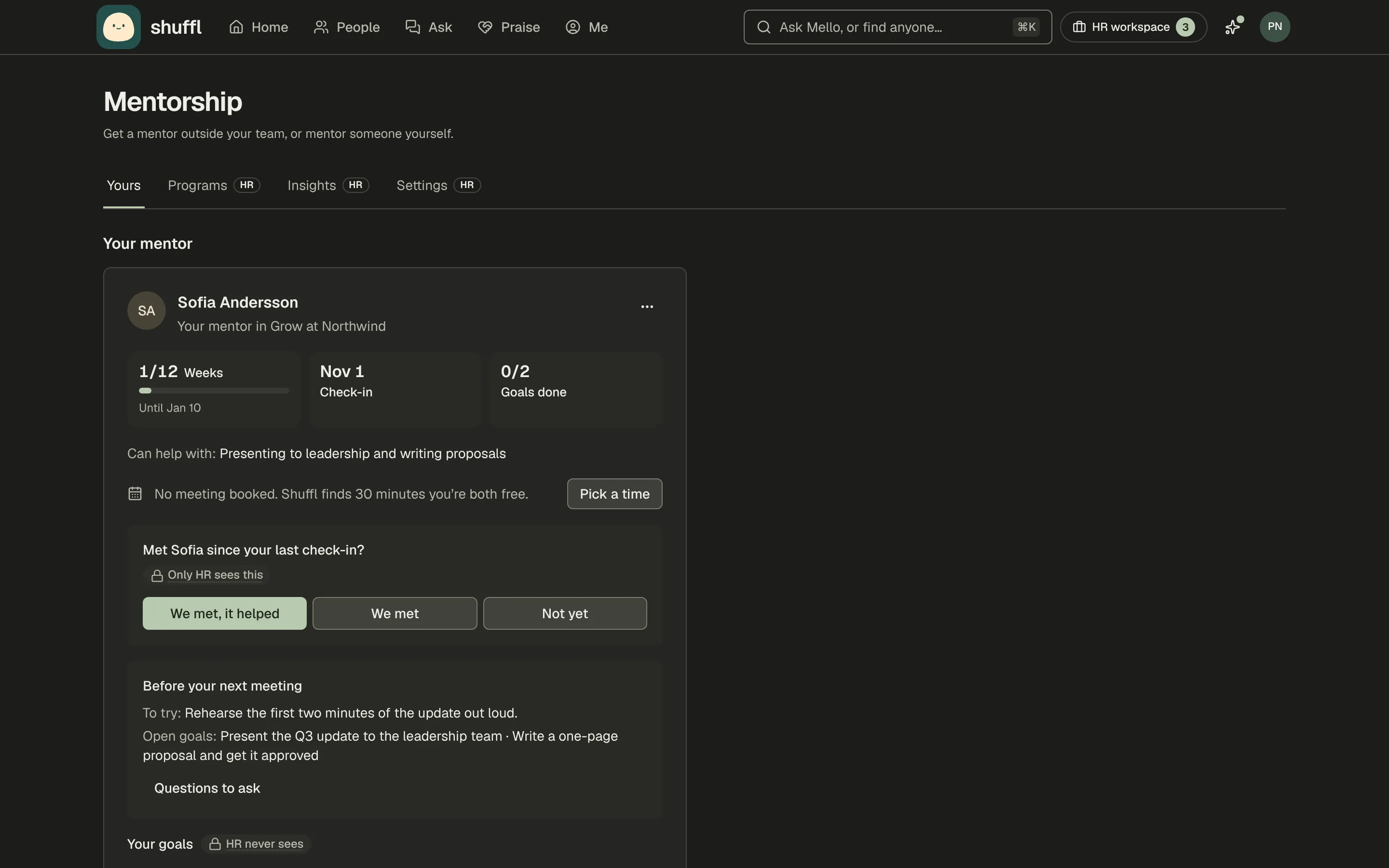
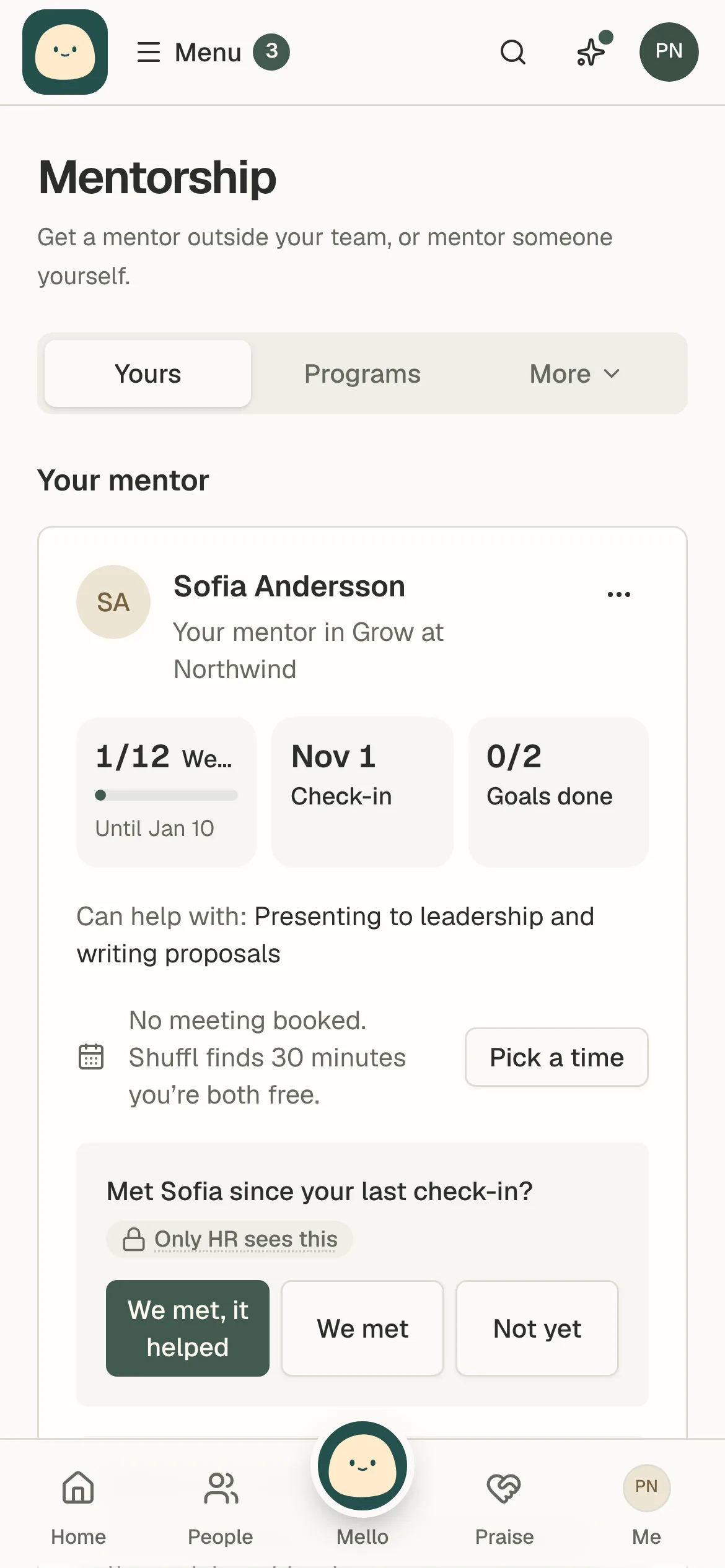
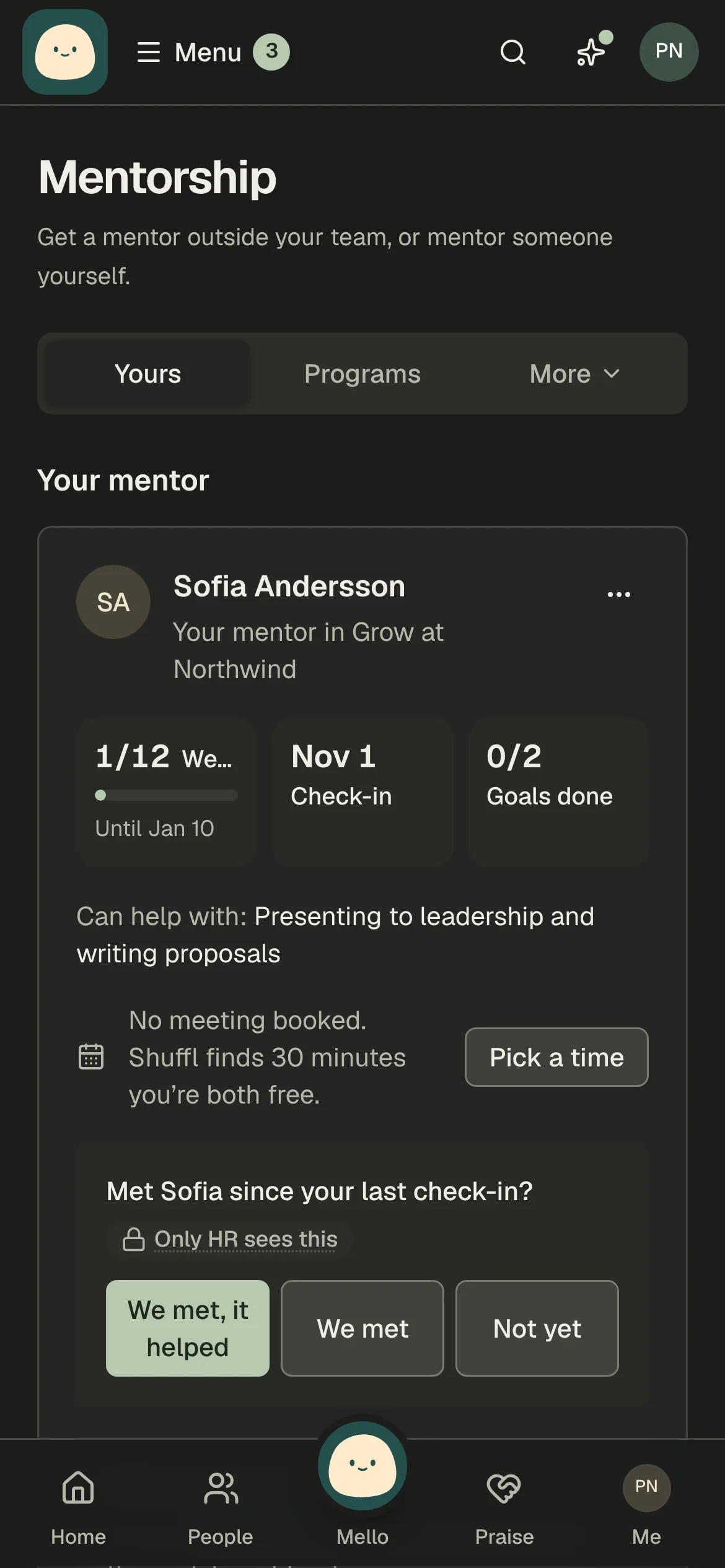
Once your pair starts, you both get an introduction with a first agenda and Pick a time, which finds 30 minutes you’re both free and sends the invite. The card shows your next meeting. A week in with nothing booked, Shuffl reminds you once.
Before each meeting the card shows what to bring: the thing you said you’d try, open goals and questions for this stage. After you meet, either of you adds notes and one thing to try. Only the two of you read them; HR never does.
The mentee writes up to five goals for the pairing and ticks them off. The mentor can read them; HR never sees them.
Every few weeks each of you is asked whether you met, with one tap in Slack or on the page. HR sees the answers; your partner doesn’t. Either of you can pause, resume or end the pairing early.
ShufflAPP
ShufflAPP
ShufflAPP
ShufflAPP
Start a program
Administrators open Mentorship from the For HR menu, then Programs, then New program. Pick who can join: everyone or one group. Each program’s button says what’s next, such as Approve 2 matches.
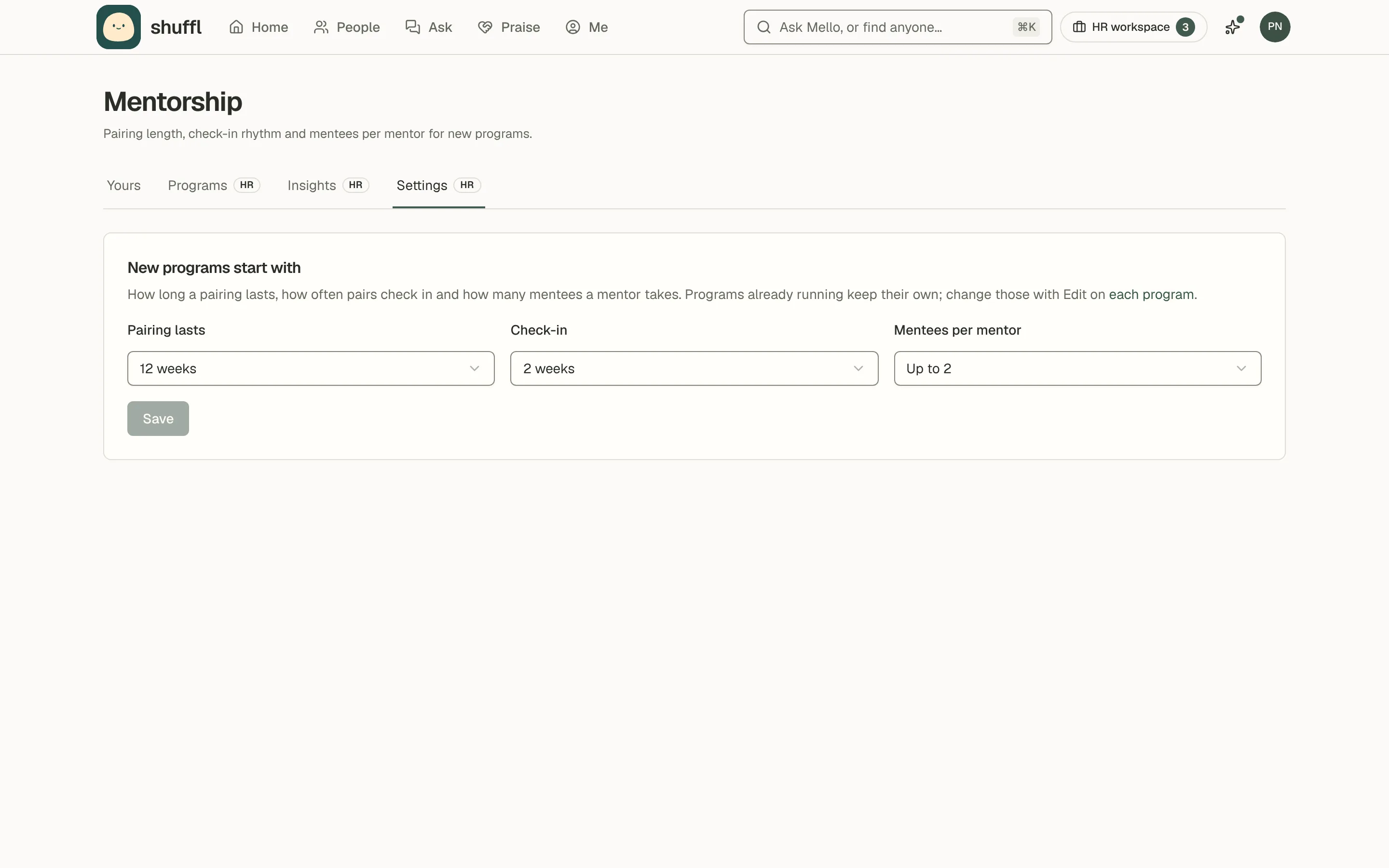
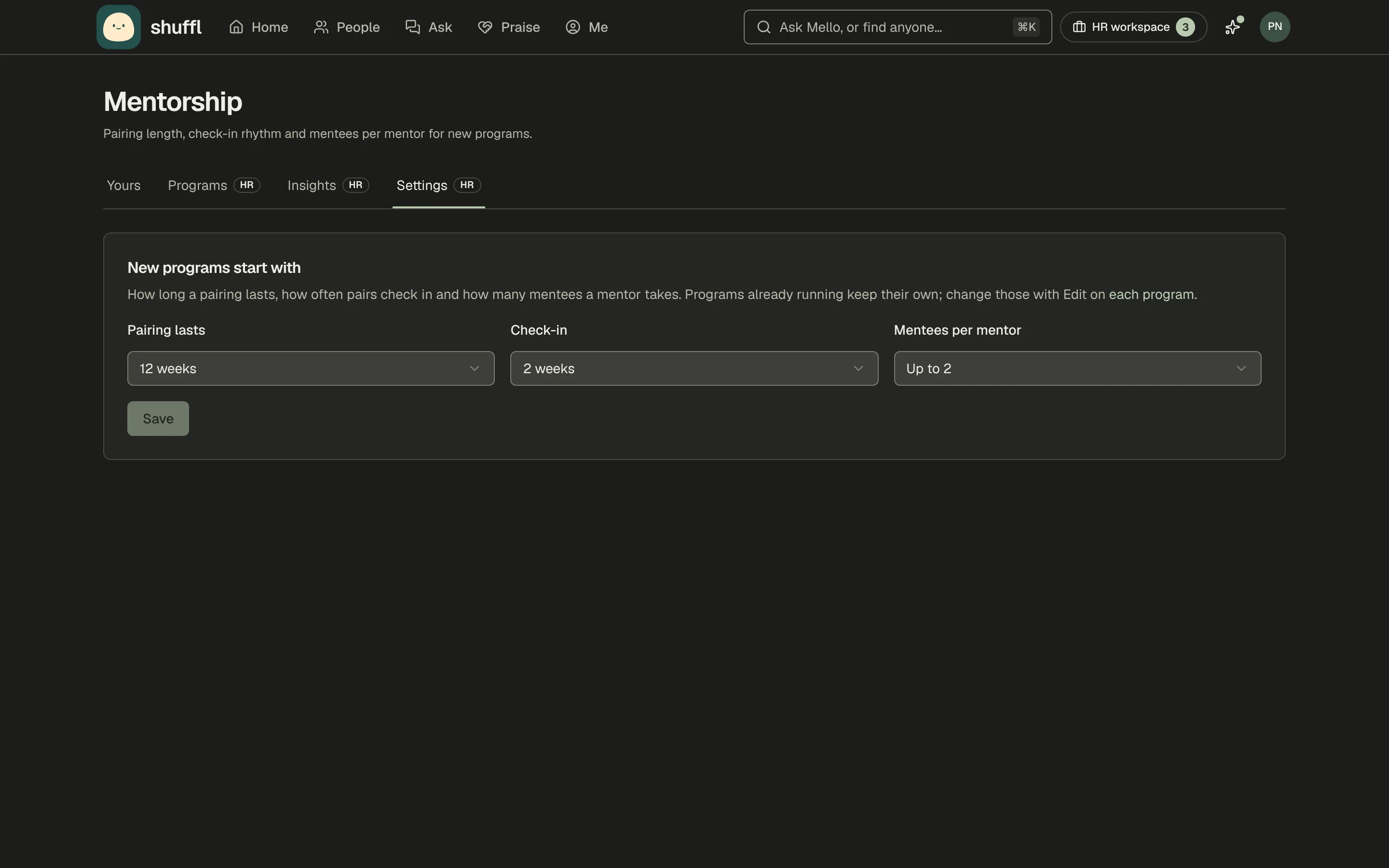
Set how long a pairing lasts, how often pairs check in and how many mentees each mentor takes. A new program starts with the terms on Mentorship → Settings. Changes apply to pairs approved afterwards.
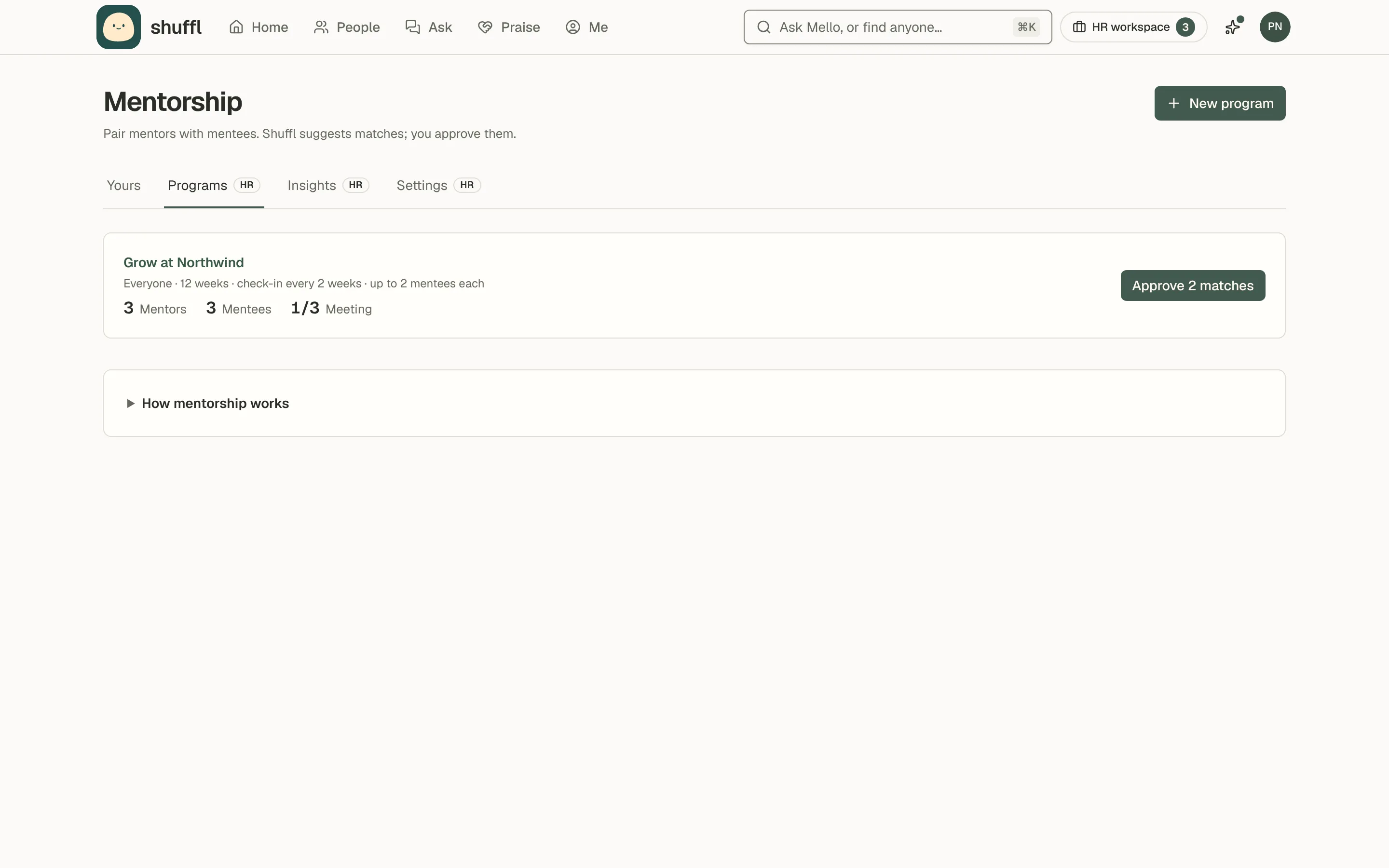
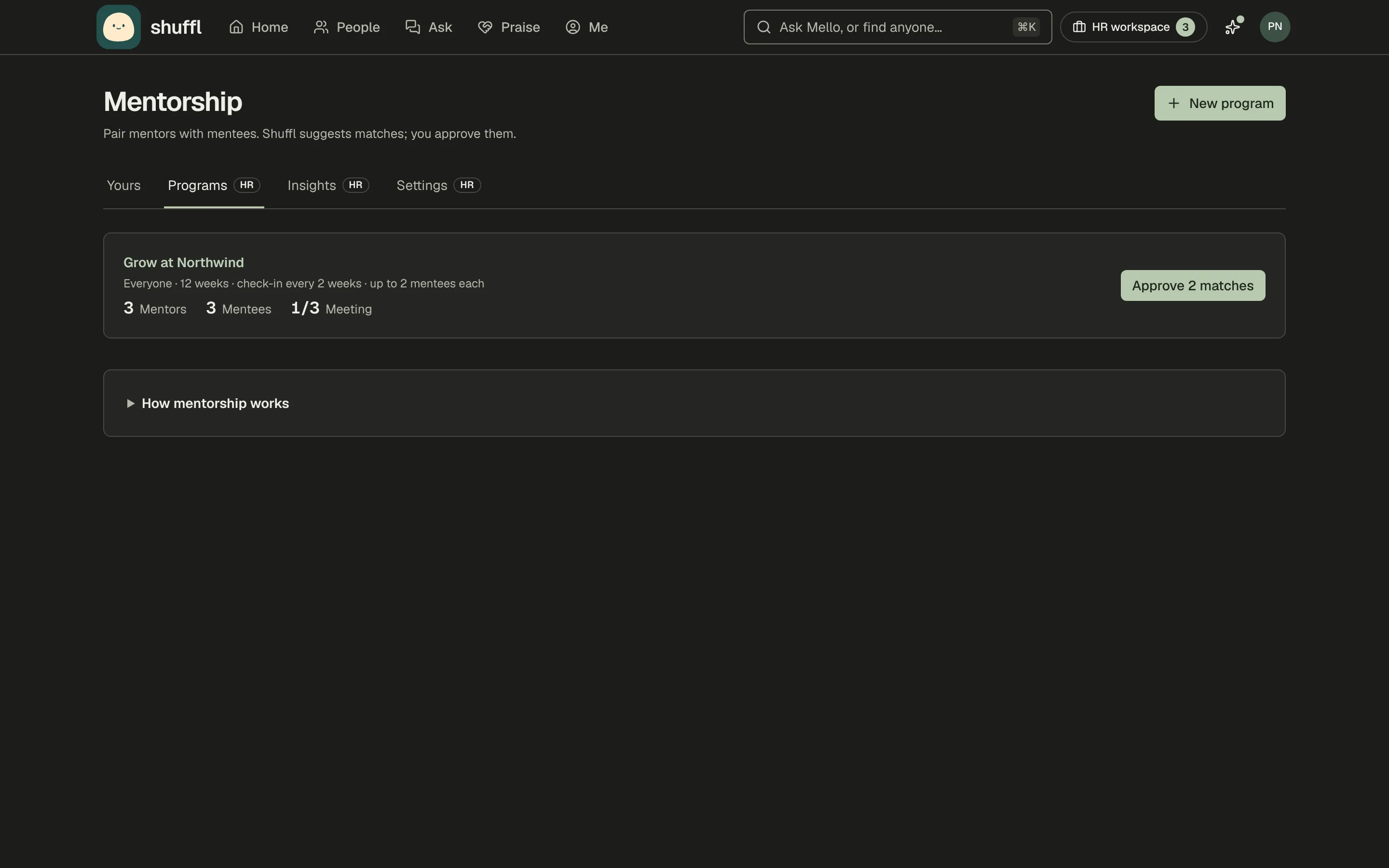
Approve pairs
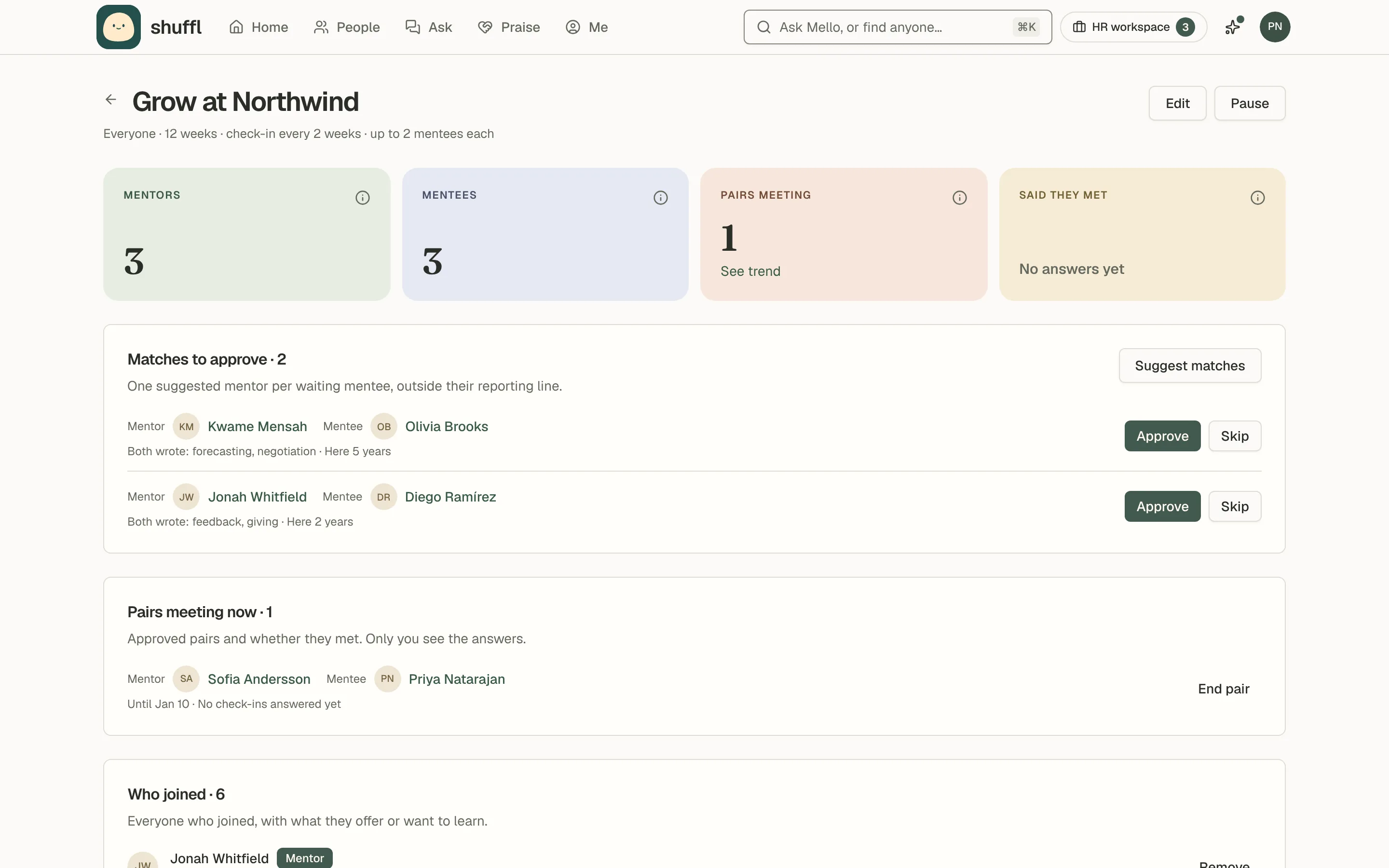
Suggest matches gives each waiting mentee one mentor. It favors shared topics, more time at the company and the same time zone, and spreads mentees across mentors.
Or set How matches are made to let mentees pick from three mentors. Mentors then accept or pass, and the program lists who is waiting on an answer.
Nobody is paired with someone in their reporting line, a person they were paired with before, or a pair you kept apart in Connections. Nothing is sent until you approve a pair; Skip suggests someone else next time.
Follow a program
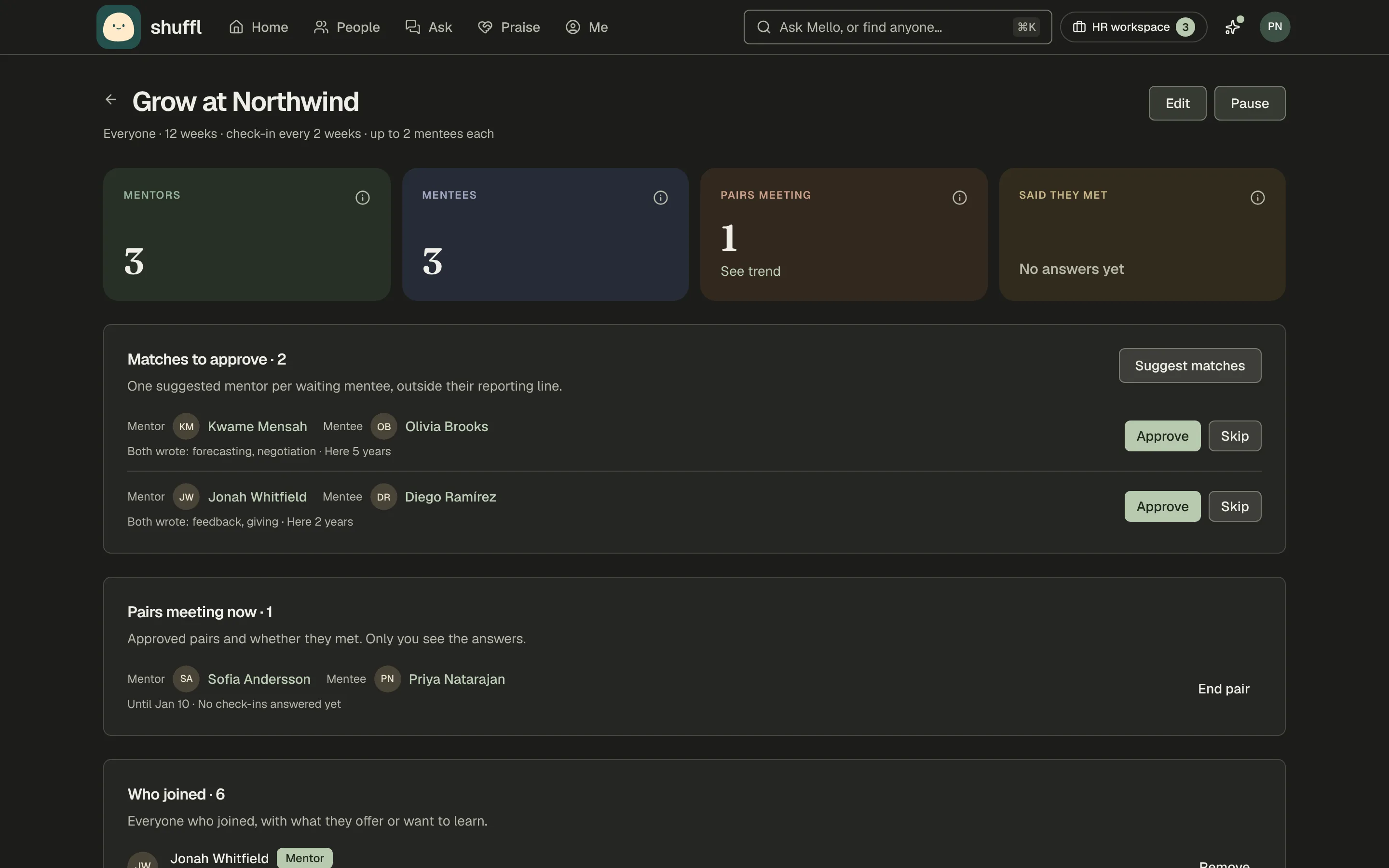
The program page shows each pair meeting now, how many check-ins they answered and how often they met. Ended pairs show whether each person said it helped.
End pair stops a pair; Remove takes a person off the program so they’re never suggested. Pause stops joining and check-ins; Archive ends every pair. A mentor whose pairing finishes gets the Mentor badge.
See how pairs are doing
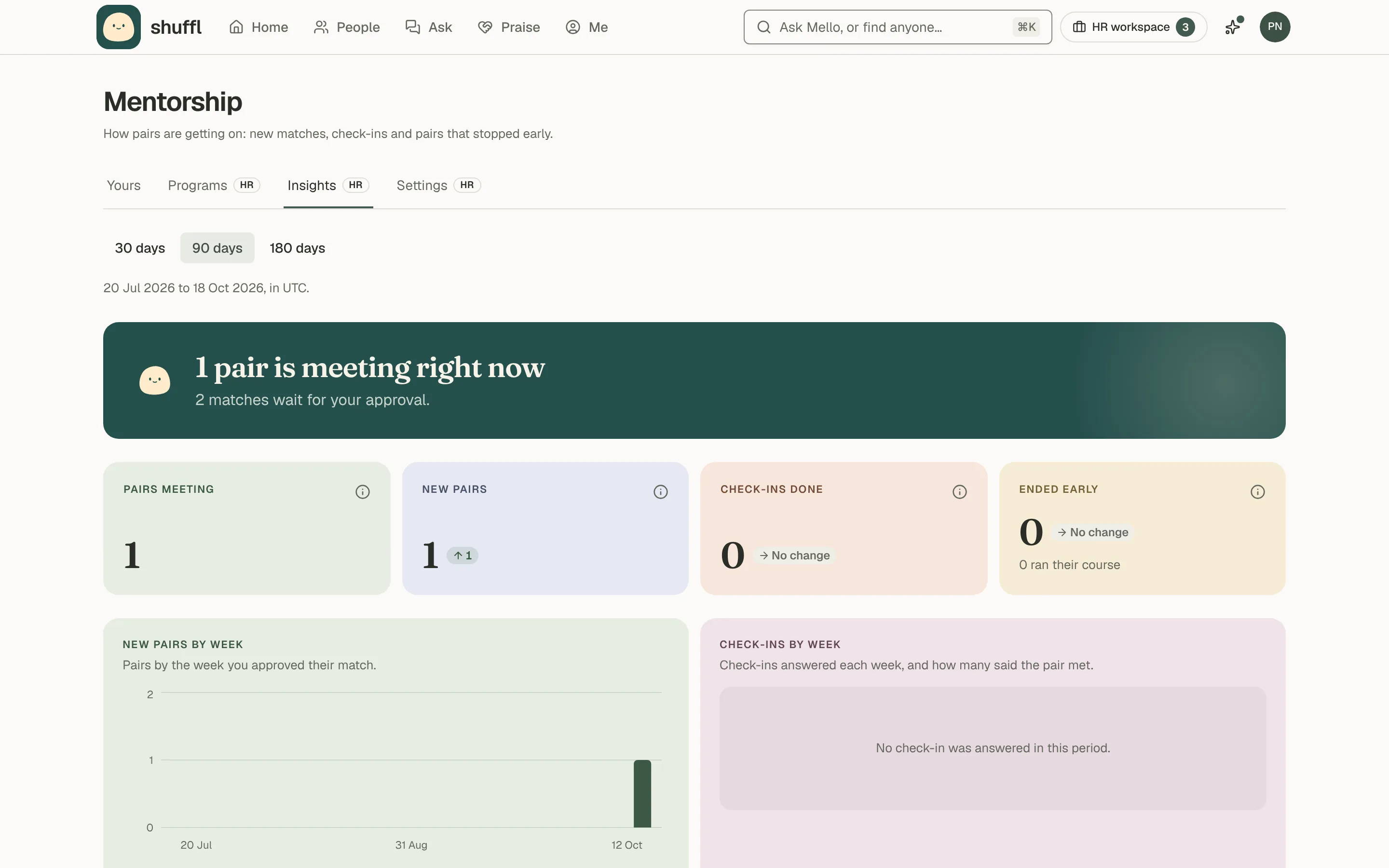
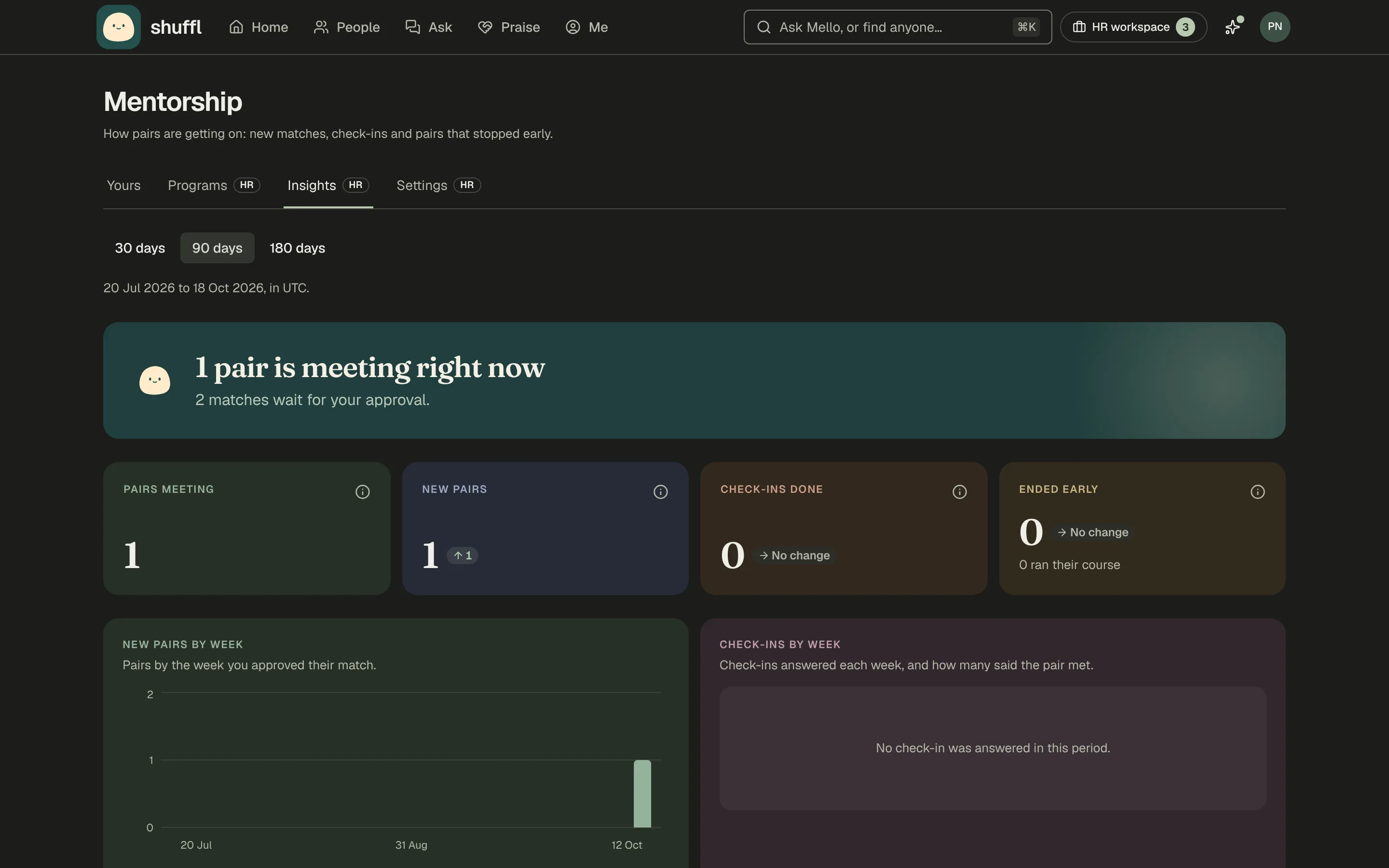
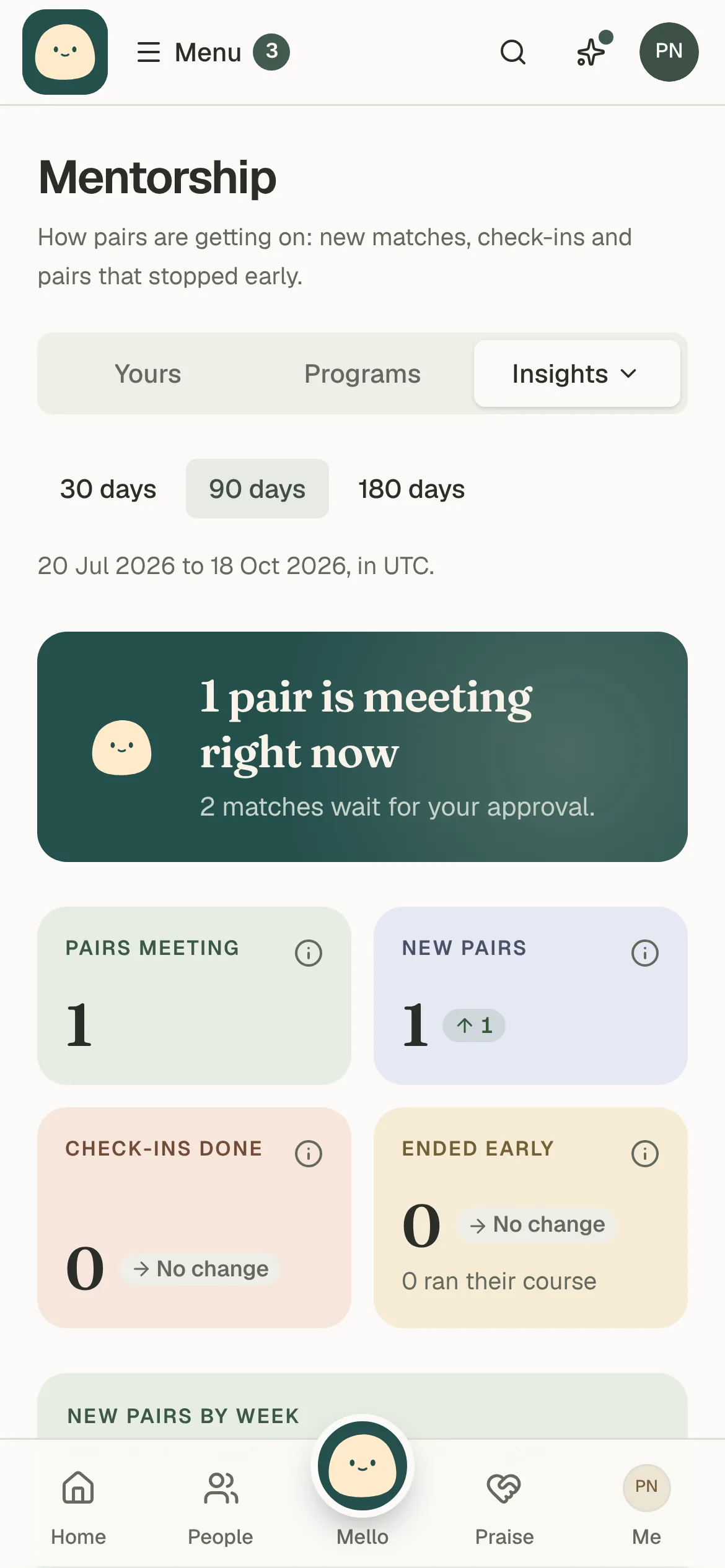
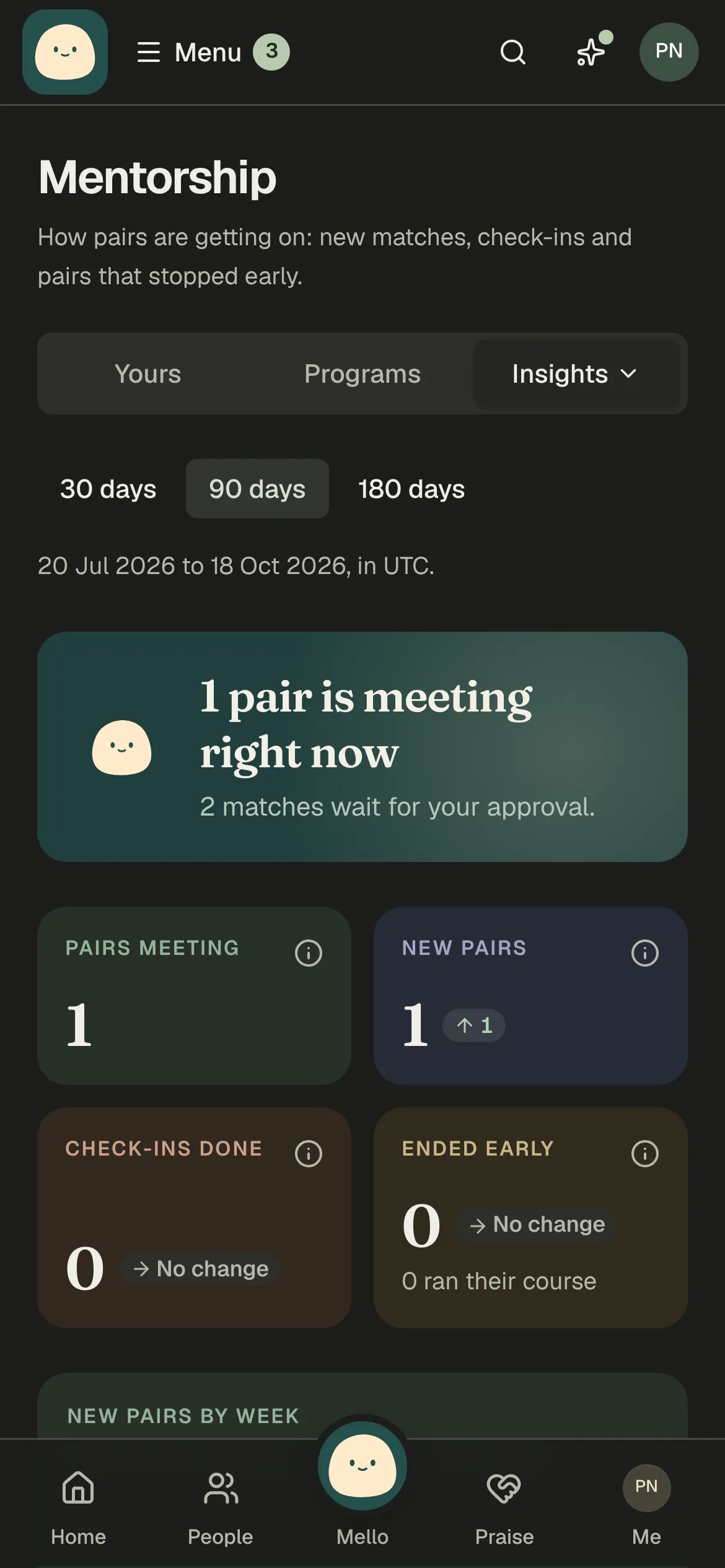
Insights shows pairs meeting now, new pairs, check-ins answered and pairs that ended early, each against the period before. Mello says what waits on you, such as matches to approve.
Pick 30, 90 or 180 days, and one program if you run several. See trend on a program page opens it here. Insights counts answers; it never reads goals.
Settings for new programs
Mentorship → Settings, also under Settings → Programs, sets what a new program starts with. The defaults are 12-week pairings, a check-in every 2 weeks and up to 2 mentees per mentor.
Programs already running keep their own terms; change those with Edit on the program.