Reference
Workspace settings
How Settings is grouped, then the workspace’s name and logo, roles and access, integrations, API keys and webhooks, and activity.
For Workspace administrators
On this page
App links open your signed-in workspace. Check the selected workspace before making changes.
How Settings is grouped
You is yours in every workspace: Profile (name, photo and appearance), Notifications, Your calendar, Connected apps and Account.
Workspace is for administrators: General, Roles and access, Integrations (Slack, Single sign-on, Email domains and Provisioning, for company owners and administrators), API keys and webhooks, and Activity.
Company holds Name and logo, Workspaces, Members and Billing; members who aren’t owners or administrators see only Workspaces. Programs lists each program Mello runs with its On or Off, and opens that program’s own Settings tab.
General
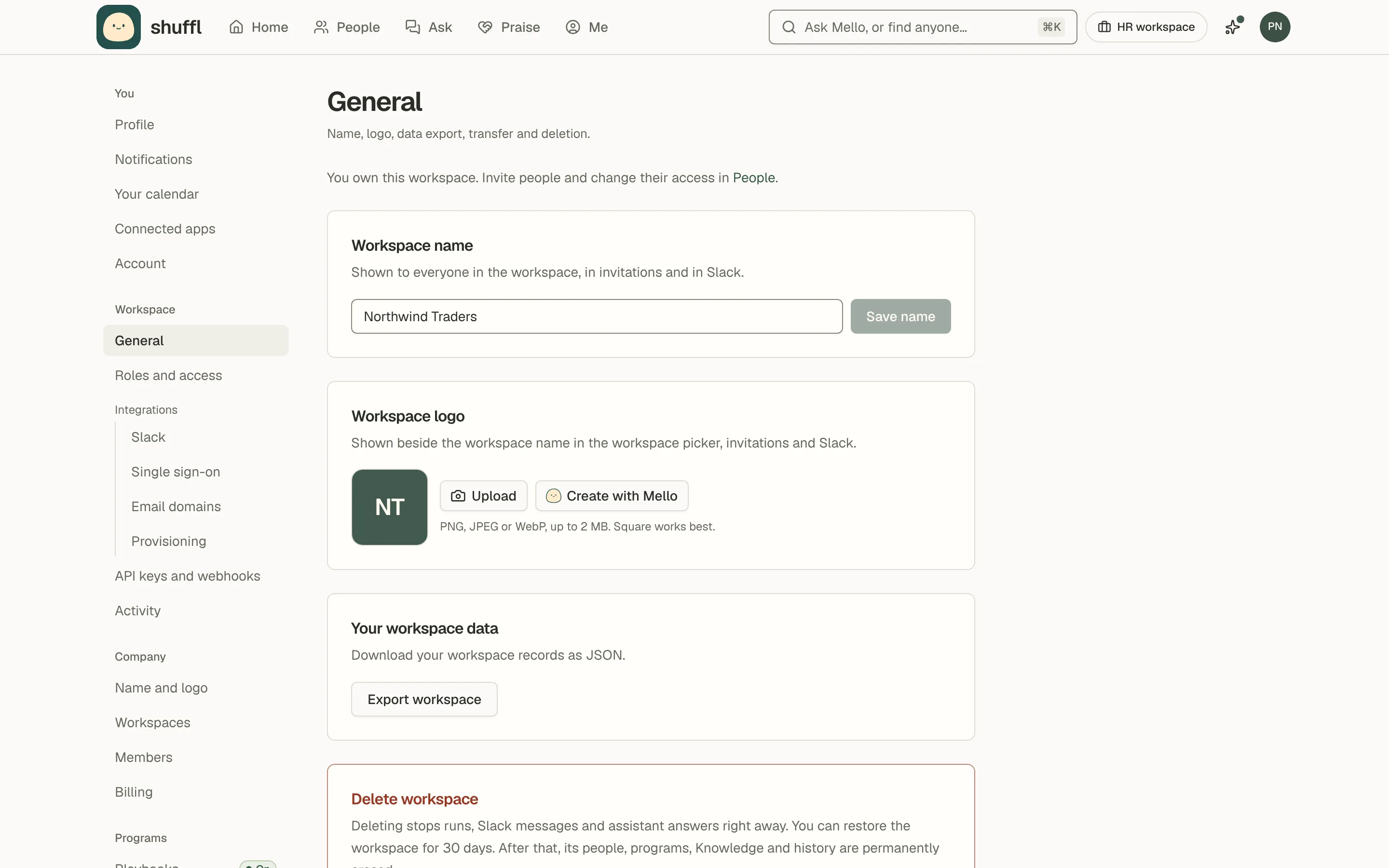
Settings → General renames the workspace and sets a logo, shown in the app and on the Slack Home tab.
A line under the title says your access and links to People. Every app link names its workspace, so a copied link opens the same page for whoever you send it to.
Export workspace downloads your data as JSON. A company owner or administrator can delete a workspace by typing its name; it stays restorable for 30 days, then Shuffl permanently erases its data.
Roles and access
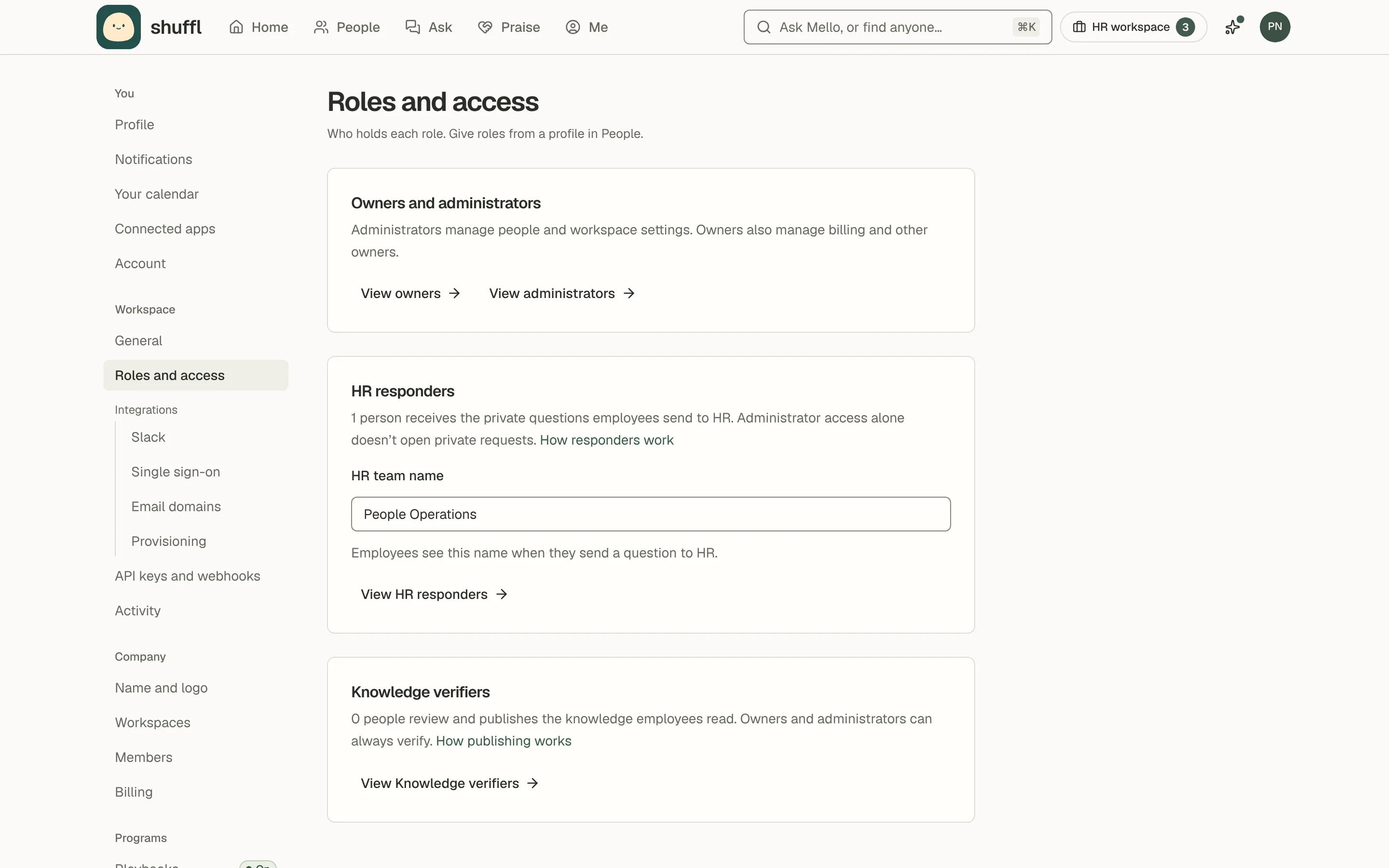
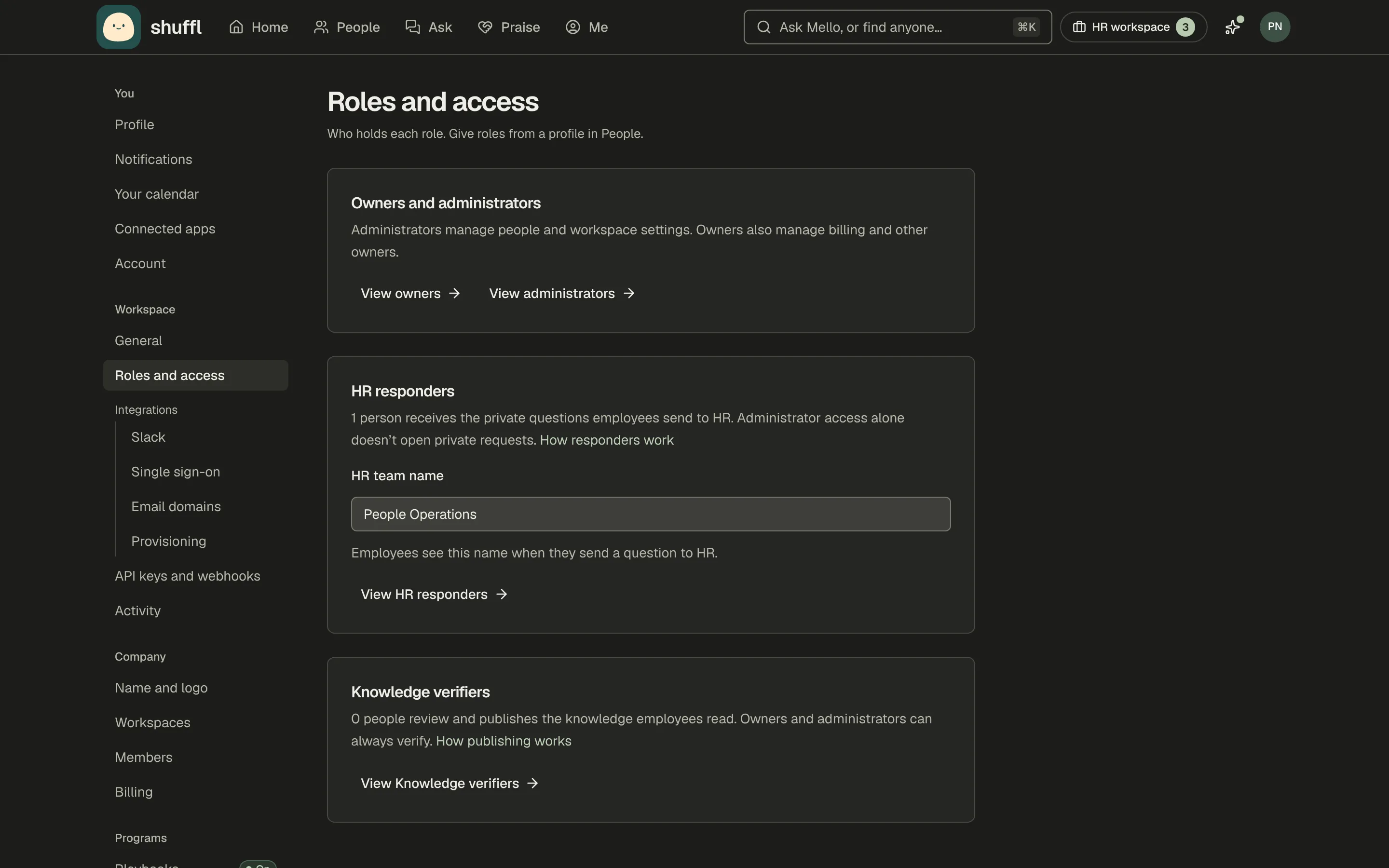
Company owners and administrators manage every workspace in their company; workspace administrators manage only their own.
HR responders receive employee requests, under the HR team name set here, and Knowledge verifiers publish sources without being administrators. Turn roles on under Roles on a person’s details sheet in People.
Integrations, API keys and webhooks
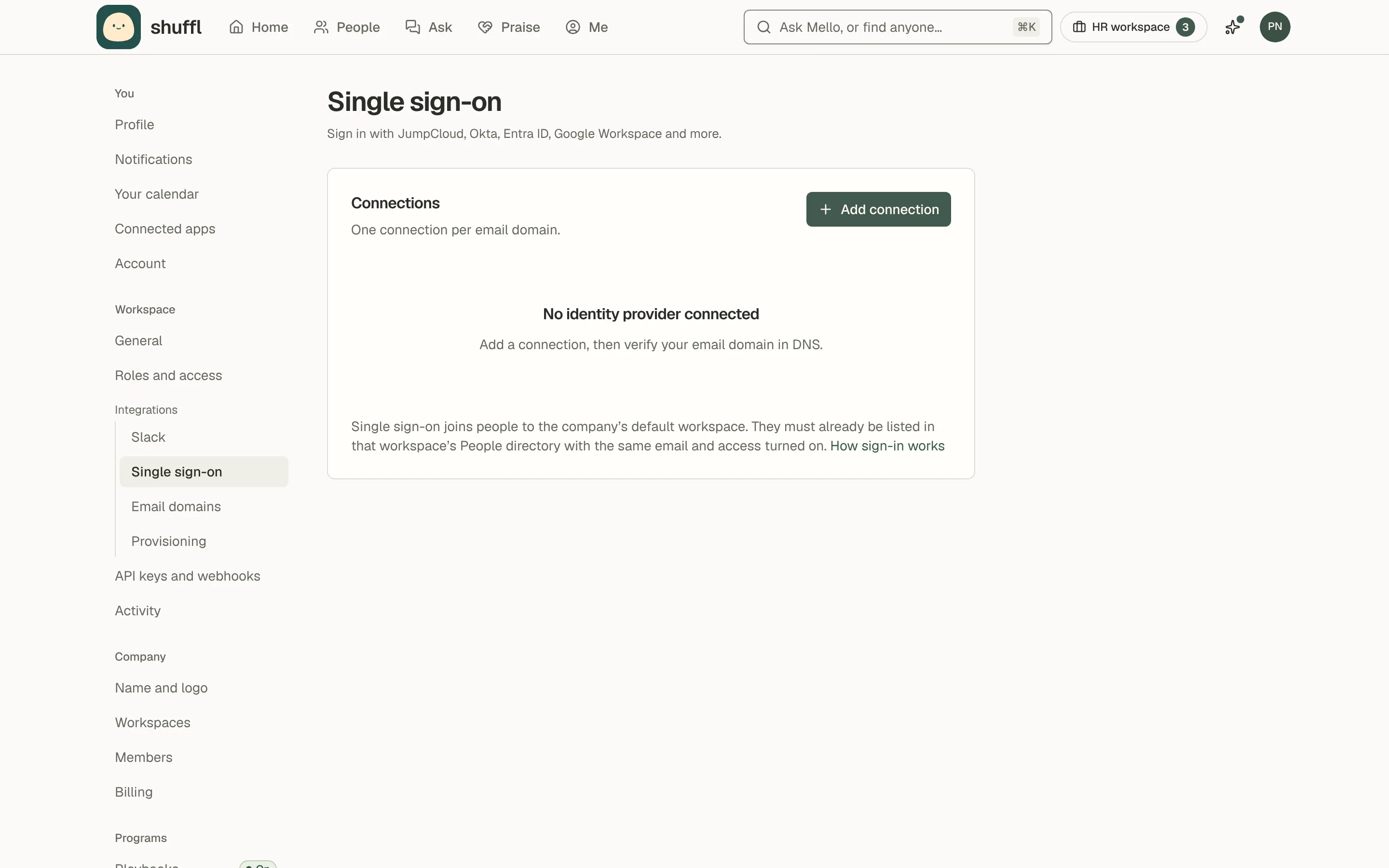
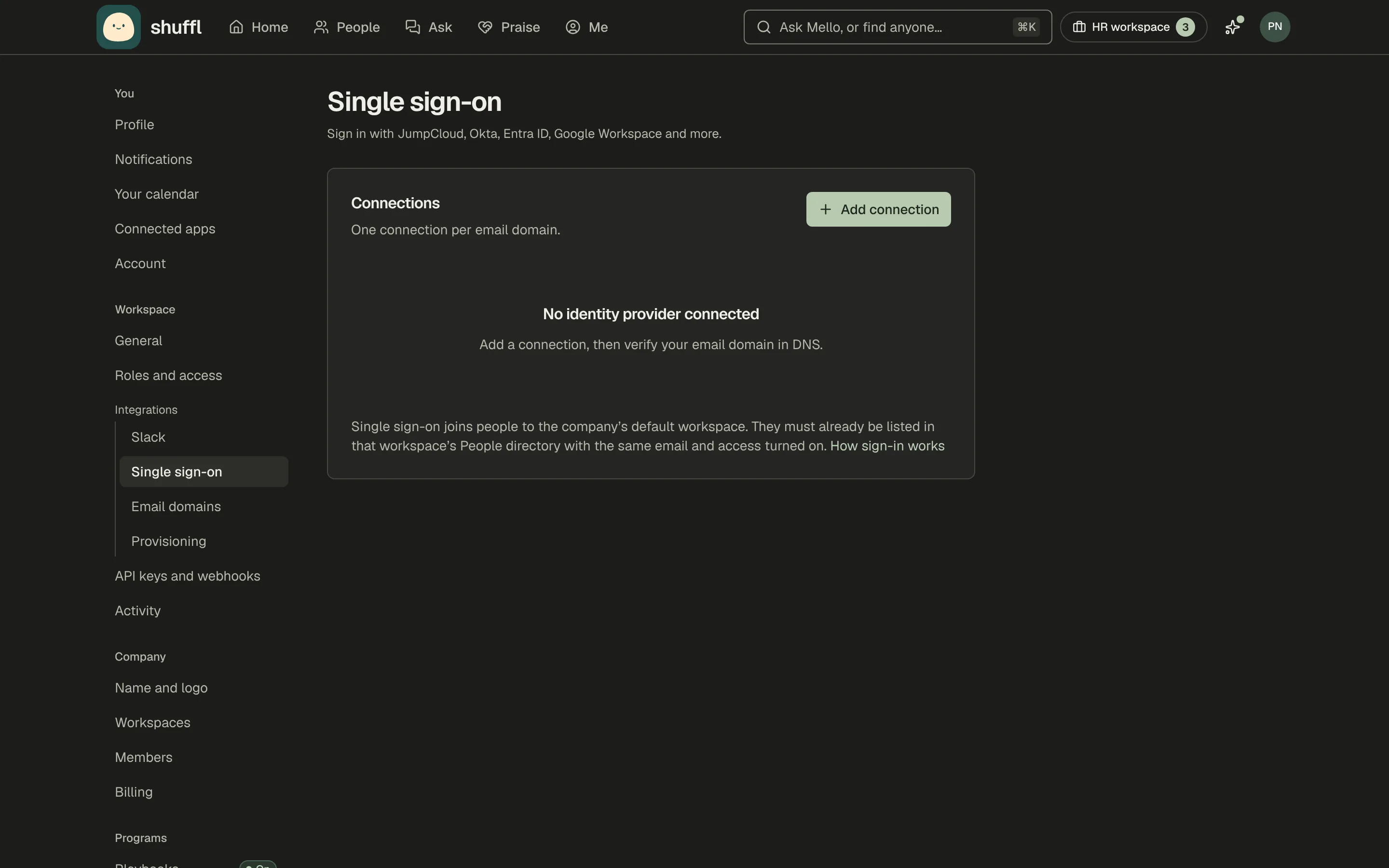
Slack, Single sign-on, Email domains and Provisioning are under Workspace → Integrations; they belong to the company, so only its owners and administrators see them.
API keys and webhooks has three tabs: Workspace keys work in one workspace only, Webhooks sends signed events, and Company keys manage the company itself, never a workspace’s data.
Activity log
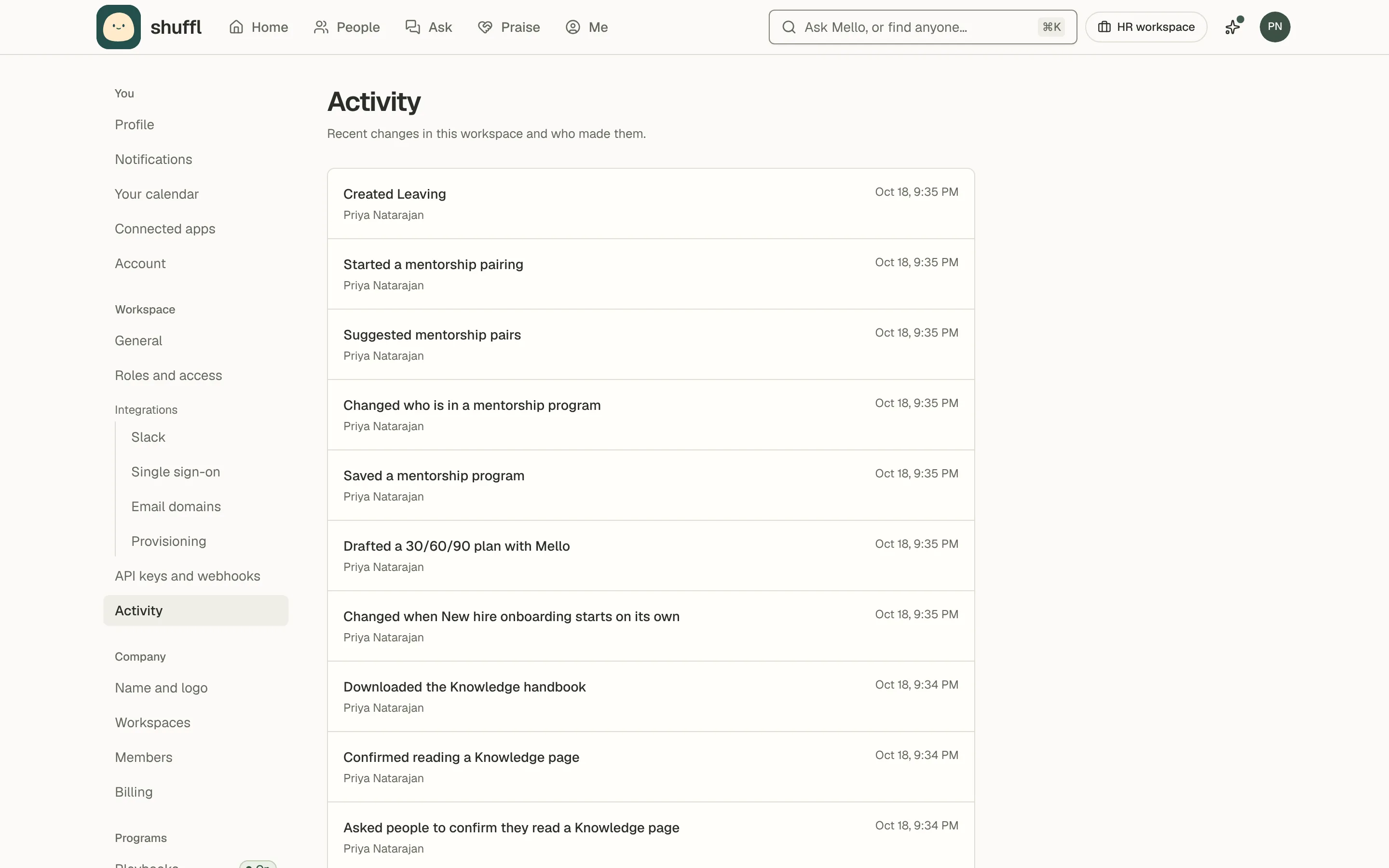
Activity is the workspace log of what changed, who changed it and when, for settings, roles, access, sources and programs.