How-to guide
Communities
Groups for interests, places, skills and resource groups, each linked to a Slack channel.
For Everyone using Shuffl
Have your agent do thisPaste the prompt into Claude Code, Cursor or another agent. It follows this guide over MCP and asks before it changes anything others will see.Show the promptHide the prompt
Help me with "Communities" in my Shuffl workspace.

1. Read the guide: https://shuffl.ai/docs/markdown/communities
2. Add Shuffl's MCP server: https://shuffl.ai/api/mcp
   Claude Code: claude mcp add --transport http shuffl https://shuffl.ai/api/mcp
   When the browser opens, choose my workspace and allow the access the guide needs.
3. Work through the steps in order: Find and join a community; Start a community. Do what you can over MCP and tell me which steps only I can do in the browser or in Slack.

Show me what you will change and who it affects, and wait for my yes before publishing, inviting or sending anything.
On this page
App links open your signed-in workspace. Check the selected workspace before making changes.
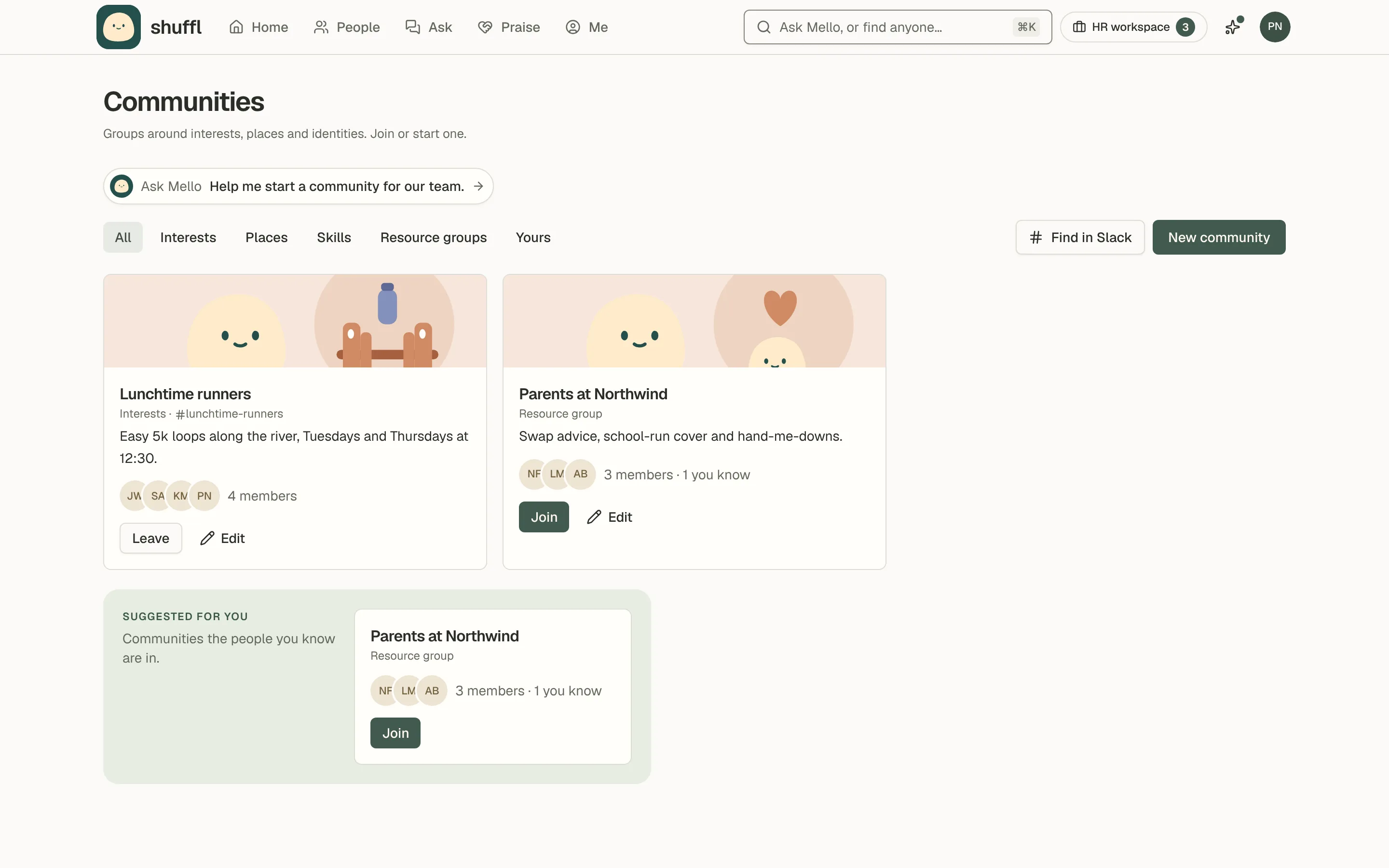
Find and join a community
- Open Communities and filter by kind, or choose Yours for memberships and pending invitations. Invitation-only communities are visible only to members, invited people and community managers.
- Choose Join for an open community, or Accept invitation for an invitation-only one, which also requests an invitation to its Slack channel.
- Leaving in Shuffl doesn’t leave the Slack channel, and rejoining an invitation-only community needs a new invitation.
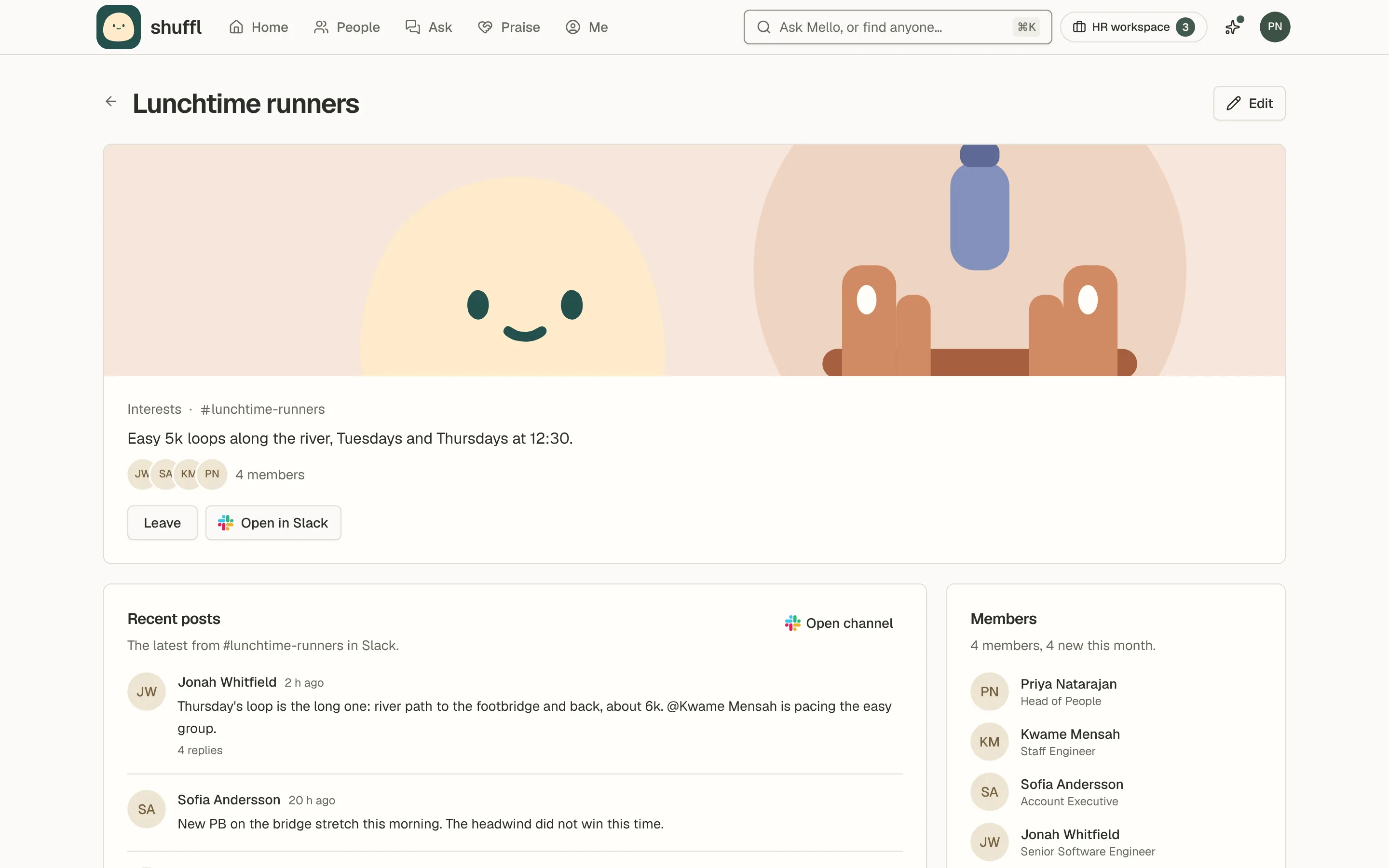
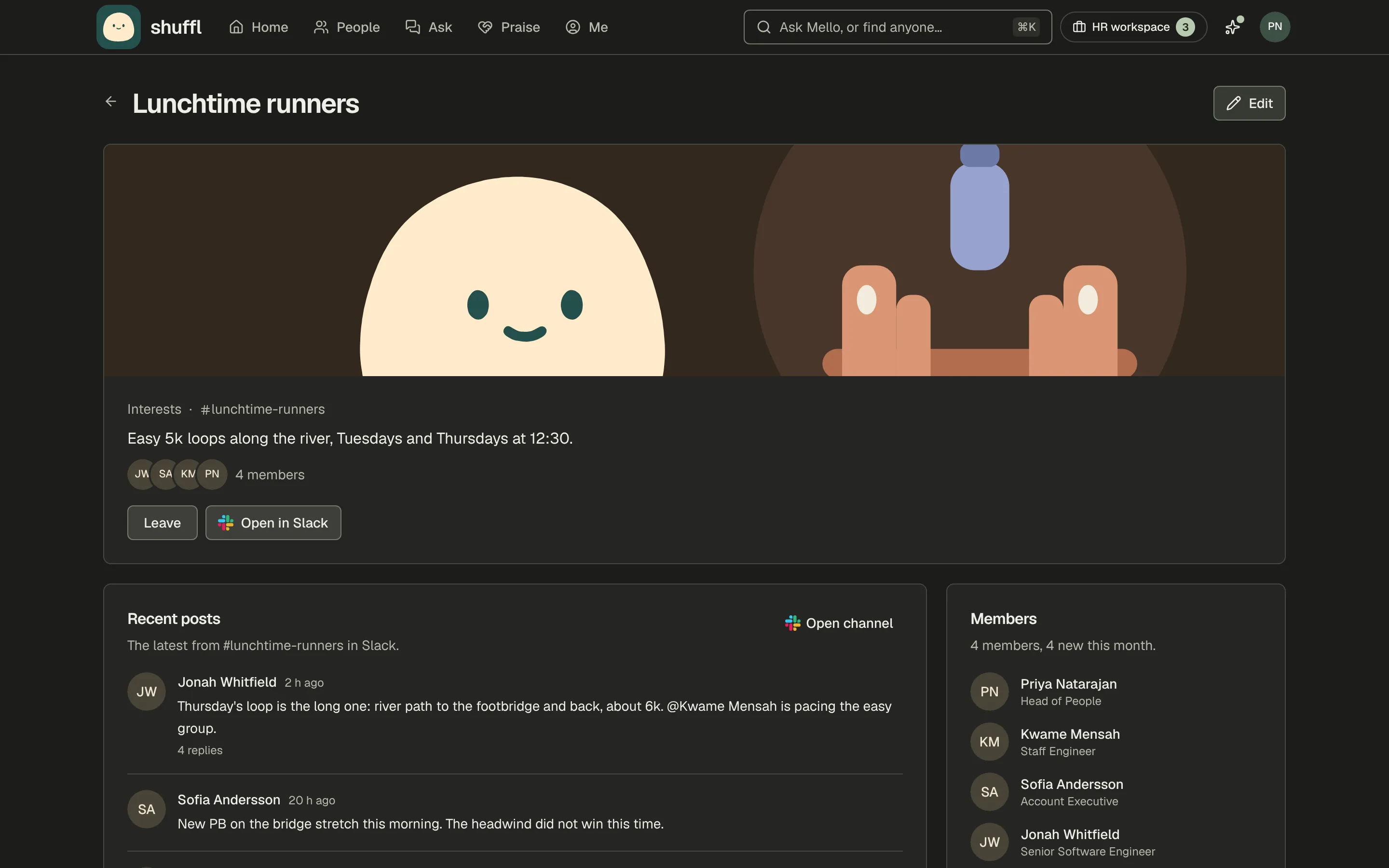
- Open a community for its page: cover, description, latest Slack posts, newest members and who runs it.
- Open in Slack goes to the channel. Posts from a private channel or invitation-only community show to members only.
- Choose Show me as a member to decide whether the community appears on your profile. Members lists who is in it, when the owners allow that.
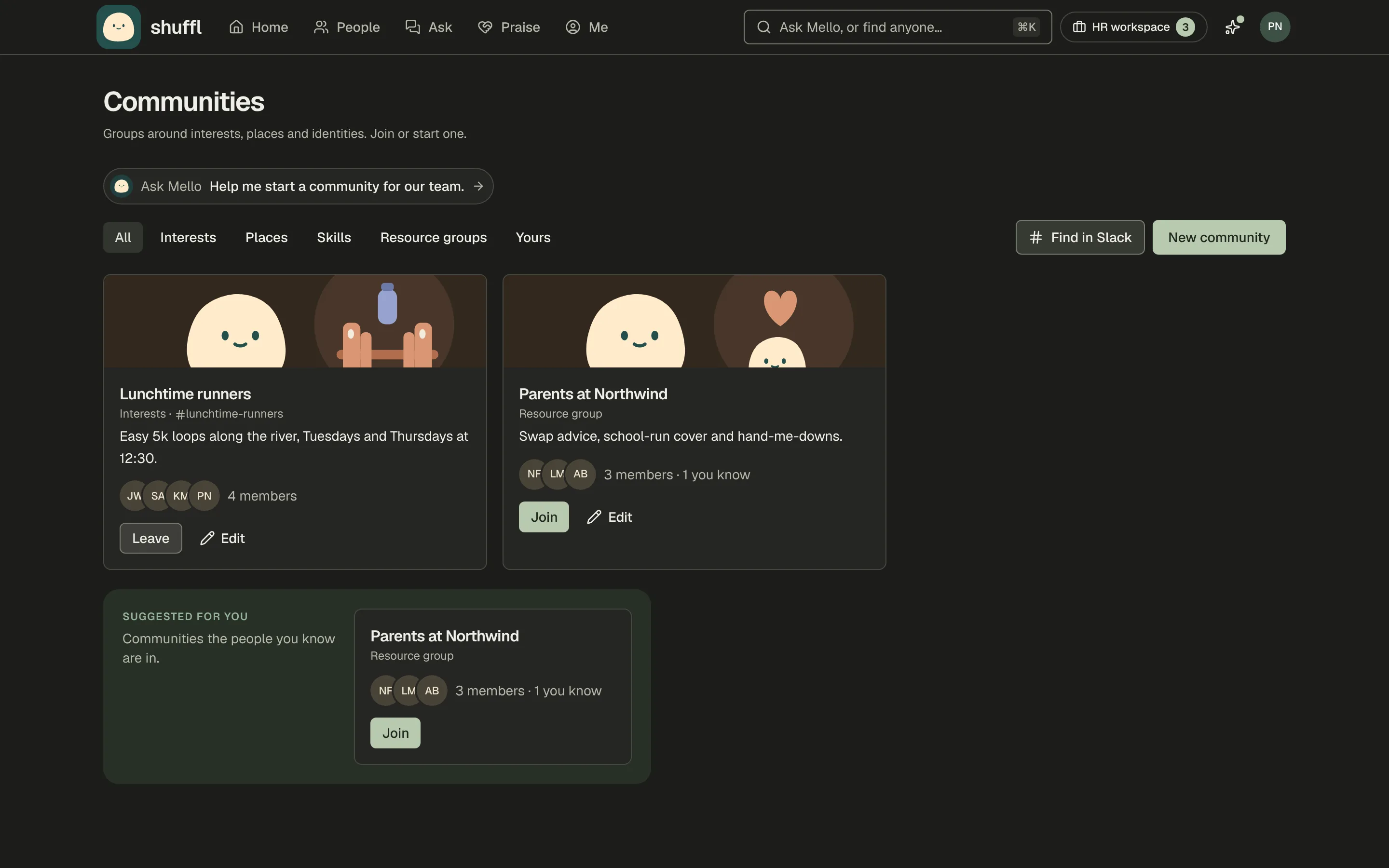
A community is a group of coworkers around an interest, a city or office, a skill or a resource group, with a page, its members and usually a Slack channel. Suggested for you picks communities from your profile and the people you know.
Start a community
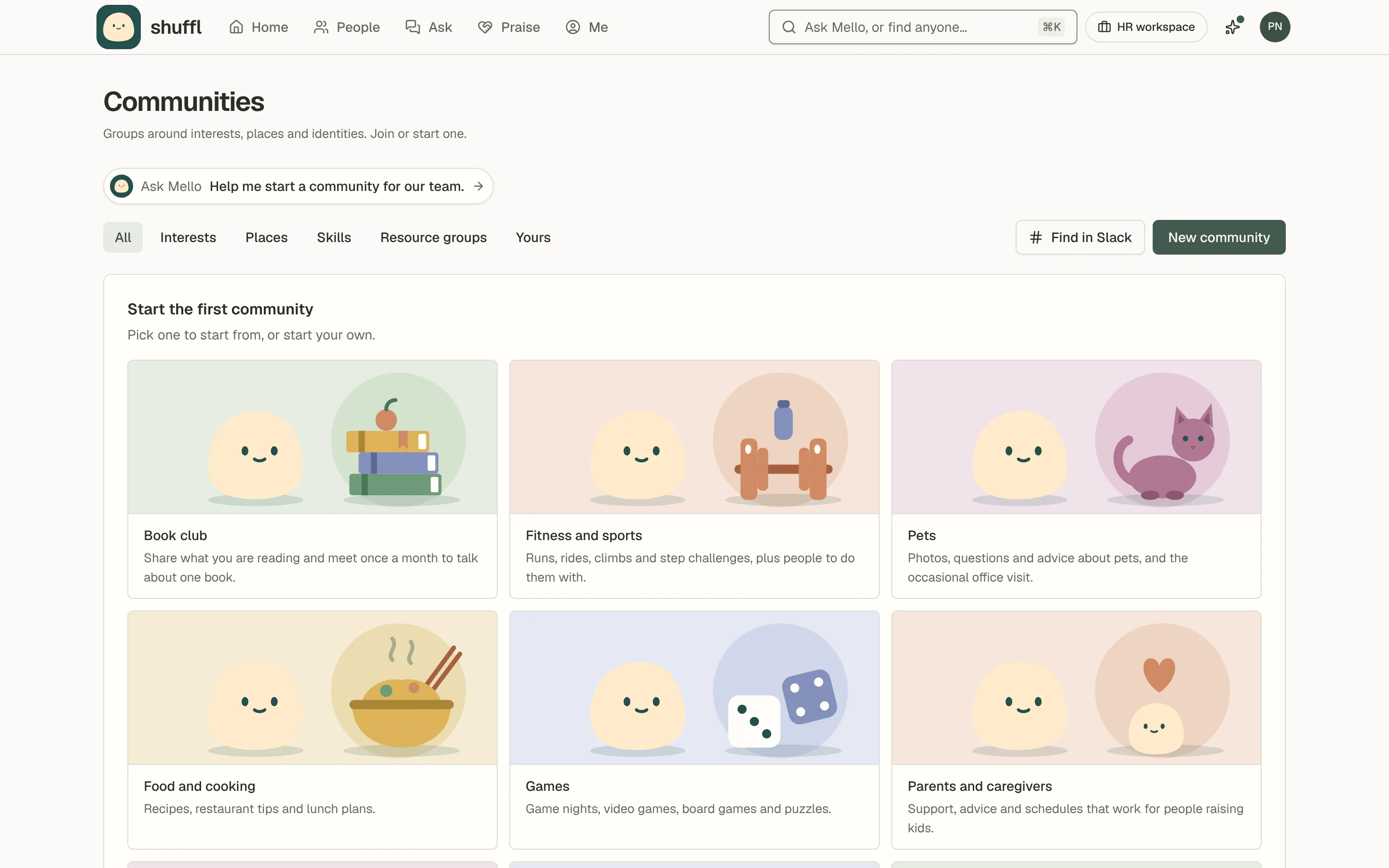
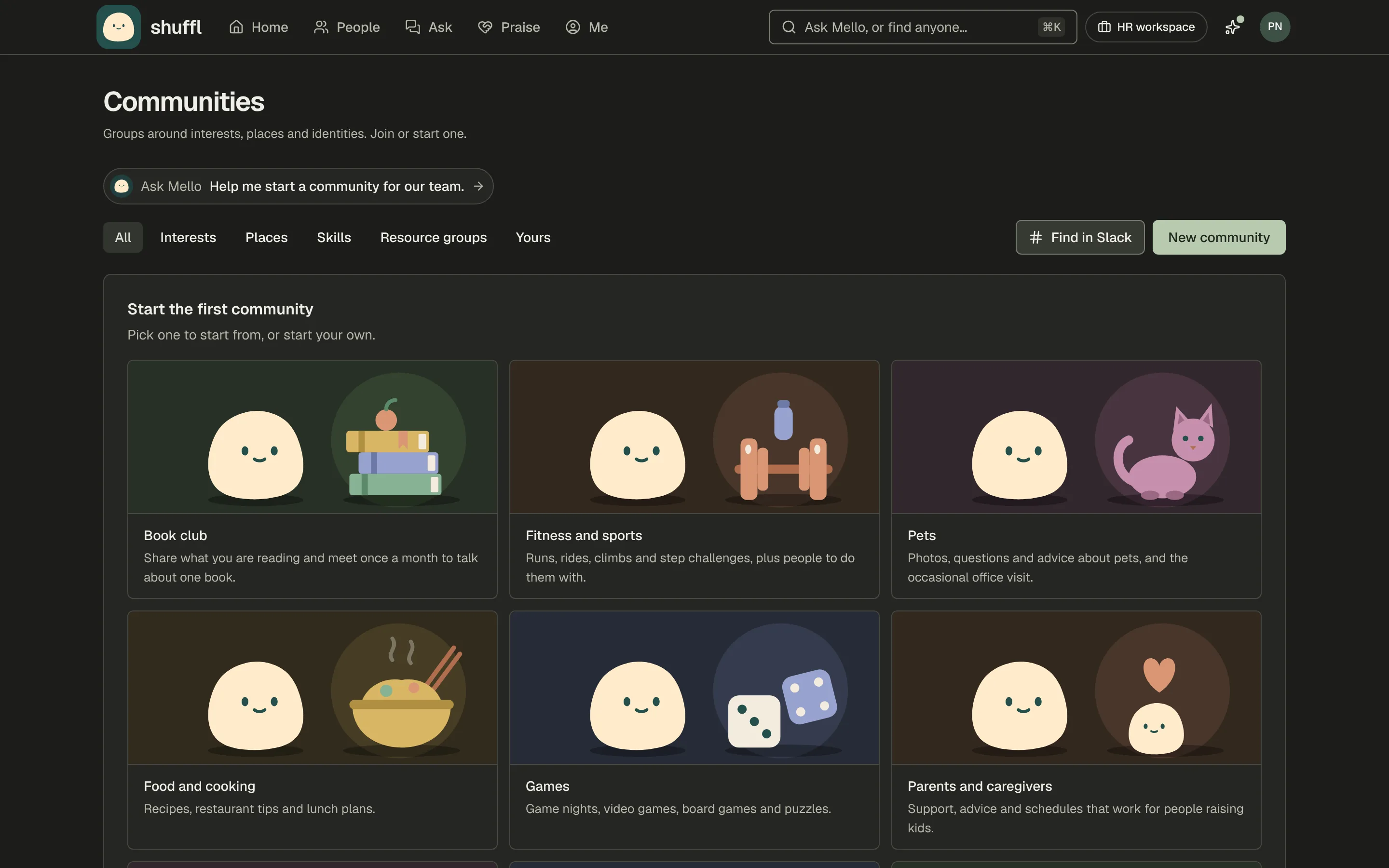
- Choose New community and pick a template, or Start from scratch. A template fills in the name, description, category and picture; change what you like.
- Choose Who can join: open to the workspace, or Invite only, which a private Slack channel requires.
- Administrators and owners can link or create its channel, where Mello introduces the community.
- Creating a private channel needs Slack’s private-channel permission; otherwise link a private channel Shuffl is already in.
- Add a cover, uploaded or created with AI, choose who is listed as a member, and add owners and moderators. Choose Create community.
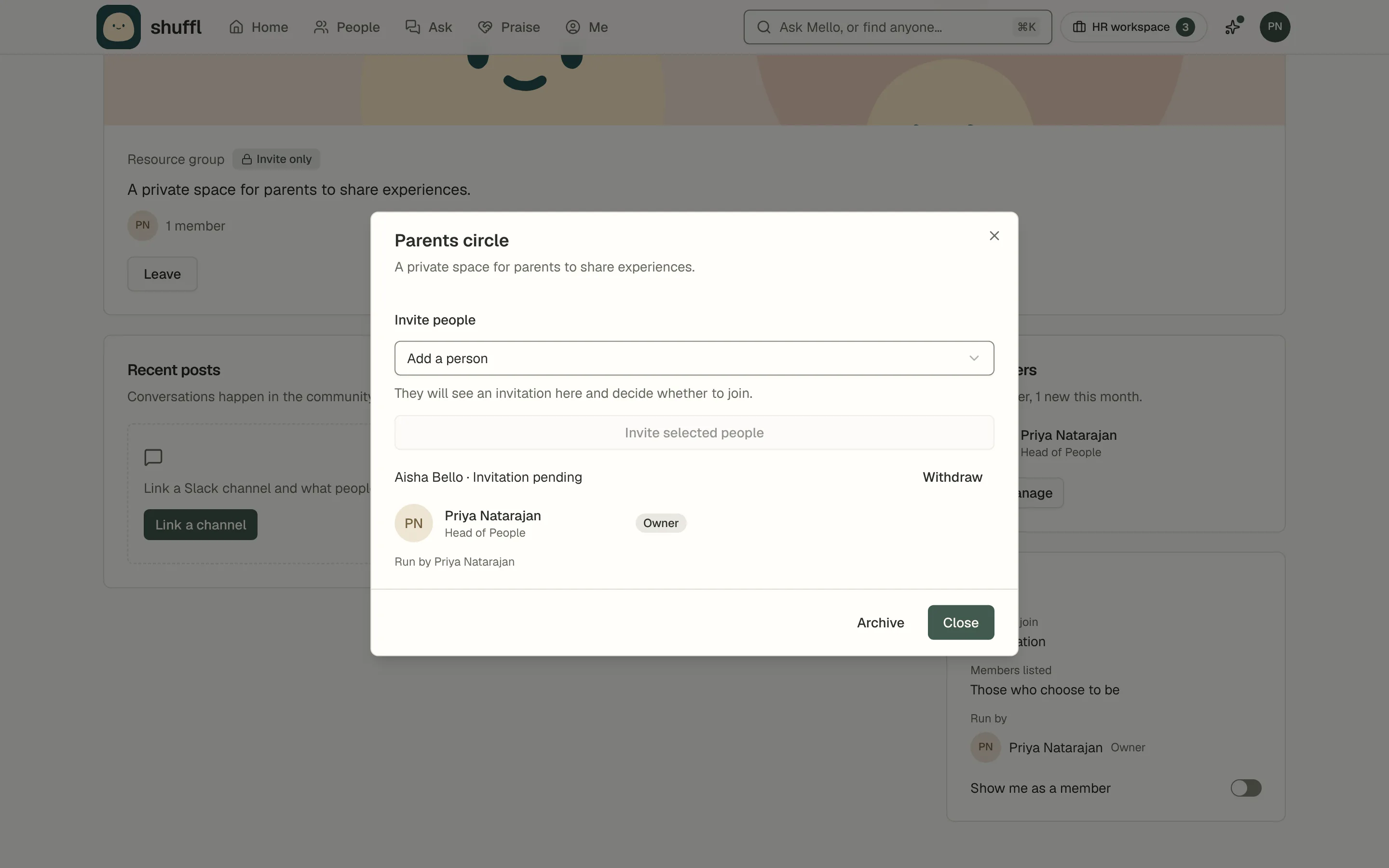
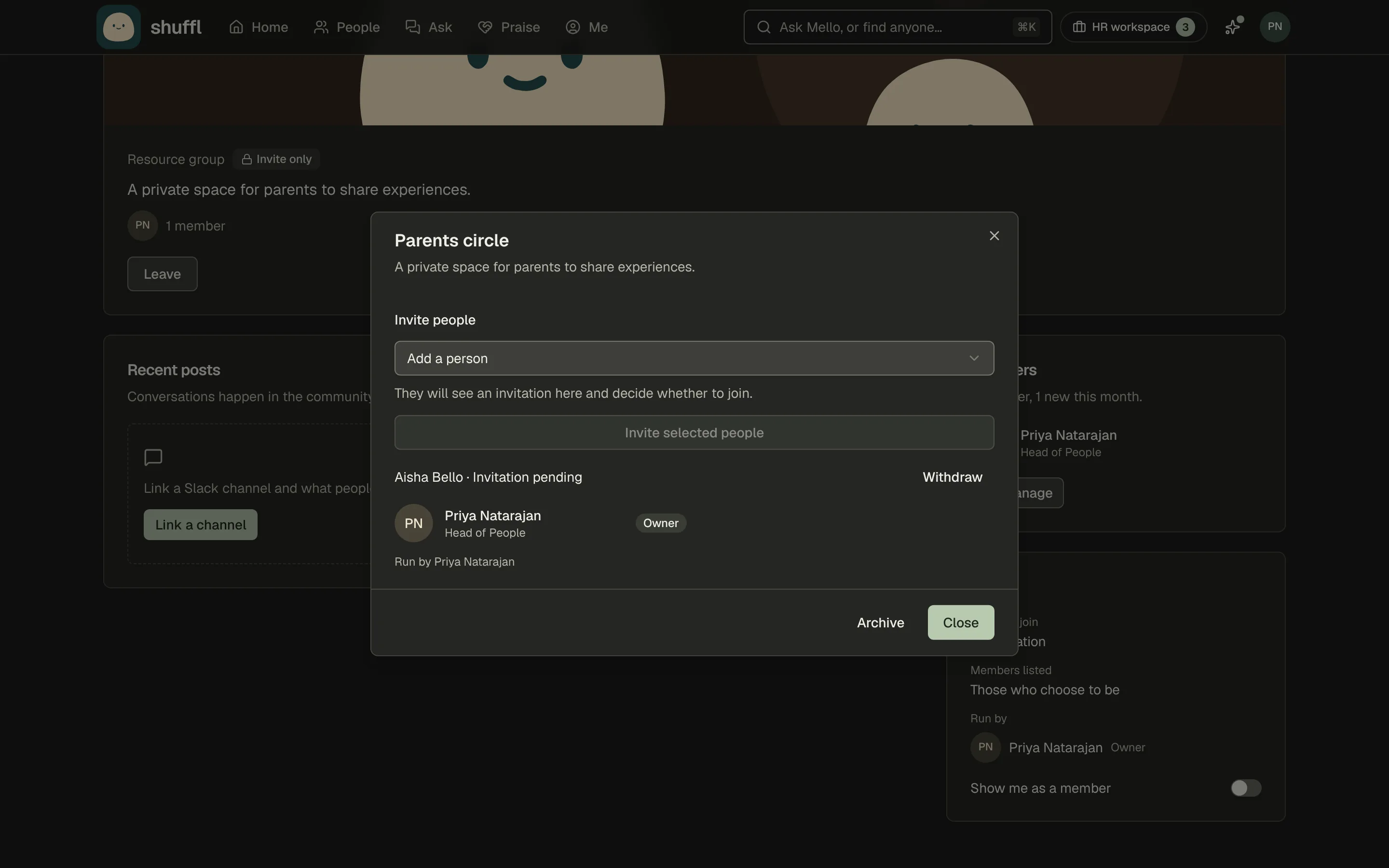
- For an invitation-only community, an owner or administrator chooses Manage under Members, selects people and chooses Invite selected people. Each person must accept; Withdraw cancels a pending invitation.
- Moderators can edit details and remove members but not invite. Only owners and administrators change the Slack link or archive.
For administrators
Administrators manage communities on the same Communities page, seeing every one, archived included, and can create, edit, archive or change owners of any. Community activity on Home shows only to people allowed to see that community.
Your Slack probably has communities already, like a running club. Under Turn channels into communities, Shuffl ticks the channels that look like one; change the kind or ticks, and confirm invitation-only admission for each private channel. Open communities sync membership with Slack.
Workspace setup lists suggested channels under Start communities, each with a reason.
Once created, Mello says hello in each channel, with a Join button for open communities, and Shuffl draws a cover unless you chose one. A cover that fails can be retried from the same list.
Your own agent can also draw or upload a cover for a community you own, moderate or administer, over MCP or the API.
ShufflAPP