
How-to guide
Introduce coworkers with Connections
Introduce coworkers in Slack on a schedule, choose who gets matched, and see how rounds went.
For Workspace administrators
Have your agent do thisPaste the prompt into Claude Code, Cursor or another agent. It follows this guide over MCP and asks before it changes anything others will see.Show the promptHide the prompt
Help me with "Introduce coworkers with Connections" in my Shuffl workspace.

1. Read the guide: https://shuffl.ai/docs/markdown/connections
2. Add Shuffl's MCP server: https://shuffl.ai/api/mcp
   Claude Code: claude mcp add --transport http shuffl https://shuffl.ai/api/mcp
   When the browser opens, choose my workspace and allow the access the guide needs.
3. Work through the steps in order: Create an introduction program; Ask people who they know. Do what you can over MCP and tell me which steps only I can do in the browser or in Slack.

Show me what you will change and who it affects, and wait for my yes before publishing, inviting or sending anything.
On this page
App links open your signed-in workspace. Check the selected workspace before making changes.
Create an introduction program
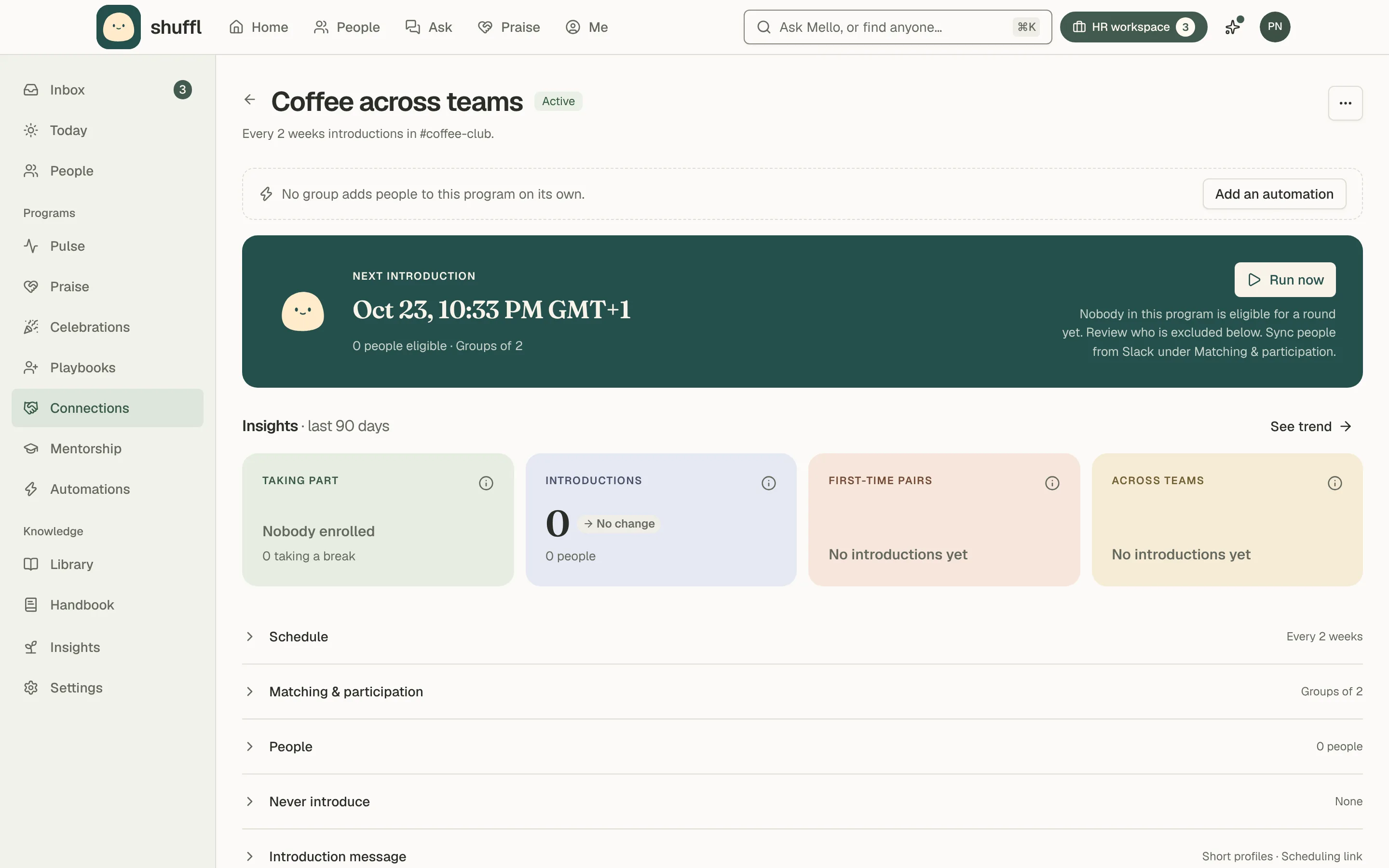
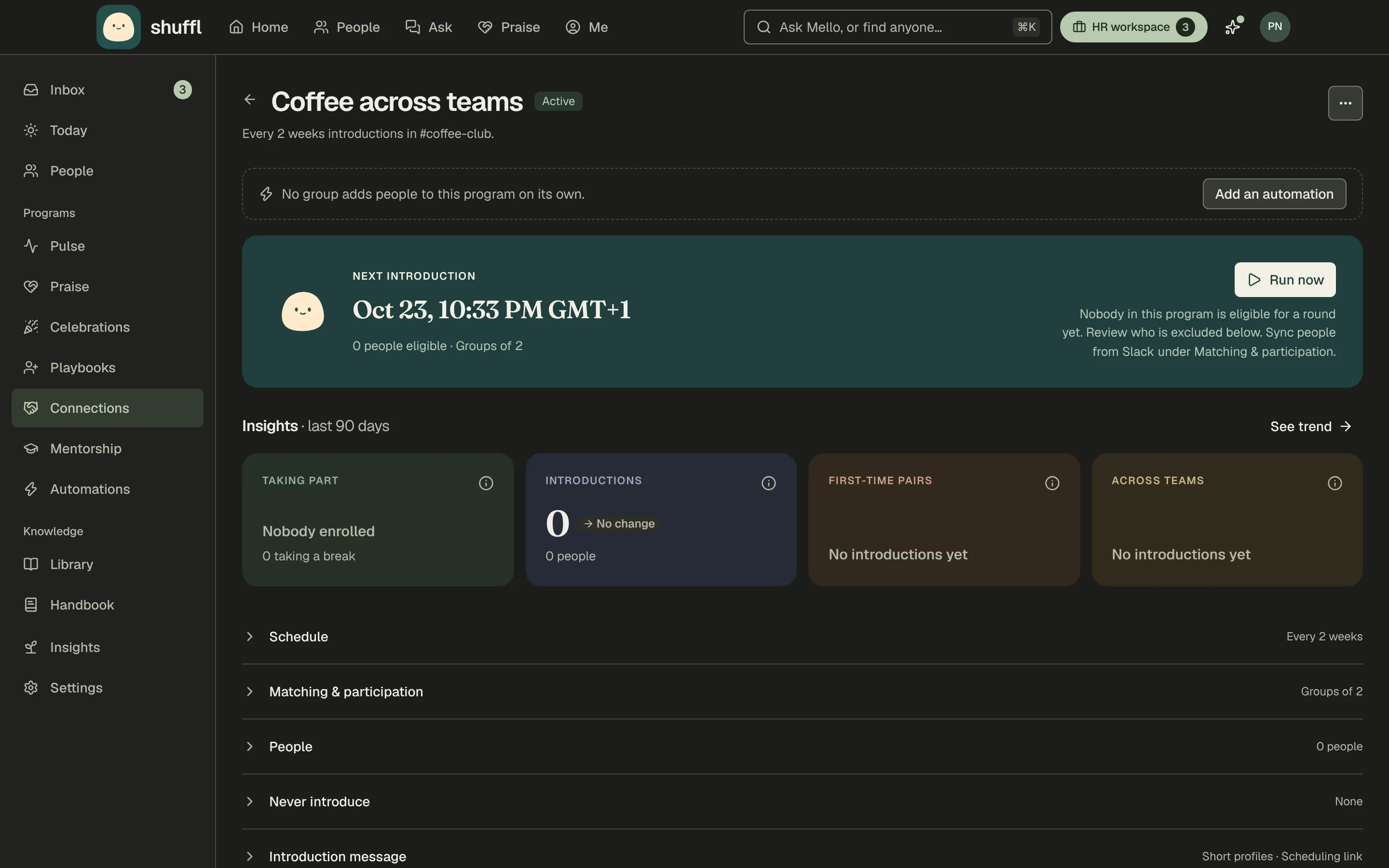
- Open Connections from the HR workspace. With no program yet, Mello suggests one: choose Review and start, Change something or Not now.
- Or choose New program and start from a template, such as Cross-team coffee or Lunch groups, or ask Mello in Chat to draft one.
- Choose who takes part: a Slack channel’s members, a group from People → Groups, or one or more communities.
- Then pick the channel introductions post in, inviting Shuffl first if it is private. Someone who keeps a community off their profile is never included through it.
- Choose the matching, group size and schedule, then write the introduction. The preview shows the message as it will look in Slack.
- Choose Start program to schedule the first round, or Save draft. Starting sends nothing right away.
Connections needs the Shuffl app in Slack. Introductions go out as Slack group messages; nothing is sent from the web.
Choose who gets matched
Who should meet whom? has four answers. Anyone they haven’t met pairs people not yet introduced.
People from different groups, departments or communities mixes them; People in the same group, department or community keeps each group inside one. Hosted introductions has chosen hosts meet groups of guests, such as leaders meeting new hires.
Fine-tune can honor I’d like to meet requests from profiles and prefer Common ground (Off, Prefer or Strongly prefer). How far across the company to reach is Anyone new, Friends of friends or Far corners.
Groups hold 2 to 8 people, with an optional extra so nobody is left out. Keep coworkers apart can avoid, or never allow, groups of managers and their reports, teammates, people in the same department or people who already know each other.
On the program page, People lets you pause or resume one person, and Never introduce keeps two people out of the same group in every program.
Ask people who they know
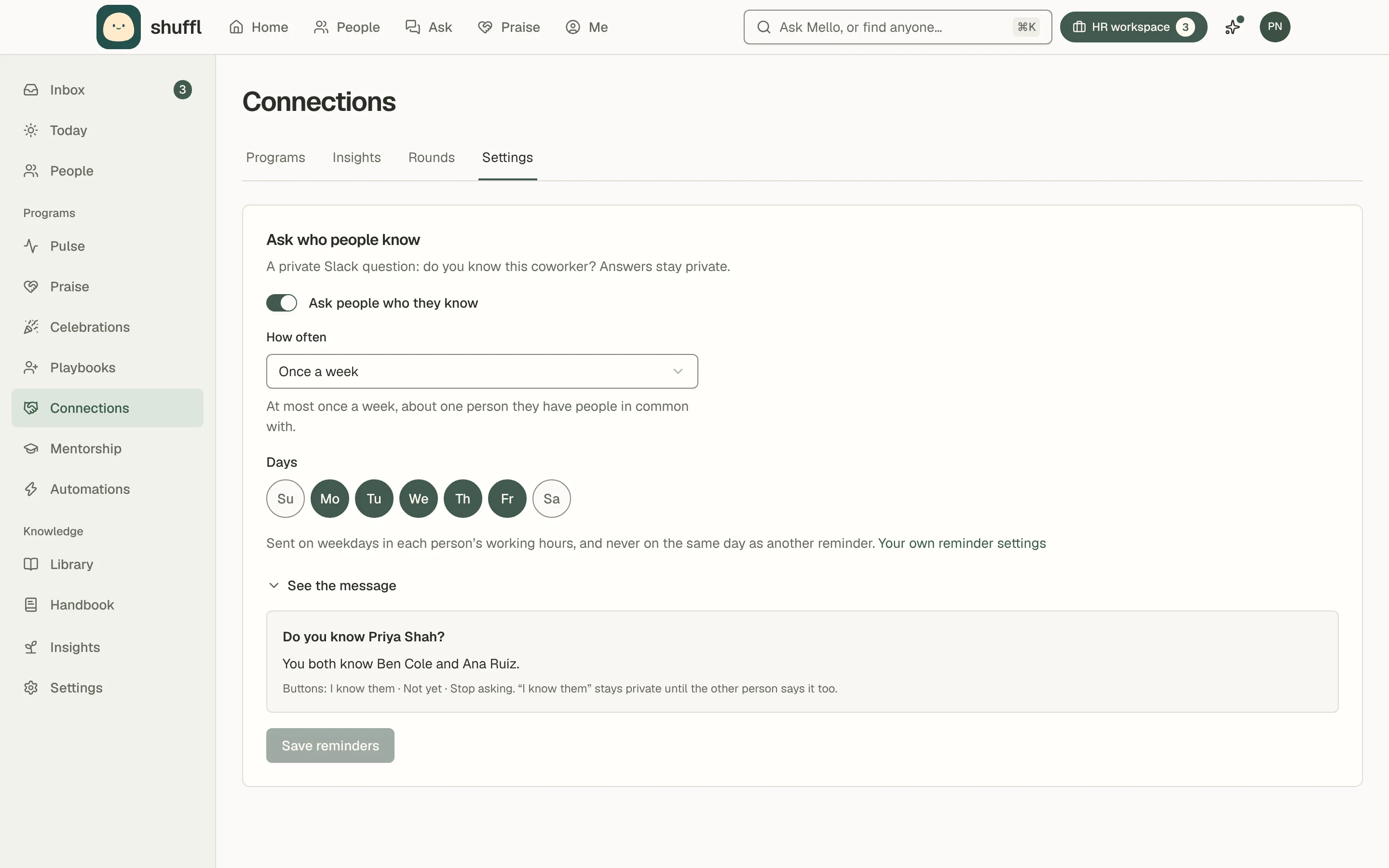
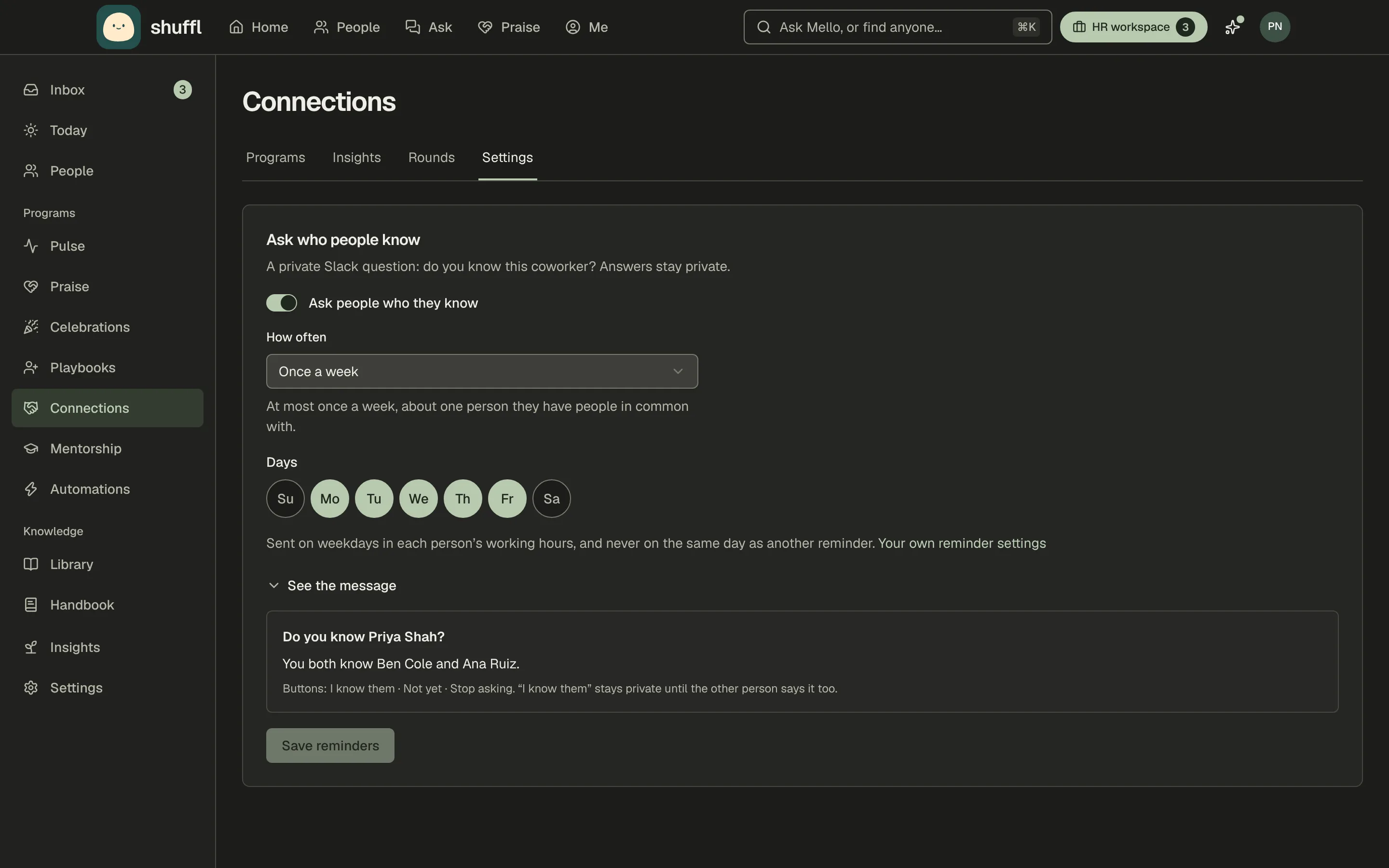
- Open Connections, then its Settings tab, and find Ask who people know.
- Turn on Ask people who they know, choose Once a week or Once a month, and pick the days it may go out.
- Choose Save reminders. It is off until you turn it on.
Keep coworkers apart and suggestions on Network both work better the more Shuffl knows who knows whom. Ask who people know, on the Settings tab of Connections, has Shuffl ask.
Each person gets a private Slack question about one coworker they share people with: Do you know them? I know them stays hidden until the other person says it too.
Nobody is asked twice about the same person, outside working hours or on a break, and people can change it under Connections intros in their notification settings.
Set the schedule and review rounds
A program runs every few days, weeks or months in the time zone you choose. Monthly schedules can repeat on the same date (the 13th), the same weekday position (the second Tuesday) or the last weekday. The program page shows the next introduction.
Under Repeats, choose every day, weekday, week, 2 weeks, month, or Custom for any gap. Under On, choose the days; Monday and Thursday on a weekly program makes two rounds a week.
Starts sets the first date, At the time and time zone, and Next introductions shows the next three dates.
Run now previews the groups before anything is sent; Try another arrangement reshuffles, and confirming starts the round.
Round history on the program page shows each group and whether its message was delivered, with Retry known failures. The Rounds tab lists every round across programs, with a status filter.
Insights counts who is taking part, introductions made, first-time pairs and introductions across teams, per program, and charts introductions and the people in them by week.
When a program is paused, resumed or ended after introductions, Mello tells its channel. A monthly program with fewer than two people for a round says so there, with Invite people.
ShufflAPP
ShufflAPP
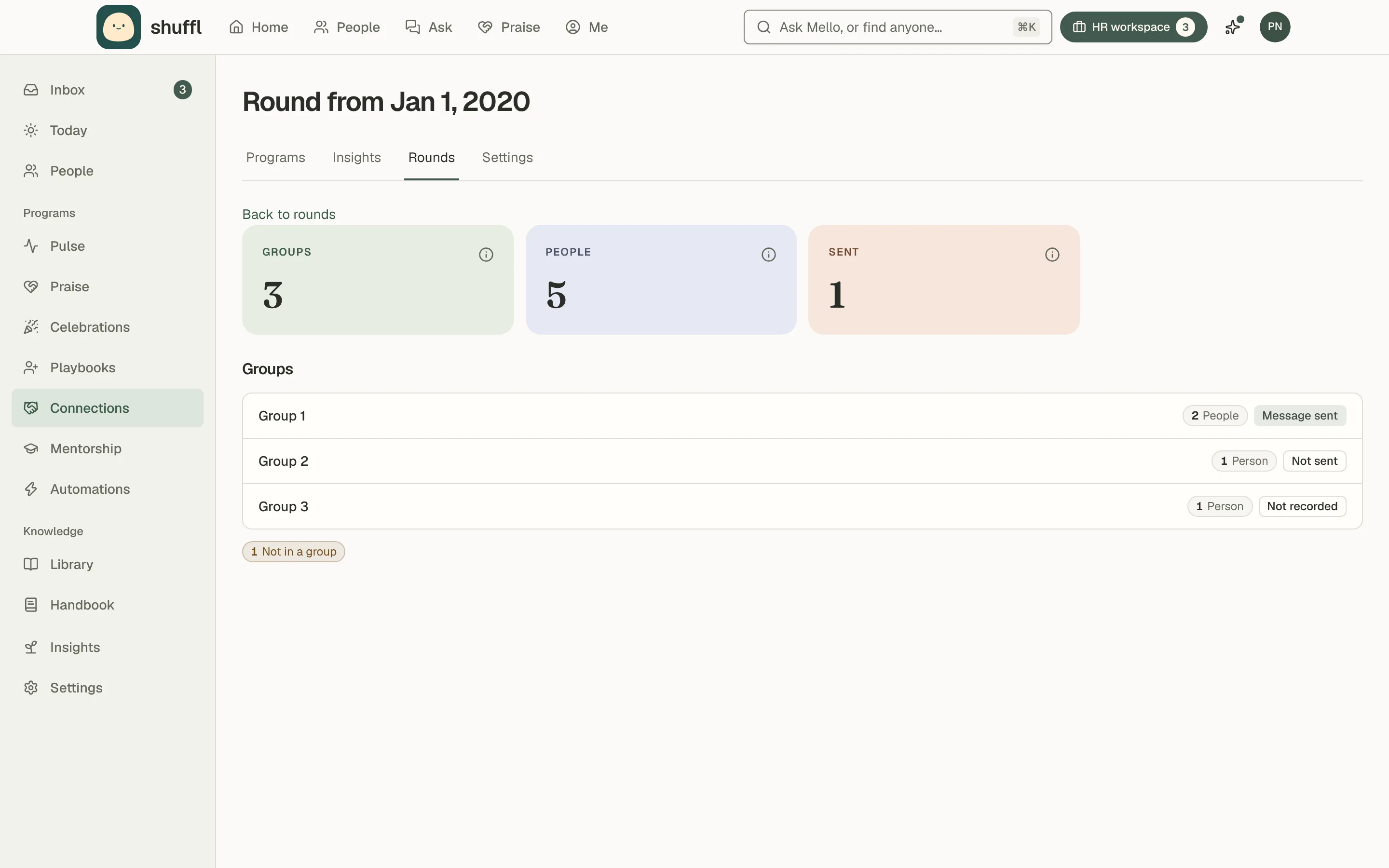
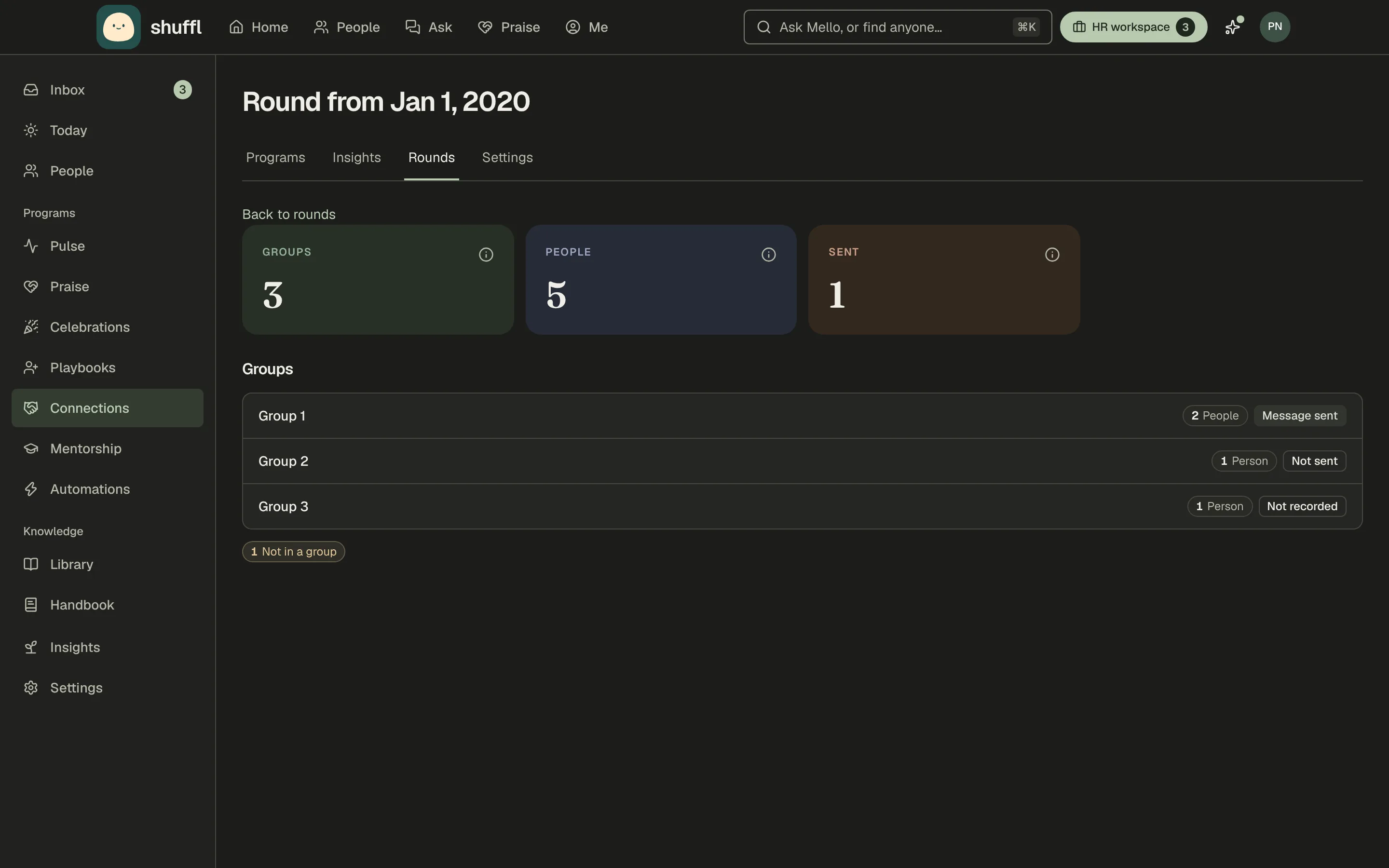
Read preserved historical rounds
If your workspace moved over from the previous Shuffl, the Rounds tab in Connections also lists its earlier rounds under From the previous Shuffl, below your current rounds.
Open one to see its groups, how many people each had and whether its introduction was recorded as sent.
These rounds are read-only. People in them are not linked to anyone in People today, and they never affect current programs or who gets matched. Where the previous Shuffl kept no record of a message, the group says Not recorded.
What employees see
An introduction is a Slack group message naming everyone, with a line about each person from their profile, their bio and, when calendars are connected, a Pick a time button. Someone without a bio gets a private nudge with Add bio.
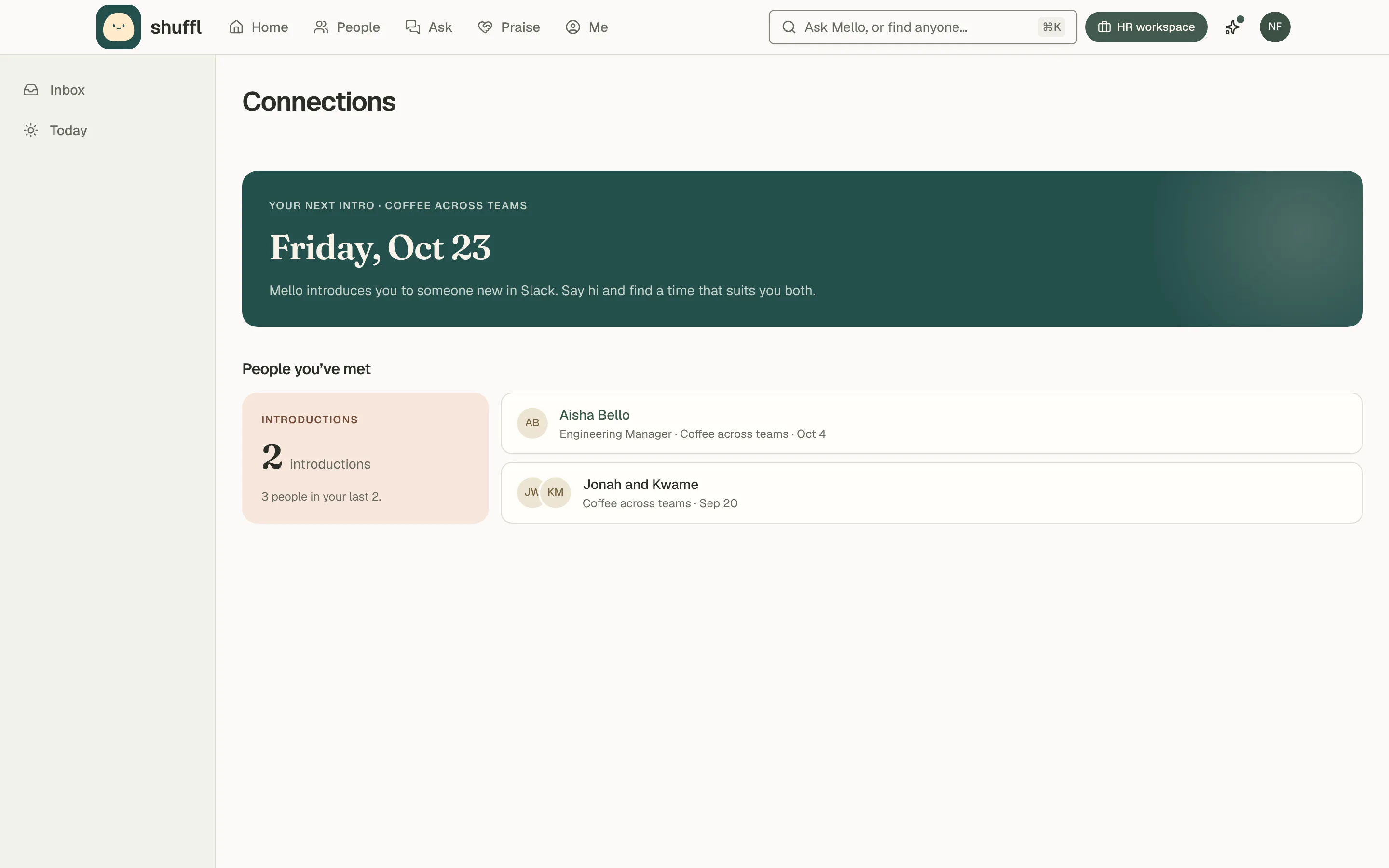
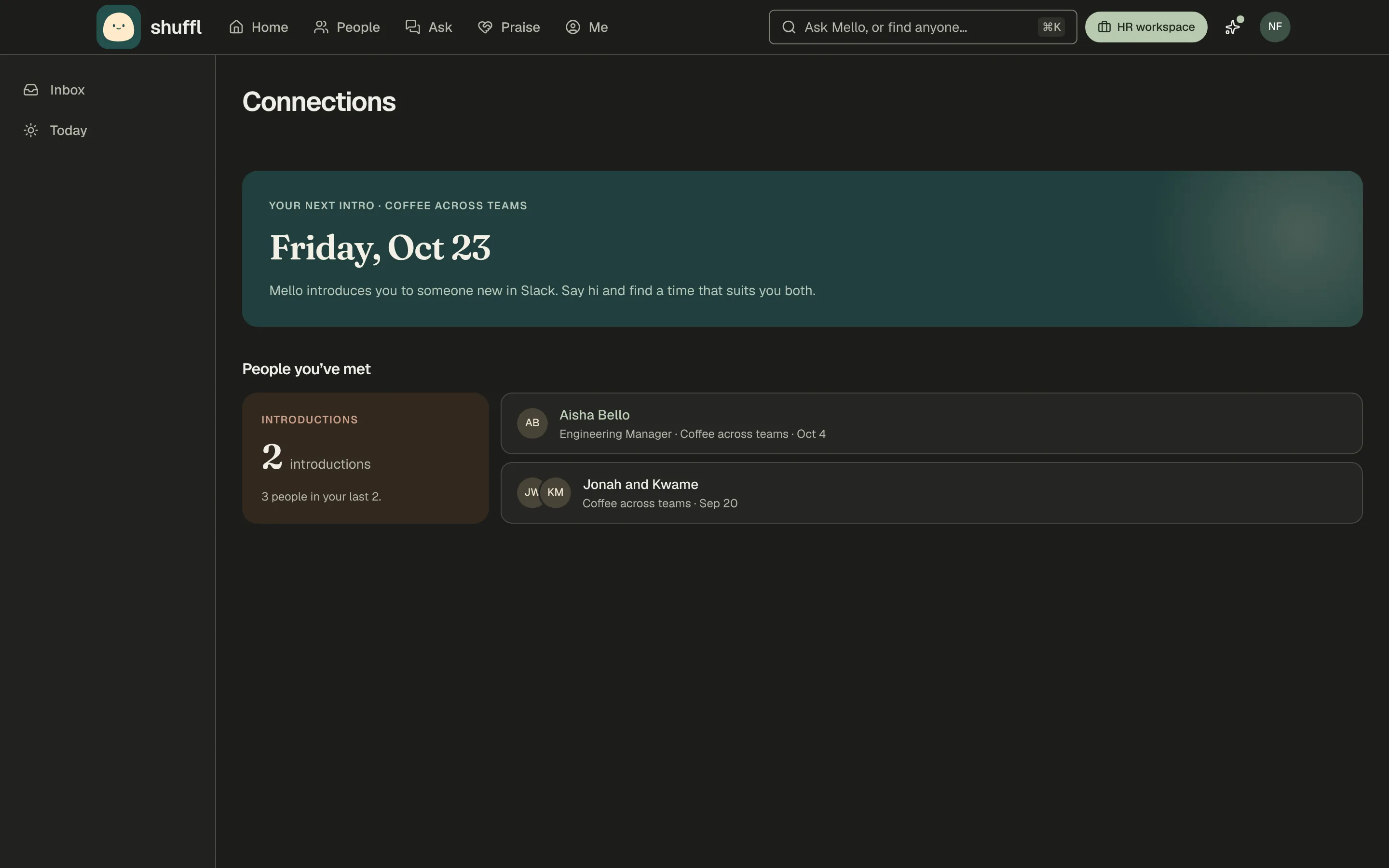
In Shuffl, Connections shows each person their next introduction and People you’ve met, and Home gets a Connections shortcut. Someone no program introduces doesn’t see Connections at all.
People can take a break on the Shuffl app’s Home tab in Slack: until back from out of office, for a round or two, a month, or until they resume. Nobody else is told.
ShufflAPP
ShufflAPP
ShufflAPP
Onboard new hires
Onboarding is its own program type, with a buddy invitation, an introduction and a check-in for each new hire. It has its own guide.