
How-to guide
Expenses and cards
Connect Ramp or Brex so Mello answers “can I expense this?” and “what’s my card limit?” from your real programs and each person’s own cards.
For Workspace owners and administrators
Have your agent do thisPaste the prompt into Claude Code, Cursor or another agent. It follows this guide over MCP and asks before it changes anything others will see.Show the promptHide the prompt
Help me with "Expenses and cards" in my Shuffl workspace.

1. Read the guide: https://shuffl.ai/docs/markdown/expenses-and-cards
2. Add Shuffl's MCP server: https://shuffl.ai/api/mcp
   Claude Code: claude mcp add --transport http shuffl https://shuffl.ai/api/mcp
   When the browser opens, choose my workspace and allow the access the guide needs.
3. Work through the steps in order: Connect Ramp; Connect Brex; Draft the policy page. Do what you can over MCP and tell me which steps only I can do in the browser or in Slack.

Show me what you will change and who it affects, and wait for my yes before publishing, inviting or sending anything.
On this page
App links open your signed-in workspace. Check the selected workspace before making changes.
What it does
People ask HR whether a purchase is covered and what their limit is. Connect your spend platform once and Mello answers in Chat and Slack from the programs as they stand, citing your policy page, and tells each person their own limit.
Shuffl reads when someone asks and stores none of it. A person only ever sees their own cards; Mello never reads or repeats anyone else’s limit, and it never approves a purchase.
What Mello reads
- Spend programs: names, limits, per-purchase caps, allowed and blocked categories, and whether they reimburse.
- The asking person’s own cards and limits, found by their work email, with what is left this period.
Connect Ramp
- In Ramp, open Company → Developer and create an app. Turn on the client credentials grant.
- Give it the read scopes for business, spend programs, users and funds. Copy the client ID and secret.
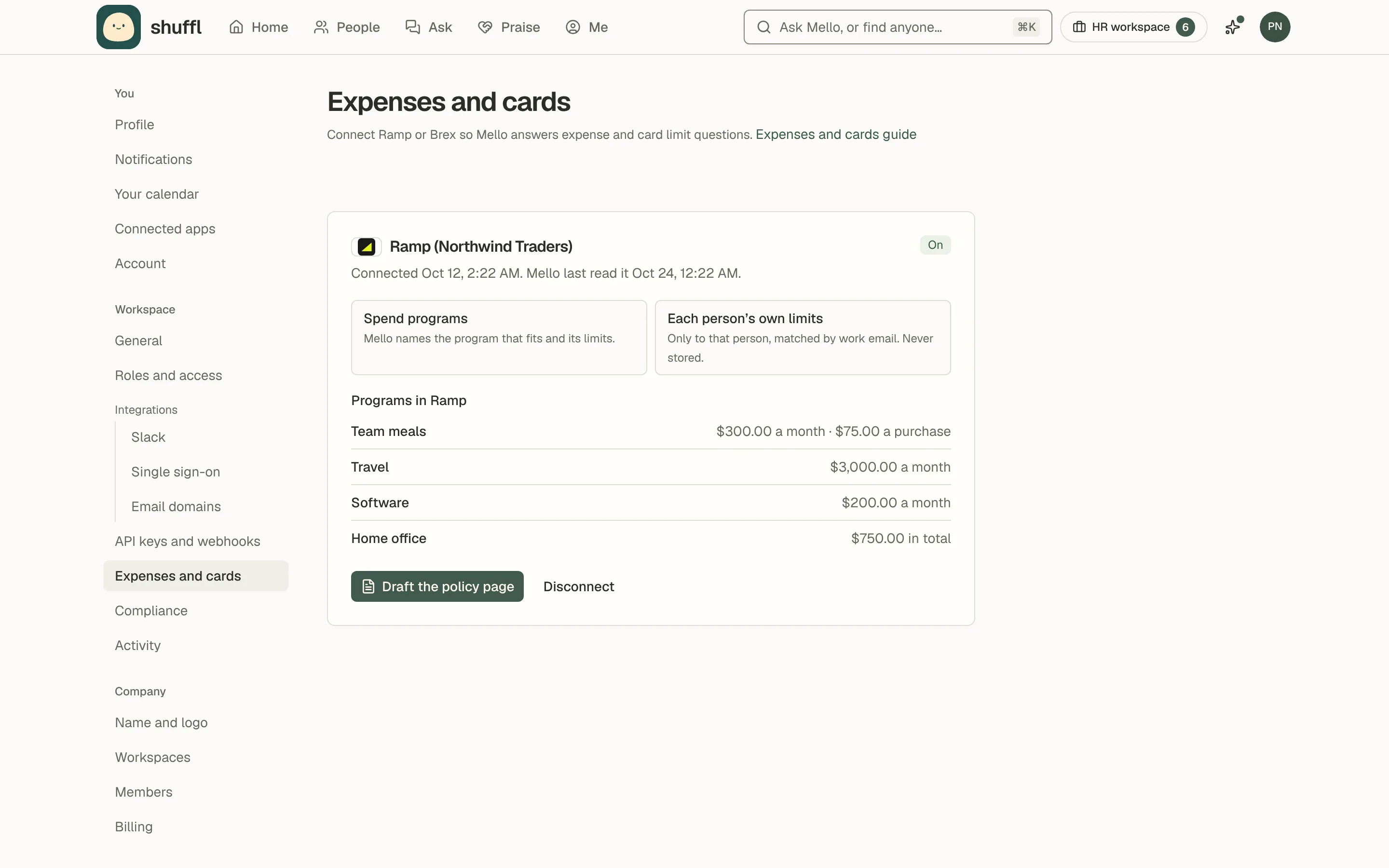
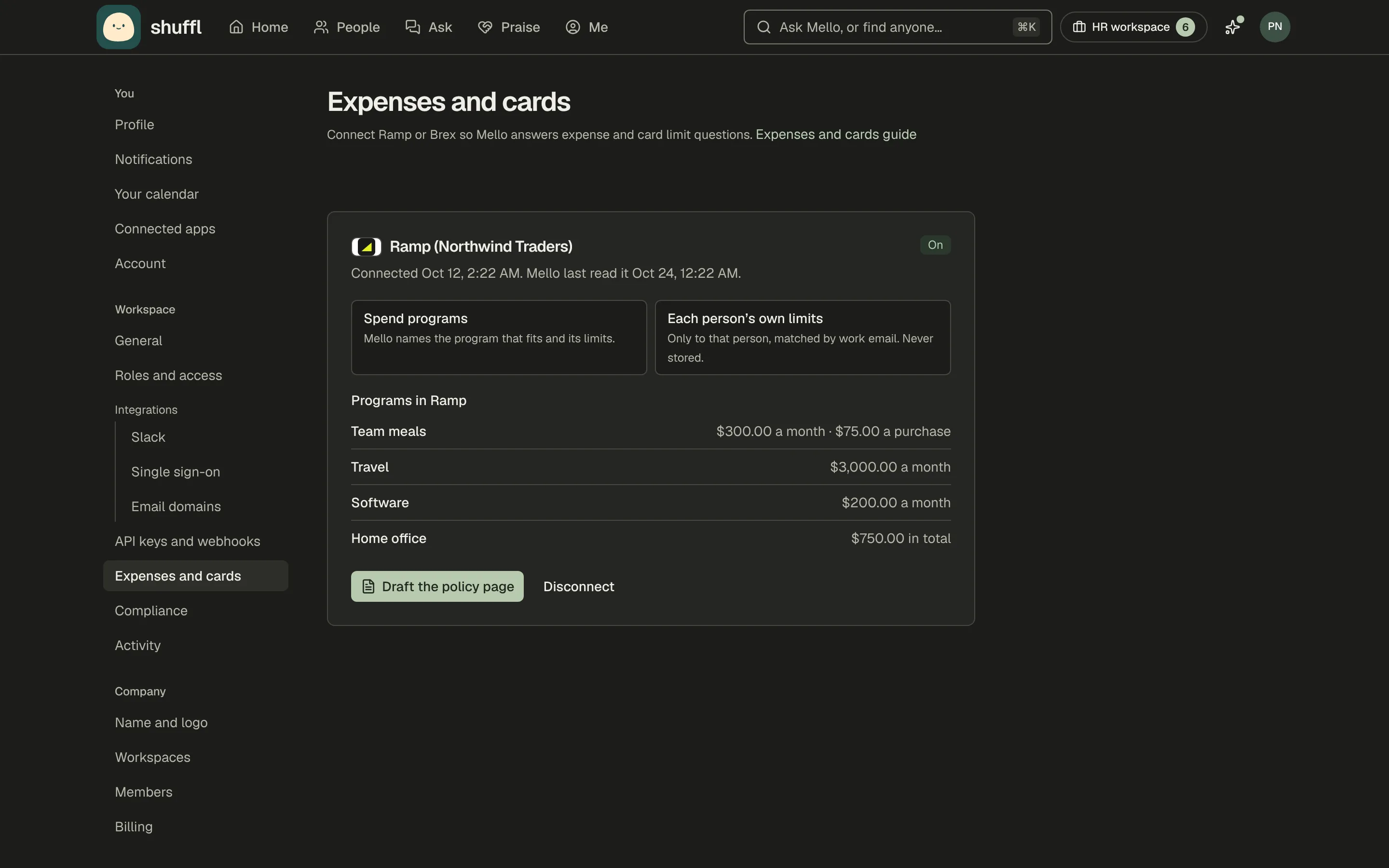
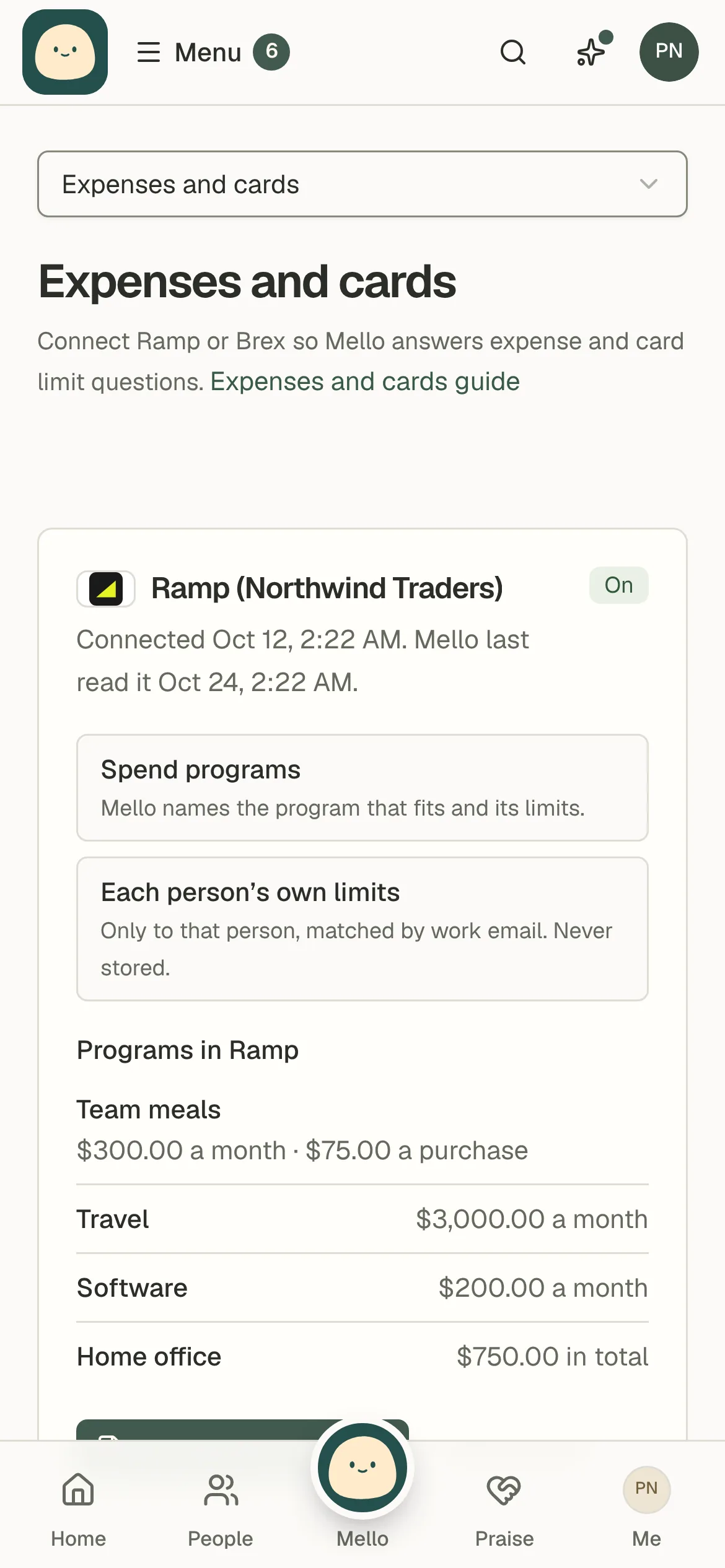
- In Shuffl, open Settings → Expenses and cards, choose Connect Ramp and paste them. Pick Sandbox for a Ramp demo account.
Ramp connects through a developer app you create in your own Ramp account, with the client credentials grant. It needs no marketplace listing. Shuffl asks only for read scopes.
Connect Brex
- In Brex, sign in as an account admin, open Developer and create a token.
- Give it read access to company, users, cards and budgets. Copy it; Brex shows it once.
- In Shuffl, open Settings → Expenses and cards, choose Connect Brex and paste the token.
Brex connects with a user token from your own Brex account. Budget programs supply the policy; each person’s cards supply their limits. A token without budget access still answers limits.
Draft the policy page
- Under the connection, choose Draft the policy page.
- Open the draft in Knowledge, add what the platform cannot say, such as receipts and who approves, then publish.
- When programs change, choose Redraft the policy page. Shuffl updates the same page as a new draft.
Mello answers best when your expense policy is a page in Knowledge. Draft the policy page writes one from your programs. It stays a draft until someone who manages Knowledge reviews it and publishes it to everyone.
Developers and Mello
The SDK, CLI, MCP and REST API carry the same reads and actions. spend.current and spend.programs need integrations:read; spend.draftPolicy and spend.disconnect need integrations:write.
spend.mine with self:read returns the signed-in person’s own cards. Connecting stays in Settings.