
How-to guide
Gifts
Send a gift for work anniversaries, birthdays, welcomes and praise through your Tremendous account, within budgets you set and only once someone approves it.
For Workspace owners and administrators
Have your agent do thisPaste the prompt into Claude Code, Cursor or another agent. It follows this guide over MCP and asks before it changes anything others will see.Show the promptHide the prompt
Help me with "Gifts" in my Shuffl workspace.

1. Read the guide: https://shuffl.ai/docs/markdown/gifts
2. Add Shuffl's MCP server: https://shuffl.ai/api/mcp
   Claude Code: claude mcp add --transport http shuffl https://shuffl.ai/api/mcp
   When the browser opens, choose my workspace and allow the access the guide needs.
3. Work through the steps in order: Connect Tremendous; Approve gifts. Do what you can over MCP and tell me which steps only I can do in the browser or in Slack.

Show me what you will change and who it affects, and wait for my yes before publishing, inviting or sending anything.
On this page
App links open your signed-in workspace. Check the selected workspace before making changes.
What it does
Shuffl drafts a gift for each occasion with a budget. An administrator approves it, and Shuffl orders it from your Tremendous account. The recipient gets a private link in Slack or email to choose a gift card, a charity or another reward.
Shuffl never holds the money: orders draw on your own Tremendous funding. People who opted out of celebrations, or have left, get no draft.
Occasions
- Work anniversary: drafted two weeks before the day.
- Birthday: drafted two weeks before, for people who shared their birthday.
- Welcome: drafted two weeks before a new hire’s start date.
- Praise reward: added to a praise by an administrator.
Connect Tremendous
- In Tremendous, open Team settings → Developers and create an API key. Copy it; Tremendous shows it once.
- In Shuffl, open Celebrations → Gifts and choose Connect Tremendous. Paste the key and choose Connect. Shuffl uses your Tremendous balance and first campaign, named under Budgets.
- Under Budgets, set an amount for each occasion and turn on the ones you want. Add a monthly cap and a note if you like, then choose Save budgets.
- Send through Tremendous turns ordering on and off. Off, Shuffl still drafts gifts but orders nothing.
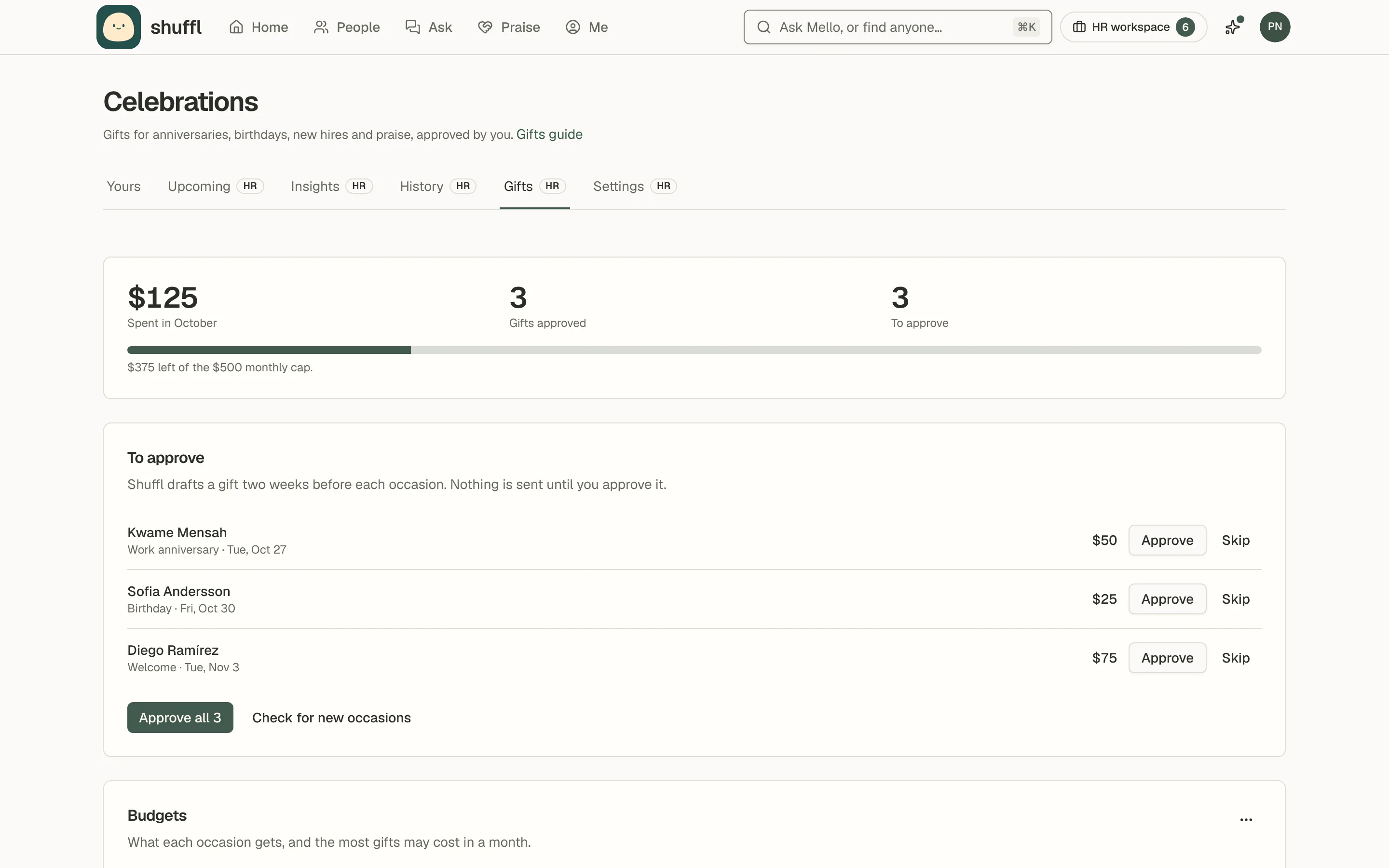
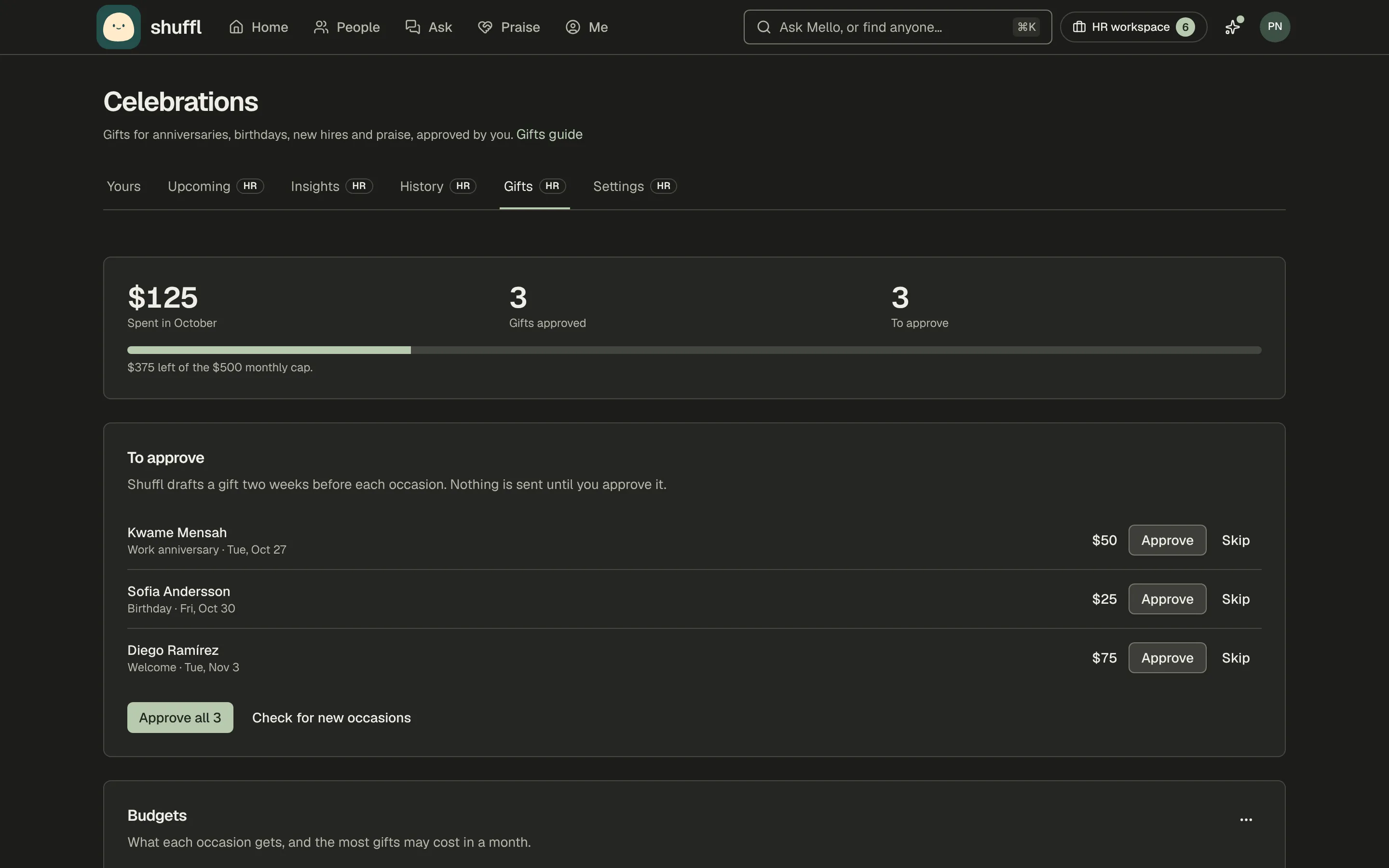
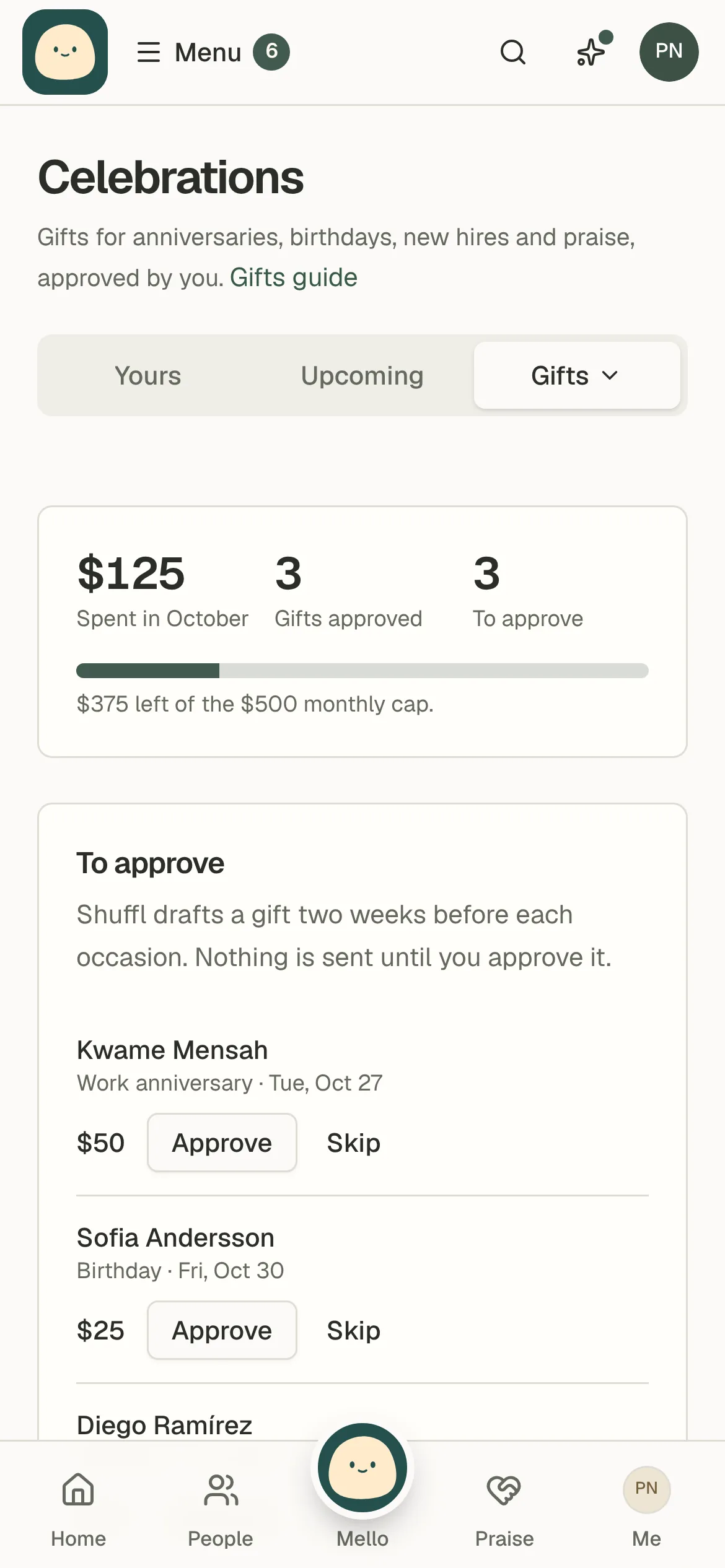
Approve gifts
- Open Celebrations → Gifts. To approve lists the gifts drafted for the next two weeks.
- Choose Approve on a gift, or Approve all. Shuffl orders each one and sends the person their link.
- Choose Skip for a gift you don’t want to send. It stays in History as skipped.
- To reward a praise, open its “…” menu in Praise and choose to send that person a gift. The draft appears under To approve.
Each draft names the person, the occasion, the day and the amount. You can’t approve a gift for yourself, and a gift that would go over the monthly cap waits until you raise the cap or the month turns.
Ordered once, seen by one person
Every gift has one order id, so a retry or a second click never orders twice. Tremendous refuses a second order with the same id too.
The link goes only to the recipient and Shuffl doesn’t keep it. If Tremendous holds an order for review, History shows Waiting until it clears. A refused order shows Not sent with the reason, and nothing is charged.
ShufflAPP
Developers and Mello
The SDK, CLI, MCP and REST API carry the same reads and actions: gifts.current and gifts.options with celebrations:read; gifts.save, gifts.draft, gifts.draftUpcoming, gifts.approve, gifts.approveMany, gifts.skip and gifts.disconnect with celebrations:write. Connecting stays in Celebrations. Mello approves or skips a gift as a card an administrator confirms.